
1. Introduction
This manual provides detailed instructions for the installation, operation, and maintenance of your Surakey Android 13 Car Player. This head unit features a 7-inch retractable capacitive screen, Android 13 operating system, Bluetooth 5.1, WiFi, wired and wireless CarPlay/Android Auto, RDS radio, and GPS navigation. Please read this manual thoroughly before use to ensure proper functionality and safety.

Figure 1.1: Surakey Android 13 Car Player and its accessories, including wiring harness, GPS antenna, mounting keys, and user manual.
2. Setup & Installation
2.1. General Installation Notes
- The compact 178x53mm install size fits most dashboards.
- Ensure the vehicle operates on 12-14.4V.
- Wiring protection is integrated to prevent electrical issues.
- The rugged 188x58mm case and 160mm depth ensure a secure, vibration-resistant fit.
- Before installation, verify compatibility with your vehicle model. Provide the correct wiring diagram to confirm if it matches your vehicle.
- Depending on the vehicle's power cords and protocols, ensure you purchase compatible power cords and protocols.
2.2. Product Wiring Diagram
Refer to the following diagram for connecting the main unit to your vehicle's electrical system and peripherals. Ensure all connections are secure and correctly matched to prevent damage.

Figure 2.1: Detailed wiring diagram showing connections for power, speakers, steering wheel control, and other inputs/outputs. This diagram illustrates the rear panel connections including USB ports and camera input.
2.3. Reversing Camera Installation
For safe parking, connect a reversing camera. The system supports OEM CVBS 720P backup cameras. If your OEM camera is incompatible, use the included backup camera. The reversing input must be plugged in even if the camera is not used.

Figure 2.2: Wiring diagram for the reversing camera. Connect the camera's positive wire to the car's reversing light positive, and the negative wire to the car's reversing light negative. The reversing trigger is controlled by the stereo and does not require a separate connection. The white plug must be connected to the main device for Bluetooth and WiFi signals.
Reversing Camera Wiring Steps:
- Connect the camera's positive wire to the positive pole of the car's reversing light.
- Connect the camera's negative wire to the negative pole of the car's reversing light.
- The reversing trigger is controlled by the stereo and does not require a separate connection.
- Ensure the white plug is connected to the main device for proper Bluetooth and WiFi signal reception.
Backup Camera Format and Resolution Setup:
To configure the backup camera settings, follow these steps:
- Tap the settings icon on the main screen to open the settings menu.
- Select Factory Settings, then enter the password 8888.
- Navigate to Protocol Parameter Settings.
- Select Reverse video resolution settings.
- Choose the correct setting based on your camera type. For OEM cameras, select NTSC/PAL. For the included camera, keep the default AHD/25.


Figure 2.3: Screenshots illustrating the steps to access and adjust backup camera resolution settings within the system menu.
3. Operating Instructions
3.1. Android 13 System Overview
The head unit runs on Android 13 with 2GB RAM and 64GB ROM, providing a smooth user experience for various applications, navigation, and media playback. The 7-inch retractable capacitive screen offers a 1024x600 resolution with colorful LED backlighting and an anti-glare display for clear viewing.

Figure 3.1: The main interface of the Android 13 system, showing various application icons and system information.
Video 3.1: A short demonstration of the Android 13 system interface, showing navigation and interaction with the display.
3.2. Bluetooth Connectivity
The unit features Bluetooth 5.1 for stable connections, enabling hands-free calls and music streaming. Pair your smartphone to access your address book, make calls, and play audio wirelessly.

Figure 3.2: Screenshot of the Bluetooth interface, showing options for music, address book, caller ID, and voice calls.
3.3. WiFi and Internet Access
Connect to WiFi (2.4/5GHz) for fast internet access. This allows you to download apps, stream online content, and use online navigation services. You can also connect to mobile hotspots.

Figure 3.3: Display showing the WiFi internet functionality, allowing connection to mobile hotspots and downloading various online applications.

Figure 3.4: Illustration of WiFi connectivity, highlighting the ability to use online maps and play music via Bluetooth from a phone.
3.4. CarPlay and Android Auto
The unit supports both wired and wireless CarPlay and Android Auto, providing seamless smartphone integration. Access navigation, music, messages, and voice assistants directly from your car's display.
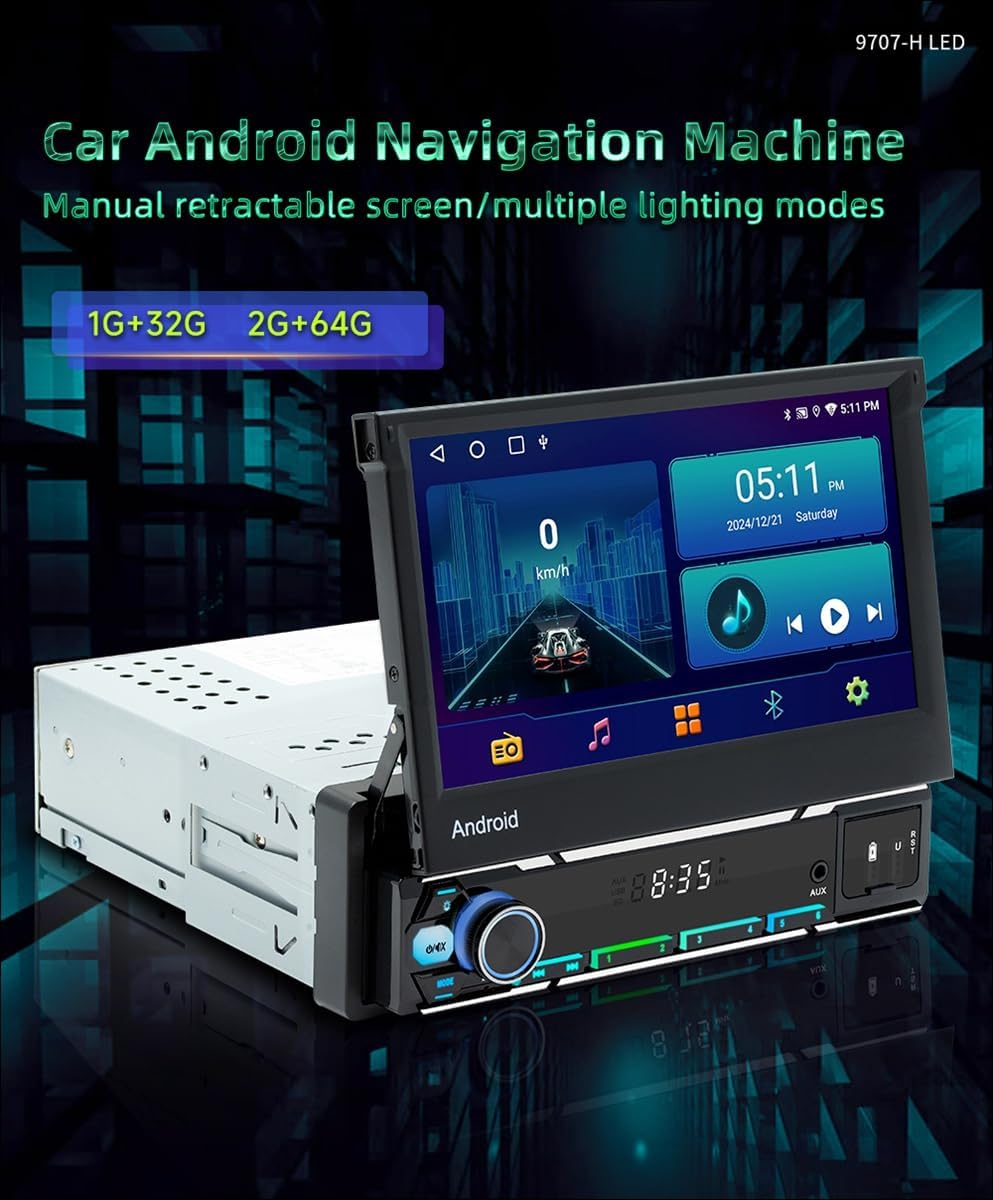
Figure 3.5: The interface showing CarPlay and Android Auto icons, indicating support for both wired and wireless connections.

Figure 3.6: Visual representation of wireless CarPlay and Android Auto functionality, including voice command interaction for navigation and music.
3.5. MirrorLink Functionality
MirrorLink allows for wired and wireless screen projection from both Android and Apple phones, displaying your phone's content directly on the head unit's screen.

Figure 3.7: Display illustrating MirrorLink capabilities for both Android and Apple devices, showing screen mirroring via wired and wireless connections.

Figure 3.8: An image demonstrating the Mirror Link function, where a smartphone screen is mirrored onto the car stereo display, showing a racing car video.
3.6. GPS Navigation
The unit supports GPS navigation (Beidou/GPS+GLONASS). You can download third-party map software from the Play Store for online and offline navigation.

Figure 3.9: The GPS navigation screen showing a map with route information and various navigation app icons.

Figure 3.10: Illustration of GPS navigation, emphasizing the ability to purchase and use offline maps from the Play Store, such as Google Maps.
3.7. RDS Radio
The built-in RDS radio keeps you updated with traffic information and allows access to various FM/AM channels. External USB DAB box compatibility expands your radio options.

Figure 3.11: Screenshot of the FM radio interface, showing frequency tuning and RDS information display.
3.8. Steering Wheel Control (SWC)
Personalize your driving experience with steering wheel key learning. This feature allows you to map functions to your steering wheel buttons for convenient control of music, radio channels, and volume.

Figure 3.12: Image showing the Steering Wheel Control (SWC) learning interface, where users can assign functions to their car's steering wheel buttons.
3.9. Split-screen Display
The split-screen feature allows you to experience multiple functions simultaneously, such as navigation and music playback, enhancing efficiency and convenience.

Figure 3.13: An image demonstrating the split-screen display, showing a navigation map on one side and a music player on the other.
3.10. DSP Function
The Digital Signal Processor (DSP) function provides high-quality audio and personalized sound settings. This allows for optimized soundstage and enhanced in-car audio performance with various equalizer presets.

Figure 3.14: Screenshot of the DSP function interface, displaying an equalizer with various audio presets like Metal, Subwoofer, Vocal, Rock, and Jazz.
4. Maintenance
- Keep the screen clean using a soft, dry cloth. Avoid abrasive cleaners.
- Ensure proper ventilation around the unit to prevent overheating.
- Regularly check wiring connections for any signs of wear or looseness.
- Update the Android system and applications periodically for optimal performance and security.
5. Troubleshooting
5.1. Common Issues and Solutions
- No Power: Check all power connections, including the ACC and B+ wires. Ensure the vehicle's battery is charged.
- No Sound: Verify speaker connections. Check volume settings and ensure the mute function is not active. Confirm audio output settings.
- Backup Camera Not Displaying:
- Ensure the camera is correctly wired to the reversing light and the video input.
- Verify the camera's compatibility (supports OEM CVBS 720P).
- Check the "Reverse video resolution settings" in Factory Settings (password 8888) and adjust if necessary (NTSC/PAL for OEM, AHD/25 for included camera).
- Ensure the white plug is connected to the main device for proper signal.
- GPS Signal Loss: Ensure the GPS antenna is properly connected and placed in an area with a clear view of the sky.
- Bluetooth/WiFi Connection Issues: Ensure the white plug is connected to the main device. Check device pairing and network settings.
- Steering Wheel Controls Not Working: Perform the "Steering Wheel Key Learning" procedure in the settings menu. Ensure the KEY1/KEY2 wires are correctly connected.
6. Specifications
| Feature | Detail |
|---|---|
| Model | B0G2Y5TTPK |
| Operating System | Android 13 |
| RAM | 2GB |
| ROM | 64GB |
| Screen Size | 7-inch retractable capacitive screen |
| Resolution | 1024x600 |
| Bluetooth Version | 5.1 |
| WiFi | 2.4/5GHz |
| CarPlay/Android Auto | Wired and Wireless |
| GPS | Beidou/GPS+GLONASS |
| Power Output | 60W x 4 |
| Operating Voltage | 12-14.4V |
| Operating Temperature | -10°C to 60°C |
| Install Size | 178x53mm (compact), 188x58mm (rugged case) |
| Item Weight | 1.6 ounces |
| ASIN | B0G2Y5TTPK |
7. Warranty & Support
For technical assistance, warranty claims, or any questions regarding your Surakey Android 13 Car Player, please contact our customer support team.
- Customer Support Email: Fuyatongus@outlook.com
- Return Policy: 30-day refund/replacement policy.

Figure 7.1: Image showing customer support contact details, including the email address for inquiries.