
1. Introduction
This manual provides comprehensive instructions for the installation, operation, and maintenance of your new Alikali 9.7-inch Car Stereo. This multimedia system is specifically designed for Ford F150 models manufactured between 2009 and 2014, offering advanced features to enhance your driving experience. Please read this manual thoroughly before installation and use to ensure proper functionality and safety.
Compatibility: This unit is compatible with Ford F150 models from 2009 to 2014. For accurate matching, it is recommended to verify your car model and production year. If you have any questions regarding compatibility or require additional wiring harnesses/adapters, please contact customer service with clear images of the plugs on the back of your center console and on-board main unit.
2. Product Components
The Alikali 9.7-inch Car Stereo package includes the following main components:
- 9.7-inch 2.5D tempered glass touchscreen car stereo (1024x768 resolution, 1080P HD)
- Power amplifier chip: TDA7388
- Radio chip: MT6625
- Built-in WIFI, Bluetooth, GPS, FM/RDS radio
- Double USB interfaces
- External microphone jack
- Rearview camera (CVBS) support
- Video output support
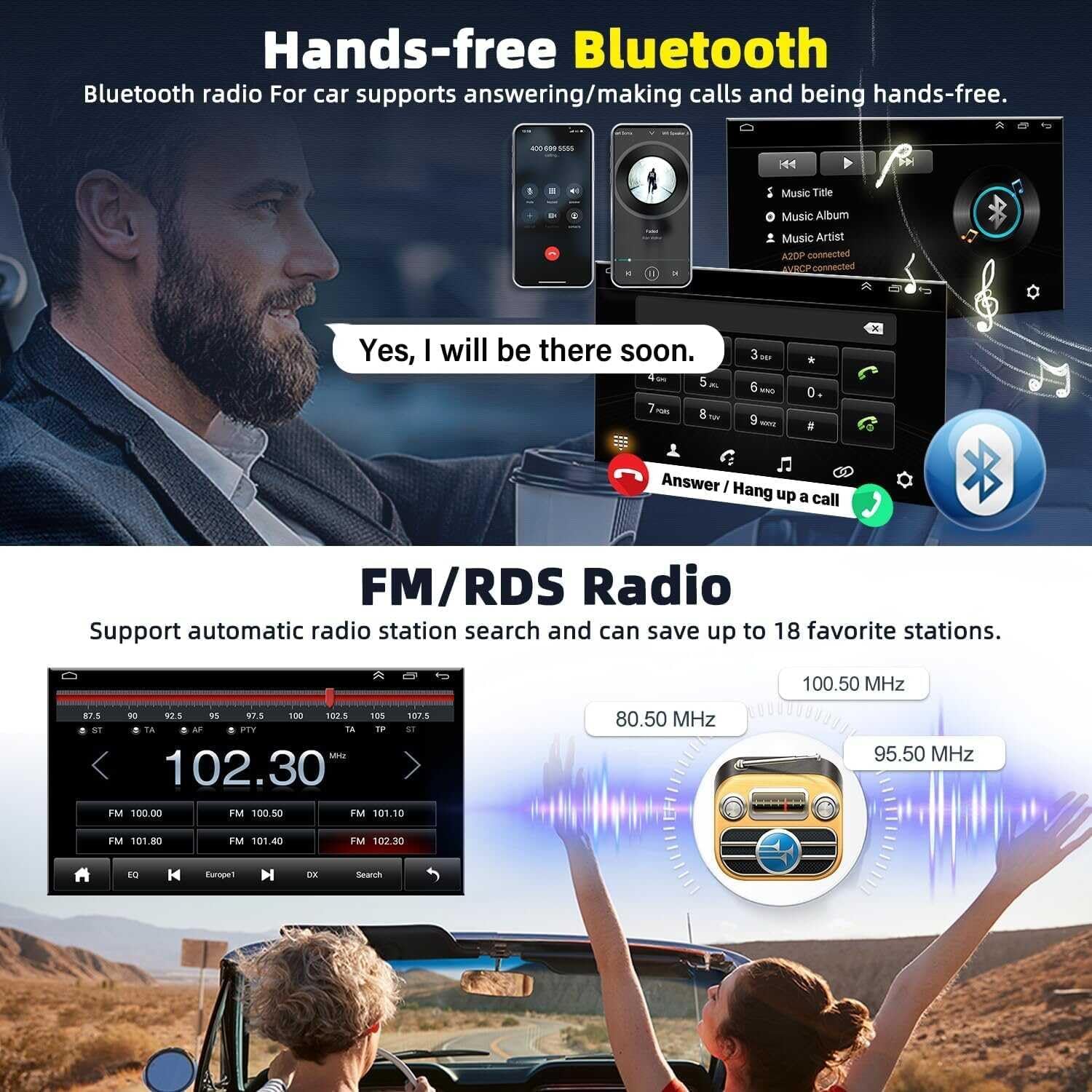
Figure 2.1: Main unit of the Alikali 9.7-inch Car Stereo with various cables and accessories.
3. Specifications
| Feature | Specification |
|---|---|
| Screen Size | 9.7 inches |
| Screen Type | 2.5D Tempered Glass Touchscreen |
| Resolution | 1024x768 (1080P HD) |
| Operating System | Android 15 |
| Chipset | 8227L-DEMO |
| RAM | 2GB |
| ROM | 32GB |
| Power Output | 4x45W |
| Connectivity | WIFI, Bluetooth, GPS, FM/RDS |
| Input/Output | Double USB interfaces, External microphone jack, Rearview camera (CVBS), Video output |
| Working Temperature | -20℃ to 75℃ |
| Control Method | Touch |
| Product Dimensions | 20.08 x 5.12 x 11.81 inches |
| Item Weight | 4.63 pounds |
4. Setup & Installation
Proper installation is crucial for the optimal performance of your car stereo. It is recommended that installation be performed by a qualified professional. Always disconnect the vehicle's battery before beginning any electrical work.
4.1 Pre-Installation Checks
- Confirm your vehicle is a Ford F150 model from 2009-2014.
- Gather all necessary tools and accessories.
- Review the wiring diagram provided with your unit and this manual.
4.2 Wiring Connections
Connect the stereo to your car's power and signal ports according to the wiring diagram. Ensure all connections are secure to prevent intermittent issues.

Figure 4.1: The Alikali 9.7-inch Car Stereo seamlessly integrated into a Ford F150 dashboard.
Video 4.1: This video provides a visual reference for the wiring installation process of the Alikali car stereo. It demonstrates how to connect various cables, including the radio adapter, GPS antenna, camera input, USB cables, RCA input/output, and power cable. Please note that this video is for reference only; always consult the detailed wiring diagram in your instruction manual for specific connections relevant to your vehicle model.
4.3 Rearview Camera Connection
Connect the rearview camera to the CVBS reversing input. The screen will automatically display the reversing image when the vehicle is shifted into reverse gear.

Figure 4.2: The car stereo unit displaying a clear image from a connected backup camera, illustrating the rearview functionality.
4.4 Steering Wheel Control (SWC) Setup
Sync your steering wheel controls via the stereo settings menu. This allows you to operate key functions without taking your hands off the wheel.

Figure 4.3: Visual representation of how steering wheel controls can be configured to interact with the car stereo system.
4.5 Date and Time Setting
Set the date and time manually or synchronize it via network/GPS settings within the stereo's interface.
5. Operating Instructions
5.1 Touch Screen Operation
The 9.7-inch 2.5D tempered glass screen is fully touch-sensitive. Navigate through menus, select applications, and control functions by tapping, swiping, and pinching gestures.

Figure 5.1: A hand demonstrating touch screen interaction with the car radio interface.
5.2 Bluetooth Connection
To connect your mobile device via Bluetooth:
- On the car stereo, navigate to the Bluetooth settings.
- Enable Bluetooth on your mobile device and search for available devices.
- Select "CarBT" from the list on your phone.
- Enter the PIN "0000" when prompted.
- Once connected, "mobile phone audio" and "media audio" will be displayed. If not, restart the Bluetooth connection.
Video 5.1: This video demonstrates the process of connecting your mobile device to the car stereo via Bluetooth and establishing a ZLINK connection for CarPlay or Android Auto. It also shows how to manually connect to WiFi if the initial connection is unsuccessful.
5.3 Wireless CarPlay & Android Auto
The stereo supports wireless/wired CarPlay (for iPhone via ZLINK APP) and Android Auto (for Android devices, requires an APP). These features allow voice control for navigation, calls, and music.
- Ensure your phone's Bluetooth is connected to the car stereo.
- Open the ZLINK application on the car stereo.
- Follow the on-screen prompts to connect your iPhone for CarPlay or Android device for Android Auto.
- If the connection is not successful, manually connect to the vehicle's WiFi hotspot (if available) and then retry ZLINK.

Figure 5.2: The car stereo displaying both Apple CarPlay and Android Auto interfaces, highlighting voice control and live navigation features.
5.4 GPS Navigation & WiFi Function
The unit features built-in GPS for offline maps and supports WiFi for online navigation (e.g., Google Maps) and app downloads. Connect to a WiFi hotspot to access online features.

Figure 5.3: The car stereo displaying GPS navigation with various online applications accessible via WiFi.
5.5 FM/RDS Radio
The built-in FM/RDS radio allows you to listen to your favorite stations. It supports automatic station search and can save up to 18 preset stations.

Figure 5.4: The car stereo displaying the FM/RDS radio interface with frequency tuning and station presets.
5.6 Digital Sound Processor (DSP)
The integrated DSP provides high-fidelity audio processing, allowing for enhanced sound customization and quality.
6. Maintenance
To ensure the longevity and optimal performance of your Alikali car stereo, follow these maintenance guidelines:
- Cleaning: Use a soft, dry cloth to clean the touchscreen and exterior surfaces. Avoid abrasive cleaners or solvents that could damage the screen or finish.
- Temperature: Operate the unit within the specified working temperature range of -20℃ to 75℃. Extreme temperatures can affect performance and lifespan.
- Software Updates: Periodically check for software updates to ensure the system has the latest features and bug fixes. Follow the instructions provided with the update package carefully.
- Cable Management: Ensure all cables are securely connected and properly routed to prevent damage from vibration or movement.
7. Troubleshooting
If you encounter issues with your car stereo, refer to the following common troubleshooting steps:
- No Power: Check all power connections and the vehicle's fuse box. Ensure the power cable is securely plugged into the unit.
- No Sound: Verify speaker connections. Check the volume settings on the stereo and your connected device. Ensure the correct audio source is selected.
- Bluetooth Connection Issues: Ensure Bluetooth is enabled on both the stereo and your mobile device. Try restarting Bluetooth on both devices. If the issue persists, delete the device record from your phone and the stereo, then attempt to pair again.
- CarPlay/Android Auto Not Connecting: Confirm Bluetooth is connected. Ensure the ZLINK app is open on the stereo. If using a wired connection, check the USB cable. If using wireless, ensure WiFi hotspot is active and connected.
- GPS Signal Loss: Ensure the GPS antenna is properly installed and has a clear view of the sky. Check the GPS settings in the stereo.
- Rearview Camera Not Displaying: Verify the CVBS reversing input connection. Ensure the camera is receiving power and the reversing light wire is correctly connected.
- Factory Settings Password: The factory setting keyword is typically 8888 or 3368.
For persistent issues or problems not covered here, please contact Alikali customer service for professional guidance.
8. Warranty & Support
Alikali is committed to providing a satisfactory shopping experience. If you encounter any installation or functional issues with your car stereo, our customer service team is available to assist you.
- Customer Service: For support, please reach out to our customer service team. Provide your product details and a description of the issue for efficient assistance.
- Compatibility Assistance: Before ordering, you can contact us with your car details or plug images for compatibility confirmation. Our team will help verify compatibility and advise if additional wiring harnesses or adapters are needed.