
SENGBIRCH Keyboard Case for Galaxy Tab S10 Lite/S10 FE/S9 FE/S9
SENGBIRCH Backlit Keyboard Case User Manual
For Samsung Galaxy Tab S10 Lite, S10 FE, S9 FE (10.9 Inch) & S9 (11 Inch)
1. Introduction
This manual provides instructions for the SENGBIRCH Backlit Keyboard Case. This product is designed to enhance the functionality and protection of your compatible Samsung Galaxy tablet, offering a comfortable typing experience and versatile viewing angles.
1.1 Compatibility
This keyboard case is compatible with the following Samsung Galaxy Tab models:
- Samsung Galaxy Tab S10 Lite 5G 10.9 inch (Model: SM-X400/X406B) 2025 Release
- Samsung Galaxy Tab S10 FE 5G 10.9 inch (Model: SM-X520/X526B/X528U) 2025 Release
- Samsung Galaxy Tab S9 FE 5G 10.9 inch (Model: SM-X510/X516B/X518U)
- Samsung Galaxy Tab S9 11 inch (Model: SM-X710/X716B/X718U) 2023 Release
Please verify your tablet model number before use to ensure proper fit and function.

Figure 1.1: Compatible Tablet Models. This image illustrates the various Samsung Galaxy Tab models that are compatible with this keyboard case, including the S10 Lite, S10 FE, S9 FE (all 10.9 inches), and S9 (11 inches).
2. Package Contents
Ensure all items are present in the package:
- 1 x Magnetic Case for Samsung Galaxy Tab
- 1 x Separate Keyboard for Samsung Galaxy Tab
- 1 x USB Cable (for charging the keyboard)
- 1 x User Manual (this document)
Note: Tablet and S Pen are NOT included.
3. Setup Instructions
3.1 Installing the Tablet into the Case
- Gently align your Samsung Galaxy Tab with the case.
- Press the tablet firmly into the protective shell until it is securely seated. Ensure all cutouts for ports, buttons, and cameras are correctly aligned.
3.2 Charging the Keyboard
Before initial use, fully charge the keyboard. Connect the provided USB cable to the keyboard's Type-C port and a power source. The charging indicator light will show charging status.
- Charging Time: Approximately 2-3 hours for a full charge.

Figure 3.1: Keyboard Charging Port. This image displays the Type-C charging port on the keyboard and provides information on charging time and working time.
3.3 Connecting the Keyboard via Bluetooth
Follow these steps to pair your keyboard with your Samsung Galaxy Tab:
- Ensure the keyboard is fully charged and powered on. The power switch is typically located on the side or top edge of the keyboard.
- Press the Fn + C keys simultaneously on the keyboard. The Bluetooth indicator light will start blinking, indicating it is in pairing mode.
- On your Samsung Galaxy Tab, go to Settings > Connected devices > Bluetooth and turn Bluetooth ON.
- Your tablet will search for available devices. Locate and select "Bluetooth Keyboard" from the list.
- Once connected, the Bluetooth indicator light on the keyboard will stop blinking and remain solid or turn off, depending on the model.
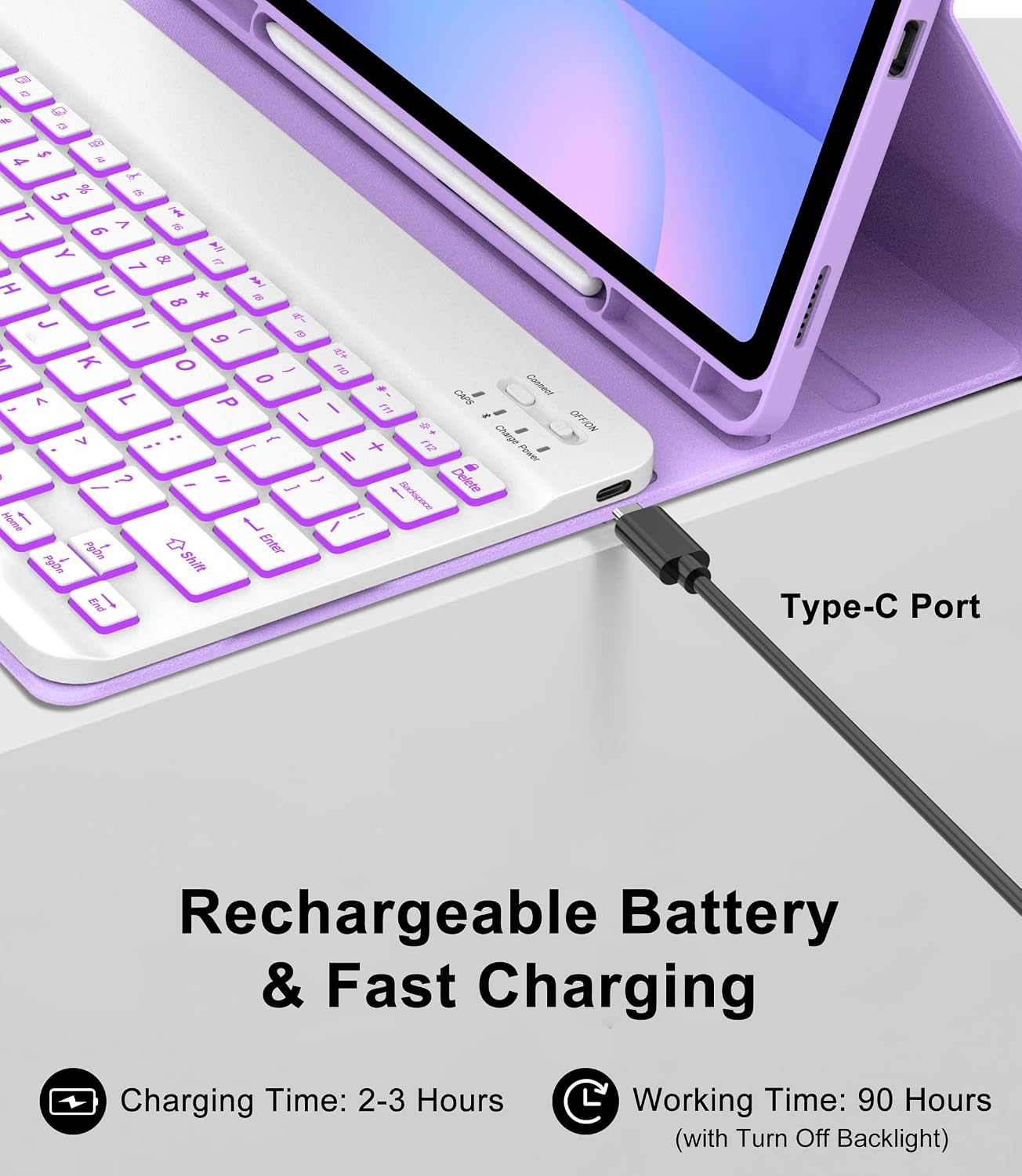
Figure 3.2: Detachable Keyboard and Features. This image highlights the magnetic detachment of the keyboard, auto sleep/wake functionality, built-in pen holder, and heat release design.
4. Operating Instructions
4.1 Detachable Magnetic Keyboard
The keyboard is magnetically attached to the case, allowing for easy detachment when not needed. This feature enables seamless switching between tablet and laptop modes.
4.2 Backlight Function
The keyboard features 7 colors of backlighting and 3 adjustable brightness levels.
- To change backlight color: Press the RGB key (often combined with Fn).
- To adjust brightness: Press the Brightness key (often combined with Fn).

Figure 4.1: Backlit Keyboard. This image showcases the keyboard with its 7-color backlight options and 3-level brightness adjustment.
4.3 Pen Holder and Charging Support
The case includes a dedicated slot for your S Pen, ensuring it is securely stored and readily accessible. The design also supports S Pen charging while docked.

Figure 4.2: Pen Storage and Charging. This image illustrates the integrated pen slot and its compatibility with S Pen charging.
4.4 Multiple Viewing Angles
The case features 3 grooves that allow you to adjust the tablet's viewing angle for optimal comfort during typing, reading, or watching videos.

Figure 4.3: Multi-Angle Viewing. This image demonstrates the different adjustable viewing angles the case offers.
4.5 Auto Wake/Sleep Function
Closing the case will automatically put your tablet to sleep, and opening it will wake it up. This feature helps conserve battery life.
4.6 Shortcut Keys
The keyboard includes a row of shortcut keys for quick access to media controls (next, back, pause, volume, mute) and other common functions, enhancing productivity.
5. Maintenance
5.1 Cleaning the Case and Keyboard
- To clean the case, wipe it gently with a soft, damp cloth. Avoid harsh chemicals or abrasive cleaners.
- For the keyboard, use a soft, dry cloth. For stubborn dirt, a slightly damp cloth can be used, ensuring no liquid enters the keys or ports.
- Ensure the keyboard is powered off before cleaning.
5.2 Battery Care
- To prolong battery life, avoid fully discharging the keyboard frequently.
- Store the keyboard in a cool, dry place when not in use for extended periods.
- If the keyboard will not be used for a long time, charge it to about 50% every few months.
6. Troubleshooting
| Problem | Possible Cause | Solution |
|---|---|---|
| Keyboard does not turn on. | Low battery. | Charge the keyboard for 2-3 hours using the provided USB cable. |
| Keyboard does not connect to tablet. | Bluetooth not enabled on tablet or keyboard. Keyboard not in pairing mode. Tablet already connected to another Bluetooth device. |
|
| Keys are not responding. | Low battery. Connection issue. |
|
| Backlight not working. | Backlight turned off or low battery. |
|
7. Specifications
| Feature | Detail |
|---|---|
| Brand | SENGBIRCH |
| Connectivity Technology | Bluetooth, USB-C |
| Keyboard Description | Multi-Functional, Backlight, Shortcut keys, Detachable |
| Special Features | Adjustable Viewing Angles, Backlit Bluetooth Keyboard, Built-in Pen Holder, Hotkeys and Media Keys, Portable and Lightweight |
| Keyboard Backlighting Color Support | RGB (7 Colors) |
| Material | Acrylonitrile Butadiene Styrene, Polyurethane (PU) |
| Power Source | Battery Powered |
| Keyboard Layout | QWERTY |
| Compatible Operating System | Android |
| Charging Time | 2-3 Hours |
| Working Time (without backlight) | 90 Hours |
| Standby Time | 90 Days |
8. Warranty and Support
8.1 Product Warranty
This SENGBIRCH product comes with a 1-Year Warranty from the date of purchase. This warranty covers manufacturing defects and workmanship under normal use.
The warranty does not cover damage caused by misuse, accident, unauthorized modification, or external causes such as drops or spills.
8.2 Customer Support
For technical assistance, warranty claims, or any questions regarding your SENGBIRCH Backlit Keyboard Case, please contact our customer support team. Refer to the contact information provided on the product packaging or the official SENGBIRCH website.
Please have your purchase receipt and product model information ready when contacting support.
Ask a question about this manual
Ask about setup, troubleshooting, compatibility, parts, safety, or missing instructions. Manuals+ will review the question and use this page’s manual context to help answer it.