1. Introduction
This manual provides comprehensive instructions for the setup, operation, and maintenance of your YZ LED Electronic Scoreboard with Watch Control and Tripod. This portable digital scoreboard is designed for various sports, offering clear scorekeeping with multiple control options.
Key features include:
- Multi-sport scoring modes (Normal and Tennis).
- Watch control and remote control for convenient operation.
- Bright LED display with adjustable brightness for indoor and outdoor visibility.
- Portable design with multiple mounting options, including a tripod.

Image: The YZ LED Electronic Scoreboard is versatile for various sports activities.
2. What's in the Box
Please verify that all components are present in your package:
- Scoreboard x1
- Tripod x1
- Remote Control x1
- Watch Control x1
- User manual
- Charger/Type-C Cable
- Table Stand
- Accessories (screws, hooks)

Image: All items included in the YZ LED Electronic Scoreboard package.
Video: An unboxing demonstration of the YZ Scoreboard with Watch Control, showing all included components.
3. Setup
3.1 Powering the Scoreboard
The scoreboard can be powered by 3x 18650 button-top batteries (not included) or directly via the included Type-C cable and charger.
- Battery Installation: Open the battery compartment on the back of the scoreboard and insert three 18650 button-top batteries, ensuring correct polarity.
- External Power: Connect the Type-C cable to the scoreboard and the charger to a power outlet.

Image: The scoreboard's rear panel, highlighting the battery compartment and power connection.

Image: Detailed view of the power switch, battery slot, and USB-C port on the scoreboard.
3.2 Mounting Options
The scoreboard offers flexible mounting solutions:
- Table Stand: Attach the included table stand to the bottom of the scoreboard for stable placement on flat surfaces.
- Tripod Installation: The scoreboard can be mounted on the included tripod for adjustable height and positioning.
- Wall-Mounted: Use the provided hooks to hang the scoreboard on a wall.
- Net-Hanging: The hooks also allow for hanging the scoreboard on a tennis or volleyball net.

Image: Multiple ways to position the scoreboard for different game environments.

Image: The scoreboard displayed on its adjustable tripod, illustrating its compact size.
Video: A step-by-step guide on how to install the YZ Scoreboard onto its tripod.
4. Operating Instructions
4.1 Power On/Off
Locate the power switch on the side of the scoreboard to turn it on or off.
4.2 Switching Scoring Modes
The scoreboard supports two main scoring modes: Normal Mode and Tennis Mode. Use the 'Ball' button on the scoreboard's control panel or the remote to switch between modes.
- Normal Mode: Scores change from 1 to 99. Match score changes from 0-9.
- Tennis Mode: Scores change as 15, 30, 40. Match score automatically increments by 1.

Image: The scoreboard displaying scores in both Tennis Mode and Normal Mode.
4.3 Score Adjustment (Watch Control)
The watch controls allow for easy score adjustments for both Home and Guest teams.
- Press the '+' button to increase the score.
- Press the '-' button to decrease the score.
- Long press the 'Reset' button to reset the score for that team.
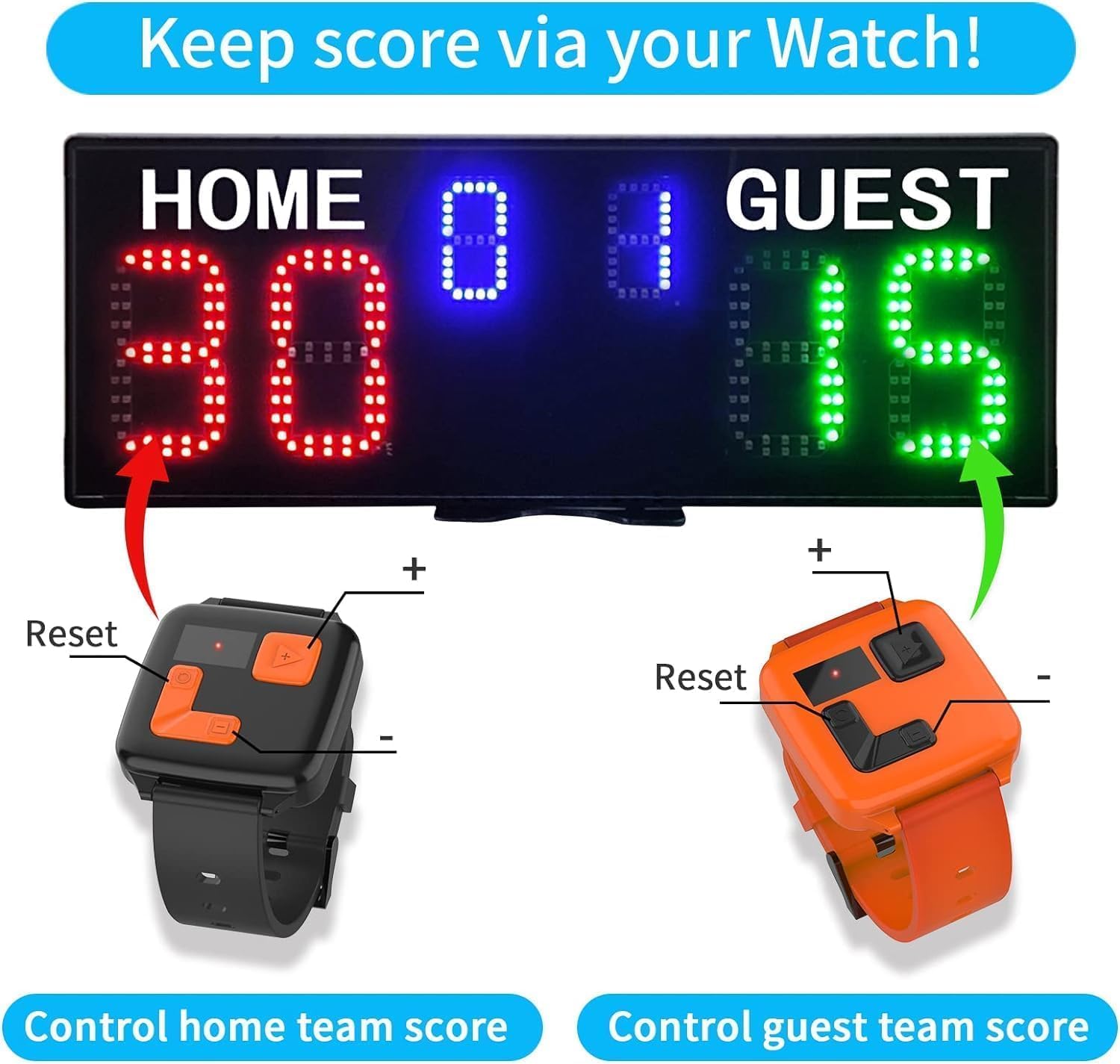
Image: Watch controls for managing Home and Guest scores.
Video: Demonstration of how to use the watch control for scoring in different modes.
Video: Various usage scenarios for the watch control with the scoreboard.
Video: Detailed explanation of the YZ Scoreboard's watch control functions.
4.4 Score Adjustment (Remote Control)
The remote control provides a wider range of functions, including score adjustment, mode switching, and settings control.
- Use the dedicated buttons for Home/Guest score adjustment (+/-).
- Use the 'EDIT' button to enter settings for mode changes (P-11 for Tennis, P-12 for Normal).
- The remote offers a 100ft super long control range.

Image: The remote control and watch controls for the scoreboard.
4.5 Brightness Adjustment
The scoreboard features 5 levels of brightness. Adjust the brightness using the remote control to suit indoor or outdoor conditions.

Image: Visual representation of the scoreboard's adjustable brightness settings.
4.6 Sound Control
The scoreboard includes an audible beep for score changes. This sound can be adjusted or muted via the remote control.

Image: Illustration of the scoreboard's sound adjustment feature.
5. Maintenance
- Cleaning: Use a soft, dry cloth to clean the scoreboard display and casing. Avoid abrasive cleaners or solvents.
- Storage: When not in use, store the scoreboard in a dry, cool place, away from direct sunlight and extreme temperatures. Remove batteries if storing for extended periods.
- Battery Care: Ensure 18650 batteries are charged regularly if using battery power. Replace remote control batteries (2x AAA, not included) as needed.
6. Troubleshooting
- Scoreboard not turning on: Check battery installation (polarity, charge level) or ensure the Type-C cable is securely connected to a power source. Verify the power switch is in the 'ON' position.
- Remote/Watch control not responding: Ensure the scoreboard is powered on. Check batteries in the remote (2x AAA) and watch controls. Ensure line of sight for remote control and that watch controls are within effective range.
- Display is dim: Adjust the brightness settings using the remote control. Ensure the scoreboard is not in direct, strong sunlight if outdoor visibility is an issue.
- Incorrect scoring mode: Use the 'EDIT' button on the remote or the 'Ball' button on the scoreboard to switch to the desired mode (P-11 for Tennis, P-12 for Normal).
7. Specifications
| Feature | Detail |
|---|---|
| Model Name | YZ-A30B6D+WB+TR |
| Item Package Dimensions (L x W x H) | 19.8 x 12.6 x 4.2 inches |
| Product Dimensions (L x W x H) | 18.9 x 7 x 0.9 inches |
| Package Weight | 2.45 Kilograms |
| Material | Plastic |
| Color | Black (Red & Green & Blue LED) |
| LED Brightness | 3000CD (5 adjustable levels) |
| Visual Range | 70ft |
| Control Range | 100ft (Remote Control) |
| Power Source | 3x 18650 batteries (not included) or plugged in via Type-C |
| Included Components | Scoreboard, Tripod, Remote Control, Watch Control, User manual |
8. Warranty & Support
8.1 Warranty Information
This product comes with a 1 Year Warranty from the date of purchase. This warranty covers manufacturing defects and malfunctions under normal use. It does not cover damage caused by misuse, accidents, unauthorized modifications, or improper installation.
8.2 Return Policy
The standard return policy allows for returns within 30 days for a refund or replacement, subject to the retailer's terms and conditions.
8.3 Customer Support
For any questions, technical assistance, or warranty claims, please contact the manufacturer or your retailer. Refer to the contact information provided in your product packaging or on the official YZ website.