
Cluvox 1200Mbps Dual Band
Cluvox 1200Mbps Dual Band WiFi Repeater User Manual
Model: 1200Mbps Dual Band
Product Overview
The Cluvox 1200Mbps Dual Band WiFi Repeater is designed to extend your existing wireless network coverage, eliminate Wi-Fi dead zones, and provide stable internet access throughout your home or office. It supports multiple operating modes and offers high-speed dual-band connectivity.

Image: Front view of the Cluvox 1200Mbps Dual Band WiFi Repeater, highlighting its four external antennas.
Key Features:
- Multiple Operating Modes: Supports Repeater, AP, and Router modes to suit various network requirements.
- Dual Band Connectivity: Provides 2.4GHz and 5GHz bands for a combined speed of up to 1200Mbps, ensuring fast and stable connections.
- Extended Coverage: Equipped with 4 external antennas, extending Wi-Fi coverage up to 12880 square feet, reducing signal loss through walls.
- Wide Compatibility: Compatible with Wi-Fi 4/5/6 standards (802.11n/g/b/ac/ax) and works with all standard routers and modems.
- Ethernet Ports: Includes 2 LAN ports for wired connections to devices like PCs, smart TVs, or gaming consoles.
- Easy Setup: One-click WPS setup or browser-based configuration for quick installation.
- Enhanced Security: Supports WPA2-PSK/WPA-PSK wireless security protocols to protect your network.
Setup Guide
1. Initial Power-On and Placement
Plug the Cluvox WiFi Repeater into an electrical outlet. Wait for the LED indicator to light up. For optimal performance, place the repeater approximately halfway between your main router and the area with weak Wi-Fi signal. Ensure there are minimal obstacles between the repeater and the router.
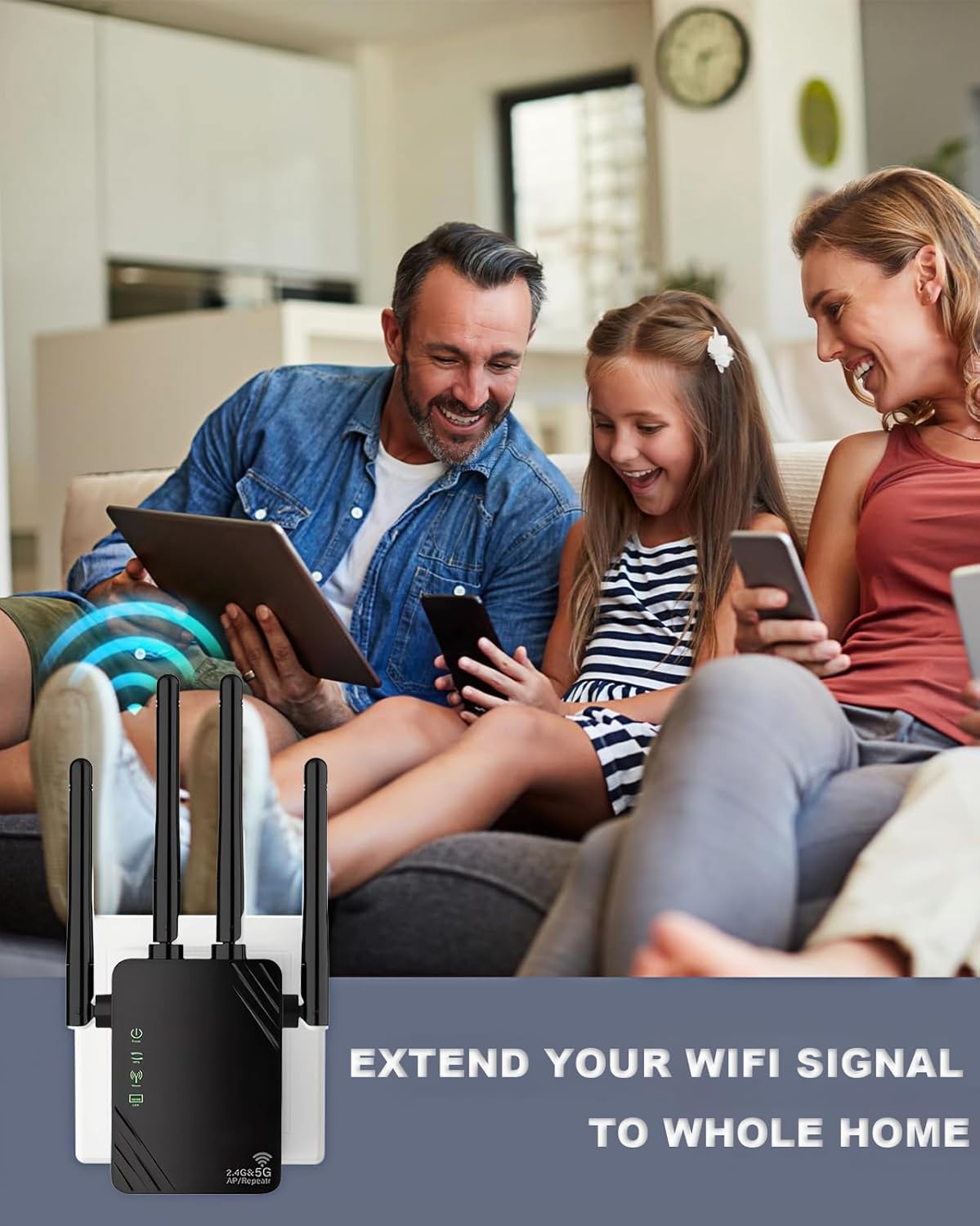
Image: Illustration demonstrating optimal placement of the WiFi repeater to extend signal coverage across multiple rooms in a home.
2. WPS (Wi-Fi Protected Setup) Configuration
WPS is the quickest way to set up your repeater if your router supports it.
- Plug the repeater into a power outlet near your main router.
- Press the WPS button on your main router.
- Within 2 minutes, press the WPS button on the Cluvox repeater.
- The LED indicator on the repeater will flash and then turn solid green, indicating a successful connection.

Image: Visual guide for WPS setup, showing the WPS buttons on both the router and the repeater.
WPS Setup Video Guide
Video: A detailed guide on how to set up the WiFi Repeater using the WPS method. This video demonstrates the steps for quick and easy configuration.
3. Web UI Configuration (Alternative Method)
If your router does not have a WPS button or if WPS setup fails, you can configure the repeater via a web browser.
- Plug the repeater into a power outlet.
- Connect your computer or smartphone to the repeater's default Wi-Fi network (e.g., "Cluvox_EXT").
- Open a web browser and enter the default IP address or URL (check the manual included in the box for specific details, usually
192.168.10.1orre.tenda.cn). - Follow the on-screen instructions to select your existing Wi-Fi network and enter its password.
- Set a new Wi-Fi name and password for the extended network, or choose to keep the same as your main router.
- Save the settings and wait for the repeater to restart.
Operating Modes
The Cluvox WiFi Repeater offers three main operating modes:

Image: Visual representation of the three available operating modes for the WiFi repeater.
1. Repeater Mode (Default)
Extends the Wi-Fi coverage of an existing wireless network. This is ideal for eliminating dead zones and improving signal strength in areas far from your main router.
2. AP Mode (Access Point)
Converts a wired network connection into a wireless one. Connect the repeater to your wired router or Ethernet port using an Ethernet cable, and it will broadcast a new Wi-Fi signal.
3. Router Mode
Functions as a basic router, creating a new private network from a modem connection. This mode is suitable if you only have a modem and need to create a Wi-Fi network.
Connecting Devices
Wireless Devices
After successful setup, your extended Wi-Fi network will appear with a new name (e.g., your original Wi-Fi name + "_EXT" or "_5G_EXT"). Connect your smartphones, tablets, laptops, smart TVs, security cameras, and printers to this new network using the same password as your main router.
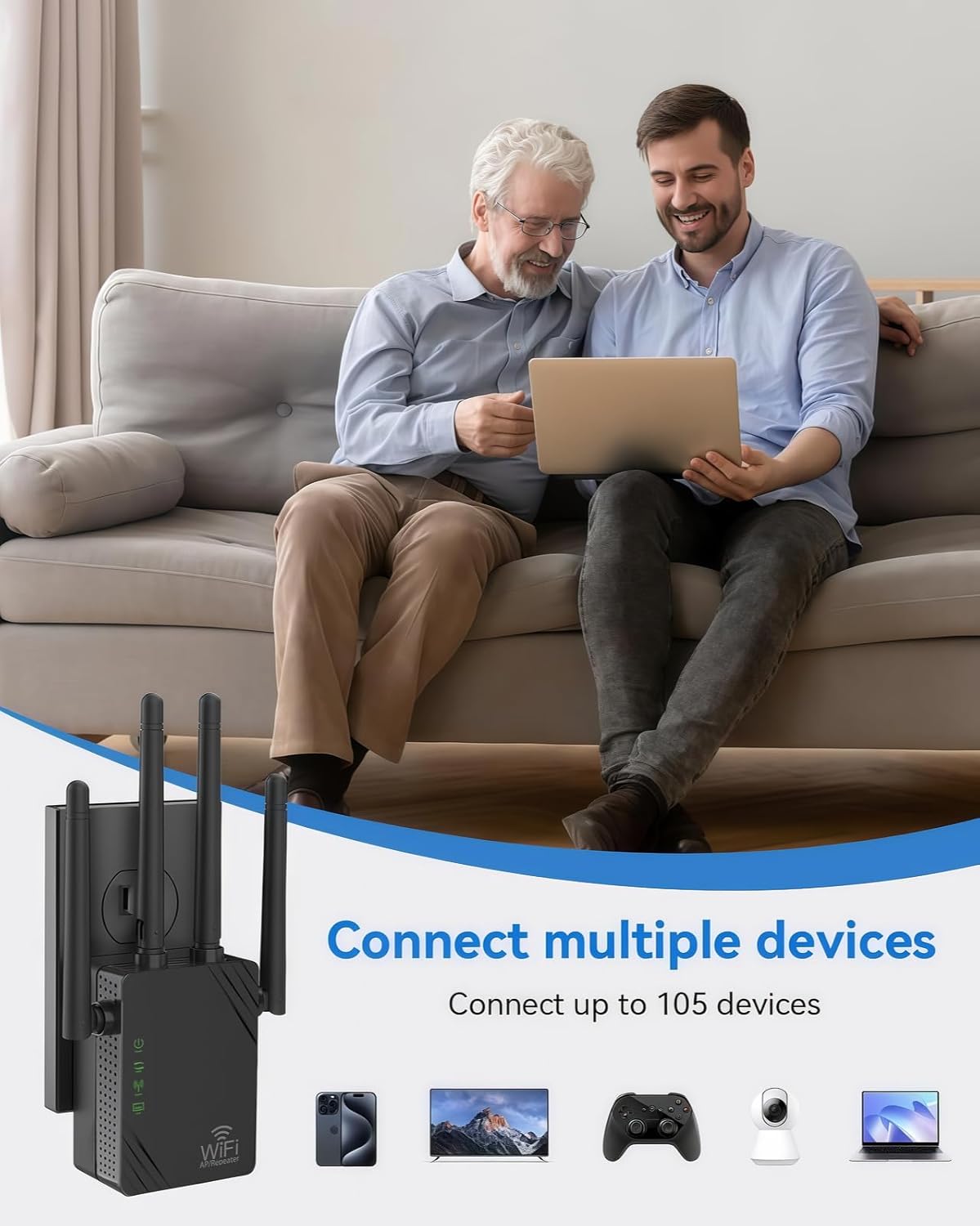
Image: Depiction of multiple devices connecting wirelessly to the extended network provided by the repeater.
Wired Devices
The repeater includes two LAN ports. You can connect wired devices such as desktop computers, smart TVs, or gaming consoles directly to these ports using an Ethernet cable for a stable and fast connection.
Specifications
- Brand: Cluvox
- Wireless Communication Standard: 802.11n, 2.4 GHz Radio Frequency, 5 GHz Radio Frequency
- Data Transfer Rate: 1200 Megabits per second
- Frequency Band Class: Dual Band (2.4 GHz, 5 GHz)
- Special Features: 360-degree coverage, 1-touch setup, LED indicator, Mesh Wi-Fi capability
- Compatible Devices: Routers, Smartphones, Tablets, Computers, Smart TVs, Security Cameras, Printers
- Color: Black
- What's in the Box: One 1200 Mbps WiFi Repeater and a manual
Troubleshooting
Repeater Stops Working or Indicator Light is Off:
This issue can occur due to several reasons:
- Too many routers in the network.
- The product has been operating continuously for too long.
- Interference from the router's signal source.
Solution: First, unplug the repeater. Wait for 3-5 minutes, then plug it back in. The repeater has a memory function and should automatically reconnect to the Wi-Fi and function normally. If it still does not work, a factory reset may be required.
Maintenance
To ensure the longevity and optimal performance of your Cluvox WiFi Repeater, consider the following maintenance tips:
- Keep it Clean: Regularly wipe the device with a soft, dry cloth to prevent dust buildup, which can affect performance.
- Ensure Ventilation: Do not block the ventilation holes on the device. Ensure it is placed in an area with good airflow to prevent overheating.
- Avoid Extreme Conditions: Do not expose the repeater to extreme temperatures, humidity, or direct sunlight.
- Firm Connection: Ensure the repeater is securely plugged into the power outlet.
Warranty and Support
For warranty information, please refer to the documentation included in your product packaging or contact Cluvox customer support. If you encounter any issues or have questions not covered in this manual, please reach out to our support team for assistance.
Contact Information: Please refer to the contact details provided with your product or visit the official Cluvox website for support.
Ask a question about this manual
Ask about setup, troubleshooting, compatibility, parts, safety, or missing instructions. Manuals+ will review the question and use this page’s manual context to help answer it.