
1. Introduction
This manual provides detailed instructions for the installation, operation, and maintenance of your Zomolither Android 15 Car Stereo. This unit is specifically designed for Nissan Versa Sedan models from 2015 to 2019. Please read this manual thoroughly before installation and use to ensure proper function and safety.
The car stereo features a 10.1-inch touchscreen display, 4GB RAM, 64GB ROM, wireless CarPlay, Android Auto, GPS navigation, Bluetooth 5.0, Wi-Fi connectivity, FM/RDS radio, and supports a backup camera.
2. Product Overview and Compatibility
The Zomolither Android 15 Car Stereo is an advanced infotainment system designed to integrate seamlessly into your Nissan Versa Sedan (2015-2019). It offers a range of features to enhance your driving experience.

Image: Compatibility and Installation Overview. This image shows the car stereo installed in a Nissan Versa Sedan dashboard. It also illustrates compatible and incompatible dashboard types for models before installation. Please note: This car radio is not suitable for vehicles equipped with advanced original car audio systems and large screens.
Key Features:
- Android 15 Operating System: Equipped with 4GB RAM and 64GB ROM for smooth operation.
- 10.1-inch Incell Touchscreen: 1280*720 resolution for vivid visuals and responsive touch.
- Wireless CarPlay & Android Auto: Seamless integration with your smartphone for calls, messages, music, and navigation.
- Mirror Link Function: Sync your phone's screen to the car stereo display.
- Built-in Bluetooth 5.0: For stable hands-free calling and high-quality music streaming.
- WIFI & GPS Navigation: Supports offline maps and real-time traffic updates. Connect to Wi-Fi for app downloads.
- Multiple UI Themes & Split Screen: Customize the interface and run two applications simultaneously.
- 32-Band EQ & FM/RDS Radio: For clear audio customization and radio reception.
- AHD Backup Camera Support: Automatically activates when reversing for safe parking.
- Steering Wheel Control (SWC) Support: Operate the stereo without removing hands from the wheel.
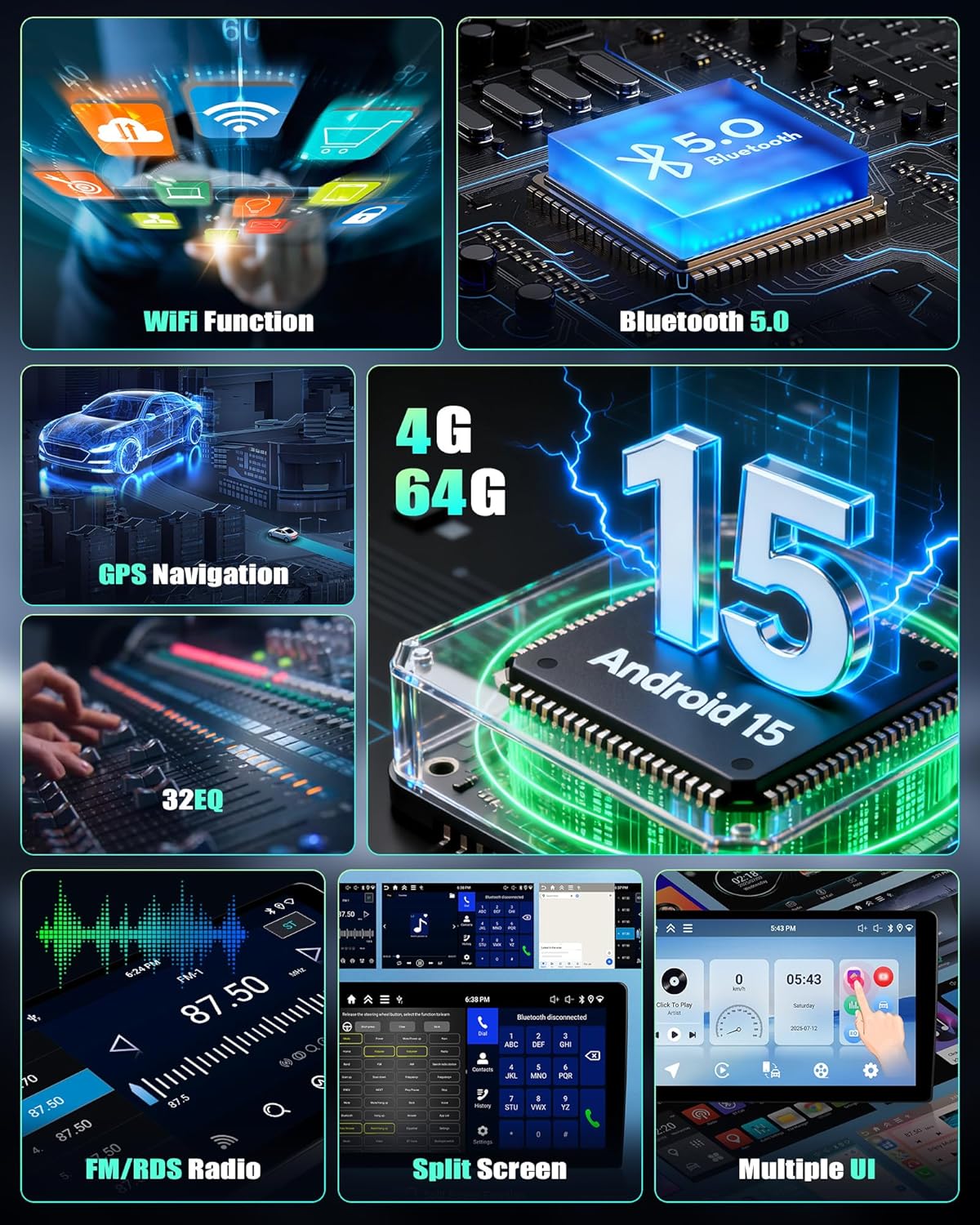
Image: Feature Overview. This image displays various icons and screenshots illustrating key features such as Wi-Fi connectivity, Bluetooth 5.0, GPS navigation, Android 15 operating system, 32-band equalizer, FM/RDS radio, split-screen functionality, and multiple user interface options.
3. Setup and Installation
Before beginning installation, ensure your vehicle's ignition is off and the battery is disconnected to prevent electrical damage. It is recommended to have this unit installed by a professional.
3.1 Packing List
Verify that all components are present in the package:

Image: Packing List and Dimensions. This image shows the car stereo unit with its dimensions (278mm/10.9inch width, 375mm/14.7inch height) and a numbered diagram of the rear ports. Below, it displays the included accessories: USB Cable, GPS Antenna, Rear Camera Input Cable, Power Cable, Original Car USB Cable, RCA Cable, User Manual, Microphone, Rear Camera, and Installation Tool.
- 1 x Car Stereo Unit
- 2 x Power Cables
- 1 x USB Cable
- 1 x GPS Antenna
- 1 x Rear Camera Input Cable
- 1 x RCA Input/Output Cable Set
- 1 x Microphone
- 1 x Rear Camera (optional, if included in package)
- 1 x Installation Tool
- 1 x User Manual (this document)
3.2 Wiring Diagram (Rear Panel)
Refer to the diagram for connecting the power, USB, GPS antenna, and other cables to the rear of the car stereo unit.
- Power Cable
- RCA Input/Output
- Reversing Camera Input
- USB Cable
- GPS Antenna
- Radio Antenna
3.3 Backup Camera Installation
If installing the optional backup camera, follow these wiring instructions:

Image: Rear View Camera Wiring Diagram. This diagram illustrates how to connect the backup camera. The red cable (1) connects to the positive pole of the car reversing light. The black cable (2) connects to the negative pole of the car reversing light. The other two red extension cables (3 and 4) do not need to be connected.
- Connect the red cable (1) to the positive (+) pole of the car's reversing light.
- Connect the black cable (2) to the negative (-) pole of the car's reversing light.
- The two additional red extension cables (3 and 4) are typically not required for standard installations.
- Connect the yellow RCA video cable from the camera to the "Reversing Camera Input" port (3) on the car stereo.

Image: Backup Camera and Steering Wheel Control. This image shows a vehicle with a backup camera view on the car stereo screen, highlighting features like clear image, waterproof design, 170° wide angle, and night vision. It also illustrates the process of setting up steering wheel controls by mapping physical buttons to stereo functions.
4. Operating Instructions
4.1 Wireless CarPlay & Android Auto
Connect your smartphone wirelessly to access navigation, music, calls, and messages directly on the car stereo display.
- Ensure Bluetooth and Wi-Fi are enabled on your phone.
- On the car stereo, select the CarPlay or Android Auto application.
- Follow the on-screen prompts to pair your device.

Image: Wireless CarPlay, Android Auto, and Mirror Link. This image demonstrates the seamless integration of smartphone features like calls, messages, music, and maps via wireless CarPlay and Android Auto. It also shows the Mirror Link function, allowing the phone's screen to be displayed on the car stereo.
4.2 Bluetooth 5.0 & Hands-Free Calling
Pair your phone via Bluetooth for hands-free calls and audio streaming.
- Go to the Bluetooth settings on the car stereo.
- Enable Bluetooth on your phone and search for available devices.
- Select the car stereo from the list and confirm the pairing code.
- Once paired, you can make/receive calls and play music through the car's speakers.

Image: Bluetooth Hands-Free Calling and GPS. This image illustrates the Bluetooth 5.0 functionality for hands-free calls, showing a call interface and music playback. It also highlights Wi-Fi connectivity for app downloads and GPS navigation with map displays.
4.3 Wi-Fi & GPS Navigation
Connect to a Wi-Fi hotspot to download apps, stream content, and receive real-time traffic updates for navigation.
- Access Wi-Fi settings to connect to an available network.
- Use the pre-installed GPS navigation app or download your preferred navigation app from the app store.
- Offline maps can be downloaded for navigation without an internet connection.
4.4 Multiple UI Themes & Split Screen
Customize your user interface and multitask with the split-screen feature.
- Multiple UI: Navigate to the display settings to choose from various user interface themes.
- Split Screen: To activate, drag an app icon to one side of the screen or use the dedicated split-screen button (if available) to run two apps simultaneously (e.g., navigation and music).

Image: Split Screen and Multiple UI Themes. This image demonstrates the split-screen feature, allowing two applications to run side-by-side, such as navigation and music. It also shows various customizable user interface themes available for personalizing the display.
4.5 FM/RDS Radio & 32-Band EQ
Enjoy radio broadcasts and fine-tune your audio experience.
- FM/RDS Radio: Select the Radio app to scan for stations. RDS (Radio Data System) provides station information.
- 32-Band EQ: Access the Equalizer settings to adjust audio frequencies for a personalized sound profile. Choose from preset modes or customize manually.

Image: FM/RDS Radio and 32-Band EQ. This image shows the interface for the FM/RDS radio, allowing users to tune into various stations. It also displays the 32-band equalizer settings, providing detailed control over audio output for different sound effects like Pop, Rock, Jazz, etc.
4.6 Steering Wheel Control (SWC)
Program your vehicle's steering wheel buttons to control the car stereo functions.
- Navigate to the Steering Wheel Control settings in the system menu.
- Follow the on-screen instructions to map each physical button on your steering wheel to a desired function (e.g., volume up/down, track skip, mode).
- Press and hold each button on the steering wheel as prompted by the stereo to register the command.
5. Maintenance
To ensure the longevity and optimal performance of your car stereo, follow these maintenance guidelines:
- Cleaning the Screen: Use a soft, lint-free cloth to gently wipe the touchscreen. For stubborn smudges, slightly dampen the cloth with water or a screen-safe cleaner. Avoid harsh chemicals or abrasive materials.
- Software Updates: Periodically check for software updates through the system settings. Updates can improve performance, add features, and fix bugs.
- Temperature Range: The unit is designed to operate within a temperature range of -20°C to 70°C. Avoid exposing the unit to extreme temperatures outside this range for extended periods.
- General Care: Keep the unit free from dust and debris. Ensure all connections are secure.

Image: Operating Temperature Range. This image illustrates the car stereo functioning reliably across a wide temperature range, from cold (-20°C) to hot (70°C) environments, ensuring smooth operation in various climates.
6. Troubleshooting
If you encounter issues with your car stereo, refer to the following common problems and solutions:
| Problem | Possible Cause | Solution |
|---|---|---|
| Unit does not power on. | Loose power connection, blown fuse, vehicle battery issue. | Check power cables and connections. Inspect vehicle fuses. Ensure vehicle battery is charged. |
| No sound. | Volume too low, mute activated, speaker wiring issue, incorrect audio output settings. | Increase volume. Check if mute is active. Verify speaker connections. Adjust audio output settings. |
| Bluetooth not connecting. | Bluetooth off on phone/stereo, device not in pairing mode, interference. | Ensure Bluetooth is on for both devices. Put stereo in pairing mode. Restart both devices. Clear previous pairings. |
| GPS signal lost or inaccurate. | GPS antenna obstruction, poor satellite reception, outdated maps. | Ensure GPS antenna has a clear view of the sky. Move to an open area. Update maps if necessary. |
| Touchscreen unresponsive. | Software glitch, screen calibration issue. | Restart the unit. Perform a system reset (refer to settings). |
| Backup camera not displaying. | Incorrect wiring, camera malfunction, reverse gear not detected. | Check camera wiring connections (power and video). Ensure the unit detects reverse gear engagement. |
If the problem persists after attempting these solutions, please contact customer support.
7. Specifications
| Feature | Detail |
|---|---|
| Operating System | Android 15 |
| RAM | 4GB |
| Internal Storage (ROM) | 64GB |
| Display Size | 10.1 Inches (Incell Touchscreen) |
| Display Resolution | 1280*720 |
| Bluetooth Version | 5.0 |
| Connectivity | Wi-Fi, GPS, USB |
| Audio Equalizer | 32-Band EQ |
| Radio Tuner | FM/RDS Radio |
| Compatibility | Nissan Versa Sedan 2015-2019 |
| Operating Temperature | -20°C to 70°C |
| Included Components | Car Stereo, Power Cables, USB Cable, GPS Antenna, Rear Camera Input Cable, RCA Cable, User Manual, Microphone, Rear Camera (optional), Installation Tool |
| ASIN | B0G2LVXWVR |
8. Warranty and Support
8.1 Warranty Information
This Zomolither car stereo comes with a 1-year warranty from the date of purchase. This warranty covers manufacturing defects and malfunctions under normal use. It does not cover damage caused by improper installation, misuse, accidents, or unauthorized modifications.
For warranty claims, please retain your proof of purchase.
8.2 Return Policy
A 30-day return policy is available for this product, allowing for refunds or replacements in accordance with the seller's terms and conditions.
8.3 Customer Support
For technical assistance, troubleshooting beyond this manual, or warranty inquiries, please contact Zomolither customer support through your purchase platform or the contact information provided with your product packaging.