
1. Introduction
Thank you for choosing the Kayoote SS9 Pro 8-inch Rugged Tablet. This device is designed for demanding work environments, offering robust performance and durability. This manual provides essential information for setting up, operating, maintaining, and troubleshooting your tablet to ensure optimal performance and longevity.
2. Package Contents
Please check the package contents carefully. If any items are missing or damaged, contact your vendor immediately.
- Kayoote SS9 Pro Rugged Tablet
3. Product Overview
The Kayoote SS9 Pro is an 8-inch Android 13 rugged tablet featuring an MT6789 Octa-Core processor, 8GB RAM, 256GB ROM, and a 7800mAh battery. It is IP65 waterproof and MIL-STD-810G compliant, making it suitable for harsh conditions. This model includes an integrated barcode scanner for industrial applications.
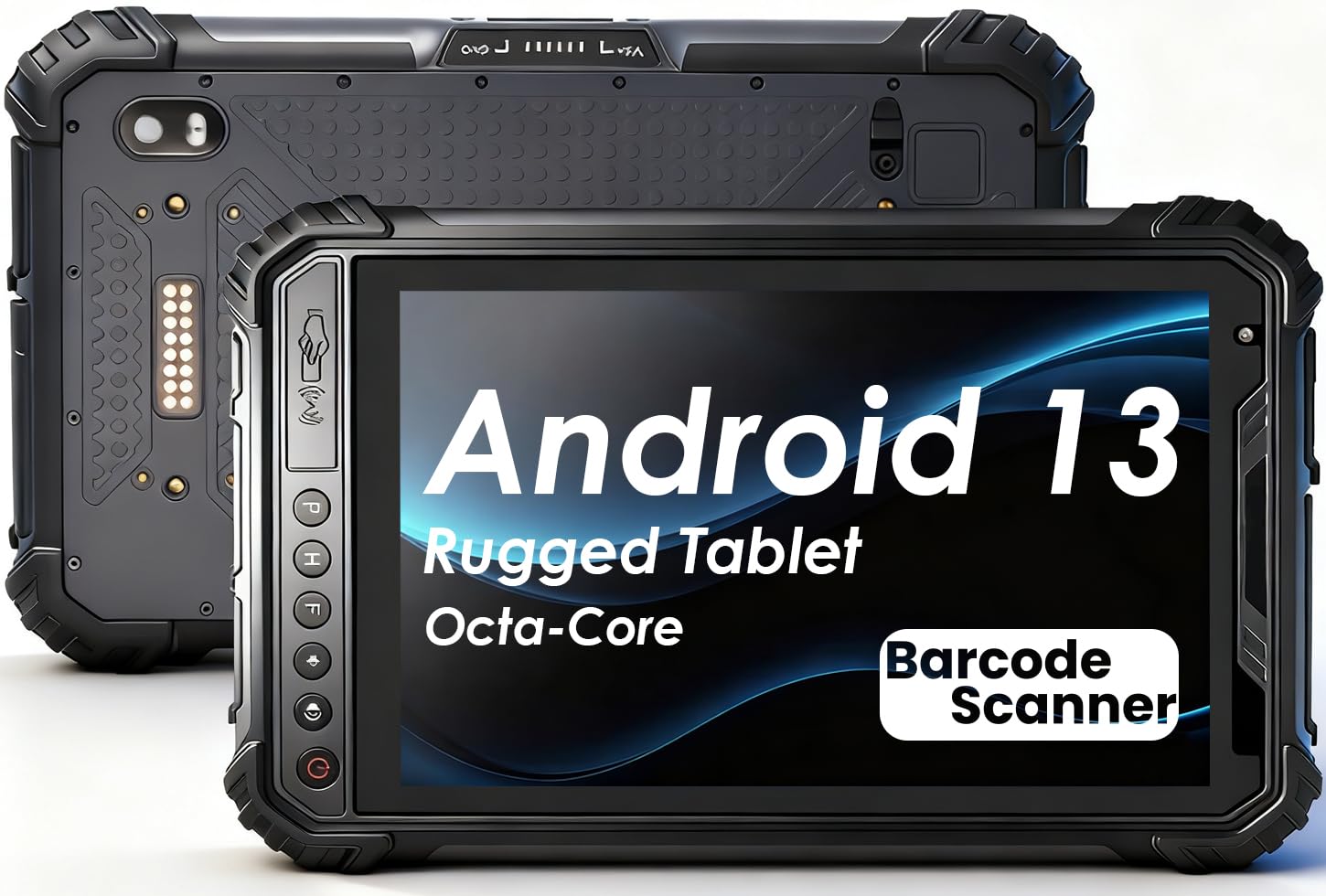
Image: Kayoote SS9 Pro 8-inch Rugged Tablet, showcasing its robust design and integrated barcode scanner.
Key Features:
- Industrial-Grade Barcode Scanning: Equipped with Newland NLS-N1 engine for high-speed 1D/2D barcode reading.
- Rugged Design: IP65 water and dust resistance, MIL-STD-810G certified for drops up to 1.2m, operational from -20°C to 55°C.
- Powerful Performance: MediaTek MT6789 Octa-Core processor, ARM Mali-G57 MC2 GPU, 8GB RAM, 256GB internal storage.
- Display & Battery: 8-inch IPS display (1200×1920) with 400 nits brightness, 7800mAh battery for up to 12 hours of use, 5V/3A fast charging.
- Connectivity: Global 4G LTE (dual SIM/TF), Wi-Fi 5 (802.11ac), Bluetooth 5.0, GPS/BeiDou/GLONASS, NFC.
- Cameras: 13MP rear camera with flash, 5MP front camera.
- I/O Ports: Dual USB 2.0, RS232 interface, Type-C port (data and fast charging).
4. Setup
4.1 Initial Charging
- Connect the provided Type-C cable to the tablet's Type-C port.
- Connect the other end of the cable to the power adapter, then plug the adapter into a wall outlet.
- Allow the tablet to charge fully before first use. The charging indicator will show the charging status.
4.2 SIM Card and TF Card Installation
The tablet supports dual SIM cards and a TF (microSD) card for storage expansion.
- Locate the SIM/TF card slot cover on the side of the tablet.
- Carefully open the cover.
- Insert the SIM card(s) and/or TF card into their respective slots, ensuring correct orientation.
- Close the cover securely to maintain the IP65 rating.
4.3 Powering On/Off
- To Power On: Press and hold the Power button until the Kayoote logo appears on the screen.
- To Power Off: Press and hold the Power button until the power options menu appears. Select "Power off" and confirm.
- To Restart: Press and hold the Power button until the power options menu appears. Select "Restart" and confirm.
5. Operating Instructions
5.1 Basic Navigation (Android 13)
- Touch Gestures: Tap to select, swipe to scroll, pinch to zoom.
- Home Screen: Access apps, widgets, and notifications.
- Notification Panel: Swipe down from the top of the screen to view notifications and quick settings.
- Settings: Access device settings via the gear icon in the notification panel or the Settings app.
5.2 Barcode Scanner Usage
The integrated barcode scanner is designed for efficient data capture.
- Open an application that supports barcode scanning (e.g., inventory management software).
- Point the scanner window at the barcode.
- Press the dedicated scan button (if available) or activate the scanner through the application interface.
- Ensure the barcode is within the scanner's field of view for optimal reading. The scanner can read worn, wrinkled, or low-contrast labels.
5.3 Connectivity
- Wi-Fi: Go to Settings > Network & internet > Wi-Fi to connect to available networks.
- 4G LTE: Ensure a SIM card is installed and configured. Go to Settings > Network & internet > Mobile network.
- Bluetooth: Go to Settings > Connected devices > Bluetooth to pair with other Bluetooth devices.
- NFC: For near-field communication, enable NFC in Settings > Connected devices > Connection preferences > NFC.
- GPS: Location services are enabled by default. Ensure GPS is active for navigation and tracking applications.
5.4 Camera Operation
- Open the Camera application.
- Select between the 13MP rear camera and 5MP front camera.
- Tap the screen to focus and press the shutter button to capture photos or record videos.
6. Maintenance
6.1 Cleaning the Tablet
- Use a soft, lint-free cloth to clean the screen and body of the tablet.
- For stubborn dirt, slightly dampen the cloth with water or a mild, non-abrasive cleaning solution.
- Do not use harsh chemicals, solvents, or abrasive materials, as these can damage the tablet's surface and seals.
- Ensure all port covers are securely closed before cleaning with any moisture.
6.2 Battery Care
- Avoid exposing the tablet to extreme temperatures (below -20°C or above 55°C) for prolonged periods.
- Use only the original or certified compatible charger and cable.
- Do not puncture, disassemble, or modify the battery.
- If the battery appears swollen or damaged, discontinue use and contact support.
6.3 Software Updates
Regularly check for and install software updates to ensure your tablet has the latest features, security patches, and performance improvements. Go to Settings > System > System update.
7. Troubleshooting
- Tablet not powering on: Ensure the tablet is sufficiently charged. Connect it to the charger for at least 30 minutes, then try powering it on again. If it still doesn't power on, perform a forced restart by holding the power button for 10-15 seconds.
- Poor Wi-Fi/4G LTE connection: Check if Wi-Fi or mobile data is enabled in settings. Ensure you are within range of a strong signal. For mobile data, verify your SIM card is properly inserted and your data plan is active.
- Barcode scanner not working: Ensure the scanning application is open and the scanner is activated. Check for any obstructions on the scanner window. Try scanning a different barcode to rule out a damaged label.
- Device freezing or slow performance: Close unnecessary background applications. Clear cache data from apps in Settings > Apps. If the issue persists, consider a factory reset (back up your data first).
- Touchscreen unresponsive: Restart the tablet. If the issue continues, ensure the screen is clean and free of moisture or debris.
8. Specifications
| Feature | Specification |
|---|---|
| Model Name | SS9 Pro |
| Operating System | Android 13 |
| Processor | MediaTek MT6789 Octa-Core (2.2 GHz) |
| RAM | 8GB |
| Internal Storage | 256GB |
| Screen Size | 8 Inches |
| Max Screen Resolution | 1200x1920 Pixels |
| Battery Capacity | 7800mAh (up to 12 hours average use) |
| Rear Camera | 13MP |
| Front Camera | 5MP |
| Connectivity | 4G LTE, Wi-Fi 5 (802.11ac), Bluetooth 5.0, NFC, GPS/BeiDou/GLONASS |
| Durability | IP65 Water/Dust Resistant, MIL-STD-810G |
| Item Weight | 1.39 pounds |
| Product Dimensions | 9.21 x 5.67 x 0.66 inches |
9. Warranty and Support
The Kayoote SS9 Pro Android Rugged Tablet comes with a 12-month warranty from the date of purchase. Additionally, Kayoote provides lifetime technical support and 24/7 multilingual customer service.
For technical assistance, warranty claims, or any other inquiries, please contact Kayoote customer support through the contact information provided with your purchase or on the official Kayoote website.