
Introduction
This manual provides detailed instructions for the setup, operation, maintenance, and troubleshooting of your YZ Portable Electronic Scoreboard. Designed for various indoor and outdoor games, this scoreboard features a clear LED display, remote control, and wireless button functionality for convenient scoring and timing. Please read this manual thoroughly before using the product to ensure proper function and longevity.
What's in the Box
Carefully unpack the box and ensure all items are present:
- 1 x YZ Portable Electronic Scoreboard
- 1 x Remote Control
- 2 x Wireless Control Buttons (Red for Home, Green for Guest)
- 1 x USB-C Cable
- 1 x Power Adapter
- 1 x User Manual
- 1 x Button Pairing Manual
- Accessories (screws for wall mounting)

Setup
1. Powering the Scoreboard
Connect the provided USB-C cable to the scoreboard and the power adapter. Plug the adapter into a standard electrical outlet. The scoreboard can operate while charging, ensuring uninterrupted use during games.

2. Mounting Options
The YZ Portable Electronic Scoreboard offers versatile placement options:
- Tabletop: Simply place the scoreboard on any flat surface.
- Wall-Mounted: Use the provided screws to securely mount the scoreboard to a wall.
- Magnetic: The scoreboard features a magnetic backing, allowing it to be attached to metallic surfaces.
- Tripod (Optional): The scoreboard can be used with a compatible tripod (sold separately) for elevated placement.
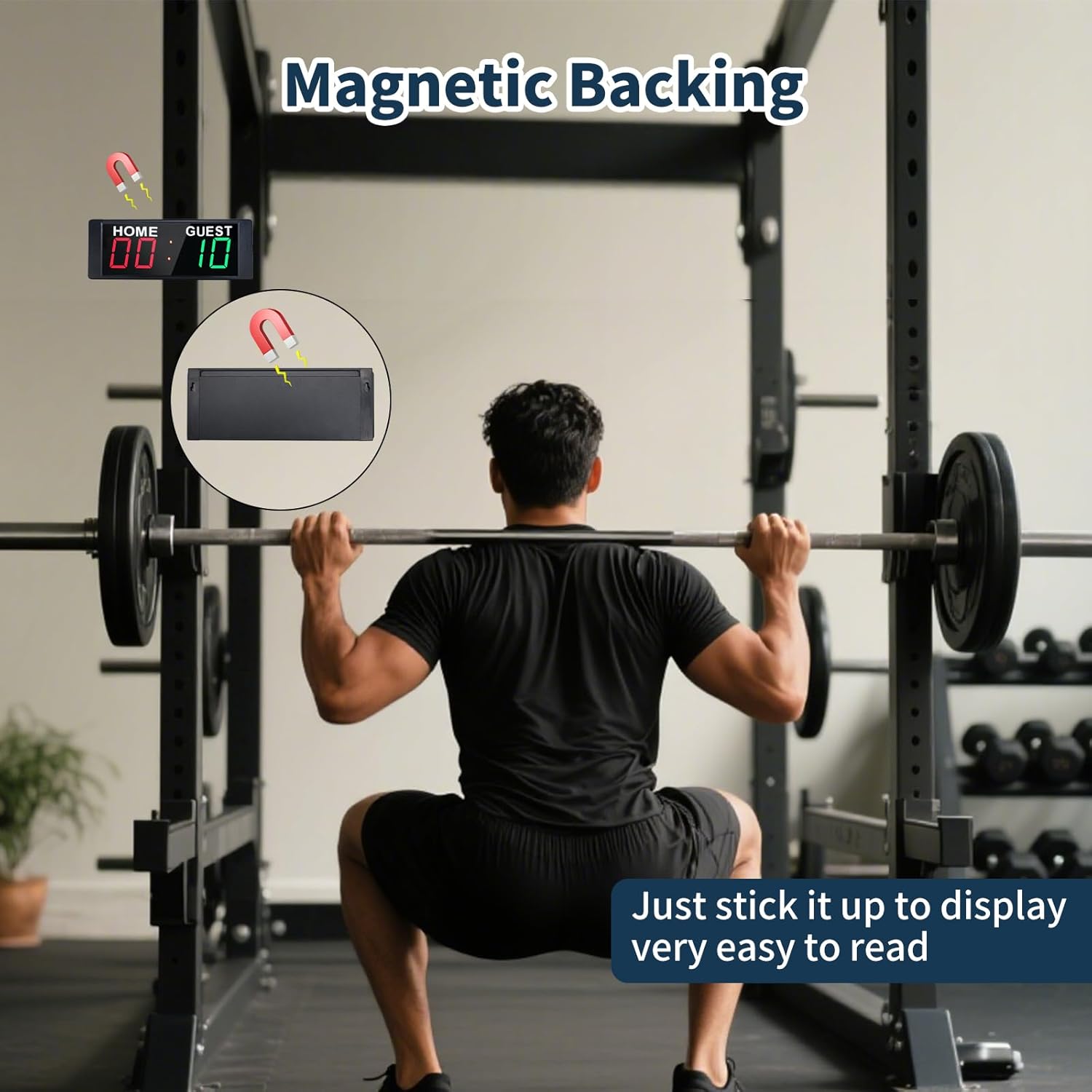

3. Pairing Wireless Control Buttons
The wireless buttons are typically pre-paired. If re-pairing is necessary, follow these steps:
- Turn off the scoreboard using the power button on the remote control.
- Press the 'Period ↑' button on the remote control to enter pairing mode. The screen will display 'L--0'.
- Press the red wireless button (Home team). The screen will display 'L--1' to confirm pairing.
- Press the green wireless button (Guest team). The screen will display 'L--2' to confirm pairing.
- The scoreboard will automatically exit pairing mode once both buttons are paired.
Operating Instructions
1. General Controls (Remote)
The remote control allows for comprehensive management of the scoreboard's functions:
- Brightness Adjustment: Use the dedicated brightness buttons to adjust the display intensity (5 levels available).
- Sound On/Off: Toggle the buzzer sound for score changes or countdown completion.
- Score Exchange: Instantly swap the Home and Guest scores.
- Score Reset: Reset both Home and Guest scores to zero.
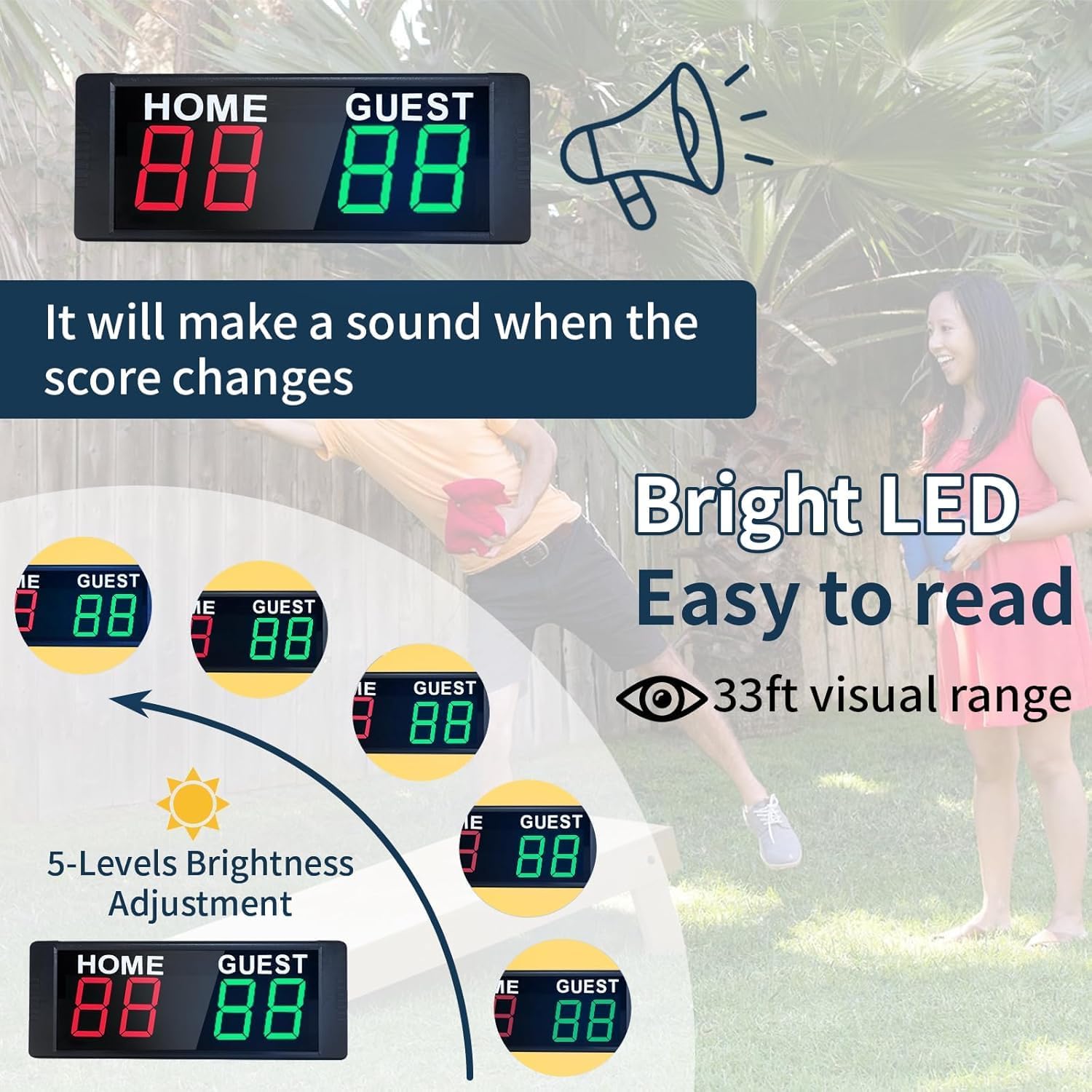
2. Score Mode
To enter Score Mode, press the 'SCORE' button on the remote control.
- Using Wireless Buttons:
- Press the button for 1 second: Add 1 point to the corresponding team.
- Press the button for 2 seconds: Subtract 1 point from the corresponding team.
- Press the button for 4 seconds or more: Reset the score for the corresponding team to zero.
- Using Remote Control: Use the 'HOME' and 'GUEST' score adjustment buttons (+1, +2, +3, -1) to change scores.

3. Clock Mode (12/24H)
To activate Clock Mode, press the 'CLOCK' button on the remote control. Use the 'UP' and 'DOWN' buttons to adjust the time. The scoreboard supports both 12-hour and 24-hour formats.
4. Countdown Timer Mode
To enter Countdown Timer Mode, press the 'DOWN' button on the remote control. To set the desired countdown time, press the 'EDIT' button and use the number keys or 'UP'/'DOWN' buttons to adjust. Press 'Start/Stop (ENTER)' to begin or pause the countdown. The scoreboard will emit a sound when the countdown reaches zero.

Maintenance
To ensure the longevity and optimal performance of your scoreboard, follow these maintenance guidelines:
- Cleaning: Use a soft, dry cloth to wipe the display and casing. Avoid abrasive cleaners or solvents that could damage the surface.
- Storage: When not in use, store the scoreboard in a cool, dry place away from direct sunlight and extreme temperatures.
- Battery Care: For models with rechargeable batteries, ensure regular charging to maintain battery health. Avoid fully discharging the battery for extended periods.
Troubleshooting
If you encounter issues with your scoreboard, refer to the following common problems and solutions:
| Problem | Possible Cause | Solution |
|---|---|---|
| Scoreboard does not power on. | No power, low battery, or faulty cable. | Ensure the power adapter is securely plugged in and the USB-C cable is connected. Charge the scoreboard if battery-powered. |
| Remote control or wireless buttons are unresponsive. | Buttons not paired, remote battery low, or obstruction. | Refer to the 'Pairing Wireless Control Buttons' section. Replace remote batteries. Ensure no obstructions between remote/buttons and scoreboard. |
| Display is too dim or too bright. | Brightness setting is incorrect. | Use the brightness adjustment buttons on the remote control to set the desired level. |
| Buzzer sound is not working or is always on. | Sound setting is incorrect. | Use the sound on/off button on the remote control to adjust the setting. |
Specifications
- Model Name: YZ-1.5I4D(B)+433BT
- Item Package Dimensions L x W x H: 10.59 x 6.5 x 2.01 inches
- Package Weight: 0.61 Kilograms
- Color: Red and Green (display)
- Material: Aluminum
- Display Type: 1.5" LED 7-segment
- Visibility: Up to 33 feet
- Brightness: 5-levels adjustable
- Power Source: Built-in rechargeable battery with USB-C charging
- Remote Control Distance: Up to 40 feet (infrared)
- Wireless Button Control Distance: Up to 100 feet (RF)
- Functions: Scorekeeping (0-99), 12/24H Clock, Countdown Timer, Buzzer
- Manufacturer: HANGZHOU YIZHI TECHNOLOGY CO.,LTD.

Warranty
This YZ Portable Electronic Scoreboard comes with a 1-Year Warranty from the date of purchase. This warranty covers manufacturing defects and malfunctions under normal use. It does not cover damage caused by misuse, accidents, unauthorized modifications, or improper maintenance. Please retain your proof of purchase for warranty claims.
Support
For further assistance, technical support, or warranty inquiries, please contact the manufacturer or your retailer. Refer to the contact information provided with your purchase documentation.