
Introduction
This manual provides instructions for the safe and efficient operation of your Creality Otter Lite Basic 3D Scanner. Please read this manual thoroughly before use to ensure proper handling and to achieve optimal scanning results.
Key Features
- Innovative Four-lens Stereo Vision: Captures details down to 20mm with sharp precision and expands coverage up to 2000mm for quickly capturing entire objects.
- 0.05mm High Precision: Ensures every detail is sharp and clear, faithfully reproducing authentic textures and contours.
- High-Speed Scanning at 30 FPS: Stable, even freehand scanning for large objects with proprietary One-Shot 3D Technology for seamless backtracking.
- 24-bit Full-Color Scanning: Equipped with a million-pixel full-color RGB camera and an exclusive color mapping algorithm for exceptional detail and color capture.
- Outdoor Scanning: Advanced DOE (Diffractive Optical Element) 3D structure-light technology maintains excellent performance even in sunlight.
- Lightweight Design: Weighs only 300g for comfortable and extended use.
- Intuitive Software: Utilizes CrealityScan software for an easy-to-use scanning experience.
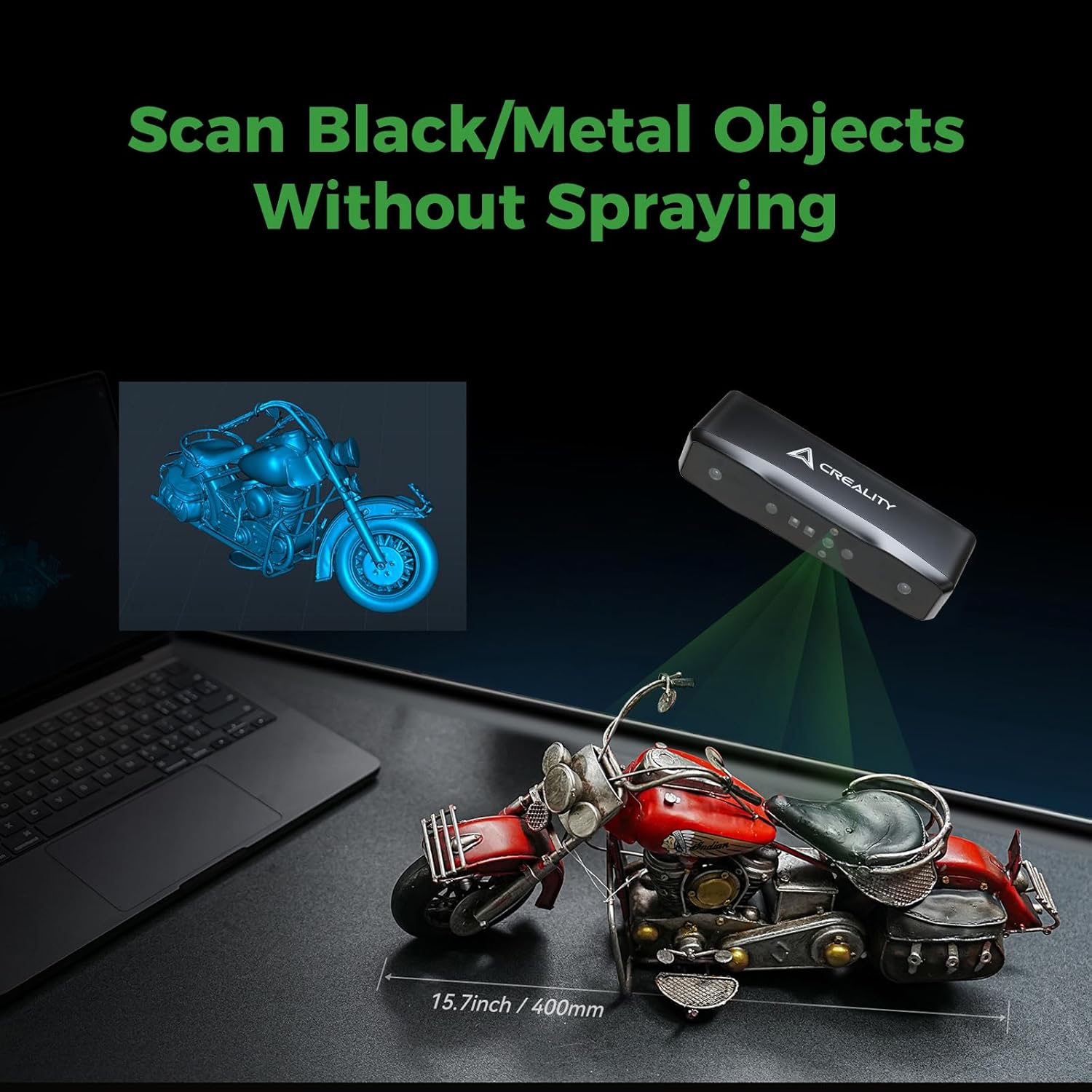
- Black/Metal Object Scanning: Capable of scanning black and metallic objects without the need for anti-glare sprays.
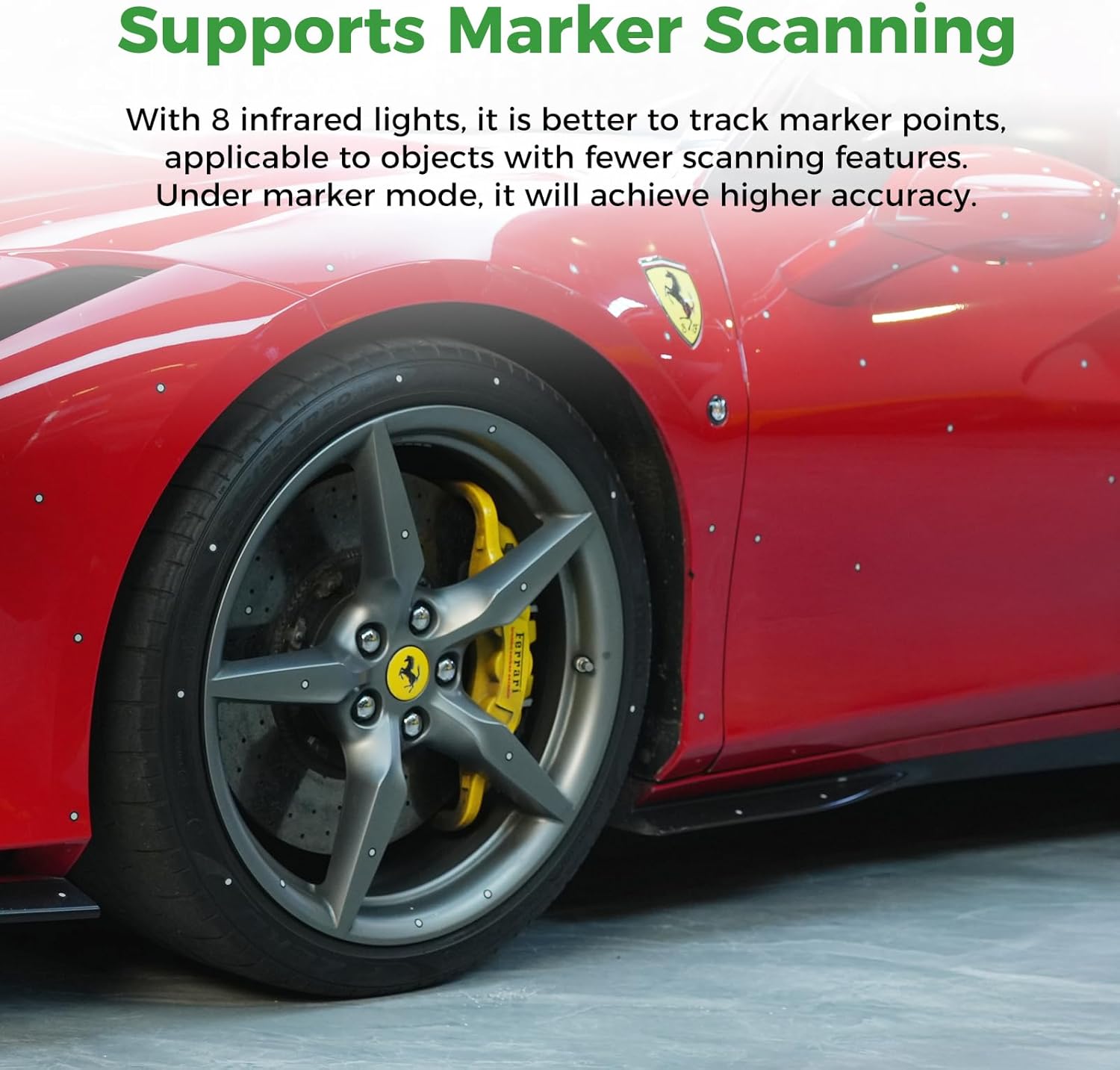
- Marker Scanning Support: Features 8 infrared lights for enhanced tracking of marker points, ideal for objects with fewer scanning features to achieve higher accuracy.

This image illustrates the primary features of the Otter Lite Basic 3D Scanner, highlighting its compact size, advanced optical system, wide scanning capabilities, high precision, fast scanning speed, user-friendly software, and color capture abilities.
Package Contents
What's Included
Please verify that all items listed below are present in your package:
- 1x Creality Otter Lite Basic 3D Scanner
- 420x 3D Scanning Marker Dots (3mm)
Setup
Initial Setup
Before operating the scanner, ensure all components are present and undamaged. Familiarize yourself with the scanner's physical layout.
Software Installation
Download and install the CrealityScan software from the official Creality website. Follow the on-screen instructions provided by the installer. Ensure your operating system meets the minimum requirements for the software.
Connecting the Scanner
Connect the Otter Lite Basic 3D Scanner to your computer using the provided USB cable. The CrealityScan software should automatically detect the device upon launch. If not, try restarting the software or your computer.
Operating Instructions
Preparing the Object
For optimal scanning results, ensure the object to be scanned is clean and well-lit. For objects with uniform surfaces, intricate details, or reflective properties, it is recommended to apply the provided 3D scanning marker dots. These markers assist the scanner in tracking and achieving higher accuracy.

This image demonstrates the application of marker dots on an object, specifically a car wheel, to assist the scanner in tracking and achieving higher accuracy, especially for objects with uniform or reflective surfaces.

This diagram provides a visual reference for the size and pattern of the 3D scanning marker dots used with the scanner.
Starting a Scan
- Launch the CrealityScan software on your computer.
- Select your connected scanner model from the software interface.
- Choose the desired scanning mode (e.g., Feature Scan for objects with distinct geometry, Marker Scan for objects requiring marker assistance).
- Position the scanner at an appropriate distance from the object, ensuring the object is within the scanner's field of view.
- Click the "Start Scan" button within the software to begin the scanning process.
Handheld Scanning
The Otter Lite Basic supports stable handheld scanning. Maintain a steady and consistent movement around the object. The proprietary One-Shot 3D Technology helps maintain orientation and allows for seamless backtracking if the scan is interrupted, preventing data gaps.

This image illustrates the scanner in use, demonstrating both turntable-assisted and freehand scanning methods, emphasizing its high speed and accuracy.
Full-Color Scanning
The integrated million-pixel full-color RGB camera captures vibrant texture information. For accurate color reproduction, ensure adequate and even lighting on the object during the scan.
This image highlights the scanner's capability for full-color scanning, capturing intricate details and realistic textures of objects.
Scanning Black/Metal Objects
The Creality Otter Lite Basic 3D Scanner is designed to scan black and metallic objects effectively without the need for anti-glare sprays, thanks to its advanced DOE 3D structure-light technology.
This image illustrates the scanner's ability to capture details from challenging black and metallic surfaces without requiring special preparation.
Post-Processing
After completing the scan, use the CrealityScan software to perform necessary post-processing steps such as aligning multiple scans, merging data, removing noise, and optimizing the mesh. Once satisfied, export the final 3D model in your desired file format (e.g., OBJ, STL, PLY).
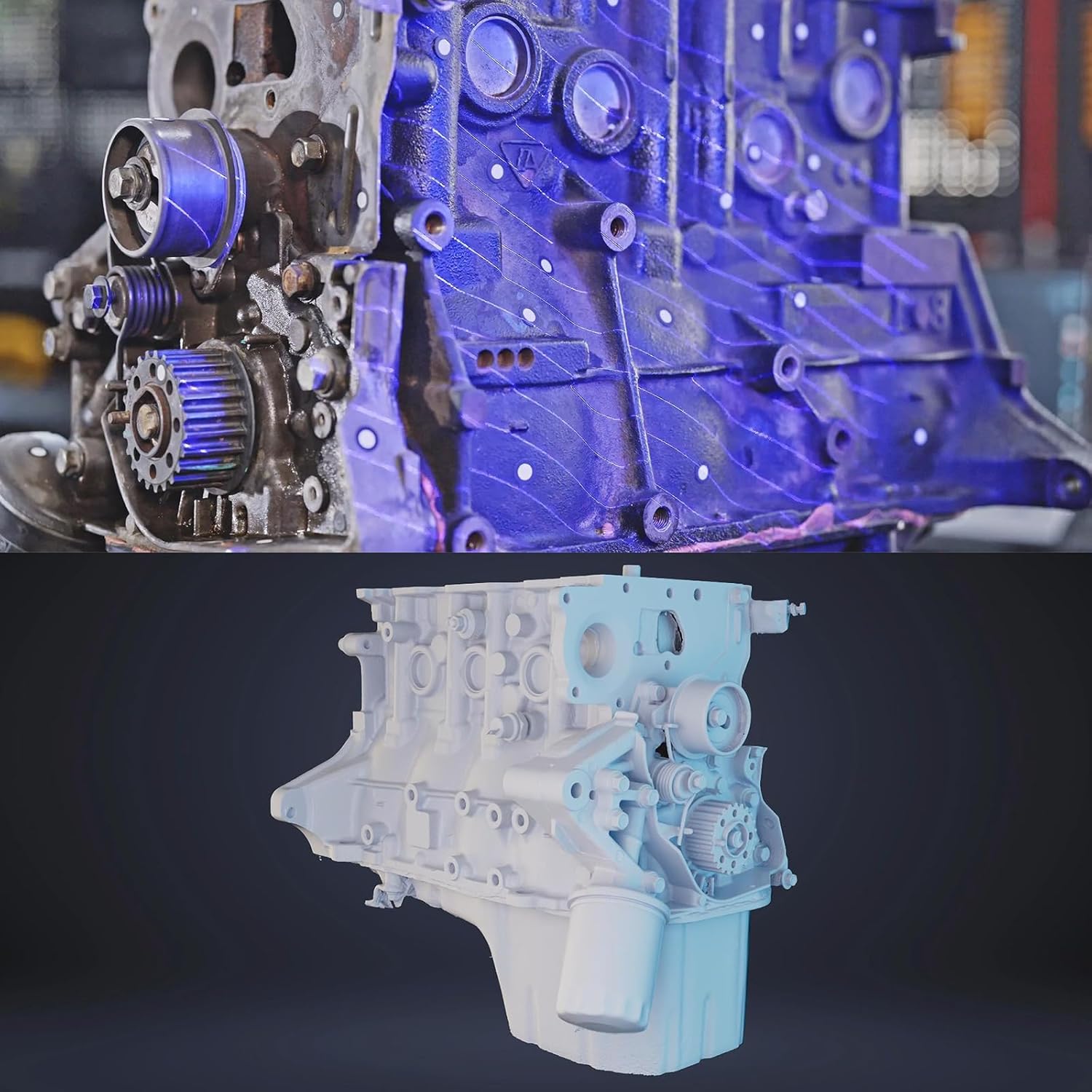
This image demonstrates the transformation from a physical object being scanned to its digital 3D model, showcasing the detail and accuracy achieved by the scanner.
Maintenance
Care and Cleaning
To maintain optimal performance, keep the scanner lenses clean. Use a soft, lint-free cloth specifically designed for optical surfaces. Avoid using abrasive materials, harsh chemicals, or excessive pressure, as these can damage the lenses. Store the scanner in a dry, dust-free environment when not in use to prevent accumulation of debris.
Software Updates
Regularly check the official Creality website for the latest software and firmware updates for your Otter Lite Basic 3D Scanner. Installing updates ensures you have access to the newest features, performance enhancements, and bug fixes.
Troubleshooting
Common Issues and Solutions
If you encounter problems with your scanner, refer to the following troubleshooting guide:
Scanner Not Detected
- Ensure the USB cable is securely connected to both the scanner and a functional USB port on your computer.
- Try connecting the scanner to a different USB port, preferably a USB 3.0 port for optimal data transfer.
- Restart the CrealityScan software and your computer.
- Check the official Creality website for updated USB drivers or scanner-specific drivers.
Poor Scan Quality
- Ensure adequate and consistent lighting in your scanning environment. Avoid direct sunlight or strong, uneven shadows.
- For objects with uniform, reflective, or featureless surfaces, apply more marker dots to aid tracking.
- Maintain a stable scanning distance and a consistent, smooth movement speed during handheld scanning.
- Clean the scanner lenses carefully with a soft, lint-free cloth.
Software Crashes
- Ensure your computer meets the minimum system requirements for the CrealityScan software.
- Update your graphics card drivers to the latest version.
- If the issue persists, try reinstalling the CrealityScan software.
Specifications
Technical Data
| Feature | Specification |
|---|---|
| Scanning Accuracy | Up to 0.05mm |
| Scanning Speed | Up to 30 FPS |
| Scanning Range | 20mm - 2000mm |
| Color Scanning | 24-bit Full-Color (Million-pixel RGB camera) |
| Vision System | Four-lens Stereo Vision |
| Weight | 300g |
| ASIN | B0G29SMTTB |
| First Available | August 4, 2025 |
Warranty and Support
Warranty Information
For detailed warranty information regarding your Creality Otter Lite Basic 3D Scanner, please refer to the warranty card included with your product packaging. You can also find the most up-to-date warranty terms and conditions on the official Creality website.
Customer Support
If you encounter any issues not covered in this manual, or require further assistance, please contact Creality customer support. You can typically find contact information, including email and phone numbers, on the official Creality website or within your product packaging.
