
Product Overview
The Ubiquiti UNAS 2 (Model: UNAS-2-W) is a powerful and compact Network Attached Storage (NAS) system designed for UniFi environments. It features dual 3.5" HDD bays, 2.5 GbE networking, and USB-C expansion. This device offers a reliable, high-speed solution for centralized data access and file storage, powered via PoE++ or an included 60W adapter, ensuring flexible, silent, and efficient performance for home and small business networks.
Key features include:
- Dual 3.5" HDD bays for ample storage capacity.
- 2.5 GbE RJ45 networking interface for high-speed data transfer.
- USB-C connectivity for expansion.
- Power over Ethernet Plus Plus (PoE++) support for flexible deployment.
- Quad-Core ARM Cortex-A55 processor at 1.7 GHz with 4 GB RAM.
- 1.47" color LCM display for status monitoring.
- Mobile app support for iOS (v10.28.0+) and Android (v10.28.3+).
What's in the Box
Your Ubiquiti UNAS 2 package includes the following items:
- Ubiquiti UNAS 2 UniFi 2-Bay Network Attached Storage unit
- 60W PoE++ adapter
Physical Components and Connectivity
The UNAS 2 is designed for ease of use and efficient operation. Familiarize yourself with its physical layout and connection points.
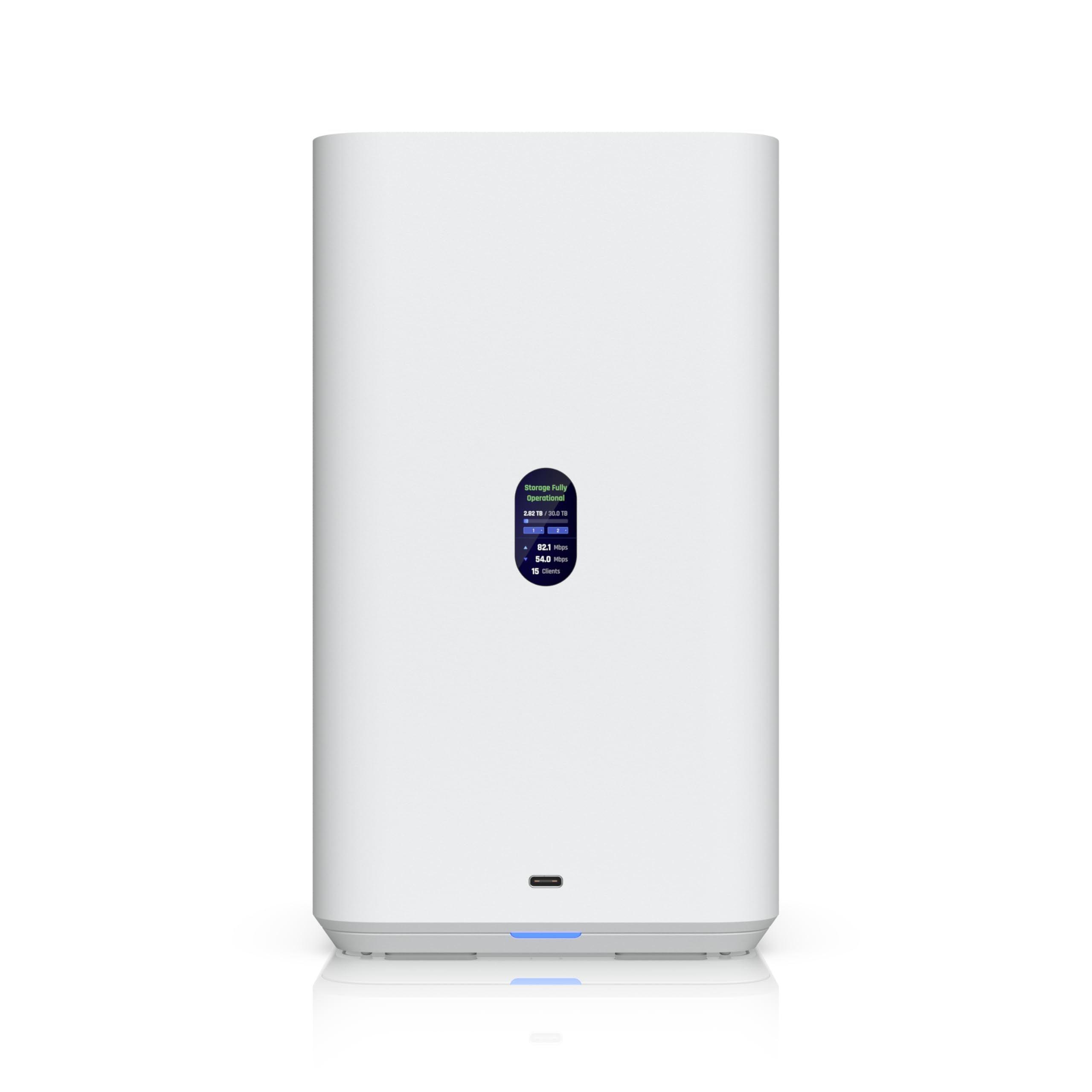
Figure 1: Front view of the Ubiquiti UNAS 2 Network Attached Storage unit, showing its minimalist white design and a USB-C port at the bottom.

Figure 2: Side view of the Ubiquiti UNAS 2, highlighting its sleek, vertical design and ventilation.
Front Panel:
- 1.47" Color LCM Display: Provides real-time status information.
- USB-C Port: For expansion and data transfer.
- System LEDs: Indicate device status.
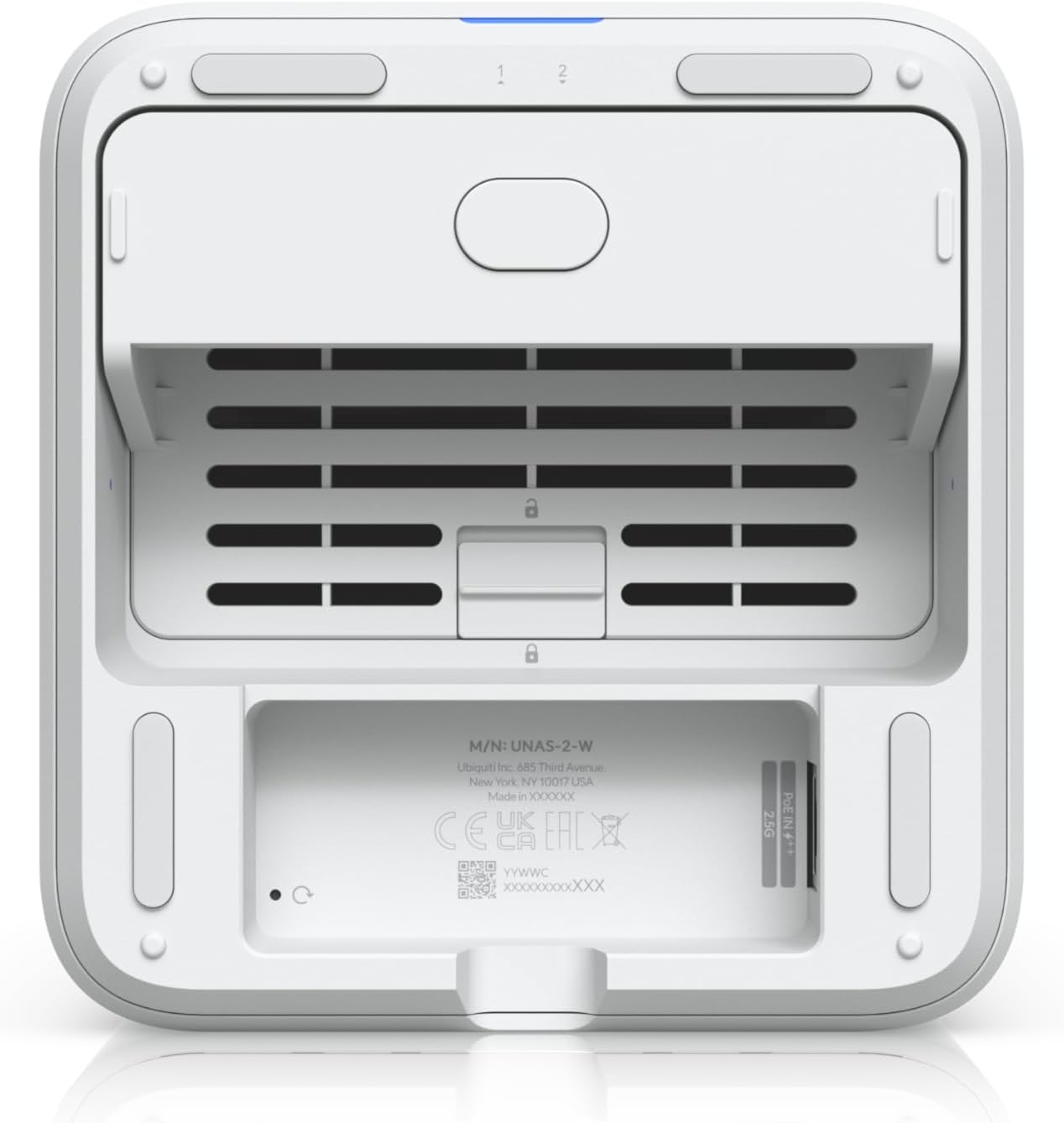
Figure 3: Rear view of the Ubiquiti UNAS 2, showing the network and power ports, along with the drive bay access.
Rear Panel:
- 2.5 GbE RJ45 Port: For network connectivity and PoE++ power input.
- USB-C Expansion Port: 1 x 5 Gbps USB-C for additional peripherals or storage.
Setup and Hard Drive Installation
Follow these steps to install hard drives into your UNAS 2 device:
- Ensure the UNAS 2 is powered off and disconnected from the network.
- Gently remove the top cover of the UNAS 2 to expose the drive bays.
- Locate the two 3.5" HDD bays.
- Slide out the empty drive trays from the bays.
- Securely mount your 3.5" Hard Disk Drives (HDDs) into the trays using appropriate screws (not included with UNAS 2).
- Carefully slide the loaded drive trays back into the bays until they click into place.
- Replace the top cover of the UNAS 2.

Figure 4: The Ubiquiti UNAS 2 with its top cover removed, showing the internal drive bays ready for hard drive installation.
Connecting to Your Network
The UNAS 2 can be connected to your network and powered in two ways:
- PoE++ (Power over Ethernet Plus Plus): Connect an Ethernet cable from a PoE++ compliant switch to the 2.5 GbE RJ45 port on the rear of the UNAS 2. This provides both network connectivity and power.
- Included 60W Adapter: If not using PoE++, connect the included 60W power adapter to the power input port on the rear of the UNAS 2, and then connect an Ethernet cable from your network to the 2.5 GbE RJ45 port.
Operating the UNAS 2
Once powered on and connected, the UNAS 2 operates within the UniFi ecosystem. It requires UniFi Drive Version 3.1.7 or later for full functionality. Mobile app support is available for iOS (v10.28.0+) and Android (v10.28.3+) devices, allowing remote management and access to your stored data.
The 1.47" color LCM display on the front panel provides essential status updates, while system LEDs offer quick visual indicators of operation and activity.
Maintenance Guidelines
To ensure optimal performance and longevity of your Ubiquiti UNAS 2, consider the following maintenance tips:
- Keep Clean: Regularly wipe the exterior of the device with a soft, dry cloth. Avoid using liquid cleaners directly on the unit.
- Ensure Ventilation: Make sure the ventilation slots are clear of dust and obstructions to prevent overheating.
- Firmware Updates: Keep the UniFi Drive software and device firmware updated to the latest versions for security and performance improvements.
- Environmental Conditions: Operate the device within recommended temperature and humidity ranges to prevent damage.
Troubleshooting Common Issues
If you encounter issues with your UNAS 2, try the following basic troubleshooting steps:
- No Power: Verify that the PoE++ connection is active or that the 60W adapter is securely connected to a working power outlet. Check the system LEDs for power status.
- Network Connectivity: Ensure the Ethernet cable is properly connected to both the UNAS 2 and your network switch/router. Check the LAN status indicator.
- Hard Drive Not Detected: Confirm that the hard drives are correctly seated in their trays and fully inserted into the bays. Ensure they are compatible 3.5" HDDs.
- Software Access: Ensure your UniFi Drive software is up-to-date and your mobile app is connected to the correct UniFi controller.
- Reset: If issues persist, a soft reset may resolve minor software glitches. Refer to the UniFi Drive documentation for reset procedures.
For more complex problems, consult the official Ubiquiti Networks support documentation or contact their customer service.
Technical Specifications
| Feature | Specification |
|---|---|
| Brand | Ubiquiti Networks |
| Model Number | UNAS-2-W |
| Color | White |
| Product Dimensions | 8.81"D x 5.08"W x 8.81"H (135 x 129 x 223.7 mm) |
| Weight | 1.3 kg (2.85 lb) |
| Drive Bays | 2 x 3.5" HDD |
| Processor | Quad-Core ARM Cortex-A55 at 1.7 GHz |
| Memory | 4 GB RAM |
| Networking Interface | 1 x 2.5 GbE RJ45 (2.5G/1G/100M/10M) |
| Expansion Port | 1 x 5 Gbps USB-C |
| Display | 1.47" color LCM |
| RF Interface | Bluetooth 4.1 |
| Power Method | PoE++ |
| Power Supply | 60W PoE++ adapter included |
| Max Power Consumption | 60W |
| Required Software | UniFi Drive Version 3.1.7 or later |
| Mobile App Support | iOS (v10.28.0+), Android (v10.28.3+) and later |
Warranty Information and Support
The Ubiquiti UNAS 2 (Model UNAS-2-W) comes with a 6-month manufacturer's warranty. For detailed terms and conditions, please refer to the warranty documentation provided with your product or visit the official Ubiquiti Networks website.
For technical support, product registration, and additional resources, please visit the Ubiquiti Networks support portal. You can find FAQs, troubleshooting guides, and contact information for customer service there.