
1. Introduction
This manual provides detailed instructions for the installation, operation, and maintenance of your Antec P7 S Mid-Tower ATX PC Case. Please read this manual thoroughly before beginning installation to ensure proper setup and to maximize the performance and longevity of your system components.
2. Safety Information
- Always disconnect the power supply from the wall outlet before installing or removing any components.
- Wear an anti-static wrist strap to prevent electrostatic discharge (ESD) damage to sensitive components.
- Handle all components with care. Avoid touching pins or circuit boards directly.
- Keep small parts and tools away from children.
- Ensure proper ventilation around the PC case to prevent overheating.
3. Package Contents
Verify that all items are present in your package:
- Antec P7 S Mid-Tower ATX PC Case
- 3 x 120mm PWM Fans (pre-installed at front)
- 1 x 120mm PWM Fan (pre-installed at rear)
- Accessory Box (screws, cable ties, user manual)
4. Product Overview
The Antec P7 S case features a sleek design with optimized airflow and noise reduction capabilities.
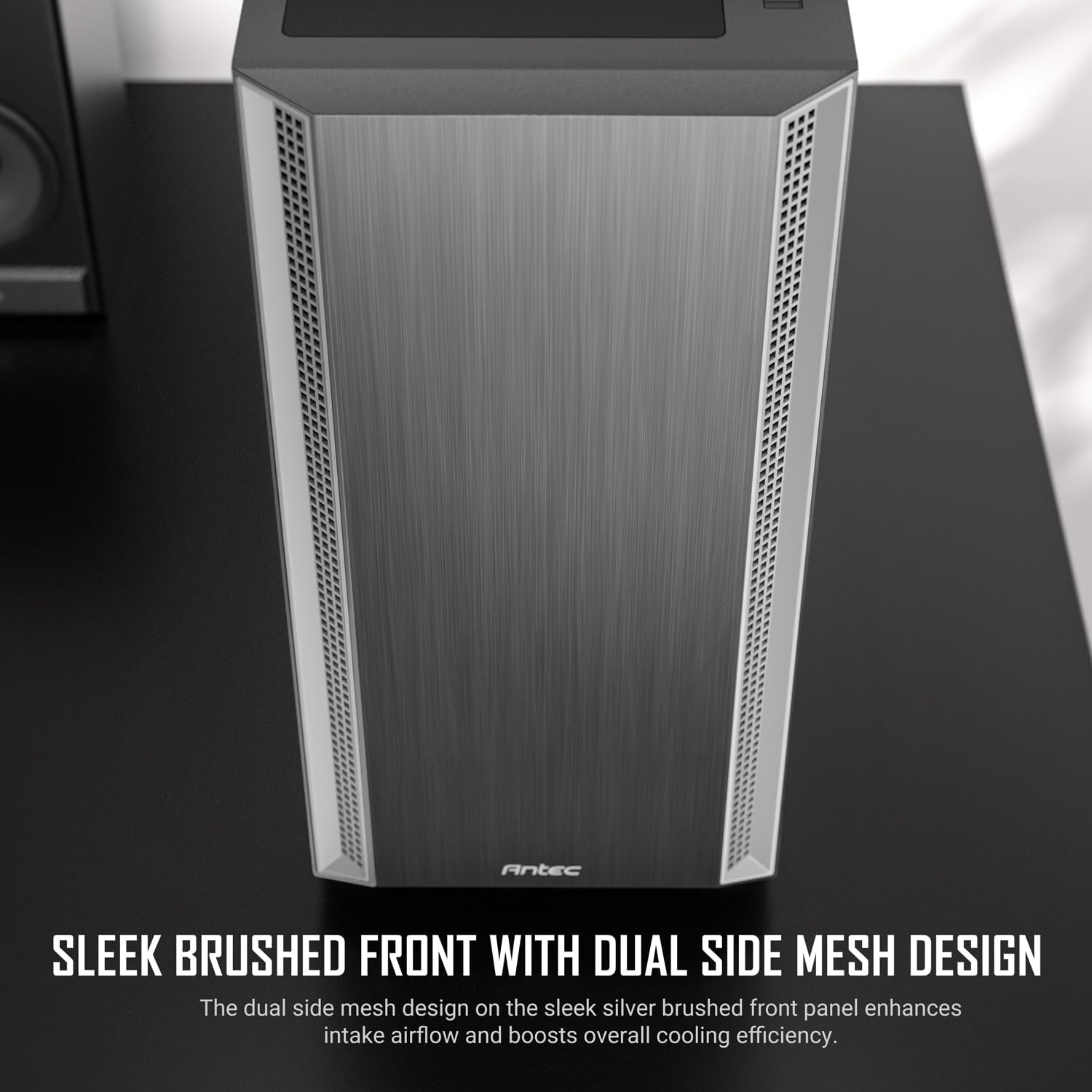
Figure 4.1: The front panel of the Antec P7 S case, showcasing the brushed finish and dual side mesh design for enhanced air intake.

Figure 4.2: Interior view of the Antec P7 S, highlighting the four pre-installed 120mm PWM fans (three front, one rear) for immediate cooling performance.
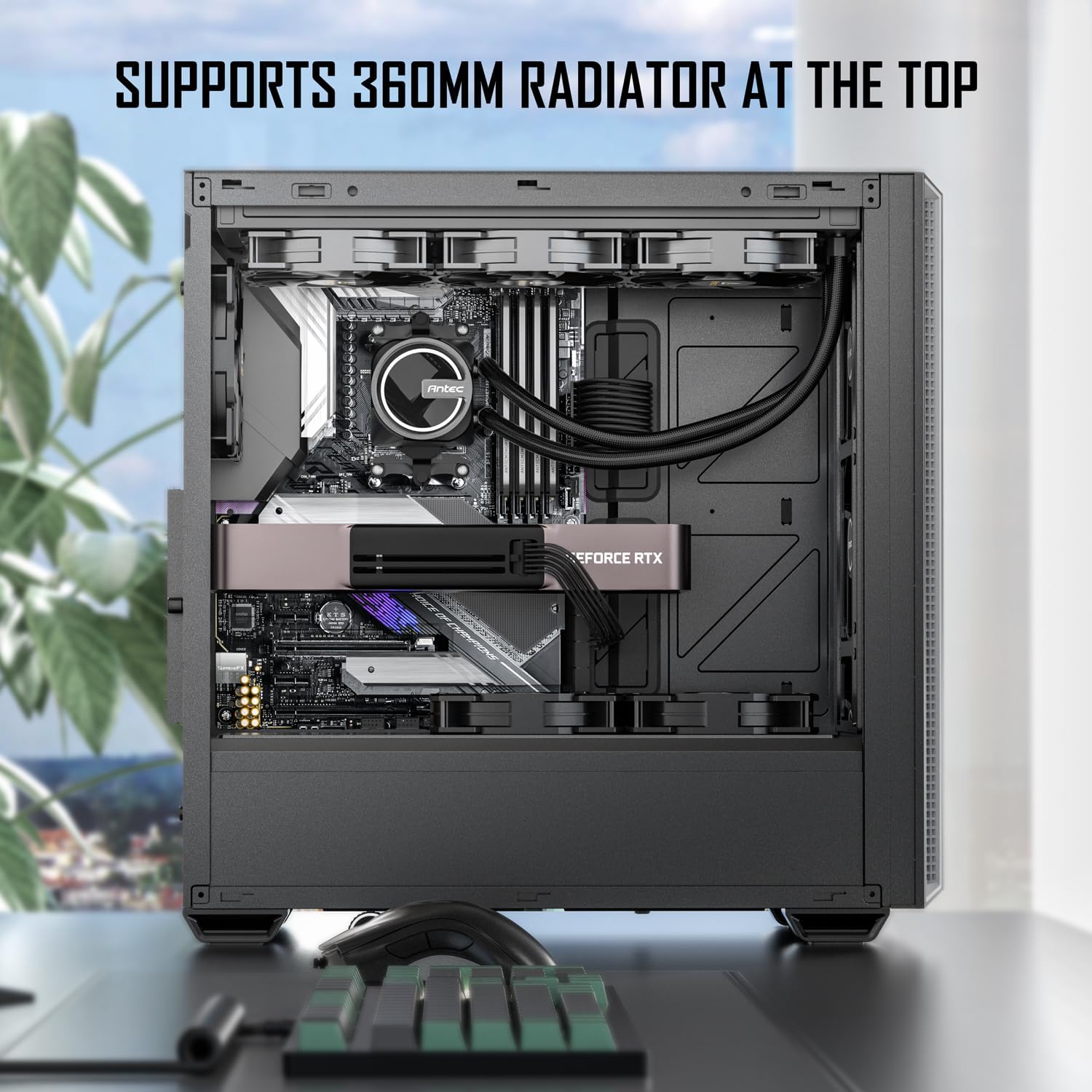
Figure 4.3: The top section of the Antec P7 S, demonstrating support for a 360mm liquid cooling radiator.
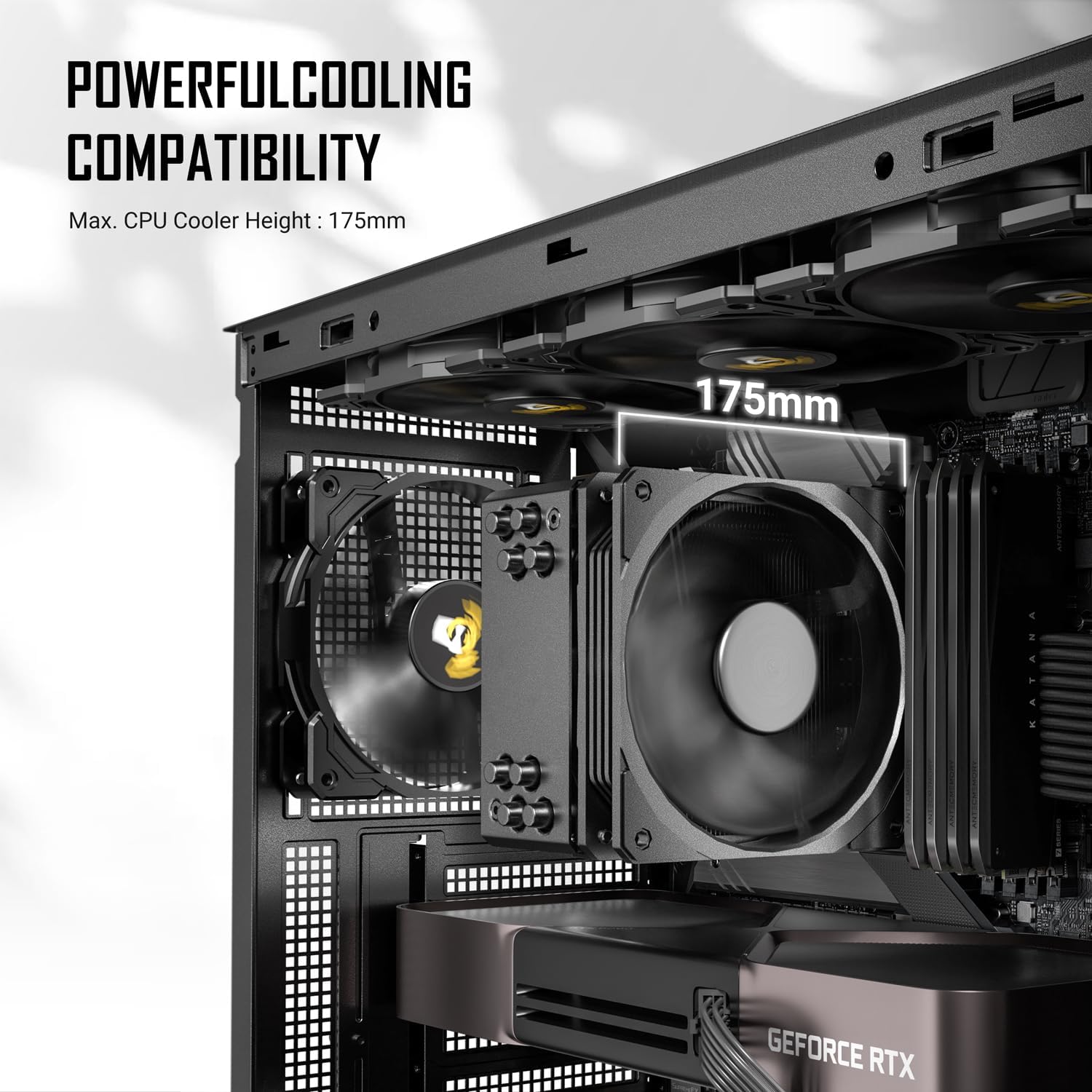
Figure 4.4: Illustration of optimized airflow for GPU cooling, showing the large bottom intake and 30mm clearance for reverse fans.
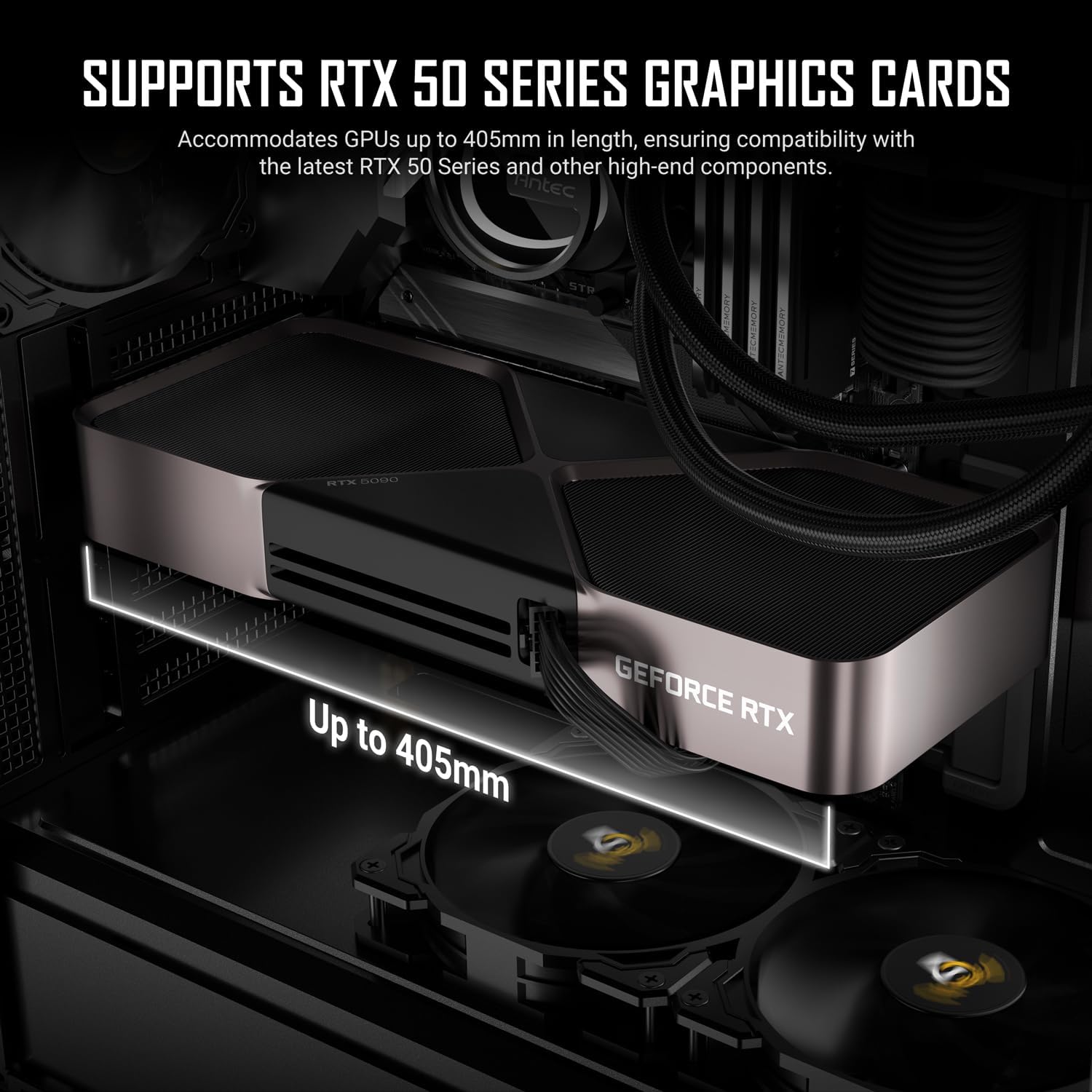
Figure 4.5: Internal view indicating maximum CPU cooler height compatibility of 175mm within the Antec P7 S case.

Figure 4.6: Internal space for graphics cards, showing support for GPUs up to 405mm in length, including RTX 50 Series cards.
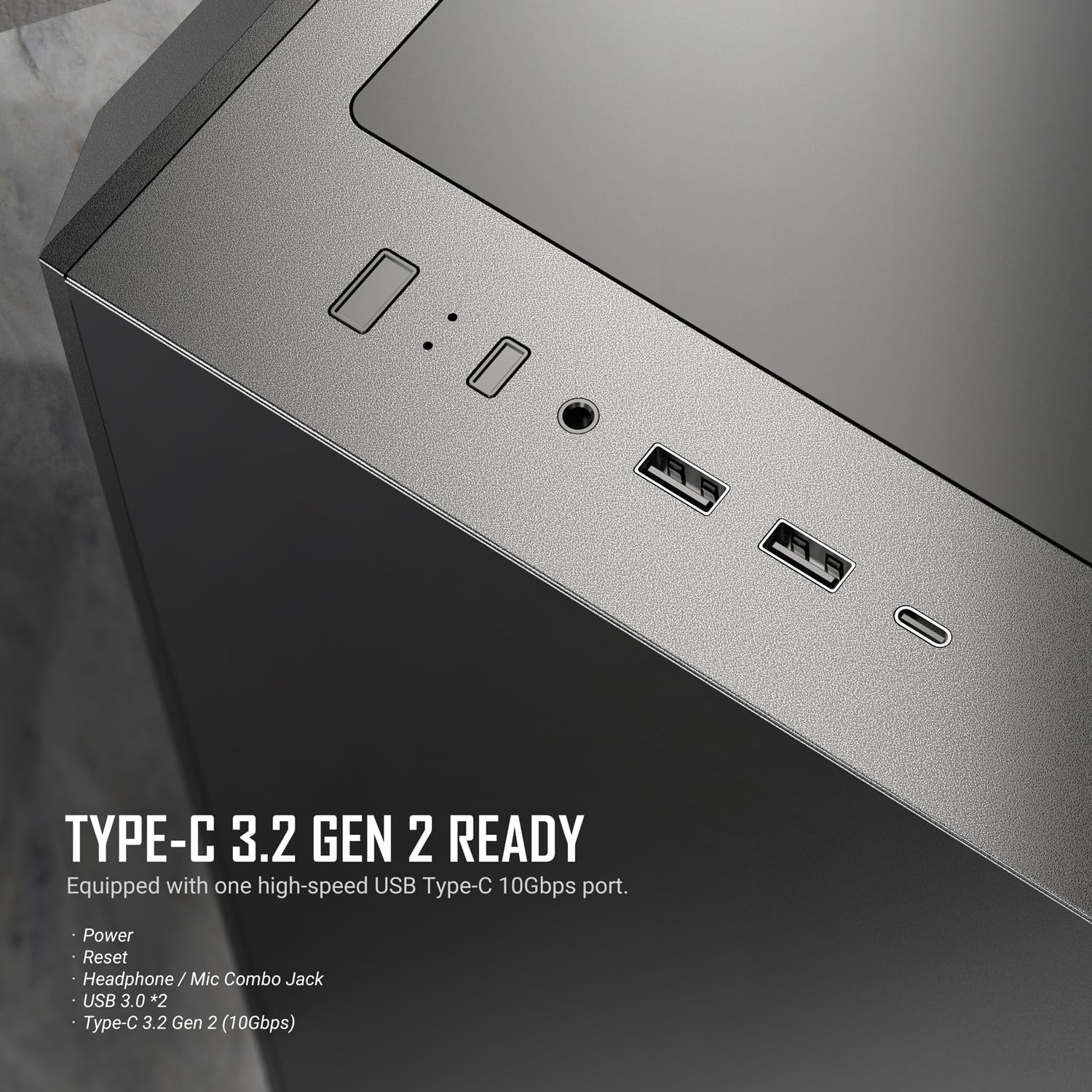
Figure 4.7: The side panels of the Antec P7 S, featuring sound-dampening foam for effective noise reduction.

Figure 4.8: Close-up of the top I/O panel, featuring a USB Type-C 3.2 Gen 2 port, USB 3.0 ports, headphone/mic combo jack, power, and reset buttons.

Figure 4.9: The removable top filters, showing both the mesh filter for airflow mode and the solid cover for silent mode.

Figure 4.10: Rear interior view showcasing cable management features, including rubber grommets and Velcro straps for organized routing.

Figure 4.11: Rear exterior view highlighting the seven reusable PCIe slots for expansion cards.
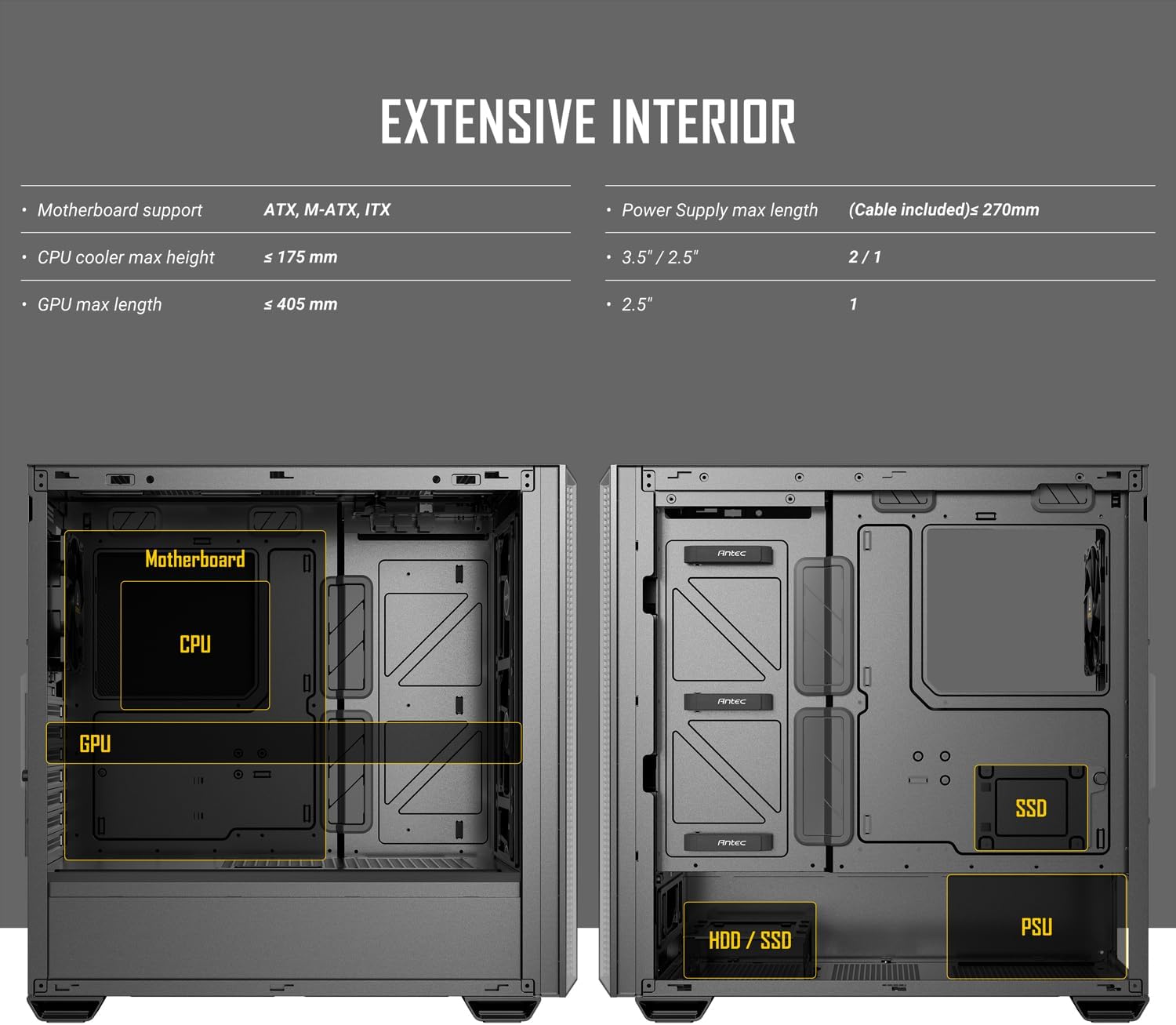
Figure 4.12: Diagrams illustrating the fan and radiator compatibility for various mounting locations within the case.
5. Setup and Installation
5.1 Preparing the Case
- Place the case on a flat, stable surface.
- Remove the side panels by unscrewing the thumbscrews at the rear and sliding them backward.
- Identify the accessory box and retrieve all necessary screws and standoffs.
5.2 Motherboard Installation
- Install the I/O shield into the rear opening of the case.
- Align the motherboard with the pre-installed standoffs. Ensure the standoff locations match your motherboard's form factor (ATX, Micro-ATX, Mini-ITX).
- Secure the motherboard with the provided screws.
5.3 Power Supply Installation
- Slide the power supply unit (PSU) into the dedicated compartment at the bottom rear of the case.
- Secure the PSU with screws from the rear of the case.
- Route the necessary power cables through the cable management cutouts to the motherboard and other components.
5.4 Storage Drive Installation
- 3.5" HDDs: Install into the drive cage located beneath the PSU shroud. Slide the drive into the tray and secure it.
- 2.5" SSDs: Mount SSDs onto the dedicated brackets behind the motherboard tray or on top of the PSU shroud. Secure with screws.
5.5 Graphics Card (GPU) and Expansion Card Installation
- Remove the necessary reusable PCIe slot covers at the rear of the case.
- Insert the graphics card or other expansion card into the appropriate PCIe slot on the motherboard.
- Secure the card with the thumbscrew or latch mechanism.
5.6 Front I/O Panel Connections
Connect the front panel cables to the corresponding headers on your motherboard:
- USB 3.0: Connect the USB 3.0 cable to the motherboard's USB 3.0 header.
- USB Type-C 3.2 Gen 2: Connect the Type-C cable to the motherboard's compatible header.
- HD Audio: Connect the audio cable to the motherboard's HD Audio header.
- Power SW, Reset SW, HDD LED, Power LED: Connect these small connectors to the front panel header pins on your motherboard according to your motherboard manual.
5.7 Cable Management
Utilize the rubber grommets and Velcro straps behind the motherboard tray to route and secure cables, ensuring optimal airflow and a clean build appearance.
6. Operating Instructions
6.1 Powering On Your System
After all components are installed and cables are connected, replace the side panels. Connect your monitor, keyboard, mouse, and power cable to the PSU. Press the power button on the top I/O panel to start your system.
6.2 Using Front I/O Ports
- USB Ports: Use the USB 3.0 and USB Type-C 3.2 Gen 2 ports for connecting peripherals and external storage devices.
- Audio Jacks: The combined headphone/microphone jack allows for easy connection of headsets.
6.3 Fan Control
The pre-installed PWM fans can be controlled via your motherboard's BIOS/UEFI settings or through compatible software provided by your motherboard manufacturer. This allows you to adjust fan speeds based on system temperature for optimal cooling and noise levels.
7. Maintenance
7.1 Dust Filter Cleaning
Regular cleaning of dust filters is crucial for maintaining optimal airflow and cooling performance.
- Top Filter: The top filter is removable and can be switched between mesh (airflow) and solid (silent) modes. Remove the filter and clean it with compressed air or rinse with water (ensure it's completely dry before re-installation).
- Front Filters: The dual side mesh on the front panel acts as an intake filter. Periodically clean these areas with compressed air.
- Bottom Filter: The PSU intake filter is located at the bottom of the case. Slide it out for cleaning.
7.2 General Case Cleaning
Wipe the exterior of the case with a soft, damp cloth. Avoid using harsh chemicals or abrasive materials that could damage the finish.
8. Troubleshooting
- System does not power on: Ensure the power supply is properly connected to the wall outlet and the motherboard. Check all front panel header connections (Power SW).
- Fans are not spinning: Verify that the fan cables are correctly connected to the motherboard fan headers or a fan controller. Check BIOS settings for fan control.
- Front USB ports not working: Confirm that the USB 3.0 and USB Type-C cables are securely connected to the correct headers on your motherboard.
- Overheating: Ensure all fans are functioning correctly and dust filters are clean. Verify proper component installation and thermal paste application on the CPU.
9. Specifications
| Feature | Specification |
|---|---|
| Brand | Antec |
| Model Name | P7 S |
| Case Type | Mid Tower |
| Motherboard Compatibility | ATX, Micro-ATX, Mini-ITX |
| Dimensions (D x W x H) | 18.82"D x 8.74"W x 18.31"H (478mm x 222mm x 465mm) |
| Item Weight | 12.68 Pounds (5.75 kg) |
| Material | Plastic, Steel |
| Pre-installed Fans | 3 x 120mm PWM (Front), 1 x 120mm PWM (Rear) |
| Radiator Support | Top: Up to 360mm |
| Max GPU Length | 405 mm |
| Max CPU Cooler Height | 175 mm |
| Power Supply Mounting Type | Bottom Mount |
| Drive Bays | 2 x 3.5" HDD, 2 x 2.5" SSD |
| Expansion Slots | 7 (Reusable) |
| Front I/O Ports | 1 x USB Type-C 3.2 Gen 2, 2 x USB 3.0, Headphone/Mic Combo Jack, Power, Reset |
| Special Features | Sound-Dampening Side Panels, Dual Side Front Mesh Intake, Removable Top Filters |
10. Warranty Information
The Antec P7 S Mid-Tower ATX PC Case comes with a 2-year manufacturer's warranty from the date of purchase. This warranty covers defects in materials and workmanship under normal use. Please retain your proof of purchase for warranty claims. The warranty does not cover damage caused by misuse, accident, modification, or unauthorized repair.
11. Support
For further assistance, technical support, or to inquire about replacement parts, please visit the official Antec website or contact Antec customer service. You can find contact information and FAQs on their support page.
Antec Official Website: www.antec.com


