
Introduction
Thank you for choosing the Wantek BT-186 Wireless Headset. This manual provides essential information for setting up, operating, and maintaining your headset. Designed for clear communication and comfort, the BT-186 features a noise-canceling microphone, multiple connection options, and long battery life, making it ideal for business, school, and personal use.
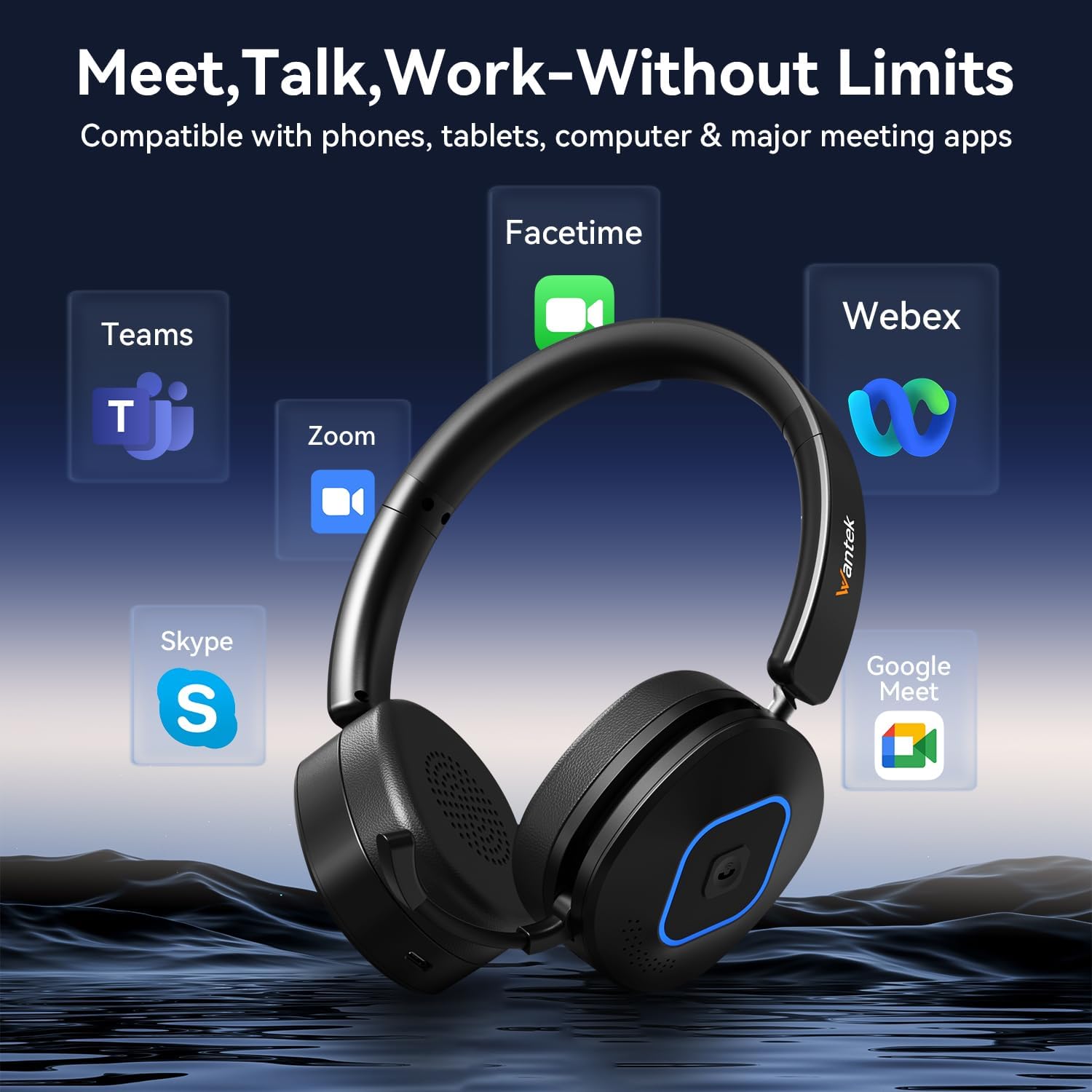
Image: The Wantek BT-186 headset is compatible with popular communication platforms like Zoom, Microsoft Teams, Google Meet, Facetime, and Skype, enabling seamless integration into your workflow.
What's in the Box
Please check the package contents to ensure all items are present:
- Wantek BT-186 Wireless Headset
- USB Dongle
- Type-C Charging Cable
- 3.5mm Audio Cable
- User Manual (this document)

Image: A visual representation of the Wantek BT-186 Wireless Headset and its included accessories: the headset, USB dongle, Type-C charging cable, 3.5mm cable, and instruction manual.
Product Overview
Key Features:
- Noise-Canceling Microphone: Eliminates up to 96% of background noise for clear voice transmission.
- Portable Retractable Mic: Microphone neatly retracts when not in use for a streamlined profile.
- 180° Rotating Ear Cups: Fold flat for compact storage and adjust for comfort.
- 3-in-1 Connection Modes: Supports USB dongle, Bluetooth 6.0, and wired (3.5mm) connections.
- Long Battery Life: Up to 40 hours of music playback or 35 hours of talk time.
- Comfortable Design: Lightweight with adjustable headband and soft earmuffs for all-day wear.
Controls and Components:

Image: A detailed view of the headset highlighting key components: Volume +/-, Previous/Next Song buttons, MFB (Multi-Function Button), Power Button, Retractable Microphone, Soft Breathable Earmuffs, and Adjustable Headband.
Setup
1. Power On/Off
- To Power On: Slide the Power switch to the "ON" position.
- To Power Off: Slide the Power switch to the "OFF" position.
2. Bluetooth Pairing (for Cellphones/Tablets)
- Ensure the headset is powered off.
- Press and hold the MFB button until the LED indicator flashes blue and red alternately, indicating pairing mode.
- On your device (phone/tablet), enable Bluetooth and search for "BT-186" in the list of available devices.
- Select "BT-186" to connect. The LED indicator will turn solid blue once connected.
3. USB Dongle Connection (for PC/Laptops)
- Insert the USB dongle into an available USB port on your computer.
- Power on the headset. It will automatically attempt to connect to the dongle.
- The LED indicator on the dongle and headset will turn solid blue when successfully connected.
- You may need to select "Wantek BT-186" as the audio input/output device in your computer's sound settings.
4. Wired Connection (3.5mm Audio Cable)
- Connect one end of the 3.5mm audio cable to the headset's 3.5mm jack.
- Connect the other end to the 3.5mm audio port on your device.
- The headset will function as a wired headset, even if the battery is depleted.
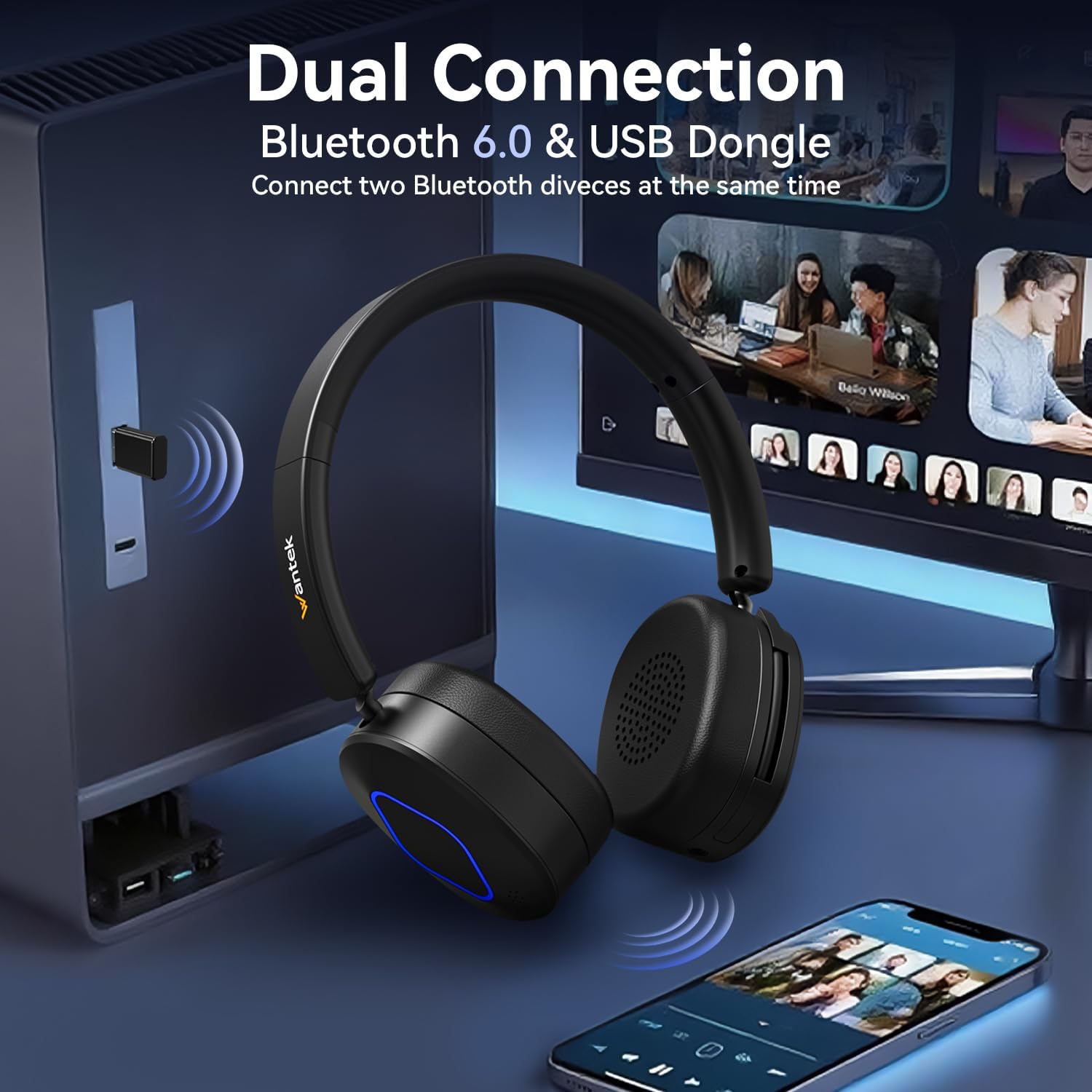
Image: The Wantek BT-186 headset demonstrating its dual connection capabilities, showing both Bluetooth connectivity to a smartphone and USB dongle connection to a computer.
Video: A demonstration of the Wantek Wireless Headset, showcasing its features and ease of use for work environments.
Operating Instructions
1. Call Management (via MFB button)
- Answer Call: Press the MFB button once.
- End Call: Press the MFB button once during a call.
- Reject Call: Press and hold the MFB button for 2 seconds.
2. Music Playback
- Play/Pause: Press the MFB button once.
- Next Song: Press the "+" button once.
- Previous Song: Press the "-" button once.
3. Volume Control
- Increase Volume: Press and hold the "+" button.
- Decrease Volume: Press and hold the "-" button.
4. Microphone Usage
- To use the microphone, gently pull it down from its retracted position.
- Adjust the microphone's angle to position it close to your mouth for optimal call quality.
- To retract, push the microphone back into its housing until it clicks into place.
5. Mute Function
- During a call, press the dedicated Mute button (often indicated by a microphone icon) to mute or unmute your microphone.
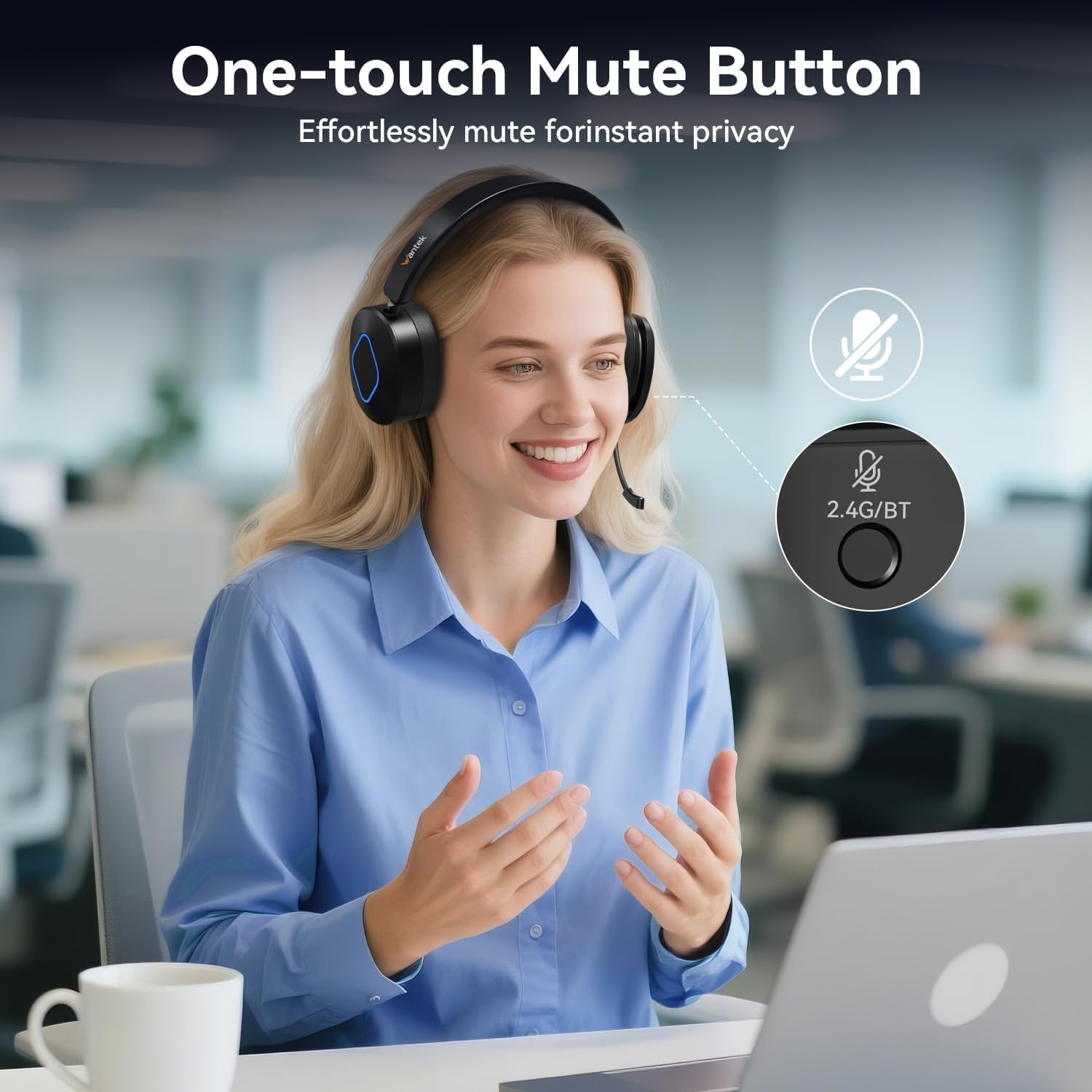
Image: The Wantek BT-186 headset featuring a prominent one-touch mute button on the earcup, allowing for effortless privacy during calls.
Charging
The Wantek BT-186 headset is equipped with a rechargeable battery providing up to 40 hours of music playback or 35 hours of talk time on a single charge. A full charge takes approximately 2 hours.
- Connect the Type-C charging cable to the headset's charging port.
- Connect the other end of the cable to a USB power source (e.g., computer USB port, wall adapter).
- The LED indicator will show red during charging and turn off or change color (depending on model) when fully charged.
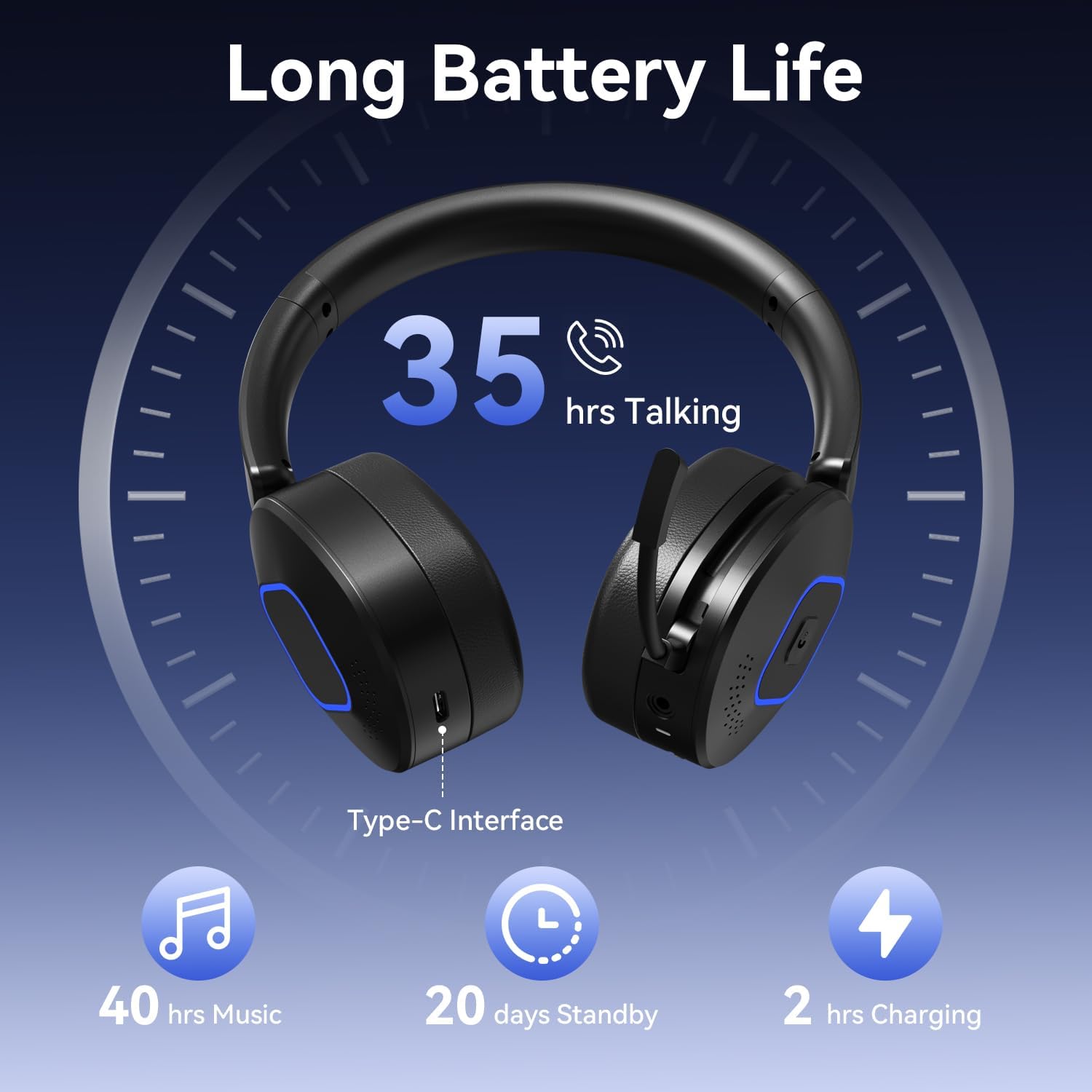
Image: A visual graphic illustrating the impressive battery life of the Wantek BT-186 headset, showing 35 hours of talk time, 40 hours of music, 20 days standby, and 2 hours charging time via its Type-C interface.
Maintenance
To ensure the longevity and optimal performance of your Wantek BT-186 headset, follow these maintenance guidelines:
- Cleaning: Use a soft, dry cloth to clean the headset. Avoid using harsh chemicals or abrasive materials.
- Storage: Store the headset in a cool, dry place away from direct sunlight and extreme temperatures. Use the provided velvet carrying case for protection when traveling or not in use.
- Battery Care: For optimal battery life, avoid fully discharging the headset frequently. Charge it regularly, even if not in constant use.
- Avoid Moisture: Do not expose the headset to water or excessive moisture.
Troubleshooting
| Problem | Possible Solution |
|---|---|
| Headset won't power on | Ensure the battery is charged. Connect to the Type-C charging cable and try again. |
| Cannot pair via Bluetooth | Make sure the headset is in pairing mode (flashing blue/red LED). Ensure your device's Bluetooth is enabled and within range. Forget previous pairings on your device and try again. |
| No sound or poor sound quality | Check volume levels on both the headset and your connected device. Ensure the headset is selected as the default audio output device on your computer. For wired connection, ensure the 3.5mm cable is fully inserted. |
| Microphone not working | Ensure the microphone is pulled down and positioned correctly. Check if the microphone is muted. Verify that the headset is selected as the default audio input device on your computer. |
| USB dongle not connecting | Try inserting the dongle into a different USB port. Ensure the headset is powered on and within range of the dongle. |
Specifications
| Feature | Detail |
|---|---|
| Model Name | BT-186 (WK186BT) |
| Connectivity Technology | Wireless (Bluetooth 6.0), Wired (3.5 mm Jack), USB Dongle |
| Noise Control | Active Noise Cancellation (Microphone) |
| Microphone Noise Reduction | 96% Background Noise Elimination |
| Battery Life | 40 Hours (Music), 35 Hours (Talk Time) |
| Charging Time | 2 Hours |
| Bluetooth Range | 20 Meters |
| Earpiece Shape | On Ear |
| Material | Acrylonitrile Butadiene Styrene (ABS) |
| Item Weight | 13.4 ounces |
| Product Dimensions | 7 x 5.5 x 2 inches |
Warranty and Support
Wantek products are designed for durability and performance. For specific warranty details and support, please refer to the information provided with your purchase or visit the official Wantek website.
- Warranty: Typically includes a 12-month warranty against manufacturing defects.
- Customer Support: For technical assistance, troubleshooting, or warranty claims, please contact Wantek customer service through their official channels.
- Online Resources: Additional FAQs and support documents may be available on the Wantek website.
