
1. Introduction
The Kuycon G27P is a 27-inch 5K UHD (5120x2880) computer monitor designed for professionals and home users seeking exceptional visual clarity and performance. Featuring an IPS panel, 99% DCI-P3/sRGB color gamut, and 10-bit color depth, it delivers sharp text and vibrant, accurate colors. This monitor integrates advanced features such as AMD FreeSync, 100W USB-C Power Delivery, and an ergonomic stand, making it a versatile display solution.
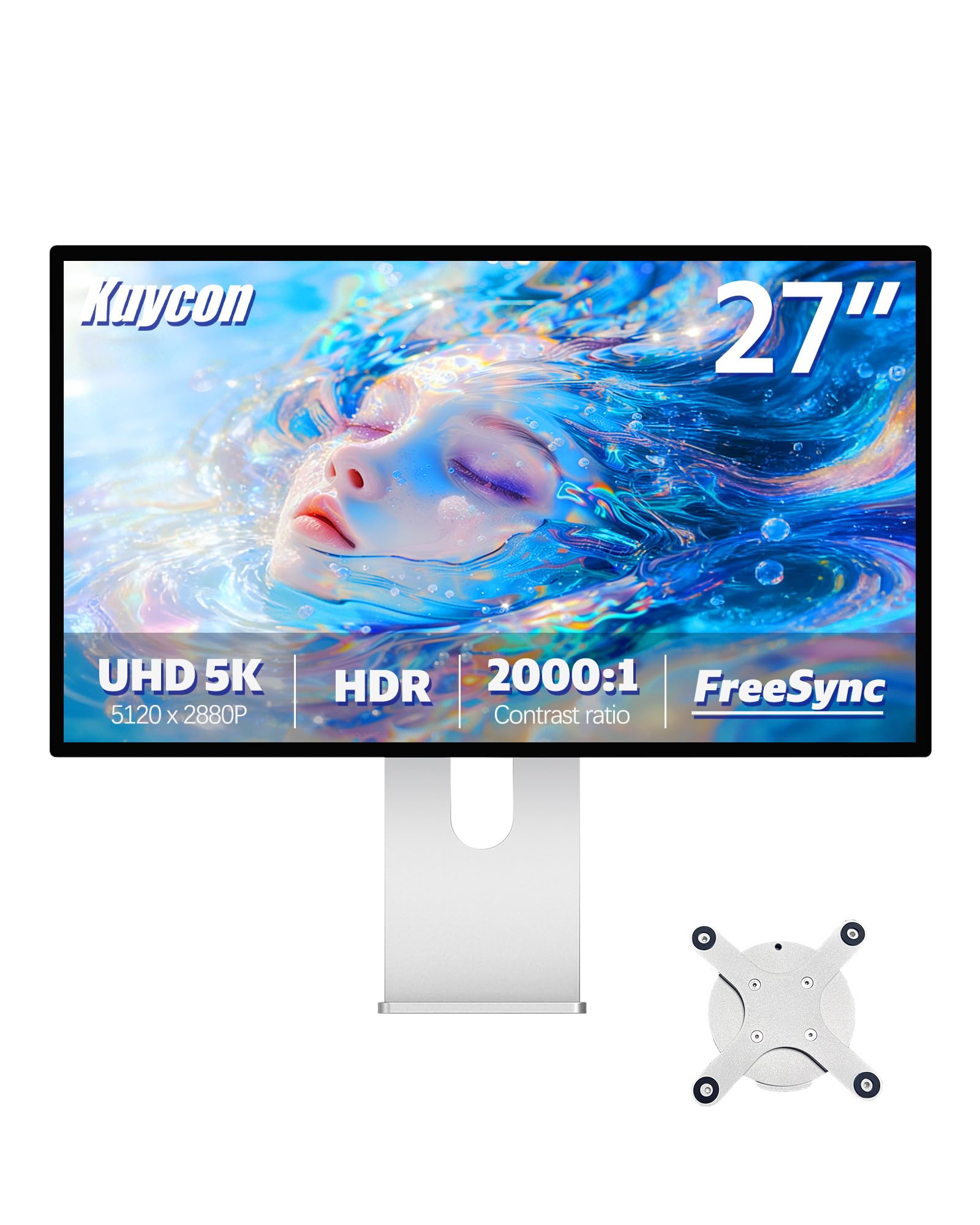
Figure 1: Front view of the Kuycon G27P 27-inch 5K Computer Monitor.
2. What's in the Box
Upon unboxing your Kuycon G27P monitor, please ensure all the following components are present:
- Kuycon G27P 27-inch 5K Monitor Display Panel
- Adjustable Monitor Stand (Honeycomb style)
- VESA Mount Adapter (for alternative mounting)
- DP Cable
- HDMI Cable
- Power Cable
- 2x USB-C to USB-A Adapters
- Rubber Feet for Stand Base Mounting Screws
- Thumb Screws (for monitor attachment and VESA mount)
- Remote Control for On-Screen Display (OSD) Menu
- 8GB USB-A Thumb Drive (containing digital documentation in Chinese)
Please note that while the included USB drive contains documentation, it may be in Chinese. This manual serves as the English instruction guide.
3. Setup and Assembly
Follow these steps to assemble and set up your Kuycon G27P monitor:
- Unboxing: Carefully remove all components from the packaging.
- Stand Assembly: If using the included stand, refer to the picture on the stand box for correct assembly. The stand is designed for easy, intuitive setup.
- Attaching Monitor to Stand: Stand behind the display stand. Insert the top flange of the stand mount into the corresponding circular mount area on the back of the monitor. Secure the monitor to the stand using a thumb screw. Attach the lower part of the mount to the stand arm with another thumb screw and plastic washer.
- VESA Mounting (Optional): The monitor is VESA 100x100mm compatible. If using a different VESA mount or arm, attach the VESA mount adapter to the monitor using the provided thumb screws.
- Connecting Cables: Connect the power cable to the monitor and a power outlet. Use the provided DP or HDMI cable to connect the monitor to your computer. For USB-C connectivity and power delivery, use a compatible USB-C cable.
- Power On: Press the power button on the monitor or use the remote control to turn on the display.

Figure 2: Rear view of the Kuycon G27P monitor with honeycomb backplate and stand.

Figure 3: Detailed view of the monitor's rear design and stand attachment point.
4. Operating Instructions
4.1 Power On/Off
To power on or off the monitor, use the dedicated power button located on the monitor bezel or the included remote control.
4.2 On-Screen Display (OSD) Menu
The monitor's settings can be adjusted using the On-Screen Display (OSD) menu, accessed via the remote control. The remote allows for convenient navigation and adjustment of various display parameters such as brightness, contrast, color modes, input selection, and more.
4.3 Ergonomic Adjustments
The included stand offers comprehensive ergonomic adjustments to optimize your viewing experience:
- Height Adjustment: The spring-loaded mechanism allows for smooth vertical height adjustment.
- Tilt: Adjust the screen's vertical angle (up and down, or tilting away/towards you).
- Swivel: Rotate the screen horizontally to share your view or adjust your position.
- Pivot: Rotate the screen 90 degrees for portrait mode viewing, ideal for coding or document review.

Figure 4: Illustrations of the monitor's all-aluminum alloy build, 218 PPI display, and adjustable stand features.
5. Features and Technology
5.1 True 5K UHD Clarity
The G27P features a 27-inch IPS panel with a true 5K UHD resolution of 5120x2880 pixels, delivering 14.7 million pixels. This results in exceptionally sharp text and detailed images, meeting the Retina display standard with a pixel density of 218 PPI. The glossy display surface further enhances clarity and vibrancy.

Figure 5: Visual comparison demonstrating the clarity of 5K resolution compared to 4K.

Figure 6: The 5K glossy display renders intricate details with precision.
5.2 Superior Color Accuracy and Contrast
The G27P supports 10-bit color (1.07 billion hues) and covers 99% of both DCI-P3 and sRGB color spaces, ensuring professional-grade color accuracy (Delta E < 2). This makes it ideal for color-critical tasks such as graphic design, video editing, and photography. It also features a high 2000:1 contrast ratio and 600 nits brightness, delivering deep blacks and vibrant highlights.

Figure 7: High color accuracy with 10-bit color depth and wide color gamut.

Figure 8: The 2000:1 contrast ratio ensures deep blacks and detailed images.
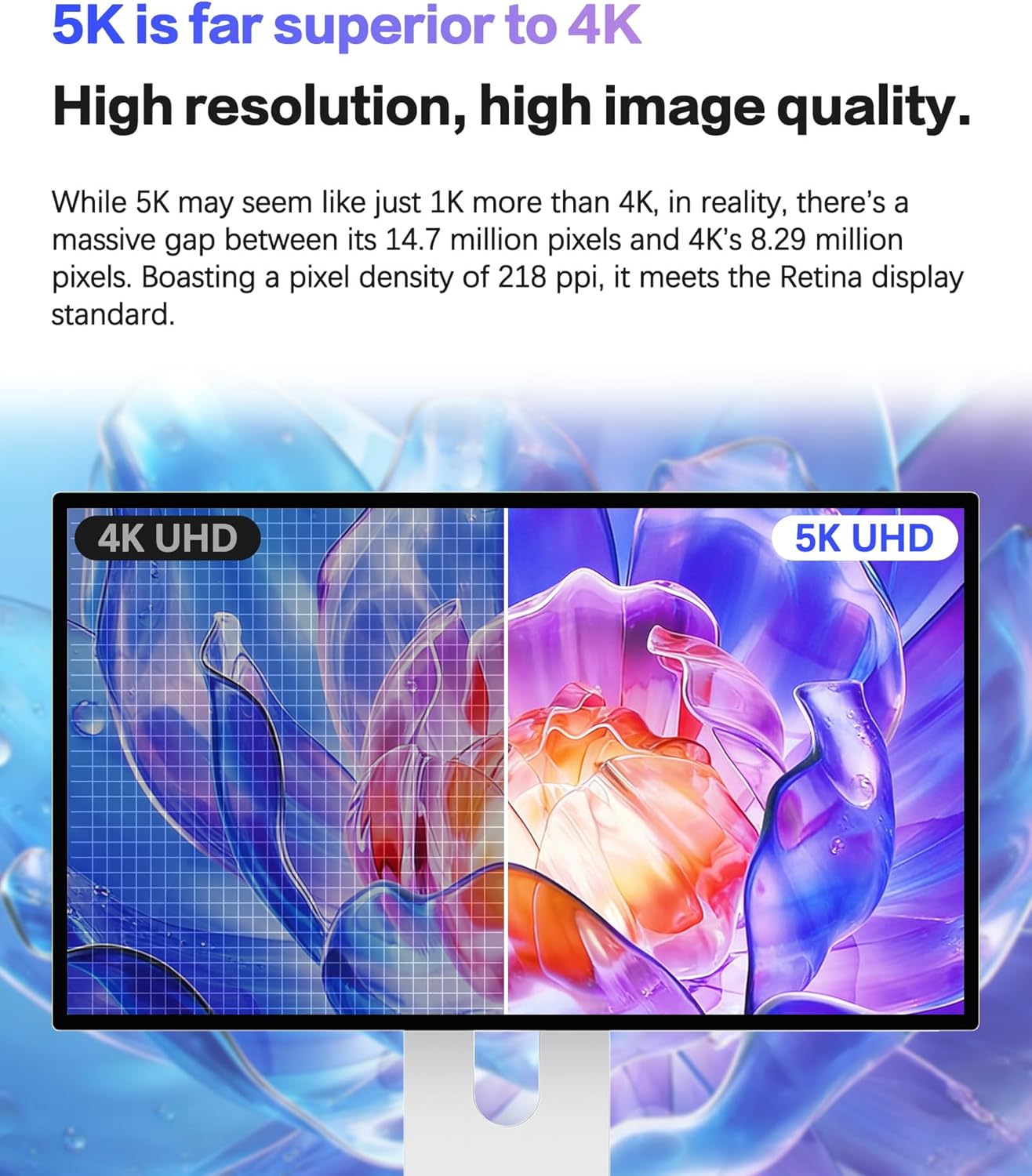
Figure 9: Comparison of 2000:1 contrast and 600 nit brightness.
5.3 IPS Black Technology and Smooth Performance
Utilizing LG Nano IPS Black display panel technology, the G27P achieves 35% deeper blacks than standard IPS panels, eliminating washed-out blacks and light leakage. With a 60Hz refresh rate and 8ms response time, combined with AMD FreeSync technology, the monitor provides smooth visuals and eliminates screen tearing for both daily use and gaming.

Figure 10: IPS Black technology delivers deeper blacks and enhanced visual depth.
5.4 Eye-Care Features
The monitor incorporates several features to reduce eye strain during prolonged use. OGS full-lamination and a multi-layer AR coating minimize glare and reflections. Additionally, Low Blue Light and flicker-free technologies are integrated to provide a more comfortable viewing experience.

Figure 11: The AR Anti-Glare Monitor feature reduces reflections for eye comfort.
5.5 Premium Aluminum Build
The G27P features an ultra-slim, all-aluminum body with a distinctive honeycomb backplate. This design not only provides a sleek aesthetic but also offers superior heat dissipation and dust resistance, ensuring durability and longevity. The monitor is VESA 100x100mm compatible for flexible mounting options.
6. Connectivity
The Kuycon G27P offers a comprehensive range of ports for seamless multi-device connection:
- USB-C (100W Power Delivery): A single USB-C port supports 100W reverse charging, allowing you to power compatible laptops while simultaneously transmitting 5K video and data, reducing cable clutter.
- DisplayPort (DP 1.4): For high-resolution video input.
- HDMI (HDMI 2.1): For high-resolution video input from various devices.
- USB-C (Standard 5V 2.1A) x2: Two additional USB-C ports for connecting peripherals, with a claimed speed of 480Mbps.
- 3.5mm Audio Jack: For connecting external audio devices.
Figure 12: Rear port configuration and 100W reverse charging capability.
7. Specifications
| Feature | Specification |
|---|---|
| Screen Size | 27 Inches |
| Resolution | 5120 x 2880 Pixels (5K UHD 2880p) |
| Aspect Ratio | 16:9 |
| Panel Type | IPS |
| Image Brightness | 600 Candela (nits) |
| Contrast Ratio | 2000:1 |
| Color Depth | 10-bit (1.07 Billion Colors) |
| Color Gamut | 99% DCI-P3 / 99% sRGB |
| Refresh Rate | 60Hz |
| Response Time | 8ms |
| Sync Technology | AMD FreeSync |
| Screen Surface | Glossy |
| Video Inputs | 1x DP 1.4, 1x HDMI 2.1, 1x USB-C (PD100W) |
| USB Ports | 3 (1x USB-C PD, 2x USB-C 5V 2.1A) |
| Audio Output | 1x 3.5mm TRS |
| VESA Compatibility | 100x100mm |
| Product Dimensions | 24.3 x 14.1 x 1.1 inches |
| Item Weight | 18.04 pounds |

Figure 13: Key specifications of the Kuycon G27P monitor.

Figure 14: Detailed product parameters table.
8. Video Overview
Watch this official video for a visual guide to the Kuycon G27P monitor, covering unboxing, assembly, and key features.
Video 1: G27P Monitor Overview. This video demonstrates the unboxing, assembly, and key features of the Kuycon G27P 5K monitor. It highlights the ease of setup, the sharpness of the 5K display with 218 PPI, the wide color gamut (99% DCI-P3, 1.07 billion colors), and the convenience of 100W USB-C reverse charging. The video also showcases the monitor's ergonomic adjustments, including tilt, swivel, pivot, and height adjustment, emphasizing its suitability for professional use and eye comfort.
9. Maintenance
To ensure the longevity and optimal performance of your Kuycon G27P monitor, follow these maintenance guidelines:
- Cleaning the Screen: Use a soft, lint-free cloth specifically designed for electronics. For stubborn smudges, lightly dampen the cloth with water or a screen-cleaning solution. Avoid harsh chemicals, alcohol, or ammonia-based cleaners.
- Cleaning the Body: Wipe the monitor's aluminum body and stand with a soft, dry cloth. The honeycomb backplate is designed for dust resistance, but occasional gentle cleaning can help maintain airflow.
- Ventilation: Ensure the monitor's vents are not obstructed to allow for proper heat dissipation.
- Power Off When Not in Use: For extended periods of inactivity, power off the monitor to conserve energy and prolong its lifespan.
10. Troubleshooting
If you encounter issues with your Kuycon G27P monitor, refer to the following common troubleshooting steps:
- No Display/Black Screen:
- Ensure the power cable is securely connected to both the monitor and the power outlet.
- Verify that the video cable (DP, HDMI, or USB-C) is firmly connected to both the monitor and your computer.
- Check if the correct input source is selected on the monitor's OSD menu.
- Test with a different video cable or port if available.
- Flickering or Distorted Image:
- Ensure the video cable is not loose or damaged.
- Update your computer's graphics drivers.
- Disable AMD FreeSync in your computer's graphics settings or the monitor's OSD menu to see if it resolves the issue.
- Adjust the refresh rate in your computer's display settings.
- No Sound (if using monitor speakers/audio out):
- Check the audio output settings on your computer to ensure the monitor is selected as the playback device.
- Adjust the volume on both your computer and the monitor.
- Ensure external speakers/headphones are properly connected to the 3.5mm audio jack.
- Remote Control Unresponsive:
- Ensure there are no obstructions between the remote and the monitor's sensor.
- Replace the remote control batteries.
For persistent issues, please contact Kuycon customer support.
11. Warranty and Support
The Kuycon G27P monitor is backed by a comprehensive warranty and lifetime technical support. For specific warranty details and to access technical assistance, please visit the official Kuycon website or contact Kuycon customer service. Keep your purchase receipt for warranty claims.
