
Introduction
This manual provides detailed instructions for the installation, operation, and maintenance of your CAMECHO 4+128GB Car Radio Stereo. Please read this manual thoroughly before use to ensure proper functionality and to avoid damage. Keep this manual for future reference.
Applicable Car Models
This head unit is specifically designed for the following vehicle models:
- Jeep Grand Cherokee WJ/WG (1999-2004) - Low-End Version

Image: Comparison of the dashboard before and after installing the CAMECHO car stereo in a compatible Jeep Grand Cherokee.
Package Contents
Verify that all the following items are included in your package before beginning the installation process. If any items are missing or damaged, please contact customer support.
- 1 x Android Head Unit
- 1 x AHD Reverse Camera
- 1 x External Microphone
- 1 x Protocol Box (Canbus)
- 1 x GPS Antenna
- 1 x Adapter Antenna
- 2 x Power Cable
- 1 x RCA Cable
- 2 x USB Cable
- 1 x Rear Camera Input Cable
- 1 x Installation Tool
- 1 x Instruction Manual
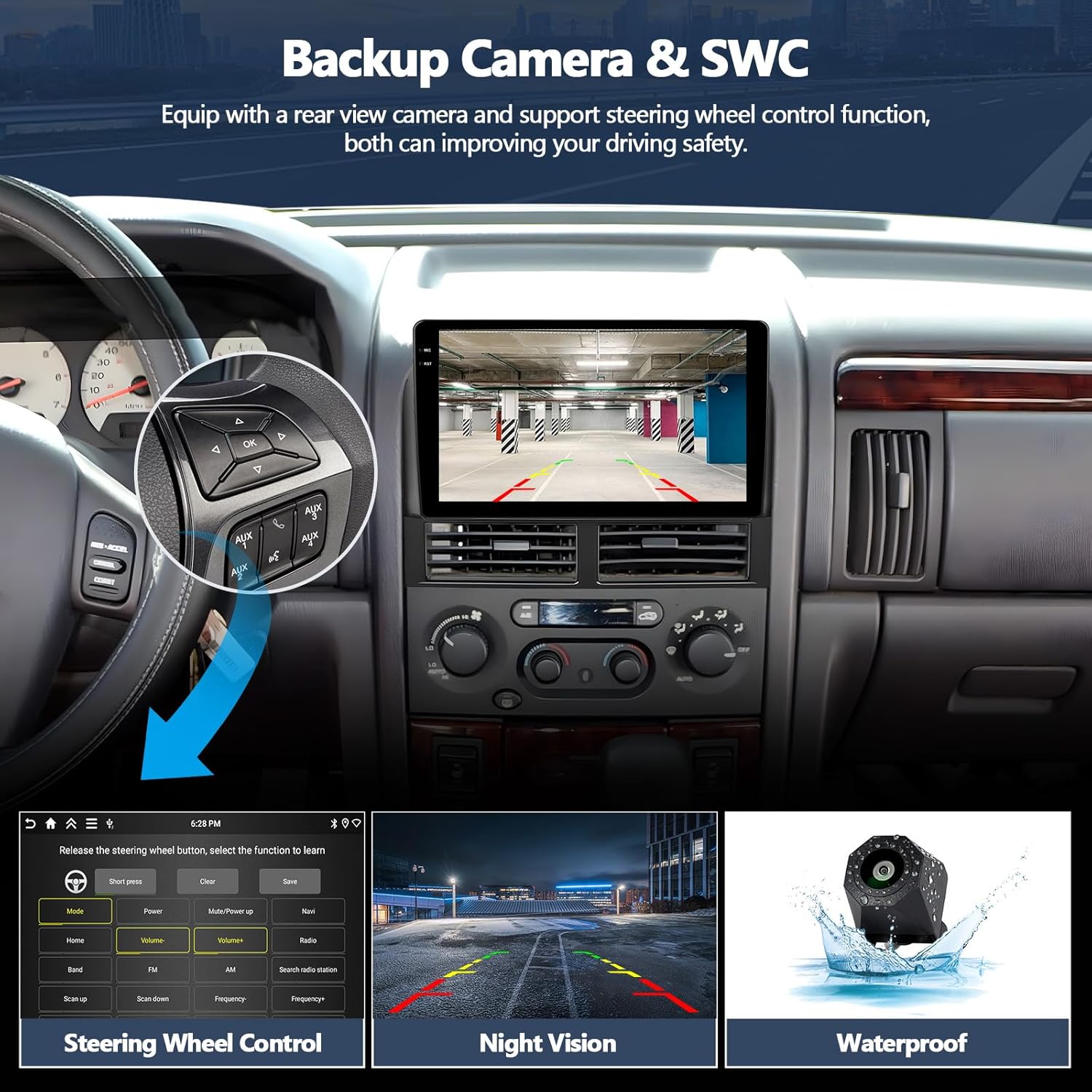
Image: Detailed view of the head unit dimensions and a comprehensive list of all components included in the package.
Setup and Installation
General Installation Notes
Professional installation is highly recommended for this product. Before starting any installation, ensure the vehicle's battery is disconnected to prevent electrical damage or injury. Follow all wiring diagrams carefully.
Wiring Diagram (Power and Amplifier)
Refer to the following diagram for proper power and amplifier wiring connections. Incorrect wiring can lead to malfunction or damage.

Image: Diagram illustrating the connection of the AMP cable from the RCA output to the ACC cable of the power harness.
CANBUS Connection
Connect the provided Protocol Box (Canbus) to enable steering wheel controls and other vehicle-specific functions. Ensure the 8-pin cable is securely plugged into the head unit connector.

Image: Diagram illustrating the CANBUS connection to the head unit and the importance of the 8-pin cable for steering wheel control functionality.
Reversing Camera Installation
The reversing camera provides a clear view when backing up, enhancing safety. Follow these steps for proper installation:
- Connect the positive pole of the camera's power supply to the car's reversing light positive pole.
- Connect the negative pole of the camera's power supply to the car's reversing light negative pole.
- The reversing trigger is controlled by the stereo and does not require a separate connection.
Note: The reversing input must be plugged in even if the camera is not used. If the camera does not work, adjust the resolution via: Settings > Factory Settings (Password: 1234) > Video Source.

Image: Detailed wiring diagram for the reversing camera, showing connections to the car's reversing light and the head unit's input.
Operating Instructions
Wireless CarPlay & Android Auto
Connect your compatible smartphone wirelessly to access navigation, music, phone calls, and messages directly on the head unit. This feature supports Siri and Google voice assistants for hands-free operation.
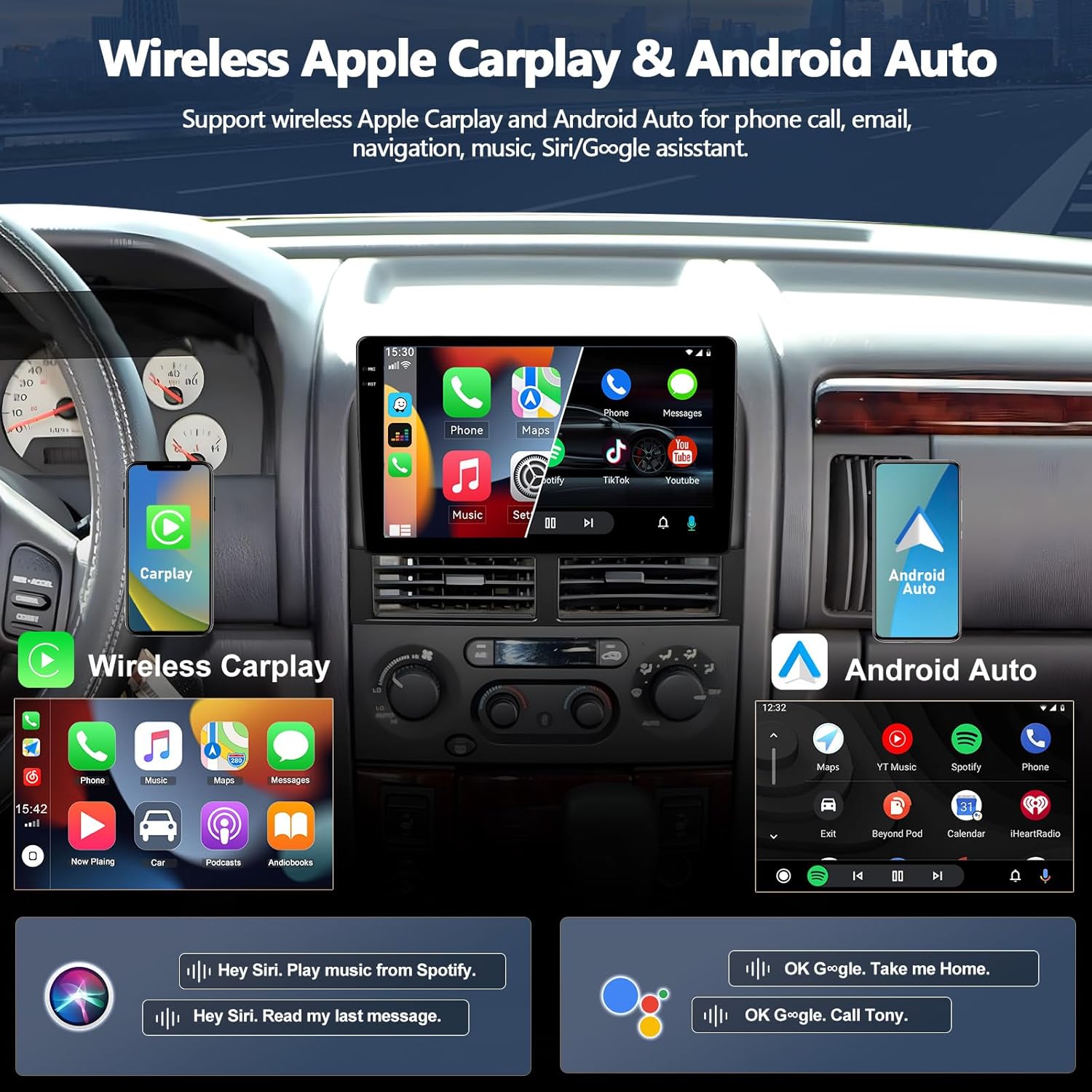
Image: Display showing the user interface for Wireless Apple CarPlay and Android Auto on the head unit screen.
GPS Navigation & WiFi Connection
The unit features a built-in GPS receiver and WiFi connectivity, enabling both online and offline navigation. Connect to a WiFi hotspot to download additional applications, maps, and access internet content.

Image: Screenshot of the GPS navigation interface and icons indicating WiFi connectivity status.
Bluetooth Features & FM RDS Radio
Enjoy hands-free calling and wireless music streaming from your Bluetooth-enabled devices. The high-quality digital stereo (RDS) FM tuner allows you to listen to your favorite radio stations with clear reception.

Image: Screenshots demonstrating the Bluetooth call interface and the FM RDS radio display on the head unit.
Steering Wheel Controls
The unit supports the original steering wheel buttons of your vehicle, allowing for convenient control of audio and other functions without diverting your attention from the road. After connecting the CANBUS, configure the controls in the system settings.

Image: An illustration of a steering wheel alongside the head unit's interface, demonstrating how to configure steering wheel control functions.
Split Screen Functionality
Utilize the split-screen feature to run two applications simultaneously on the display. This allows for enhanced multitasking, such as viewing navigation while controlling music playback.

Image: Screenshot of the head unit displaying two applications, such as navigation and media player, simultaneously in split-screen mode.
Mirror Link
Synchronize your smartphone screen to the head unit's display. Android devices support two-way operation (control from both phone and head unit), while iOS devices support one-way operation (control from phone only).

Image: An illustration showing a smartphone screen being mirrored onto the car stereo display, highlighting the Mirror Link feature.
Maintenance
General Care
To ensure the longevity and optimal performance of your car stereo, follow these general maintenance guidelines:
- Screen Cleaning: Use a soft, dry, lint-free cloth to clean the touchscreen. For stubborn smudges, lightly dampen the cloth with water or a screen-safe cleaner. Avoid abrasive materials or harsh chemical cleaners, as these can damage the screen coating.
- Connection Check: Periodically check all wiring connections to ensure they are secure and free from corrosion. Loose connections can lead to intermittent issues or poor performance.
- Software Updates: Keep the system software updated to the latest version. Check for updates through the system settings or the manufacturer's website.
- Environmental Conditions: Avoid exposing the unit to extreme temperatures, direct sunlight for prolonged periods, or excessive moisture.
Troubleshooting
If No Sound
If you experience no audio output from the head unit, consider the following:
- Ensure the AMP cable from the RCA output is correctly connected to the ACC cable of the Power harness.
- Open the "Car Amplifier" option from the top bar's drag-down menu on the head unit screen.
- For vehicles with an external power amplifier, ensure the amplifier's power cable is connected to the ACC cable of the Power harness.

Image: Diagrams and screen capture illustrating steps to troubleshoot no sound issues, including amplifier connections and software settings.
Steering Wheel Controls Not Working
If your steering wheel controls are not functioning after installation, ensure the CANBUS Protocol Box is correctly connected. Then, you must set the Protocol in the system settings:
- Navigate to Settings > Factory Settings.
- Enter the password: 1234.
- Select CAN Settings.
- Choose Xinpu > Jeep > Grand Cherokee - 2010 - All Series.
Backup Camera Not Displaying
If the backup camera image is not displayed or appears fuzzy:
- Ensure the reversing input cable is securely connected to the head unit.
- Verify that the camera's power connections to the vehicle's reversing lights are correct.
- If the issue persists, adjust the backup camera resolution via: Settings > Factory Settings (Password: 1234) > Video Source.
Specifications
Key technical specifications for the CAMECHO 4+128GB Car Radio Stereo:
| Feature | Detail |
|---|---|
| Brand | CAMECHO |
| Model | 4+128GB |
| Screen Size | 9 Inches |
| Resolution | 1280 x 720P |
| RAM | 4GB |
| ROM | 128GB |
| Operating System | Android 15 |
| Connectivity | Bluetooth, WiFi, GPS |
| Special Features | Wireless CarPlay, Android Auto, MirrorLink, FM RDS, AHD Backup Camera Support, Steering Wheel Control |
| Product Dimensions (L x W x H) | 10" x 1.4" x 7.3" |
Warranty Information
This CAMECHO product is covered by a 1-year warranty from the date of purchase. This warranty covers manufacturing defects and malfunctions under normal use. Please retain your proof of purchase (receipt or order confirmation) as it will be required for any warranty claims. The warranty does not cover damage caused by improper installation, misuse, accidents, unauthorized repairs, or normal wear and tear.
Customer Support
For technical assistance, troubleshooting, or any other inquiries regarding your CAMECHO Car Radio Stereo, please contact our dedicated customer support team. We are here to help you with any questions or issues you may encounter.
Email: CAMECHOVIP@126.com

Image: A customer service representative ready to assist, with the support email address prominently displayed.