
Introduction
This manual provides essential instructions for the safe and effective operation of your xo poppy InstaPrint Digital Camera. Please read this manual thoroughly before using the device and retain it for future reference.
The InstaPrint Digital Camera combines photography, instant thermal printing, and entertainment features. It includes 16X digital zoom, 1080p video recording, a 2.4-inch display, built-in games, and an MP3 player.

Image 1: InstaPrint Digital Camera. This image shows the front of the InstaPrint Digital Camera, highlighting its compact design and the instant print output.
Package Contents
Verify that all items are present in the package:
- InstaPrint Digital Camera
- 3 Photo Rolls
- 3 Label Rolls
- 256MB SD Card
- USB Cable
Camera Overview
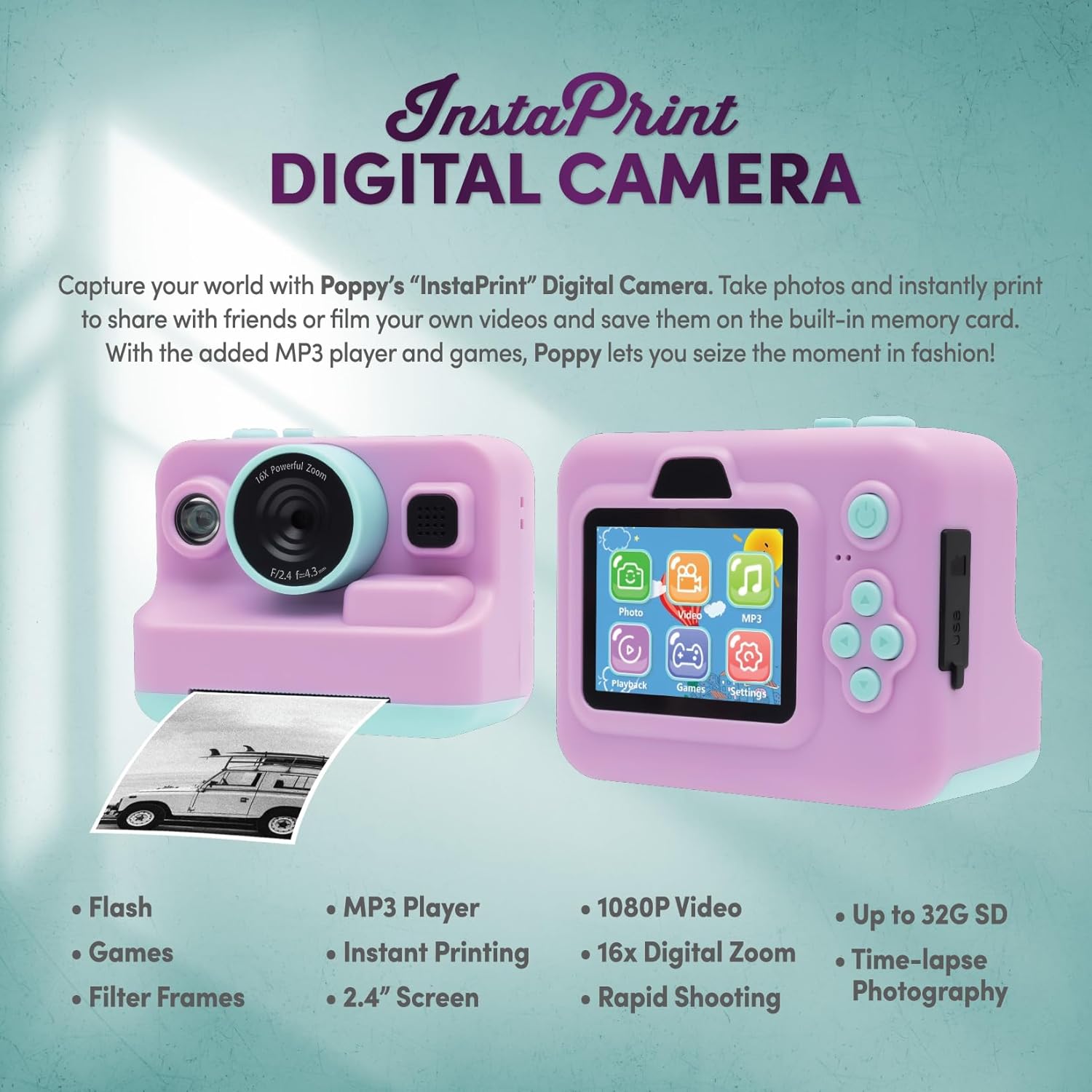
Image 2: Camera Features and Controls. This image displays the front and back of the InstaPrint Digital Camera, pointing out key components such as the 16x Digital Zoom lens, flash, cutter, instant thermal printing slot, photo/label rolls, picture button, power button, SD port, USB port, control buttons, MP3 player, digital display, built-in games, video function, and photo effects.
Setup
1. Charging the Camera
Before first use, fully charge the camera battery. Connect the included USB cable to the camera's USB port and the other end to a compatible USB power adapter (not included) or a computer USB port. The charging indicator will show the charging status.
2. Inserting the SD Card
Locate the SD card slot on the camera. Insert the included 256MB SD card into the slot until it clicks into place. Ensure the card is inserted in the correct orientation to avoid damage. The camera supports up to 32GB SD cards for expanded storage.
3. Loading Thermal Paper Rolls

Image 3: Instant Printing in Action. This image shows the camera in use, with a photo being instantly printed, demonstrating the thermal printing capability.
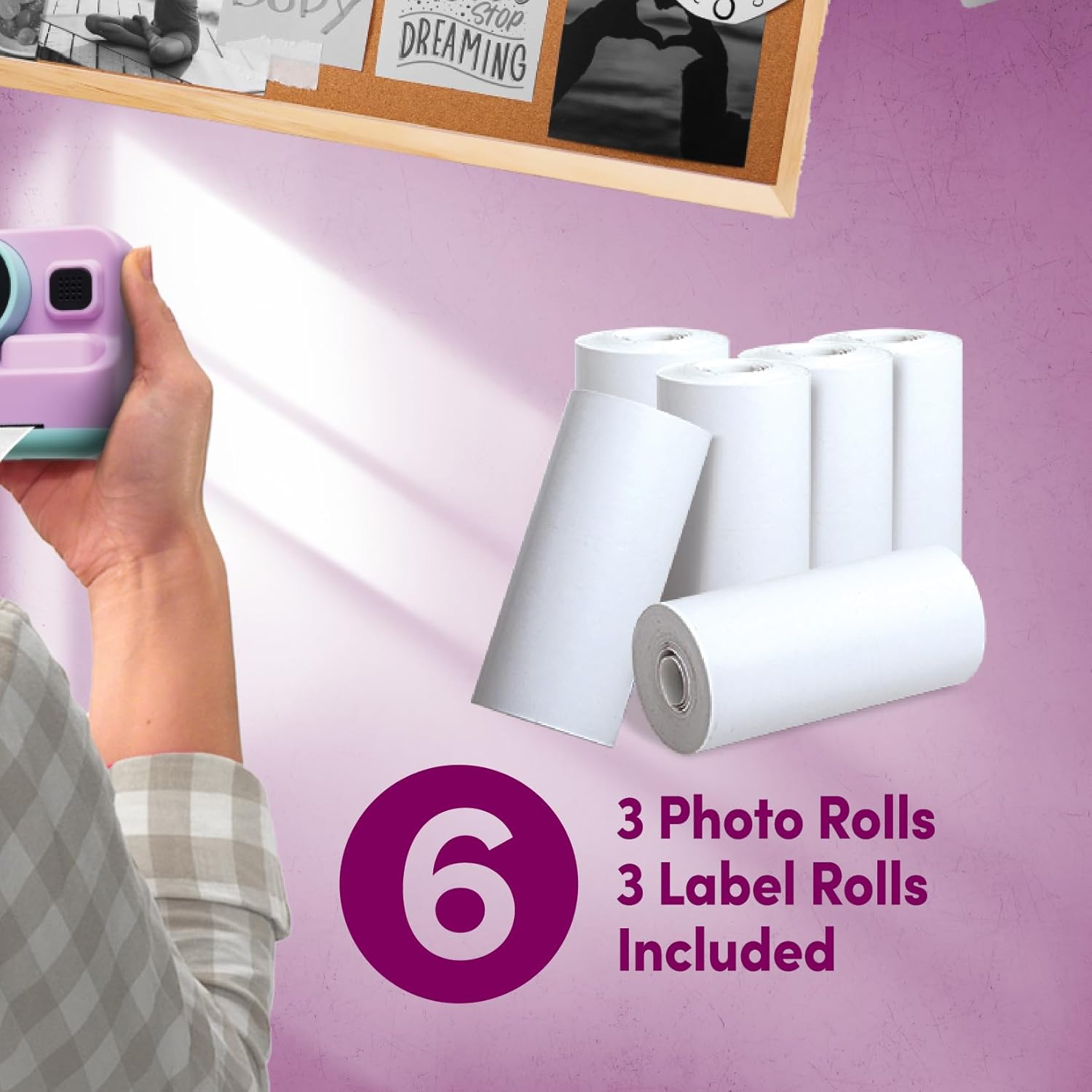
Image 4: Included Thermal Paper Rolls. This image displays the six thermal paper rolls included with the camera: three for photos and three for labels, ready for use with the instant printing function.
- Open the paper compartment cover on the camera.
- Place one of the thermal paper rolls (photo or label) into the compartment, ensuring the paper feeds out correctly.
- Close the cover securely. A small portion of the paper should extend from the printing slot.
Operating Instructions
Power On/Off
Press and hold the Power Button to turn the camera on or off.
Taking Photos
- Turn on the camera.
- Frame your shot using the 2.4-inch digital display.
- Use the control buttons to adjust settings or apply photo effects if desired.
- Press the Picture Button to capture the photo.
Recording Videos
- Navigate to the video mode using the control buttons.
- Press the Picture Button to start recording.
- Press the Picture Button again to stop recording. Videos are recorded in 1080p resolution.
Instant Printing
After taking a photo, you can choose to print it instantly. Select the print option from the camera's menu. The thermal printer will produce a black and white print. Use the built-in cutter mechanism for a clean tear.
Digital Zoom
The camera features 16X digital zoom. Use the zoom controls (typically marked with 'W' for wide and 'T' for telephoto) to adjust the zoom level before capturing a photo or video.
Built-in Games and MP3 Player
Access the Games and MP3 Player functions through the main menu on the digital display. Use the control buttons to navigate and select options. Load MP3 files onto the SD card to use the MP3 player.
Maintenance
Cleaning the Camera
Use a soft, dry cloth to clean the camera body and screen. For the lens, use a specialized lens cleaning cloth. Avoid using liquid cleaners or abrasive materials.
Battery Care
To prolong battery life, avoid exposing the camera to extreme temperatures. Recharge the battery regularly, even if the camera is not in frequent use.
Storage
When not in use, store the camera in a cool, dry place, away from direct sunlight and moisture. Remove the SD card if storing for extended periods.
Troubleshooting
| Problem | Possible Cause | Solution |
|---|---|---|
| Camera does not power on. | Low battery; faulty battery. | Charge the camera. Ensure the battery is properly inserted. |
| Cannot take photos/videos. | SD card full or not inserted correctly. | Check SD card insertion. Delete unnecessary files or replace SD card. |
| Prints are blank or faded. | Thermal paper loaded incorrectly; paper roll empty. | Ensure thermal paper is loaded with the thermal side facing the print head. Replace paper roll if empty. |
| Camera freezes. | Software glitch. | Press and hold the Power Button for 10 seconds to force a restart. |
Specifications
- Model Name: PY-DGCMP-ALV
- Brand: xo poppy
- Product Dimensions: 2 x 4 x 3 inches
- Item Weight: 1 pounds
- Photo Sensor Technology: CMOS
- Supported File Format: JPEG
- Image Stabilization: Digital
- Maximum Focal Length: 35 Millimeters
- Optical Zoom: 1x
- Maximum Webcam Image Resolution: 5 MP
- Photo Sensor Size: 1/3.2-inch
- Exposure Control Type: Automatic
- Batteries: 1 Nonstandard Battery (included)
- Video Resolution: 1080p
- Digital Zoom: 16x
- Display: 2.4-inch LCD
- Storage: 256MB SD card included, supports up to 32GB
- Connectivity: USB
- Features: Instant Thermal Printing, Built-in Games, MP3 Player, Flash, Speaker, Microphone, Digital Photo Effects, Cutter Mechanism
Important Safety Information
- Do not disassemble or attempt to repair the camera yourself.
- Keep the camera away from water and excessive moisture.
- Avoid dropping the camera or subjecting it to strong impacts.
- Use only the provided USB cable for charging.
- Dispose of batteries and electronic components responsibly according to local regulations.
Warranty Information
Specific warranty details are not provided in the product information. Please refer to the retailer or manufacturer's official website for warranty terms and conditions.
Customer Support
For technical assistance or product inquiries, please contact xo poppy customer support through their official channels. Contact information is typically available on the product packaging or the manufacturer's website.
Related Video Content
Video 5: Digital Camera Overview. This short video provides a visual overview of a digital camera, demonstrating its flip screen and general operation. While not specific to the InstaPrint model, it illustrates common digital camera features.