
1. Introduction
This manual provides detailed instructions for the HINYFVOZ 7-Inch GPS Navigator. This device is designed to provide reliable navigation for various vehicle types including cars, trucks, and RVs, featuring updated maps, voice guidance, and custom routing options. Please read this manual thoroughly before using your device to ensure proper operation and to maximize its features.
2. What's in the Box
Verify that all components are present upon unboxing:
- HINYFVOZ 7-Inch GPS Navigator Device
- Car Charger
- USB Cable
- Dashboard Mount
- Sun Visor Clip
- User Manual (this document)
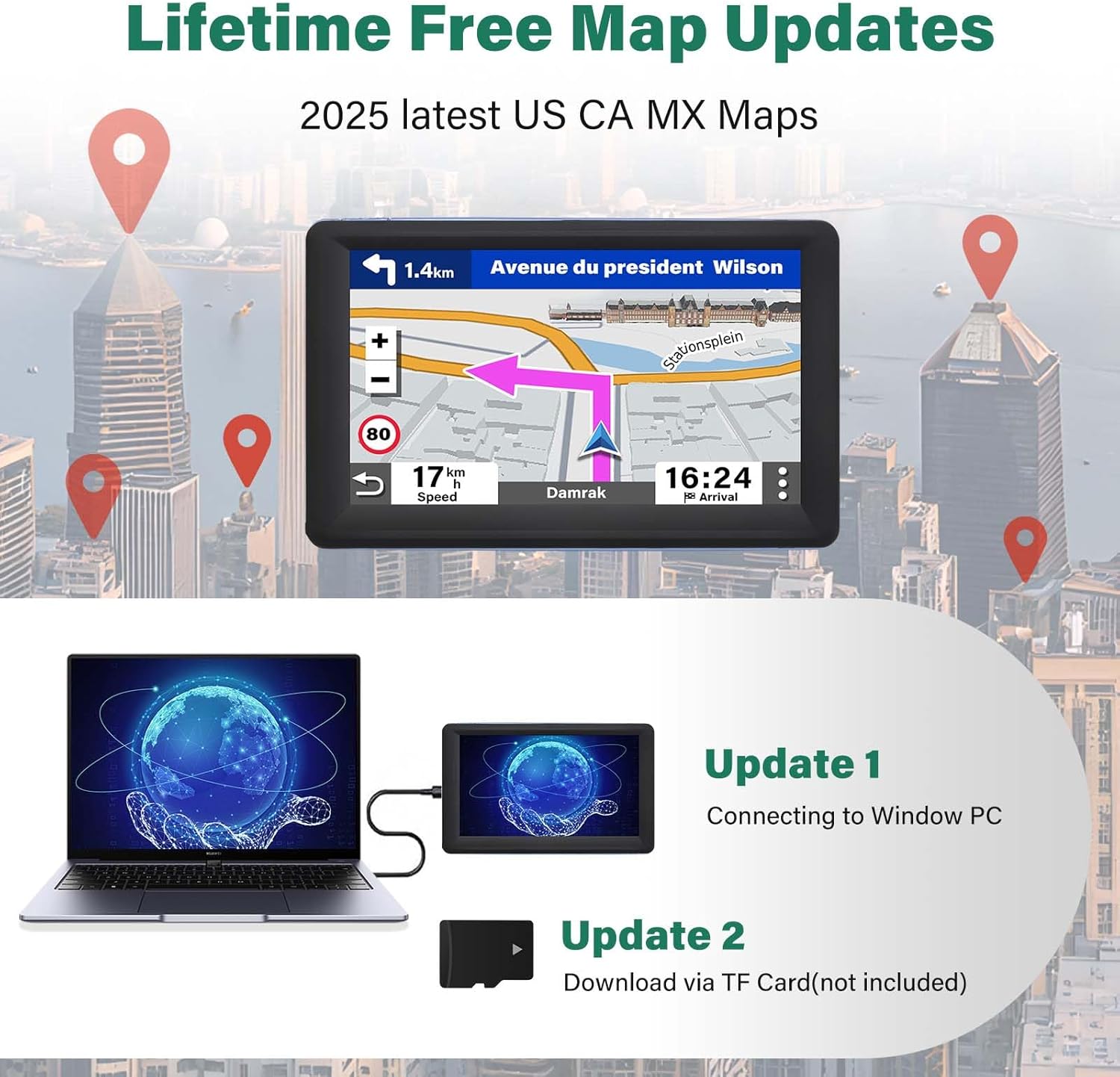
Image: Included accessories for the HINYFVOZ GPS Navigator.
3. Setup and Installation
The HINYFVOZ GPS Navigator is designed for easy plug-and-play setup.
3.1 Mounting the Device
- Choose a Location: Select a location on your dashboard or windshield that does not obstruct your view of the road or interfere with airbags. Ensure the chosen surface is clean and dry.
- Attach Suction Cup Mount: Press the suction cup firmly against the chosen surface and flip the lever to secure it.
- Attach GPS Device: Slide the GPS device onto the mount until it clicks into place. Adjust the angle for optimal viewing.
- Install Sun Visor Clip (Optional): Attach the sun visor clip to the top of the GPS device to reduce glare, if desired.
3.2 Powering On
- Connect Car Charger: Plug the small end of the car charger into the GPS device's power port.
- Connect to Vehicle Power: Insert the larger end of the car charger into your vehicle's 12V power outlet (cigarette lighter socket).
- Initial Power Up: The device should power on automatically. If not, press and hold the power button until the screen illuminates.

Image: HINYFVOZ GPS Navigator installed in a vehicle, showing its display and various alerts.
4. Operating Instructions
The HINYFVOZ GPS Navigator features an intuitive 7-inch HD touchscreen for easy operation.
4.1 Map Updates
Your device comes pre-loaded with 2026 North America maps and offers free lifetime updates. To keep your navigation system current:
- Connect to Computer: Use the provided USB cable to connect your GPS device to a Windows PC.
- Download Updates: Follow the instructions provided with the device or on the manufacturer's website to download the latest map data.
- Install Maps: Transfer the downloaded map files to the device, typically via a TF card (not included) or directly to the device's internal storage.
Additional maps for the UK, Europe, and Australia can also be downloaded.

Image: Process for updating maps on the GPS Navigator.
4.2 Multi-Vehicle Routing
Optimize your journey by configuring vehicle profiles:
- Select Vehicle Type: From the main menu, choose your vehicle profile (Car, Truck, RV, Bus, or Bicycle).
- Enter Dimensions (for Truck/RV): For larger vehicles, input specific dimensions such as height, weight, length, and width. This enables custom routing to avoid unsuitable roads like low bridges or weight-restricted areas.
- Confirm Settings: Save your vehicle profile. The GPS will now calculate routes tailored to your vehicle's specifications.

Image: Intelligent route planning for various vehicle types.
4.3 Real-Time Voice Guidance & Driving Alerts
The GPS provides clear, turn-by-turn navigation and alerts:
- Voice Guidance: Receive spoken directions in over 25 languages, including English, French, and Spanish.
- Audible Alerts: The device provides warnings for hazards such as school zones, speed cameras, and traffic lights.
- Live Driving Data: View current speed, remaining distance to destination, and estimated time of arrival (ETA) directly on the screen.
4.4 Navigation and Routing Options
Finding your destination is straightforward:
- Destination Input: Enter destinations using address, Point of Interest (POI), zip code, or geographical coordinates.
- Route Planning: The device offers multiple search options for efficient route planning.
- FM Transmission: Utilize the built-in FM transmitter to broadcast navigation audio through your car's speakers for enhanced clarity. Access FM settings from the device menu to select a frequency.

Image: HINYFVOZ GPS Navigator displaying a typical navigation screen.
5. Maintenance
To ensure the longevity and optimal performance of your HINYFVOZ GPS Navigator, follow these maintenance guidelines:
- Cleaning the Screen: Use a soft, lint-free cloth to gently wipe the touchscreen. For stubborn smudges, slightly dampen the cloth with water or a screen-cleaning solution specifically designed for electronics. Avoid abrasive materials or harsh chemicals.
- Cleaning the Device Body: Wipe the exterior of the device with a soft, dry cloth. Do not use liquid cleaners directly on the device.
- Storage: When not in use, store the GPS Navigator in a cool, dry place away from direct sunlight and extreme temperatures. Remove it from the dashboard if your vehicle will be parked in direct sunlight for extended periods to prevent overheating.
- Cable Care: Handle the USB and car charger cables carefully. Avoid bending or crimping them sharply, which can damage the internal wires.
- Software Updates: Regularly check for and install map and software updates as described in Section 4.1 to ensure the device operates with the latest features and bug fixes.
6. Troubleshooting
If you encounter issues with your HINYFVOZ GPS Navigator, refer to the following common problems and solutions:
| Problem | Possible Cause | Solution |
|---|---|---|
| Device does not power on. | No power connection; discharged battery; faulty charger. | Ensure car charger is securely plugged into both the device and the vehicle's 12V outlet. Check if the vehicle's 12V outlet is functional. Charge the device for at least 30 minutes. |
| No GPS signal or signal loss. | Obstructed view of sky; initial satellite acquisition; device malfunction. | Ensure the device has a clear view of the sky (not under a bridge, in a tunnel, or heavily wooded area). Allow several minutes for initial satellite acquisition, especially after first use or long periods of inactivity. Move to an open area. |
| Touchscreen is unresponsive or slow. | Temporary software glitch; screen protector interference; device overload. | Restart the device. Ensure your fingers are clean and dry. If a screen protector is installed, ensure it is properly applied and not interfering. Close any unnecessary background applications if applicable. |
| Voice guidance is unclear or too quiet. | Volume settings; FM transmitter interference. | Adjust the volume settings on the device. If using FM transmission, ensure the car radio is tuned to the correct, clear frequency and adjust the volume on your car stereo. |
| Maps are outdated or incorrect. | Maps not updated; regional map not installed. | Perform a map update as described in Section 4.1. Ensure the correct regional maps are installed for your travel area. |
7. Specifications
| Feature | Detail |
|---|---|
| Brand | HINYFVOZ |
| Model | B0G1YKF2QB |
| Screen Size | 7 Inches |
| Display Type | LCD/LED Touchscreen |
| Touch Screen Type | Capacitive |
| Connectivity Technology | USB |
| Map Type | North America (with free lifetime updates; UK, Europe, Australia available for download) |
| Supported Satellite Navigation System | GPS |
| Vehicle Service Type | Car, RV, Truck |
| Mounting Type | Dashboard Mount, Windshield Mount |
| Control Method | Touch |
| Batteries Included | Yes |
| Manufacturer | GPS-HJX |
| GTIN (UPC) | 717956535349 |
8. Warranty Information
The manufacturer provides a warranty for this product. Specific warranty terms, conditions, and duration are typically detailed in the warranty card included with your purchase or available on the manufacturer's official website. Please retain your proof of purchase for warranty claims.
9. Customer Support
For technical assistance, troubleshooting beyond this manual, or warranty inquiries, please refer to the contact information provided in the packaging or on the official HINYFVOZ website. Ensure you have your product model number (B0G1YKF2QB) and proof of purchase ready when contacting support.


