
1. Introduction
The Skyworth H30P WiFi 3MP Indoor Camera is designed to provide reliable and smart surveillance for your home or office. This manual provides essential information for setting up, operating, and maintaining your camera to ensure optimal performance and security.
Key Features:
- Ultra-clear 3MP Resolution: Captures sharp, high-definition video.
- Full 360-degree Coverage: Offers smooth horizontal and vertical rotation for comprehensive monitoring.
- Smart Motion and Sound Alerts: Sends instant notifications to your smartphone upon detection.
- Color Night Vision: Provides bright, full-color images even in complete darkness using dual infrared and LED lights.
- Two-way Audio: Enables communication through a built-in microphone and speaker.
- Flexible Connectivity: Supports both wireless Wi-Fi (including Wi-Fi 6) and wired RJ45 connections.
- Sleek and Compact Design: Modern white finish suitable for various home decors, with wall-mount or shelf placement options.
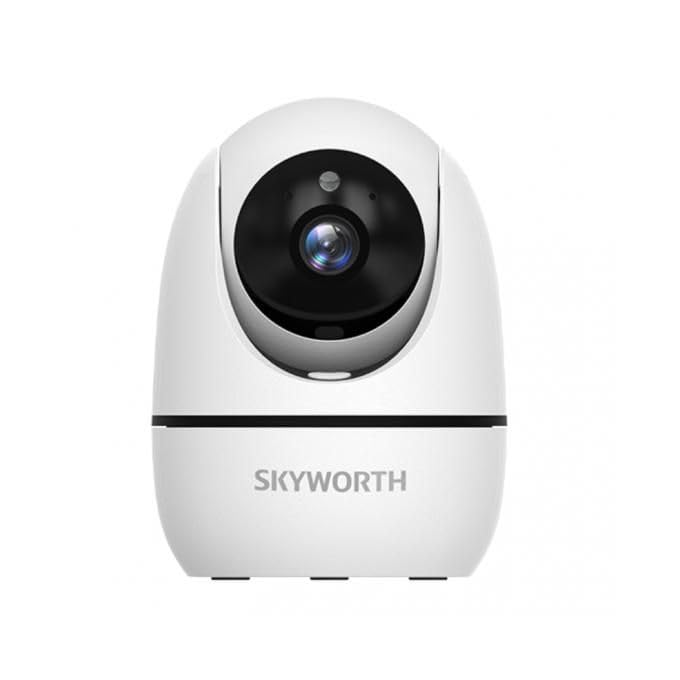
Image: The Skyworth H30P camera, showcasing its 3MP resolution, two-way audio, 360-degree rotation and cruise capabilities, and human detection and tracking features.
2. Safety Information
Please read and follow all safety instructions carefully before using this product to prevent damage or injury.
- Ensure the power supply matches the camera's requirements.
- Do not expose the camera to water or moisture. This product is for indoor use only.
- Avoid placing the camera near heat sources or in direct sunlight.
- Do not attempt to disassemble or repair the camera yourself. Contact qualified service personnel for assistance.
- Keep the camera and its accessories out of reach of children.
- Use only manufacturer-approved accessories.
3. Package Contents
Verify that all items are present in the package:
- Skyworth H30P WiFi 3MP Indoor Camera Body
- Power Adapter
- Mounting Screws and Wall Plugs
- Mounting Bracket
- User Manual (this document)
4. Product Overview
Familiarize yourself with the camera's components:
- Lens: Captures video footage.
- Infrared LEDs: Provide illumination for night vision.
- Status Indicator Light: Shows the camera's current status (e.g., power on, network connection).
- Microphone: Captures audio for two-way communication and sound detection.
- Speaker: Outputs audio for two-way communication.
- Power Port: Connects to the power adapter.
- RJ45 Ethernet Port: For wired network connection.
- Reset Button: Used to restore factory settings (usually located near the SD card slot or on the base).
- MicroSD Card Slot: For local video storage (MicroSD card not included).
5. Setup
5.1 Physical Installation
- Choose a Location: Select an indoor location with a clear view of the area you wish to monitor. Ensure it is within range of your Wi-Fi network or close to an Ethernet port.
- Mounting (Optional): If wall-mounting, use the provided mounting bracket as a template to mark drill holes. Drill holes, insert wall plugs, and secure the bracket with screws. Attach the camera to the bracket.
- Power On: Connect the power adapter to the camera's power port and plug it into an electrical outlet. The camera will power on and the status indicator light will activate.
5.2 App Download and Account Creation
- Download App: Search for the recommended surveillance app (e.g., 'Skyworth Smart' or similar, check packaging for specific app name) on your smartphone's app store (App Store for iOS or Google Play Store for Android).
- Install and Register: Install the app and follow the on-screen instructions to create a new user account.
5.3 Network Connection
Follow the in-app instructions to add your camera. You will typically have two options:
- Wi-Fi Connection: Select the Wi-Fi option in the app. Enter your Wi-Fi network name (SSID) and password. The app may generate a QR code for the camera to scan, or guide you through an audio pairing process.
- Wired (RJ45) Connection: Connect an Ethernet cable from your router to the camera's RJ45 port. The app should automatically detect the camera on the local network.
Once connected, the status indicator light will change (e.g., turn solid blue), and you will see the camera feed in the app.
6. Operating
6.1 Live View
Open the app and select your camera to view the live video feed. You can pinch to zoom and pan across the image.
6.2 Two-Way Audio
Tap the microphone icon in the app to speak through the camera's speaker. Tap the speaker icon to listen to audio from the camera's microphone.
6.3 Pan/Tilt/Zoom (PTZ) Control
Use the directional controls within the app to remotely rotate the camera horizontally (pan) and vertically (tilt) to adjust the viewing angle. The 360-degree rotation allows for comprehensive coverage. Some models may offer a 'cruise' function to automatically scan predefined areas.
6.4 Motion and Sound Detection
Enable motion and sound detection in the app settings. You can customize sensitivity levels and set up notification schedules. The camera supports human motion tracking, which can follow detected individuals within its field of view.
6.5 Night Vision
The camera automatically switches to night vision mode in low-light conditions. The color night vision feature provides enhanced visibility with full-color images even in darkness.
6.6 Video Recording and Storage
The camera supports continuous recording or event-triggered recording (e.g., motion detection). Video footage can be stored on a MicroSD card (up to 128GB, sold separately) or via cloud storage services (subscription may be required). Access recorded footage through the app's playback feature.
7. Maintenance
- Cleaning: Gently wipe the camera lens and body with a soft, dry cloth. Do not use harsh chemicals or abrasive cleaners.
- Firmware Updates: Regularly check the app for available firmware updates. Keeping your camera's firmware up-to-date ensures optimal performance, security, and access to new features.
- Storage: If storing the camera for an extended period, disconnect it from power and store it in a cool, dry place.
8. Troubleshooting
| Problem | Possible Solution |
|---|---|
| Camera not powering on | Ensure the power adapter is securely connected to both the camera and a working power outlet. Try a different outlet. |
| Unable to connect to Wi-Fi | Verify your Wi-Fi password is correct. Ensure the camera is within range of your router. Try resetting the camera by pressing the reset button for 5-10 seconds. Ensure your Wi-Fi is 2.4GHz (most smart cameras do not support 5GHz). |
| No video feed | Check network connection. Restart the camera and your router. Ensure the app is up-to-date. |
| Two-way audio not working | Check volume settings on your phone and in the app. Ensure microphone and speaker permissions are granted to the app. |
| Motion alerts not received | Verify motion detection is enabled in the app settings. Check notification settings on your smartphone. Adjust motion sensitivity. |
9. Specifications
| Feature | Detail |
|---|---|
| Model Number | H30P |
| Video Capture Resolution | 3 Megapixels |
| Connectivity Technology | Wired (RJ45), Wireless (Wi-Fi) |
| Wireless Communication Technology | Wi-Fi |
| Indoor/Outdoor Usage | Indoor |
| Special Features | Night Vision, Sound-activated recording, Two-way audio, Smart motion sensor, Human motion tracking |
| Compatible Devices | Smartphone |
| Power Source | Corded Electric |
| Mounting Type | Wall Mount |
| Night Vision Range | 15 meters |
| Video Capture Format | MP4 |
| Dimensions (L x W x H) | 8 x 4 x 8 cm |
| Item Weight | 240 grams |
| Included Components | Camera body |
| Batteries Required | No |
10. Warranty and Support
For warranty information and technical support, please refer to the documentation provided with your purchase or visit the official Skyworth website. Keep your purchase receipt as proof of purchase for warranty claims.
If you encounter any issues not covered in this manual, please contact Skyworth customer support for further assistance.