
1. Introduction
Thank you for purchasing the Zebronics Juke Bar 2501 Soundbar. This manual provides essential information for the safe and efficient operation of your new sound system. Please read it thoroughly before use and retain it for future reference.
The ZEB-Juke Bar 2501 is a 2.1 channel soundbar system designed to enhance your home entertainment experience with powerful and clear audio. It features a total output of 120W RMS, comprising a 70W subwoofer and a 50W soundbar with dual drivers. Connectivity options include Bluetooth v5.1, TV (ARC), and USB.
2. Important Safety Instructions
- Read these instructions carefully before operating the product.
- Keep this manual for future reference.
- Do not expose the unit to rain or moisture to prevent fire or electric shock.
- Do not block any ventilation openings. Install in accordance with the manufacturer's instructions.
- Do not install near any heat sources such as radiators, heat registers, stoves, or other apparatus (including amplifiers) that produce heat.
- Protect the power cord from being walked on or pinched, particularly at plugs, convenience receptacles, and the point where they exit from the apparatus.
- Only use attachments/accessories specified by the manufacturer.
- Unplug this apparatus during lightning storms or when unused for long periods of time.
- Refer all servicing to qualified service personnel. Servicing is required when the apparatus has been damaged in any way.
3. Package Contents
Please check the box for the following items:
- Sound Bar - 1 unit
- Subwoofer - 1 unit
- Remote Control - 1 unit
- QR Code Guide - 1 unit
4. Product Overview
4.1 Soundbar Front View
The soundbar features a sleek, glossy finish with an LED indicator on the front panel. The LED indicator provides status updates for power, input mode, and connectivity.
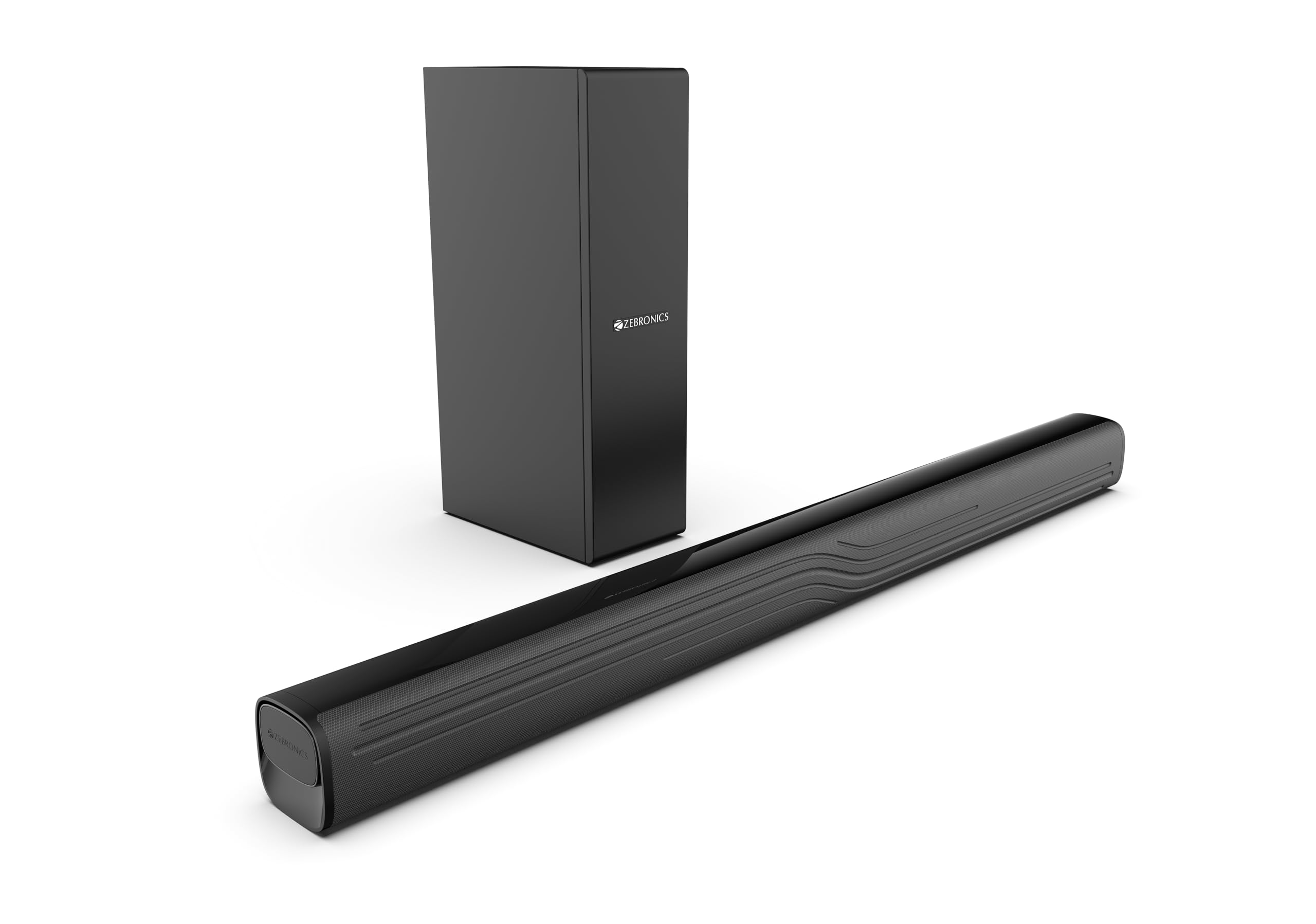
Image: Front view of the Zebronics Juke Bar 2501 Soundbar and its accompanying subwoofer. The soundbar is a long, slender black unit, and the subwoofer is a compact black cube.
4.2 Soundbar Rear Panel and Connections
The rear panel of the soundbar houses various input ports for connecting to your audio sources.
- TV (ARC) Port: For connecting to a TV that supports Audio Return Channel.
- USB Port: For playing audio files from a USB drive.
- Power Input: For connecting the power adapter.
4.3 Subwoofer
The dedicated subwoofer provides deep, impactful bass. It connects wirelessly to the soundbar for flexible placement.
4.4 Remote Control
The included remote control allows for convenient adjustment of volume, input modes, and media playback from a distance.
5. Setup
5.1 Placement
- Soundbar: Place the soundbar on a stable, flat surface directly in front of your television, ensuring it does not obstruct the TV's remote sensor.
- Subwoofer: Position the subwoofer on the floor, preferably in a corner or near a wall, to enhance bass response. Ensure it is within wireless range of the soundbar.
5.2 Connecting to Power
- Connect the power adapter to the soundbar's power input port.
- Plug the power adapter into a suitable wall outlet.
- Connect the subwoofer's power cord to a wall outlet.
5.3 Connecting to Audio Sources
5.3.1 TV (ARC) Connection
For optimal audio quality and control, connect your TV using the HDMI ARC port.
- Ensure your TV has an HDMI port labeled "ARC" or "HDMI ARC".
- Connect one end of an HDMI cable (not included) to the TV (ARC) port on the soundbar.
- Connect the other end of the HDMI cable to the HDMI ARC port on your TV.
- On your TV settings, enable HDMI ARC and set the audio output to "External Speaker" or "Soundbar".
5.3.2 Bluetooth Connection
Connect wirelessly to your smartphone, tablet, or other Bluetooth-enabled devices.
- Power on the soundbar.
- Press the "MODE" button on the soundbar or remote control until the LED indicator shows "BT" (Bluetooth mode).
- On your device, enable Bluetooth and search for "ZEB-JUKE BAR 2501".
- Select the soundbar from the list of available devices to pair. A confirmation tone will sound upon successful pairing.
5.3.3 USB Connection
Play audio files directly from a USB flash drive.
- Insert a USB flash drive (formatted to FAT32) containing MP3 audio files into the USB port on the soundbar.
- Press the "MODE" button on the soundbar or remote control until the LED indicator shows "USB" (USB mode).
- Playback will begin automatically. Use the remote control for playback functions (play/pause, skip tracks).
6. Operating Instructions
6.1 Power On/Off
- Press the Power button on the soundbar or remote control to turn the unit on or off.
6.2 Input Mode Selection
- Press the MODE button on the soundbar or remote control repeatedly to cycle through available input modes: BT (Bluetooth), ARC (TV ARC), USB.
6.3 Volume Control
- Use the Volume + and Volume - buttons on the soundbar or remote control to adjust the master volume.
6.4 Remote Control Functions
The remote control provides full functionality for your soundbar:
- Power: Turn the soundbar on/off.
- Mute: Mute or unmute the audio.
- Mode: Select input source (BT, ARC, USB).
- Volume +/-: Adjust master volume.
- Play/Pause: Play or pause media (USB/Bluetooth mode).
- Previous/Next: Skip to previous or next track (USB/Bluetooth mode).
7. Maintenance
7.1 Cleaning
- Always unplug the soundbar and subwoofer from the power outlet before cleaning.
- Use a soft, dry cloth to wipe the surfaces of the soundbar and subwoofer.
- Do not use liquid cleaners, abrasive cleaners, or chemical sprays, as these may damage the finish or internal components.
7.2 Storage
- If storing the unit for an extended period, unplug it from the power source and store it in a cool, dry place, away from direct sunlight and extreme temperatures.
- It is recommended to keep the original packaging for storage and transport.
8. Troubleshooting
| Problem | Possible Cause | Solution |
|---|---|---|
| No power | Power cord not connected; Power outlet not active. | Ensure power cords are securely connected to the soundbar, subwoofer, and wall outlet. Test the outlet with another device. |
| No sound | Incorrect input mode; Volume too low; Cables not connected properly; TV audio settings incorrect. | Select the correct input mode (BT, ARC, USB). Increase volume. Check all cable connections. Ensure TV audio output is set to external speakers/ARC. |
| Bluetooth pairing fails | Soundbar not in pairing mode; Device too far; Interference. | Ensure soundbar is in BT mode and discoverable. Move device closer to soundbar. Avoid strong electromagnetic interference. Try re-pairing. |
| Remote control not working | Batteries depleted; Obstruction between remote and soundbar; Remote sensor blocked. | Replace remote control batteries. Remove any obstructions. Ensure the remote sensor on the soundbar is clear. |
9. Specifications
| Model Name | ZEB-Juke Bar 2501 |
| Output Power (RMS) | 120 Watts (Soundbar: 50W (2x25W), Subwoofer: 70W) |
| Speaker Type | Soundbar with Wireless Subwoofer |
| Soundbar Drivers | 2 x 5.08 cm (2 inches) |
| Subwoofer Driver | 1 x 11.43 cm (4.3 inches) |
| Bluetooth Version | v5.1 |
| Connectivity | Bluetooth, TV (ARC), USB |
| Signal-to-Noise Ratio | 72 dB |
| Frequency Response | 20 Hz - 20 KHz (General range, derived from 20000 KHz in input) |
| Product Dimensions (Soundbar) | 80W x 6.3D x 6.3H Centimeters |
| Item Weight | 5 kg (Total) |
| Control Method | Remote Control, On-unit buttons |
10. Warranty and Support
For warranty information and technical support, please refer to the warranty card included in your package or visit the official Zebronics website. Keep your purchase receipt as proof of purchase for warranty claims.
Manufacturer: Zebronics India Private Limited
Address: No.13/7, Smith Road, Royapettah, Chennai-600002, Tamil Nadu, India
For further assistance, you may contact Zebronics customer service.


