
1. Introduction
This manual provides detailed instructions for the installation, operation, maintenance, and troubleshooting of your Rimoody 4Core 4G+128G Android 15 Car Stereo. This unit is specifically designed for Honda Fit models manufactured between 2008 and 2013. Please read this manual thoroughly before installation and use to ensure proper functionality and safety.
2. Product Contents
Carefully unpack the box and ensure all items listed below are present. If any items are missing or damaged, please contact customer support.
- Car Radio Head Unit
- Backup Camera
- Microphone
- Wiring Harnesses (Power Cable, RCA Cable, Camera Input Cable)
- GPS Antenna
- USB Cables
- Installation Tool
- User Manual (this document)

3. Installation Guide
Professional installation is recommended for this car stereo. Incorrect wiring can damage the unit or your vehicle's electrical system. Ensure the vehicle's battery is disconnected before beginning installation.
3.1 Vehicle Compatibility
This car stereo is designed to fit Honda Fit models from 2008 to 2013. The included wiring harnesses are specific to these models.

3.2 Basic Installation Steps
- Remove the Factory Radio: Carefully remove the existing car radio and trim panels using appropriate tools.
- Connect Wiring Harnesses: Connect the provided wiring harnesses to the vehicle's factory wiring. Ensure all connections are secure.
- Connect GPS Antenna: Mount the GPS antenna in a location with a clear view of the sky, typically on the dashboard or under the windshield.
- Connect USB Cables: Route the USB cables to a convenient location, such as the glove compartment or center console.
- Connect Microphone: Install the external microphone in a suitable position for clear voice pickup, such as near the rearview mirror or on the steering column.
- Install Backup Camera (Optional): If installing the backup camera, route its cable from the rear of the vehicle to the head unit and connect it to the designated video input port.
- Mount the Head Unit: Secure the new car stereo into the dashboard opening.
- Reconnect Battery: Reconnect the vehicle's battery and test the unit.
4. Basic Operation
4.1 Power On/Off
Press the power button (usually located on the front panel or a soft button on the screen) to turn the unit on or off. The unit will automatically power on when the vehicle's ignition is turned on.
4.2 Touch Screen Interface
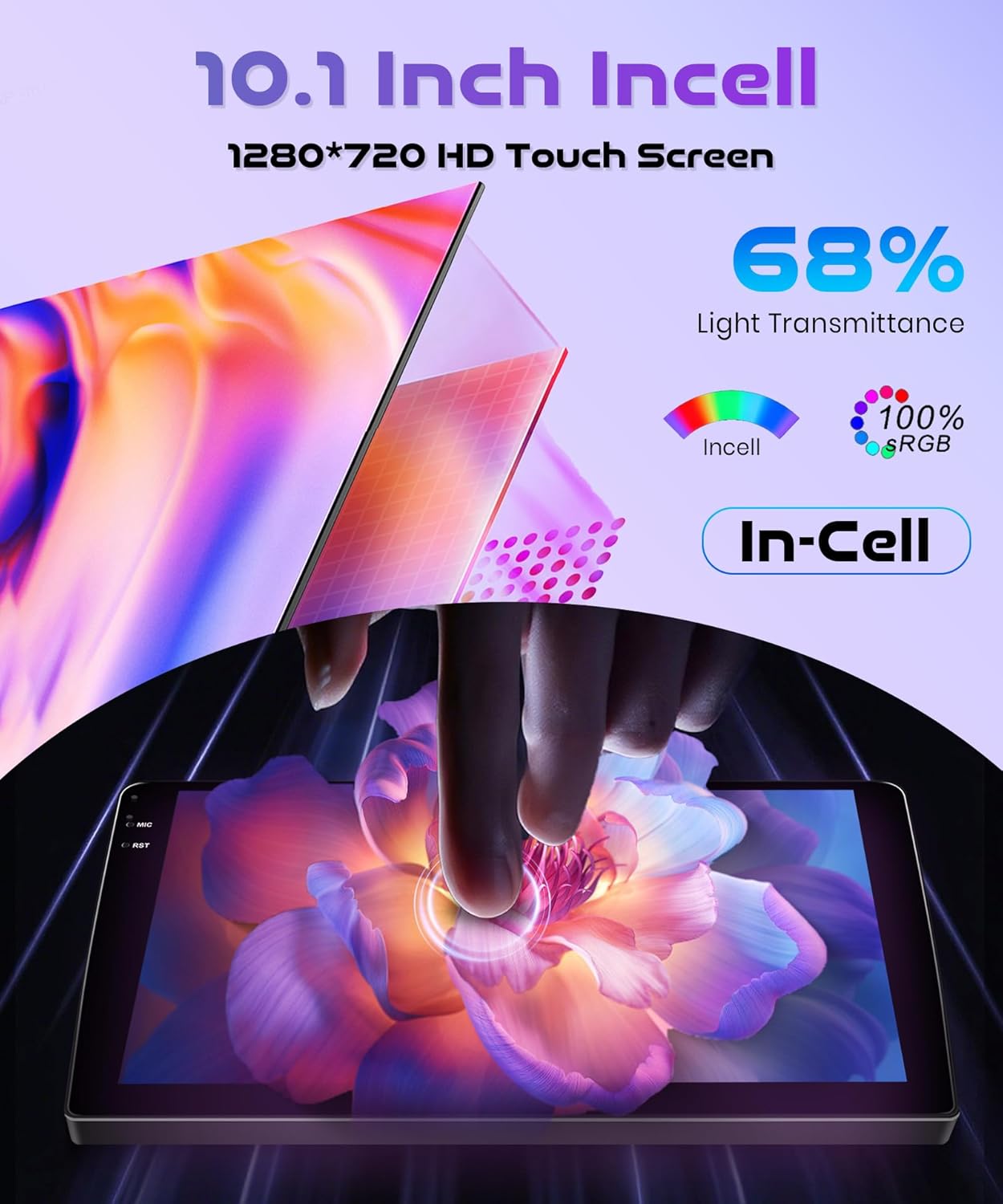
The 10.1-inch INCELL touchscreen provides a responsive and clear interface. Navigate through menus and applications by tapping, swiping, and dragging gestures, similar to a smartphone.
5. Advanced Features
5.1 Wireless Carplay & Android Auto & Mirror Link
Connect your smartphone wirelessly to access navigation, music, messages, and calls directly from the car stereo display. The unit supports both Wireless Carplay for iOS devices and Wireless Android Auto for Android devices. Additionally, Mirror Link functionality allows you to mirror your phone's screen via USB cable or Wi-Fi.
- Wireless Connection: Enable Bluetooth and Wi-Fi on your smartphone. On the car stereo, navigate to the Carplay or Android Auto application and follow the on-screen instructions to pair your device.
- Mirror Link: For Mirror Link, connect your phone via a USB cable or establish a Wi-Fi connection, then select the Mirror Link option on the stereo.

5.2 GPS Navigation
The built-in GPS module supports both online and offline maps. You can use pre-installed maps or download additional maps via Wi-Fi. Voice guidance and real-time traffic information are available with online map services.
- Online Maps: Connect the unit to a Wi-Fi hotspot (e.g., from your smartphone) to access real-time traffic and map updates.
- Offline Maps: Download map data for your region to use navigation without an internet connection.

5.3 Bluetooth 5.0
Pair your phone or other Bluetooth-enabled devices to the car stereo for hands-free calling, music streaming, and file transfer.
- Pairing: Go to the Bluetooth settings on the car stereo and your device. Search for available devices and select the car stereo's name to pair.
- Music Streaming: Once paired, you can play audio from your phone through the car stereo's speakers.
- Hands-Free Calling: Make and receive calls directly from the car stereo interface.
5.4 FM/RDS Radio and EQ-32
The unit features an FM/RDS radio tuner for receiving radio signals with clear sound quality. The 32-band equalizer (EQ-32) allows for detailed sound customization.
- FM/RDS: Scan for stations, save presets, and view RDS information (if available).
- Equalizer: Adjust audio frequencies to tailor the sound output to your preference.
5.5 Steering Wheel Control (SWC)
The unit supports the original car's steering wheel button learning function. This allows you to map functions like volume control, track skipping, and mode selection to your steering wheel buttons for convenient operation.
- Configuration: Access the SWC settings in the car stereo menu. Follow the on-screen prompts to assign functions to each steering wheel button.
5.6 Rear View Camera
Connect the included reversing camera to the dedicated video input port. When you shift the vehicle into reverse gear, the car stereo screen will automatically display the rear view, assisting with safe parking and obstacle avoidance.

6. Maintenance
- Screen Cleaning: Use a soft, lint-free cloth to gently wipe the touchscreen. For stubborn smudges, slightly dampen the cloth with water or a screen-safe cleaner. Avoid abrasive materials or harsh chemicals.
- Software Updates: Periodically check for software updates through the system settings. Updates can improve performance, add new features, and fix bugs. Connect to Wi-Fi to download updates.
- General Care: Keep the unit free from dust and debris. Avoid exposing it to extreme temperatures or direct sunlight for prolonged periods.
7. Troubleshooting
This section addresses common issues you might encounter. For problems not listed here, please contact customer support.
| Problem | Possible Cause | Solution |
|---|---|---|
| Unit does not power on | Incorrect wiring; Blown fuse; Vehicle battery issue | Check power connections and fuses. Ensure vehicle battery is charged. Consult a professional installer. |
| No sound | Speaker wiring issue; Volume too low; Mute function active | Check speaker connections. Increase volume. Disable mute. |
| Wireless Carplay/Android Auto fails to connect or disconnects | Bluetooth/Wi-Fi interference; Multiple devices connected; Software glitch | Ensure only one device is attempting to connect wirelessly. Restart phone and car stereo. Check for software updates. Avoid connecting multiple devices simultaneously. |
| GPS signal lost or inaccurate | GPS antenna obstruction; Antenna not properly connected | Ensure GPS antenna has a clear view of the sky. Check antenna connection. |
| Backup camera not displaying | Camera wiring issue; Incorrect input selected | Check camera power and video signal connections. Ensure vehicle is in reverse. |
8. Specifications
| Feature | Specification |
|---|---|
| Brand | Rimoody |
| Model | 4Core 4G+128G Wireless Carplay |
| Operating System | Android 15 |
| CPU | 4Core |
| Memory (RAM+ROM) | 4GB RAM + 128GB ROM |
| Screen Size | 10.1 Inches |
| Screen Type | INCELL Touchscreen |
| Resolution | 1280 x 720 |
| Connectivity | Wireless Carplay, Wireless Android Auto, Mirror Link, Built-in Wi-Fi, Bluetooth 5.0, USB |
| Navigation | Built-in GPS Module (Online/Offline Maps) |
| Audio Features | FM/RDS Radio, 32-band Equalizer (EQ-32) |
| Control | Steering Wheel Control (SWC) Support |
| Weight | 1.8 Kilograms |
| Compatible Vehicles | Honda Fit 2008-2013 |
9. Warranty and Support
Rimoody is committed to providing quality products and excellent customer service.
9.1 Warranty Information
This product comes with a 2-year manufacturer's warranty covering defects in materials and workmanship from the date of purchase.
9.2 Customer Support
For any questions, installation assistance, or troubleshooting, please contact our support team. We offer:
- 24-Hour Quick Response: Our support team aims to respond to inquiries within 24 hours.
- Professional Installation Guide and Video: Access to detailed guides and videos for installation assistance.
- 90 Days Free Return: Enjoy a 90-day free return period for refunds or exchanges.
- Lifetime Technical Support: Receive technical support for the lifetime of your product.


