
GEYILO WD-R1206U
GEYILO 1200Mbps Dual Band WiFi Extender (Model WD-R1206U) Instruction Manual
Model: WD-R1206U | Brand: GEYILO
1. Introduction
This manual provides detailed instructions for setting up and operating your GEYILO 1200Mbps Dual Band WiFi Extender. This device is designed to expand your existing wireless network coverage, eliminate Wi-Fi dead zones, and provide stable internet access throughout your home or outdoor areas.
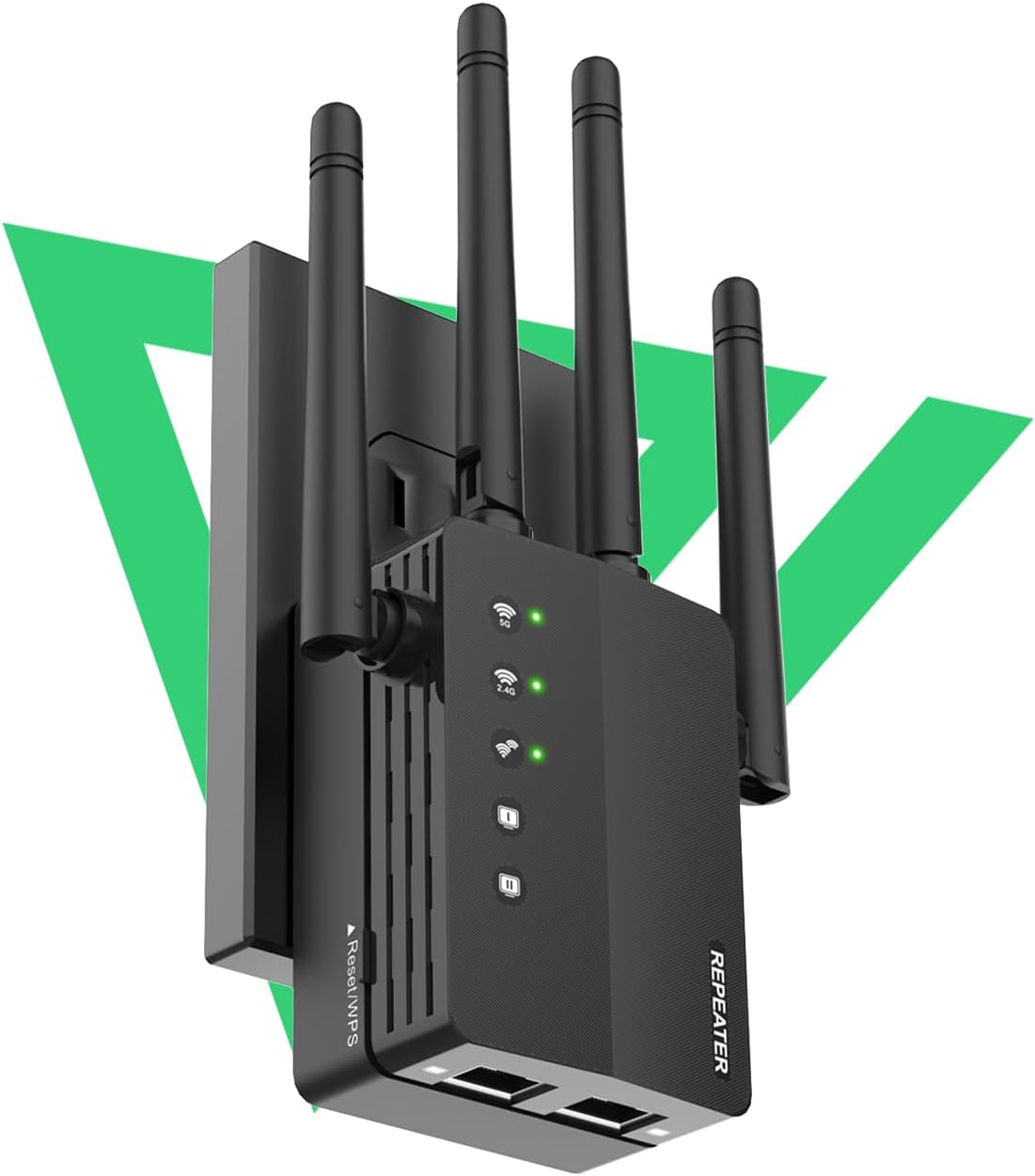
Image 1: GEYILO 1200Mbps Dual Band WiFi Extender with four antennas.
2. Key Features
- Extensive Coverage: Provides 360° comprehensive coverage up to 12880 Sq.Ft, eliminating dead zones in various indoor and outdoor environments.
- Dual Band Performance: Supports both 2.4GHz (for long-range and wall penetration) and 5GHz (for high-speed, low-interference streaming/gaming) bands, offering up to 1200Mbps combined speed.
- High Device Compatibility: Connects up to 105 devices simultaneously, including smartphones, smart TVs, security cameras, and printers.
- Easy Setup: Features hassle-free plug-and-play setup with clear step-by-step instructions and smart indicator lights.
- Advanced Security: Equipped with WPA/WPA2 encryption for secure network protection, safeguarding personal data and online activities.
- Multiple Access Modes: Supports Repeater Mode, AP Mode, and Router Mode for flexible network configuration.
- Four High-Gain Antennas: Enhances data transfer speeds and signal stability.
- Ethernet Ports: Includes two Ethernet ports for stable wired connections to devices like game consoles and smart TVs.

Image 2: Visual representation of the extender's transmission speed and stability, highlighting 4 high-gain antennas, WiFi signal LED, WPS button, and 2 Ethernet ports.
3. Package Contents
The package includes:
- 1 x GEYILO 1200Mbps Dual Band WiFi Extender (Model WD-R1206U)
- 1 x User Manual
- 1 x Ethernet Cable (if applicable)
4. Setup Instructions
Follow these steps to set up your GEYILO WiFi Extender:
4.1. Initial Placement and Power On
- Plug the WiFi Extender into an electrical outlet near your main router.
- Wait for the power indicator light on the extender to turn solid green. This may take a few moments.

Image 3: Illustration showing the easy installation process by pressing the WPS button on both the router and the extender.
4.2. Connecting via WPS (Recommended for quick setup)
- Locate the WPS button on your main router and press it.
- Within 2 minutes, press the WPS button on the GEYILO WiFi Extender.
- Wait for the signal indicator lights on the extender (2.4G and 5G) to turn solid green. This indicates a successful connection.
- Once connected, you can unplug the extender and move it to a desired location (see Section 4.4 for placement guidelines).
Video 1: Demonstrates the WPS setup process for the GEYILO WiFi Extender, showing how to plug it in, wait for lights, press WPS on the router, then on the extender, and confirm connection.
4.3. Connecting via Web Browser (Alternative Method)
- Plug the WiFi Extender into an electrical outlet near your main router.
- On your computer or mobile device, connect to the extender's default Wi-Fi network (e.g., "WiFi-Repeater" or similar, usually found on a label on the device). No password is required for the initial connection.
- Open a web browser and enter the default IP address (e.g., 192.168.188.1) or the web address provided in the quick guide (e.g., wdlogin.com).
- Follow the on-screen instructions to create a login password for the extender.
- Select "Repeater Mode" and choose your main Wi-Fi network (SSID) from the list.
- Enter the password for your main Wi-Fi network.
- Confirm the settings and wait for the extender to reboot. The indicator lights should turn solid green upon successful setup.
4.4. Optimal Placement Guidelines
For best performance, place the extender halfway between your router and the Wi-Fi dead zone. Ensure the location is within the range of your router's signal. The signal indicator lights on the extender will help you find the ideal spot:
- Solid Green: Good signal strength.
- Solid Red: Too far from the router, move closer.
- Off: No signal, move closer to the router.

Image 4: Illustration of the WiFi extender providing coverage to all corners of a house, emphasizing its ability to eliminate dead zones.
5. Operating Modes
The GEYILO WiFi Extender supports three operating modes:
- Repeater Mode: Extends existing Wi-Fi coverage to eliminate dead zones. This is the most common mode for home use.
- AP (Access Point) Mode: Converts a wired network connection into a wireless one. Ideal for creating a new Wi-Fi hotspot from an Ethernet port.
- Router Mode: Functions as a primary router, creating a new private network.

Image 5: Diagram illustrating the three available access modes: AP Mode, Repeater Mode, and Router Mode, showing how the extender integrates with different network setups.
6. Troubleshooting
If you encounter issues with your WiFi Extender, try the following:
- No Power: Ensure the extender is securely plugged into a working electrical outlet.
- No Signal/Weak Signal:
- Relocate the extender closer to your main router.
- Check the signal indicator lights for optimal placement.
- Ensure there are no major obstructions (thick walls, metal objects) between the extender and the router.
- Cannot Connect to Extender's Wi-Fi:
- Verify you are selecting the correct extended network name (usually your original Wi-Fi name with "_EXT" or similar suffix).
- Ensure you are entering the correct password for your main Wi-Fi network during setup.
- Forgotten Extender Login Password: Perform a factory reset (see below).
- Factory Reset: With the extender powered on, use a pin to press and hold the Reset button (usually a small hole) for about 5-10 seconds until all lights flash. The extender will revert to factory default settings, and you will need to set it up again.
Video 6: Provides visual guidance on how to install and troubleshoot the WiFi extender, including steps for initial setup and resolving common connectivity issues.
7. Specifications
| Feature | Detail |
|---|---|
| Model Number | WD-R1206U |
| Wireless Communication Standard | 802.11a/b/g/n/ac |
| Data Transfer Rate | 1200 Megabytes Per Second |
| Product Dimensions | 6.8 x 3.66 x 2 inches |
| Item Weight | 5.6 ounces |
| Special Features | 1-Tap Setup, 360 Degree, Directional Antenna, Firewall, WiFi Mesh |
| Color | Black-Q01 |
| Manufacturer | Shenzhen Century Xinyang Tech Co.,Ltd(GEYILO-06) |
8. Maintenance
To ensure optimal performance and longevity of your WiFi Extender:
- Keep the device in a well-ventilated area to prevent overheating.
- Avoid placing the extender near strong electromagnetic interference sources (e.g., microwave ovens, cordless phones).
- Clean the device regularly with a soft, dry cloth. Do not use liquid cleaners or aerosols.
- Periodically check for firmware updates on the manufacturer's website to ensure the best performance and security.
9. Safety Information
Please read and follow all safety instructions:
- Do not open or attempt to repair the device yourself. Refer all servicing to qualified personnel.
- Keep the device away from water, fire, humidity, or hot environments.
- Use only the power adapter provided with the device.
- Ensure the electrical outlet is easily accessible.
10. Warranty and Support
Your GEYILO WiFi Extender comes with a standard manufacturer's warranty. For detailed warranty information, technical support, or service inquiries, please refer to the contact information provided in your product packaging or visit the official GEYILO website.
For additional support, you may visit the GEYILO Store on Amazon.
11. Additional Resources
Here are some helpful videos demonstrating the setup and features of the GEYILO WiFi Extender:
Video 7: Overview of the WiFi Extender Signal Booster for Home, highlighting its features and benefits.
Video 8: A short preview showcasing the powerful capabilities of the WiFi Extender, emphasizing speed and coverage.
Video 9: A preview demonstrating the continuous and reliable coverage provided by the WiFi Extender.
Ask a question about this manual
Ask about setup, troubleshooting, compatibility, parts, safety, or missing instructions. Manuals+ will review the question and use this page’s manual context to help answer it.