
1. Introduction
The ONINCE CarPlay AI Box CA01 is a versatile 3-in-1 device designed to enhance your in-car entertainment and connectivity. It converts wired Apple CarPlay to wireless CarPlay or wireless Android Auto, and enables video streaming from popular services directly on your car's display.
2. Product Features
- 3-in-1 Functionality: Supports Wireless Apple CarPlay, Wireless Android Auto, and CarPlay Video Streaming.
- Integrated Streaming Apps: Access popular streaming services like Netflix, Disney+, Prime Video, and YouTube directly on your car's screen.
- Wired CarPlay to Android Auto Conversion: Transforms your vehicle's factory-installed wired CarPlay into a wireless Android Auto experience.
- USB Offline Playback: Play videos and other media files directly from a connected USB drive.
- Google Play Store Support: Allows for downloading additional applications to expand the device's capabilities.
- Non-Touch Screen Control: Compatible with a wireless RF mouse (sold separately) for navigation on car screens without touch functionality.

Image: The ONINCE CarPlay AI Box interface displayed on a car's screen, showcasing available streaming applications.
3. Compatibility
The ONINCE CarPlay AI Box CA01 is designed for specific vehicle configurations. Please review the compatibility requirements carefully:
- Required: Compatible only with vehicles manufactured in 2016 or later that come with factory-installed wired CarPlay.
- Not Compatible:
- Vehicles manufactured before 2016.
- Tesla or BMW vehicles.
- Aftermarket CarPlay systems.
- Vehicles with wireless-only CarPlay.

Image: Visual guide to vehicle compatibility, highlighting supported brands and incompatible systems.
4. Package Contents
Ensure all items are present in the package:
- ONINCE CarPlay AI Box CA01
- USB-A to USB-C Cable
- USB-C to USB-C Cable
- Instruction Manual

Image: Contents of the ONINCE CarPlay AI Box package.
5. Setup Instructions
Follow these steps to set up your ONINCE CarPlay AI Box:
- Connect the AI Box: Plug the ONINCE CarPlay AI Box into your vehicle's USB port that supports wired CarPlay.
- Initiate Connection: On your car's display, select the CarPlay icon to begin the connection process. The AI Box interface should appear.
- Enable Phone's Wireless Features: Turn on Wi-Fi and Bluetooth on your smartphone.
- Pair Bluetooth: Connect your smartphone to the Bluetooth device name displayed on your car's screen (e.g., "BT Device: BT-4EE1").
- Wireless CarPlay/Android Auto: After successful Bluetooth pairing, wireless CarPlay or Android Auto will be automatically enabled.
- Connect to Internet (for streaming):
- On your smartphone, enable your Personal Hotspot.
- On the AI Box interface (via your car screen), navigate to the Wi-Fi settings.
- Select your smartphone's hotspot from the list of available networks and enter the password.
- Once connected, streaming services will be accessible.

Image: Step-by-step visual guide for initial device connection and wireless pairing.
Video: This video demonstrates the steps to connect the ONINCE CarPlay AI Box to a personal Wi-Fi hotspot, enabling internet access for streaming services.
6. Operating Instructions
Once the AI Box is set up, you can utilize its various functions:
- Accessing Apps: The main interface of the AI Box will display icons for various applications, including CarPlay, Android Auto, and streaming services. Tap on an icon to launch the desired app.
- Switching Modes: Select the 'CarPlay' or 'Android Auto' icons on the main screen to switch between these operating modes.
- Streaming Video: Ensure the AI Box is connected to a Wi-Fi hotspot. Select streaming apps like Netflix, YouTube, Disney+, or Prime Video from the interface to watch content.
- USB Playback: Insert a USB drive containing media files into the AI Box's USB port. Use the 'Video Player' or 'Music Player' app to browse and play content from the drive.
- Google Play Store: Access the Google Play Store icon to download and install additional compatible applications.
- Non-Touch Screen Navigation: If your car's display does not support touch input, use a compatible wireless RF mouse (purchased separately) to navigate the AI Box interface.

Image: The ONINCE CarPlay AI Box device.
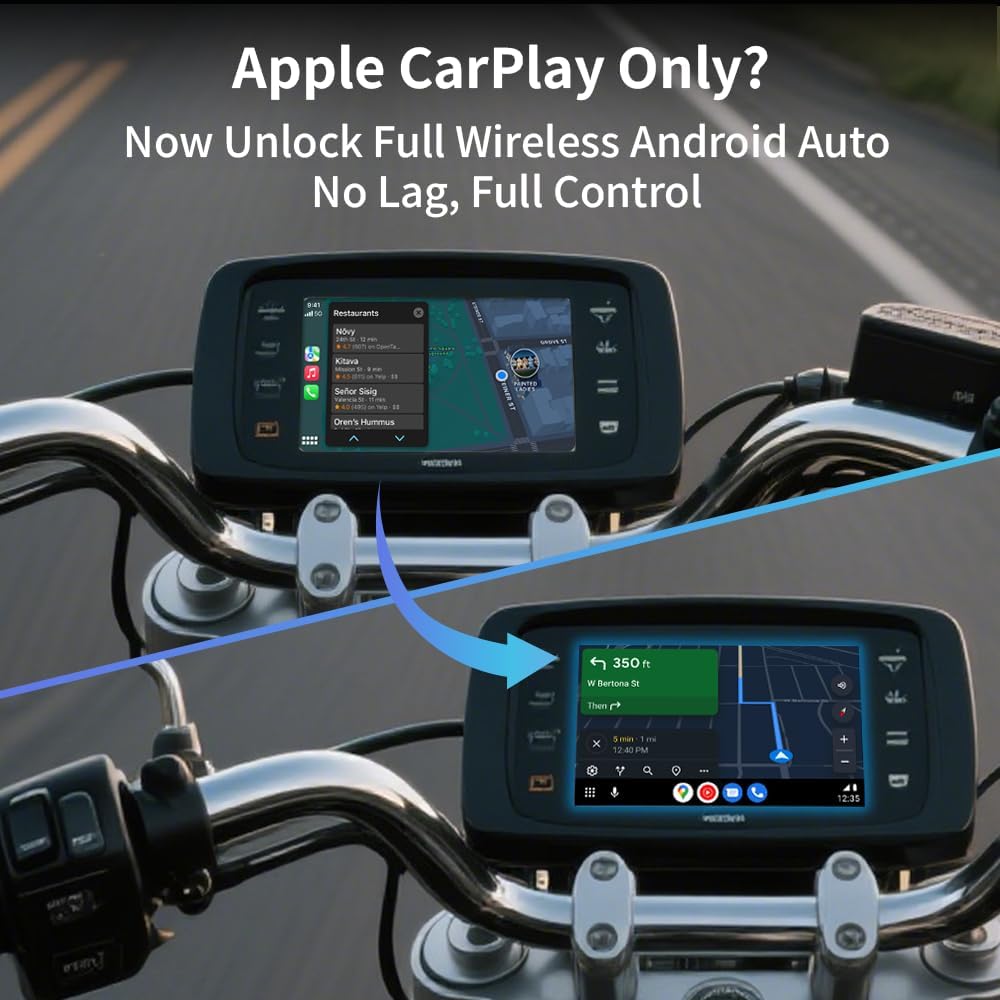
Image: Android Auto interface on a car screen, demonstrating navigation and media playback.
7. Troubleshooting
If you encounter issues, refer to the following troubleshooting tips:
- No Display After Connection: Ensure the USB cable is securely connected to both the AI Box and the vehicle's USB port. Verify your vehicle supports wired CarPlay and is manufactured in 2016 or later.
- Cannot Connect to Wi-Fi/Hotspot: Check if your smartphone's personal hotspot is active and visible. Ensure the Wi-Fi password is entered correctly on the AI Box interface. Confirm your phone has an active data plan.
- App Not Loading/Crashing: Ensure a stable internet connection. Try restarting the AI Box by unplugging and re-plugging it. Check for available software updates for the AI Box through its settings menu.
- No Audio: Verify the car's audio input is set to the correct source (e.g., USB or Bluetooth from the AI Box). Check volume levels on both the car's infotainment system and within the AI Box interface.
- Lag or Slow Performance: A strong and stable Wi-Fi connection is crucial for optimal performance. Ensure your phone's hotspot signal is strong. Close unnecessary background applications on the AI Box.
8. Specifications
| Item Model Number | CA01 |
| Brand | ONINCE |
| Package Dimensions | 4.8 x 3.5 x 1.3 inches |
| Item Weight | 6.7 ounces |
| Connectivity Technology | Wi-Fi, Bluetooth, USB, RF |
| Controller Type | Wireless |
| Supported Internet Services | Netflix, Disney+, Prime Video, YouTube |
| Video Encoding | H.264, H.265/HEVC |
| Connector Type | Micro USB |
| Color | Black |
| Compatible Devices | Smartphone |
9. Safety Information
- Driving Safety: Do not operate video streaming features or engage in activities that distract you from driving. Always prioritize safe driving practices and adhere to local traffic laws.
- Placement: Ensure the device is securely placed and does not obstruct your view of the road, interfere with vehicle controls, or become a projectile in case of sudden stops.
- Environmental Conditions: Avoid exposing the device to extreme temperatures (hot or cold), direct sunlight for prolonged periods, or moisture.
- Power Source: Use only the provided cables and connect to appropriate USB ports in your vehicle.
10. Warranty and Support
For detailed warranty information, product registration, and technical support, please refer to the manufacturer's official website or contact their customer service department. Keep your purchase receipt as proof of purchase.