
Introduction
Thank you for choosing the FLOOGOO FMA121 LE Audio Bluetooth Adapter. This device provides advanced Bluetooth connectivity for various audio sources, including TVs, phones, PCs, and gaming consoles. It supports LE Audio, Auracast broadcasting, aptX Lossless audio, and low-latency performance, making it suitable for a wide range of applications from gaming to professional communication and hearing aid integration.
Important Safety Information
This device emits radio frequencies and may interfere with other wireless devices. Always follow proper USB-C handling and disposal instructions to prevent damage or injury. Do not expose the device to extreme temperatures, moisture, or direct sunlight. Keep out of reach of children.
Package Contents

Image: Contents of the FMA121 package, including the FMA121 adapter, a 3.5mm audio cable, a USB-C cable, and a USB-A to USB-C adapter.
- FLOOGOO FMA121 LE Audio Bluetooth Adapter
- 3.5mm Audio Cable (1m)
- USB-C Cable (10cm)
- USB-A to USB-C Adapter
Setup Guide
1. Connecting to a Device (TV, PC, Console)
The FMA121 adapter can be connected to your audio source using either the USB-C port for digital audio or the 3.5mm audio jack for analog audio. For optimal performance, use the USB-C connection when available.
- For USB Audio: Connect the FMA121 to a USB-C port on your TV, PC, or console using the provided USB-C cable. If your device only has USB-A ports, use the included USB-A to USB-C adapter. The device is plug-and-play and typically requires no drivers for Windows, Mac, or Linux.
- For 3.5mm Analog Audio: Connect the FMA121 to the 3.5mm audio output jack of your TV or other audio source using the provided 3.5mm audio cable. Ensure the audio output on your source device is active.

Image: The FMA121 adapter connected to a TV using both a USB-C cable for power/digital audio and a 3.5mm audio cable for analog audio input.
2. Powering the Device
The FMA121 is powered via its USB-C connection. It can draw power from the connected TV, PC, console, or a portable power bank/phone.

Image: The FMA121 adapter being powered by a smartphone or a power bank, demonstrating its portability.
3. Initial Pairing
After connecting and powering the FMA121, it will enter pairing mode. The LED indicator will flash rapidly.
- Ensure your Bluetooth audio device (headphones, speakers, hearing aids) is in pairing mode.
- On your phone, PC, or other device, search for Bluetooth devices. The FMA121 will appear as "FlooGoo_Axxxxxx" (where xxxxxx is a unique identifier) or similar.
- Select the FMA121 to connect. Once connected, the LED will indicate a stable connection.

Image: A quick start guide from the product label showing connection steps and the broadcast name for Auracast.
Operating Instructions
LED Indicator Status
| LED Status | Explanation |
|---|---|
| Flash slowly | Idle |
| Flash fast | Searching for pairing |
| Flash 2 times in 2 seconds | Connected, audio idle |
| Flash 3 times in 2 seconds | Audio or broadcast streaming |
FlooCast Software (PC/Mac)
The FMA121 can be configured and updated using the FlooCast software, available for Windows and Mac. This software allows you to manage audio modes, broadcast settings, and firmware updates.

Image: Screenshot of the FlooCast software interface, showing options for audio mode, LE broadcast settings, and device status.
- Audio Mode: Select between High Quality (one-to-one), Gaming (one-to-one), or Broadcast modes.
- LE Broadcast: Enable Public broadcast for Auracast. You can also encrypt broadcasts and set a broadcast key.
- aptX Lossless: Enable or disable aptX Lossless via the software settings for compatible devices.
- Firmware Upgrade: The software provides an option to check for and install the latest firmware updates.

Image: Screenshot of the FlooCast software showing the "Device Firmware Upgrade" button and notification for new firmware availability.
Auracast TX/RX Functionality
The FMA121 supports Auracast as both a transmitter (TX) and receiver (RX) with specialized firmware. This allows for broadcasting audio to multiple compatible devices simultaneously or receiving Auracast broadcasts.
- Broadcasting: Use the FlooCast software to enable "Public broadcast" for Auracast. You can customize the broadcast name and set an encryption key if desired.
- Receiving: With appropriate firmware, the FMA121 can act as an Auracast receiver.

Image: An icon representing Auracast technology, indicating multi-device audio broadcasting.
Hearing Aid Compatibility (LE Audio)
The FMA121 supports LE Audio, which includes compatibility with modern hearing aids. This allows for direct audio streaming to compatible hearing aids, enhancing accessibility.
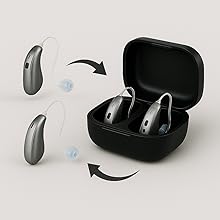
Image: Illustration showing hearing aids being paired, indicating compatibility with the FMA121 adapter.
aptX Lossless and Low Latency
The adapter supports aptX, aptX HD, aptX Adaptive, and aptX Lossless codecs for high-fidelity audio. It also provides ultra-low latency, making it ideal for gaming and real-time audio applications.
- aptX Lossless: Delivers uncompressed, bit-for-bit perfect audio quality over Bluetooth. Ensure your receiving device also supports aptX Lossless for this feature to be active.
- Low Latency: Experience minimal audio delay, crucial for gaming and video synchronization.

Image: Icon indicating aptX Lossless audio at 1.2Mbps.

Image: Icon indicating ultra-low latency of 19.5ms, suitable for gaming.
Teams/Zoom Microphone Support
The FMA121 supports microphone input for communication applications like Microsoft Teams and Zoom, enabling clear voice transmission during calls or online meetings.

Image: Icon representing support for VoIP applications like Microsoft Teams.
Maintenance
Firmware Updates
Regularly check for and install firmware updates using the FlooCast software. Firmware updates can improve performance, add new features, and resolve potential issues. Connect the FMA121 to a PC or Mac running the FlooCast software to perform updates.
For detailed instructions on firmware updates, refer to the official support page: Flairmesh FMA121 Support
Troubleshooting
- No Audio:
- Ensure the FMA121 is properly connected to the audio source (USB-C or 3.5mm).
- Verify that your audio source's output is active and volume is up.
- Confirm your Bluetooth audio device is paired and connected to the FMA121.
- Check the LED indicator status for connection confirmation.
- Pairing Issues:
- Ensure the FMA121 is in pairing mode (fast flashing LED).
- Put your Bluetooth audio device into pairing mode.
- Try restarting both the FMA121 and your audio device.
- If connecting to a phone, ensure the phone's native Bluetooth is off to avoid conflicts.
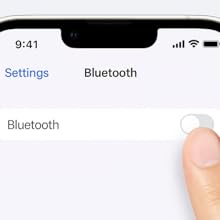
Image: Screenshot showing a smartphone's Bluetooth setting turned off, which can help resolve pairing conflicts with the FMA121.
- Low Latency/Audio Quality Issues:
- Ensure your audio device supports aptX Lossless or aptX Adaptive for best quality and lowest latency.
- Minimize interference from other wireless devices.
- Update the FMA121 firmware to the latest version using the FlooCast software.
- FlooCast Software Not Detecting Device:
- Ensure the FMA121 is connected to your PC/Mac via USB-C.
- Try a different USB port or cable.
- Restart the FlooCast software and/or your computer.
Specifications
| Model Name | FMA121 |
| Brand | FLOOGOO |
| Connectivity Technology | Bluetooth 5.4 |
| Supported Standards | LE Audio, Auracast, aptX, aptX HD, aptX Adaptive, aptX Lossless |
| Audio Input | USB, 3.5mm AUX |
| Audio Output Type | USB, 3.5mm |
| Power Source | USB-C |
| Compatible Devices | PC, Mac, TV, Gaming Consoles, Smartphones, Bluetooth-enabled audio devices |
| Product Dimensions (L x W x H) | 1.3" x 1.3" x 0.28" |
| Item Weight | 5 Grams |
| Control Method | App (FlooCast Software) |
Warranty and Support
The FLOOGOO FMA121 comes with a 2-year warranty from the date of purchase. Please retain your proof of purchase for warranty claims.
For technical support, firmware updates, and the full user manual, please visit the official Flairmesh support page:
For customer service inquiries, please contact FLOOGOO directly through their official channels.


