
Introduction
This manual provides essential information for the proper setup, operation, and maintenance of your Deco Gear 27-inch 240Hz Curved Gaming Monitor (Model DGJET27). Please read this manual thoroughly before using the product to ensure optimal performance and safety.

Image: Front view of the Deco Gear 27-inch 240Hz Curved Gaming Monitor, showcasing its curved display and slim bezels.
Product Features
- 240Hz Refresh Rate: Delivers ultra-smooth motion for competitive gaming.
- 1500R Curved VA Panel: Provides an immersive viewing experience with a natural curvature.
- FHD 1080p Resolution: Offers clear and detailed visuals (1920 x 1080 pixels).
- HDR Support: Enhances contrast and color depth for more vibrant images.
- Adaptive-Sync Technology: Synchronizes the monitor's refresh rate with your GPU for tear-free and stutter-free gameplay.
- 5ms Overdrive (OD) Response Time: Reduces motion blur for fast-paced action.
- Multiple Connectivity Options: Includes HDMI and DisplayPort for broad compatibility with PCs and game consoles.
- FPS/RTS Modes: Optimized display settings for specific gaming genres.
- Low Blue Light & Flicker-Free: Designed to reduce eye strain during extended use.

Image: The monitor displaying a fast-paced game scene, highlighting its 240Hz refresh rate for smooth visuals.

Image: A visual comparison demonstrating the difference between a traditional 60Hz monitor and the 240Hz refresh rate of the DGJET27, showing smoother motion in a racing game.
Package Contents
Please check the package contents carefully. If any items are missing or damaged, contact customer support.
- Deco Gear 27-inch 240Hz Curved Gaming Monitor
- Monitor Stand (Base and Neck)
- Power Adapter
- HDMI Cable
- DisplayPort Cable
- User Manual (this document)
- Mounting Screws (if applicable for stand assembly)
Setup
1. Stand Assembly
- Carefully remove the monitor and stand components from the packaging.
- Attach the stand neck to the monitor panel using the provided screws.
- Connect the stand base to the stand neck, securing it with the designated screw.
- Place the assembled monitor on a stable, flat surface.
2. Connecting to a Device
The monitor supports both HDMI and DisplayPort connections.
- Connect one end of the HDMI or DisplayPort cable to the corresponding port on your computer or game console.
- Connect the other end of the cable to the HDMI or DisplayPort input on the monitor.
3. Power Connection
- Connect the power adapter to the monitor's power input port.
- Plug the power adapter into a wall outlet.

Image: The Deco Gear monitor integrated into a gaming setup, connected to a PC, illustrating typical usage.
Operating Instructions
Power On/Off
Press the power button located on the monitor to turn it on or off. The power indicator light will illuminate when the monitor is active.
OSD Menu Navigation
The On-Screen Display (OSD) menu allows you to adjust various monitor settings. Navigate the OSD using the joystick or buttons typically found on the back or bottom of the monitor.
- Press the OSD button/joystick to open the menu.
- Use the directional controls to navigate through menu options.
- Press the OSD button/joystick again to select an option or confirm a setting.
- Use the 'Exit' or 'Back' option to return to the previous menu or close the OSD.
Key Settings
- Picture Settings: Adjust brightness, contrast, sharpness, color temperature, and enable/disable HDR.
- Input Selection: Manually switch between HDMI and DisplayPort inputs.
- Audio Settings: Control volume for connected headphones or external speakers (if applicable).
- Gaming Modes: Select pre-set display modes like FPS (First-Person Shooter) or RTS (Real-Time Strategy) for optimized visuals in specific game types.
- Adaptive-Sync: Ensure this feature is enabled in both the monitor's OSD and your graphics card settings for tear-free gaming.
- Low Blue Light: Adjust or enable this setting to reduce blue light emission and minimize eye strain.

Image: The monitor screen showing a dark blue background, illustrating the Low Blue Light and Flicker-Free features designed for eye comfort.
Maintenance
Cleaning the Monitor
- Always unplug the monitor from the power outlet before cleaning.
- Use a soft, lint-free cloth slightly dampened with water or a non-abrasive screen cleaner.
- Do not spray cleaner directly onto the screen.
- Avoid using harsh chemicals, alcohol, or abrasive materials, as these can damage the screen or casing.
Storage
When storing the monitor for an extended period, ensure it is powered off, unplugged, and stored in a cool, dry place away from direct sunlight and extreme temperatures. It is recommended to use the original packaging for protection.
Troubleshooting
| Problem | Possible Solution |
|---|---|
| No image on screen |
|
| Image is blurry or distorted |
|
| No sound |
|
| Screen flickering or tearing |
|
Specifications
| Feature | Detail |
|---|---|
| Model Number | DGJET27 |
| Screen Size | 27 Inches |
| Panel Type | VA (Vertical Alignment) |
| Curvature | 1500R |
| Resolution | 1920 x 1080 (FHD 1080p) |
| Refresh Rate | 240Hz |
| Response Time | 5ms OD |
| Aspect Ratio | 16:9 |
| HDR Support | Yes |
| Color Gamut | 99% sRGB |
| Contrast Ratio | 4000:1 (Static) |
| Brightness | 300 Lux |
| Connectivity | HDMI, DisplayPort |
| Product Dimensions (with stand) | 8.3 x 24.1 x 17.9 inches |
| Item Weight | 13.32 pounds |
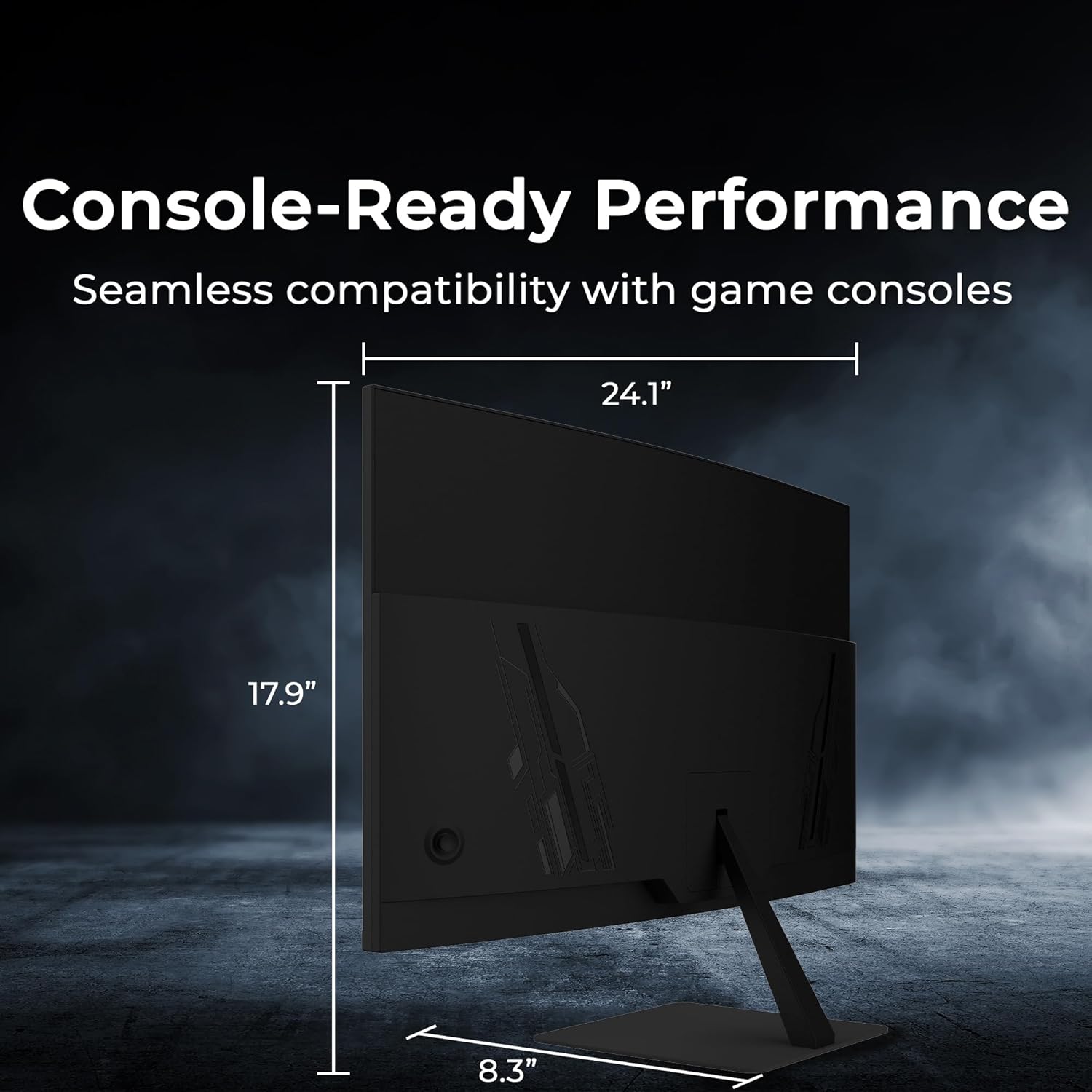
Image: Rear view of the monitor with labeled dimensions (24.1" width, 17.9" height, 8.3" depth), illustrating its physical size and console compatibility.
Warranty and Support
For warranty information and customer support, please refer to the warranty card included with your product or visit the official Deco Gear website. Contact information for support is typically available on the manufacturer's website.
Deco Gear is committed to providing reliable tech solutions and customer satisfaction.
Important Safety Information
- Do not expose the monitor to rain or moisture to prevent fire or shock hazards.
- Do not open the monitor casing; there are no user-serviceable parts inside. Refer all servicing to qualified service personnel.
- Place the monitor on a stable surface to prevent it from falling.
- Ensure proper ventilation around the monitor to prevent overheating.
- Unplug the monitor during lightning storms or when unused for long periods.


