
1. Introduction
This manual provides instructions for the Generic HTR-U33G Replacement Voice Remote Control. This remote is designed to be compatible with Haier LCD TVs, offering both infrared (IR) and Bluetooth connectivity for comprehensive control, including voice commands. Please ensure your original remote control model matches HTR-U33G for full compatibility.
2. Product Overview
The HTR-U33G remote control features a user-friendly layout with dedicated buttons for various functions, including navigation, media playback, and direct access to popular streaming services. It supports both traditional button control and voice commands.
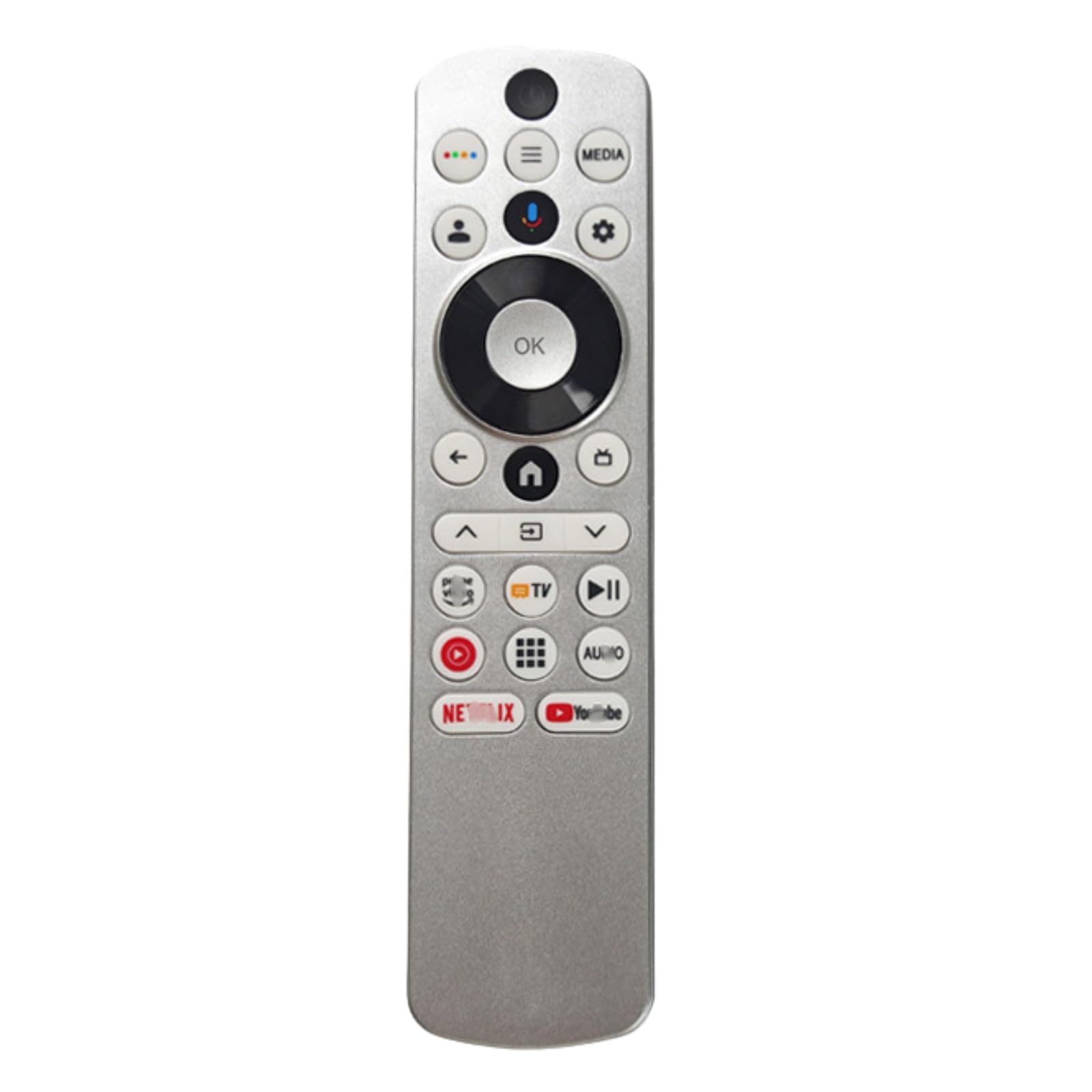
Image 1: Front and back view of the HTR-U33G Replacement Voice Remote Control. The front displays various control buttons, including a directional pad, app shortcuts, and a microphone button. The back provides Bluetooth pairing instructions.
Key Features:
- Direct replacement for Haier HTR-U33G remote.
- No programming required for basic infrared (IR) functions.
- Voice control capability via Bluetooth pairing.
- Dedicated buttons for popular streaming services like Netflix and YouTube.
- Maximum operating range of 8 meters.
3. Setup
3.1 Battery Installation
- Locate the battery compartment on the back of the remote control.
- Slide open the battery compartment cover.
- Insert two (2) AAA batteries, ensuring the positive (+) and negative (-) terminals align correctly with the markings inside the compartment.
- Close the battery compartment cover securely.
Note: Batteries are not included with the remote control.
3.2 Initial Operation (Infrared)
For basic functions such as power, volume, and channel control, the remote typically operates via infrared (IR) and requires no additional setup or pairing. Simply point the remote towards your Haier LCD TV after installing batteries.
3.3 Bluetooth Pairing (for Voice Control)
To enable voice control and other advanced features, you must pair the remote control with your Haier LCD TV via Bluetooth. Follow these steps:
- Ensure your TV is powered on and in a state where it can accept new Bluetooth devices. Refer to your TV's user manual for specific instructions on entering Bluetooth pairing mode.
- On the HTR-U33G remote control, simultaneously press and hold the Back (←) button and the Home (🏠) button for several seconds.
- The remote's indicator light (if present) may flash to indicate it is in pairing mode.
- On your TV screen, select the HTR-U33G remote control from the list of available Bluetooth devices to complete the pairing process.
- Once paired, the remote's voice control function will be active.
4. Operating Instructions
Familiarize yourself with the buttons on your HTR-U33G remote control:
- Power Button (Top Left): Turns the TV on or off.
- Four-Dot Button (Top Row): May access a quick menu or input selection.
- Menu Button (Top Row): Opens the TV's main menu.
- MEDIA Button (Top Row): Direct access to media sources or a media player.
- User Profile Button (Middle Row): Likely for switching user profiles or accessing account settings.
- Microphone Button (Middle Row): Activates voice control. Press and speak your command after pairing via Bluetooth.
- Settings/Gear Button (Middle Row): Opens TV settings or quick settings menu.
- Directional Pad (Center Circle): Use Up, Down, Left, Right arrows to navigate menus and content.
- OK Button (Center of D-Pad): Confirms selections.
- Back Button (←): Returns to the previous screen or menu.
- Home Button (🏠): Returns to the TV's home screen or smart hub.
- TV Input Button (TV icon): Cycles through available input sources (HDMI, AV, etc.).
- Volume Up/Down (∧/∨): Adjusts the TV's volume level.
- Mute Button (Speaker with slash): Mutes or unmutes the TV audio.
- Play/Pause Button (►II): Controls media playback.
- Red Circle Button: May be a record button or a specific function depending on the TV model.
- Grid Button (Apps): Opens the TV's app launcher or smart features.
- AU/IO Button: Function may vary; potentially for audio settings or input/output selection.
- Netflix Button: Direct access to the Netflix application.
- YouTube Button: Direct access to the YouTube application.
5. Maintenance
5.1 Battery Replacement
When the remote control's performance degrades or it stops responding, replace the AAA batteries. Always replace both batteries at the same time with new ones. Do not mix old and new batteries or different types of batteries.
5.2 Cleaning
To clean the remote control, use a soft, dry cloth. Do not use liquid cleaners, sprays, or abrasive materials, as these can damage the remote's surface or internal components.
6. Troubleshooting
- Remote not responding:
- Check if the batteries are inserted correctly and are not depleted. Replace if necessary.
- Ensure there are no obstructions between the remote and the TV's IR receiver.
- Make sure you are within the operating range (up to 8 meters).
- Voice control not working:
- Verify that the remote control is successfully paired with your TV via Bluetooth (refer to Section 3.3).
- Ensure your TV supports voice control and that the feature is enabled in its settings.
- Speak clearly and directly into the microphone on the remote.
- Specific buttons not working:
- Some advanced functions or app shortcuts may require specific TV software or settings.
- Ensure the remote is fully compatible with your specific Haier TV model.
7. Specifications
| Feature | Detail |
|---|---|
| Brand | Generic |
| Model | HTR-U33G |
| Connectivity Technology | Infrared (IR), Bluetooth |
| Compatible Devices | Haier LCD Television (HTR-U33G models) |
| Special Feature | Voice Control, No Programming Required (for basic IR) |
| Controller Type | Button Control |
| Maximum Range | 8 Meters |
| Batteries Required | 2 x AAA (not included) |
8. Support
If you encounter any issues or have questions regarding your HTR-U33G Replacement Voice Remote Control that are not covered in this manual, please contact the seller or manufacturer for assistance. Provide your product model number (HTR-U33G) and a detailed description of the issue when seeking support.