
Introduction
Thank you for choosing the Mikado MD-183 2.0 Bluetooth RGB USB + 3.5mm Speaker system. This manual provides essential information for setting up, operating, maintaining, and troubleshooting your new speakers. Please read it carefully before use to ensure optimal performance and longevity of your device.
The MD-183 offers versatile audio connectivity with both Bluetooth and 3.5mm AUX input, powered conveniently via USB. Enjoy enhanced audio with dynamic RGB lighting for an immersive experience.
Setup
1. Unpacking
Carefully remove all components from the packaging. Ensure you have the two speaker units and the integrated USB and 3.5mm audio cables.
2. Speaker Placement
Place the two speaker units on a stable, flat surface, ideally equidistant from your listening position and on either side of your computer monitor or laptop for optimal stereo separation.
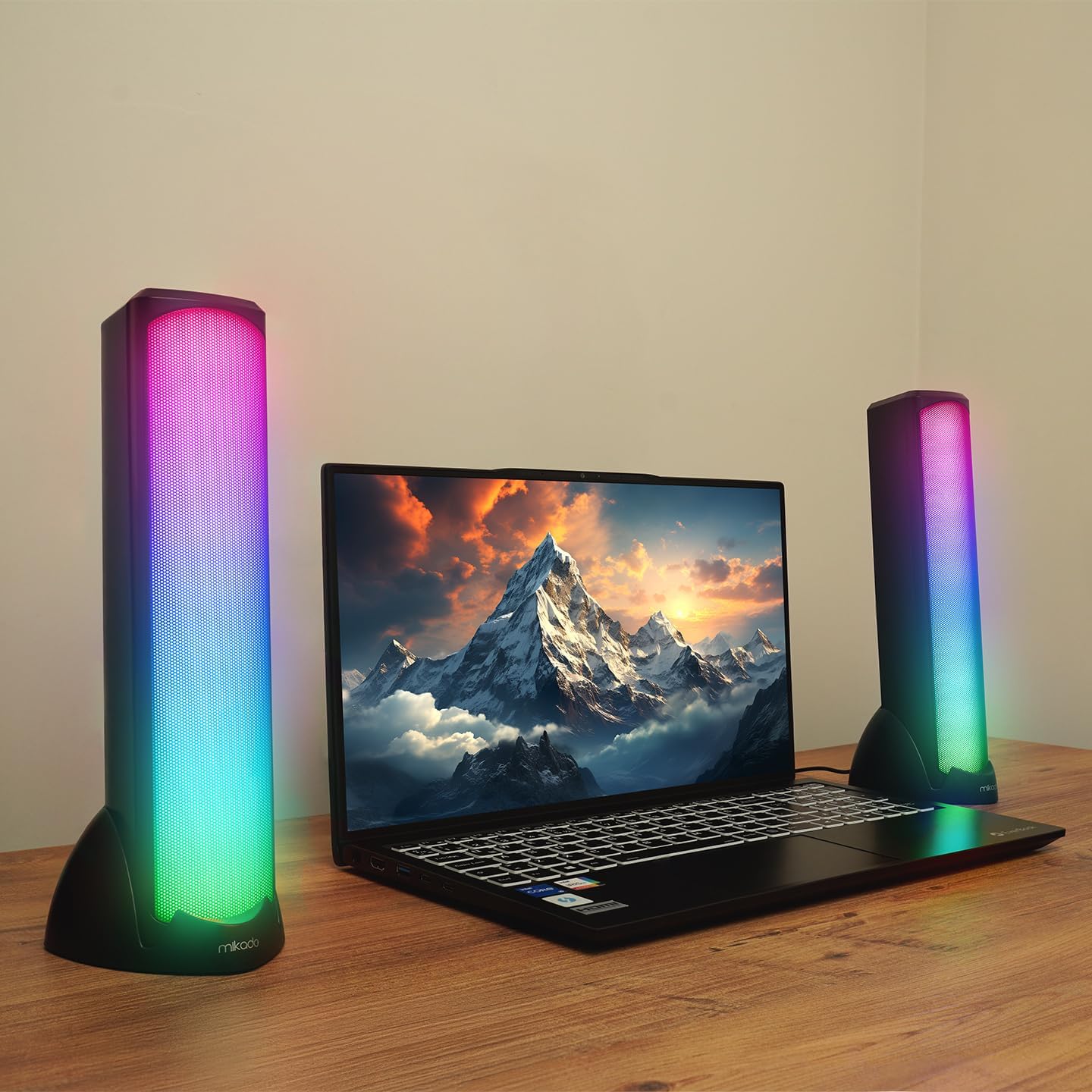
Image: Mikado MD-183 speakers positioned on a desk next to a laptop, demonstrating their illuminated RGB design.
3. Connecting for Power and Audio
The MD-183 speakers are powered via USB and receive audio input through either a 3.5mm AUX cable or Bluetooth.
- USB Power Connection: Connect the USB-A plug of the integrated cable to an available USB port on your computer, laptop, or a 5V USB power adapter (not included). The speakers will power on automatically.
- 3.5mm AUX Audio Connection: For wired audio, connect the 3.5mm audio jack to the headphone output or audio output port of your device (e.g., computer, smartphone, MP3 player).

Image: Detailed view of the USB-A connector for power and the 3.5mm AUX audio jack for wired sound input.
4. Bluetooth Pairing (Optional)
To connect via Bluetooth:
- Ensure the speakers are powered on.
- On your audio source device (e.g., smartphone, tablet, Bluetooth-enabled computer), enable Bluetooth and search for available devices.
- Select "MD-183" from the list of found devices. A confirmation sound will indicate successful pairing.
- If prompted for a password, enter "0000".
Operating Instructions
The Mikado MD-183 speakers feature an inline control panel for easy access to volume, mode selection, and RGB lighting.

Image: The inline control panel, showing the rotary volume knob, the light bulb button for RGB control, and the 'M' button for mode selection.
1. Power On/Off
The speakers power on automatically when the USB cable is connected to a powered USB port. To turn off, disconnect the USB cable.
2. Volume Control
Rotate the central knob on the inline control panel to adjust the volume. Turn clockwise to increase volume and counter-clockwise to decrease it.
3. Mode Selection
Press the 'M' button on the inline control panel to switch between Bluetooth Mode and 3.5mm AUX Mode. An audible prompt will indicate the current mode.
4. RGB Lighting Control
Press the light bulb button (💡) on the inline control panel to cycle through different RGB lighting modes or to turn the lighting off.
Maintenance
1. Cleaning
To clean the speakers, gently wipe the surfaces with a soft, dry, or slightly damp cloth. Do not use abrasive cleaners, solvents, or harsh chemicals, as these can damage the finish and internal components. Ensure the speakers are disconnected from power before cleaning.
2. Storage
When not in use for extended periods, store the speakers in a cool, dry place away from direct sunlight and extreme temperatures. Protect them from dust and moisture.
Troubleshooting
If you encounter issues with your Mikado MD-183 speakers, please refer to the following common solutions:
- No Sound:
- Ensure the USB cable is securely connected to a powered USB port.
- Check that the 3.5mm AUX cable is fully inserted into both the speakers and your audio source, or that Bluetooth is successfully paired.
- Verify the volume knob on the inline control panel is turned up.
- Check the volume settings on your audio source device.
- Ensure the correct audio output is selected on your computer or device.
- Press the 'M' button to ensure you are in the correct input mode (Bluetooth or AUX).
- Bluetooth Connection Issues:
- Make sure the speakers are in Bluetooth mode (press 'M' button).
- Ensure Bluetooth is enabled on your source device.
- Move your source device closer to the speakers (within 10 meters / 33 feet).
- Forget "MD-183" from your device's Bluetooth list and attempt to re-pair.
- Restart both the speakers (by unplugging and replugging USB) and your source device.
- RGB Lights Not Working:
- Ensure the speakers are powered on via USB.
- Press the light bulb button (💡) on the inline control panel to cycle through lighting modes or turn them on.
Specifications
| Model | MD-183 |
| Speaker Type | 2.0 Channel Stereo Speakers |
| Power Output | 6W (3W x 2) |
| Frequency Range | 45 Hz ~ 16 KHz |
| Speaker Impedance | 4 Ohm |
| Connectivity | Bluetooth, 3.5mm AUX Input |
| Power Source | USB 5V DC |
| Cable Length | USB 1.4 meters |
| Lighting | RGB Illumination |
| Weight | 0.88 KG |
| Dimensions (per speaker) | 60mm (W) x 57.5mm (D) x 280mm (H) |
Warranty and Support
Warranty Information
The Mikado MD-183 speakers come with a 2-year warranty from the date of purchase. This warranty covers manufacturing defects and material faults under normal use. Please retain your proof of purchase for warranty claims.
The warranty does not cover damage caused by misuse, accidents, unauthorized modifications, or normal wear and tear.
Customer Support
For technical assistance, warranty claims, or further inquiries, please contact your retailer or the official Mikado customer support channel. Refer to the product packaging or the retailer's website for specific contact details.