Introduction
This manual provides essential information for the proper setup, operation, and maintenance of your XUNDEFINED 24 Inch 144Hz FHD IPS Gaming Monitor. Please read this manual thoroughly before using the product to ensure optimal performance and safety.

Image: Front view of the XUNDEFINED 24-inch monitor displaying key features like 144Hz refresh rate, FHD 1920x1080 resolution, 178° wide viewing angle, IPS panel, and eye protection.
What's in the Box
Verify that all components are present in the package:
- Monitor Panel x1
- Monitor Stand x1
- Power Adapter x1
- HDMI Cable x1
- User Manual x1
Product Overview
Monitor Features
- 24-inch FHD (1920x1080) IPS Panel
- 144Hz Refresh Rate
- FreeSync (Compatible with G-SYNC)
- 98% sRGB Color Gamut
- HDR Support
- Built-in Dual Speakers
- Blue Light Filter and Flicker-Free Technology
- 3-Sided Frameless and Ultra-Slim Design
- Ergonomic Tilt Adjustment (-5° to 15°)
- VESA Mount Compatible (100x100mm, mount not included)
Ports and Controls
The monitor includes HDMI and VGA ports for connectivity. Specific control buttons for the On-Screen Display (OSD) menu are typically located on the back or bottom edge of the monitor.

Image: Rear view of the monitor, illustrating the location of input ports and power connection.

Image: Close-up view highlighting the ultra-slim and narrow bezel design of the monitor.

Image: Diagram illustrating the 178-degree wide viewing angle provided by the FHD IPS panel technology.
Setup Instructions
1. Assembling the Stand
- Carefully remove the monitor panel and stand components from the packaging.
- Attach the stand base to the stand neck using the provided screws.
- Secure the assembled stand to the back of the monitor panel. Ensure it clicks into place or is fastened with screws as per the design.

Image: Illustration of the monitor panel attached to its stand.
2. Connecting to a Computer
- Power Connection: Connect the power adapter to the monitor's power input and then to a power outlet.
- Video Connection:
- For optimal performance, use the provided HDMI cable to connect the monitor to your computer's HDMI output.
- Alternatively, use a VGA cable if your computer only supports VGA.
3. Adjusting the Monitor
The monitor supports tilt adjustment from -5° to 15°. Gently adjust the screen to your preferred viewing angle.

Image: A hand demonstrating the tilt adjustment feature of the monitor.
Operating Instructions
On-Screen Display (OSD) Menu
Access the OSD menu using the buttons on the monitor to adjust settings such as brightness, contrast, color temperature, input source, and various display modes.
Display Features
- 144Hz Refresh Rate: For smooth visuals, ensure your computer's display settings are configured to 144Hz.
- FreeSync (Adaptive-Sync): This technology synchronizes the monitor's refresh rate with your GPU's frame rate to eliminate screen tearing and stuttering. Enable FreeSync in the monitor's OSD menu and your graphics card control panel.
- HDR (High Dynamic Range): Provides enhanced contrast and color accuracy. Enable HDR in your operating system's display settings if supported.
- Blue Light Filter & Flicker-Free: These features reduce eye strain during extended use. Activate the blue light filter via the OSD menu. The flicker-free technology is always active.
- Preset Modes: The monitor offers various display modes optimized for different content types (e.g., Standard, FPS, RTS, Movie, Reading). Select the appropriate mode from the OSD menu for the best viewing experience.

Image: Comparison showing the visual difference between Adaptive-Sync ON (smooth image) and Adaptive-Sync OFF (screen tearing).
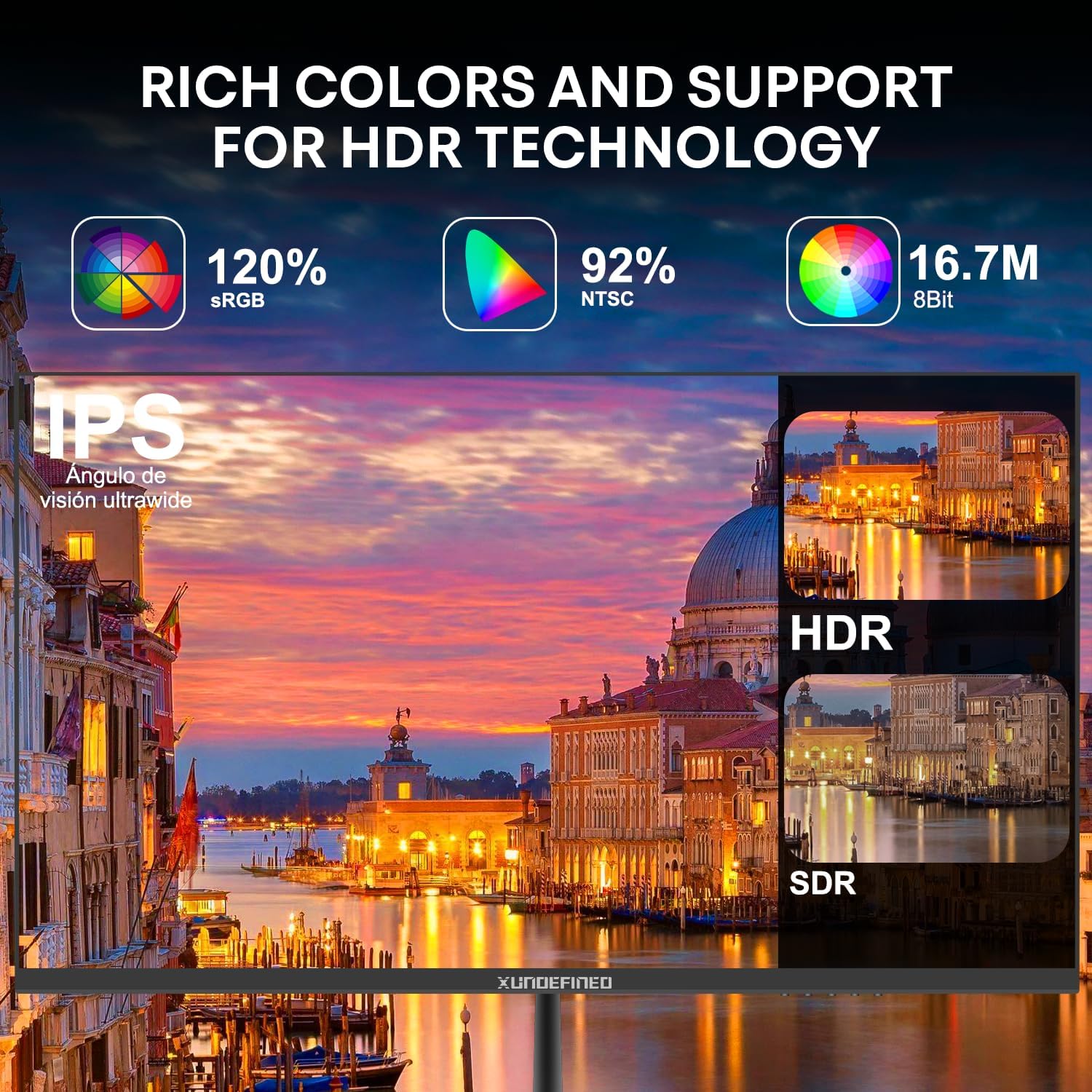
Image: A monitor screen showcasing vibrant colors and the difference between HDR and SDR display modes.

Image: Diagram explaining how blue light filter technology works to reduce harmful blue light emissions from the screen.

Image: Examples of different preset display modes (Standard, FPS, RTS, Movie, Reading) and their visual effects.

Image: Visual representation of the monitor's 1500:1 contrast ratio, showing deep blacks and bright colors.

Image: Illustration of the monitor's wide color gamut, supporting 120% sRGB for accurate and vibrant color reproduction.
Maintenance
- Cleaning the Screen: Use a soft, lint-free cloth slightly dampened with water or a screen-cleaning solution. Do not spray liquid directly onto the screen.
- Cleaning the Casing: Wipe the monitor casing with a soft, dry cloth. Avoid using abrasive cleaners or solvents.
- Storage: When not in use for extended periods, store the monitor in a cool, dry place, preferably in its original packaging.
Troubleshooting
| Problem | Possible Solution |
|---|---|
| No image on screen |
|
| Screen flickering or tearing |
|
| Poor image quality (blurry, incorrect colors) |
|
| No sound from speakers |
|
Specifications
| Feature | Detail |
|---|---|
| Screen Size | 24 Inches |
| Resolution | FHD 1080p (1920 x 1080 Pixels) |
| Refresh Rate | 144Hz |
| Panel Type | IPS |
| Aspect Ratio | 16:9 |
| Image Brightness | 250 Candela |
| Contrast Ratio | 1500:1 |
| Color Gamut | 98% sRGB |
| Viewing Angle | 178° |
| Connectivity | HDMI, VGA |
| Ergonomics | Tilt (-5° to 15°) |
| VESA Compatibility | Yes (VESA mount not included) |
| Product Dimensions | 7 x 21 x 16 inches |
| Item Weight | 7.83 pounds |
| Manufacturer | XUNDEFINED |
Warranty and Support
The XUNDEFINED monitor is backed by a 2-year warranty and a 90-day replacement policy. For technical assistance, troubleshooting, or warranty claims, please contact XUNDEFINED customer support.
Customer support is available 24/7. Please refer to the contact information provided with your product or visit the official XUNDEFINED website for further details.
Quality Guarantee
24/7 Fast Support
Technical Support
365 Days Warranty