
1. Introduction
Thank you for choosing the Wafu 019 Remote Control Invisible Deadbolt Smart Lock. This manual provides essential information for the proper installation, operation, and maintenance of your new smart lock. Please read these instructions carefully before use to ensure optimal performance and safety.
2. Product Overview
2.1 Components
The Wafu 019 Smart Lock package typically includes the following components:
- Main Lock Unit
- Remote Controllers (5 units, chrome-plated)
- Mounting Plate
- Installation Screws and Anchors
- USB Cable (for potential charging or power, if applicable)

An overview of the Wafu 019 smart lock package, showing the main lock unit, five chrome-plated remote controllers, mounting plate, screws, and a USB cable.
2.2 Features
- Invisible Deadbolt Design for enhanced security
- 433Mhz Remote Control operation
- Durable Aluminium Alloy construction
- Polished finish
- Powered by Dry Batteries
- Reversible handle direction (if applicable to installation)
2.3 Specifications
| Specification | Detail |
|---|---|
| Model Number | 019 |
| Brand | Wafu (BUJXUKEQD) |
| Power Supply | Dry Battery |
| Protection Level | No Waterproof |
| Finish Type | Polished |
| Material | Aluminium Alloy |
| Item Dimensions (L x W x H) | 0.39 x 0.39 x 0.39 inches |
| Item Weight | 1.76 ounces (50 Grams) |
3. Safety Information
- Ensure the lock is installed on a stable and secure door frame.
- Do not expose the lock to water or excessive moisture as it is not waterproof.
- Keep remote controllers away from children to prevent accidental locking/unlocking.
- Use only the specified type of dry batteries.
4. Setup and Installation
4.1 Battery Installation
- Locate the battery compartment on the main lock unit.
- Open the compartment cover.
- Insert the required dry batteries, ensuring correct polarity (+/-).
- Close the battery compartment cover securely.
4.2 Lock Unit Mounting
The Wafu 019 is an invisible deadbolt, designed to be mounted on the interior side of the door. Follow these steps for installation:
- Choose a suitable location on the interior side of your door, ensuring the deadbolt mechanism can extend and retract freely into the door frame.
- Position the mounting plate against the door and mark the screw holes.
- Drill pilot holes at the marked positions.
- Secure the mounting plate to the door using the provided screws.
- Attach the main lock unit to the mounting plate, ensuring it is firmly seated.
- Test the deadbolt mechanism manually to confirm smooth operation.

This image displays the main unit of the Wafu 019 invisible deadbolt smart lock from the front, highlighting its sleek design and the central indicator light.
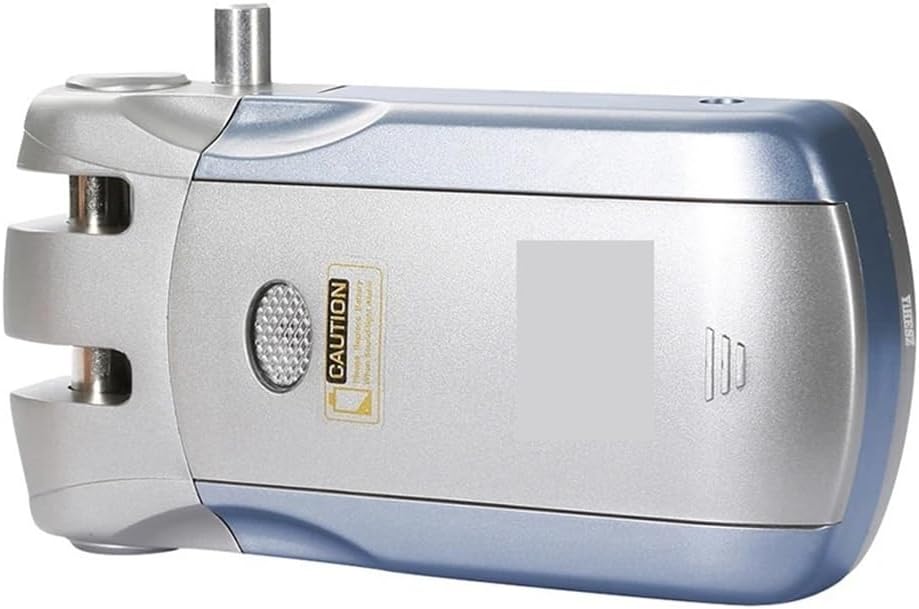
This image provides a side view of the Wafu 019 smart lock, illustrating its profile and the deadbolt mechanism.
4.3 Remote Controller Pairing
To pair a remote controller with the lock unit:
- Ensure the lock unit has power.
- Locate the pairing button on the main lock unit (refer to the product diagram if available).
- Press and hold the pairing button until an indicator light flashes or a sound is emitted.
- Within a few seconds, press any button on the remote controller you wish to pair.
- The lock unit should indicate successful pairing (e.g., a solid light or a confirmation sound).
- Repeat for all additional remote controllers.
5. Operating Instructions
5.1 Locking and Unlocking
- To Lock: Press the lock button on your remote controller. The deadbolt will extend, securing the door.
- To Unlock: Press the unlock button on your remote controller. The deadbolt will retract, allowing the door to open.
- Confirm the lock's status by observing the indicator light or listening for the mechanism's sound.
5.2 Emergency Unlock
In case of battery depletion or remote controller malfunction, the lock may feature an emergency override. Consult the product's physical design for any manual override mechanisms (e.g., a hidden keyhole or a manual lever on the interior side).
6. Maintenance
6.1 Battery Replacement
When the battery level is low, the lock unit may provide an audible alert or a flashing indicator light. Replace batteries promptly to ensure continuous operation.
- Open the battery compartment.
- Remove the old batteries.
- Insert new dry batteries, observing correct polarity.
- Close the compartment.
6.2 Cleaning
Wipe the lock's exterior with a soft, dry cloth. Avoid using abrasive cleaners or solvents, as these can damage the polished finish and internal components.
7. Troubleshooting
7.1 Common Issues and Solutions
- Lock not responding to remote:
- Check remote controller battery.
- Ensure the lock unit has power.
- Re-pair the remote controller (refer to Section 4.3).
- Ensure no obstructions are blocking the signal between the remote and the lock.
- Deadbolt not extending/retracting fully:
- Check for physical obstructions in the door frame or around the deadbolt.
- Verify the lock unit is securely mounted and aligned.
- Replace batteries if they are low.
- Indicator light not functioning:
- Check battery level and replace if necessary.
- If the issue persists after battery replacement, contact customer support.
8. Warranty Information
This product comes with a standard manufacturer's warranty against defects in materials and workmanship. Please retain your proof of purchase for warranty claims. The warranty period and terms may vary by region. For specific warranty details, please refer to the documentation included with your purchase or contact the manufacturer directly.
9. Customer Support
If you encounter any issues or have questions not covered in this manual, please contact our customer support team. You can typically find contact information on the product packaging or the manufacturer's official website.
For further assistance, please visit the BUJXUKEQD brand page on Amazon.