
1. Introduction
This manual provides detailed instructions for the installation, operation, and maintenance of your SIXTOP 4G+64G Android Car Stereo for Honda Odyssey 2011-2017. Please read this manual thoroughly before using the product to ensure proper functionality and safety.
Package Contents
- Android Car Stereo Unit
- Backup Camera
- Main Power Cord
- GPS Antenna
- LVDS Wiring Harness
- AUX Audio Adapter Cable
- Microphone Extension Cable (for specific models)
- Double-sided Tape (for module fixing)
- Installation Guide & Troubleshooting Guide
2. Setup & Installation
The SIXTOP Android Car Stereo is designed for plug-and-play installation in Honda Odyssey models from 2011 to 2017 (left-hand drive, basic version). Confirm your original car's center console before proceeding.
2.1 Compatibility Check
Ensure your vehicle's dashboard matches the compatible configurations shown below. This unit is specifically designed for Honda Odyssey 2011-2017 models.
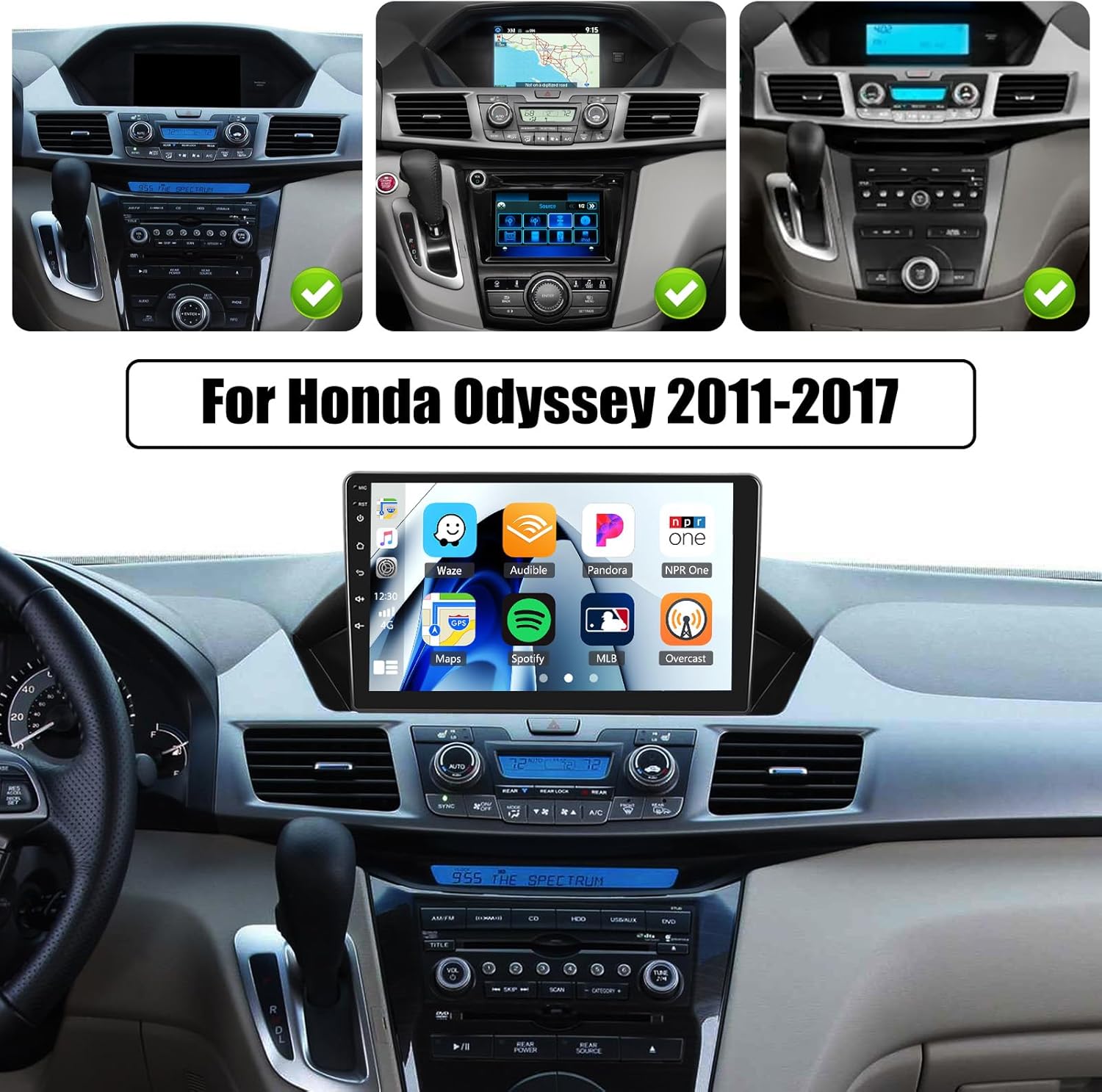
The image above illustrates various Honda Odyssey 2011-2017 dashboard configurations that are compatible with the SIXTOP Android Car Stereo. Please compare your vehicle's dashboard to ensure a proper fit.
2.2 Wiring Connections
Refer to the provided installation guide for detailed wiring diagrams. The primary connections involve the LVDS plug, AUX plug, main power plug, and microphone plug. Ensure all connections are secure.

This image demonstrates the aesthetic integration of the stereo into the vehicle's interior, highlighting the transformation from the original setup to the new Android unit.
2.3 Module Unboxing and Connection Guidance
The following video provides a detailed unboxing and connection guide for the CarPlay module, which is part of the installation process. It covers the components and how to connect them to your vehicle's existing system.
This video details the unboxing of the CarPlay module, including the main power cord, GPS antenna, LVDS wiring harness, AUX audio adapter cable, and microphone extension cable. It also shows how to set the DIP switches on the module based on your car model.
The next video provides an introduction to the installation process, focusing on connecting the module to the original car's CD player ports.
This video guides you through connecting the necessary plugs (LVDS, AUX, power, microphone) to the corresponding ports on your vehicle's original CD player, simplifying the installation steps.
3. Operating Instructions
Your SIXTOP Android Car Stereo offers a wide range of features for an enhanced driving experience. This section covers the primary functions and how to use them.
3.1 Core Features Overview
The unit features a 9-inch HD in-cell touchscreen with 1280x720 resolution, providing vivid colors and responsive operation. It runs on Android with 4GB RAM and 64GB ROM for fast performance and ample storage.

This image highlights the advanced display technology and internal memory specifications, along with the Mirror Link feature for phone screen synchronization.
3.2 Wireless CarPlay and Android Auto
Seamlessly integrate your smartphone with Wireless CarPlay and Android Auto for voice control, navigation, music, and messaging. Mirror Link functionality is also available for both Android and iOS devices.

This image demonstrates the intuitive interface of CarPlay and Android Auto, allowing access to phone contacts, GPS navigation, music, and other applications directly from the car stereo.
3.3 Navigation, Connectivity, and Audio
The unit includes GPS navigation with support for online and offline maps. Connect to Wi-Fi for online functions, streaming, and app downloads. Bluetooth 5.0 ensures stable hands-free calling and wireless audio streaming. The FM/RDS radio offers 18 preset stations.

This image visually represents the various connectivity options and entertainment features available on the stereo, such as internet access, navigation, and radio functions.
3.4 EQ Audio and Steering Wheel Control
Customize your audio experience with the built-in 32-band EQ system. The unit also supports steering wheel controls for convenient volume adjustment, track switching, and call management.

This image details the internal processing power, audio equalization capabilities, the included AHD backup camera, and the integration with existing steering wheel controls for ease of use.
3.5 Split Screen and UI Themes
Utilize the split-screen function to run two applications simultaneously. Personalize your stereo's appearance with multiple UI themes.

This image showcases the multitasking capability of the stereo with its split-screen feature and the option to customize the visual theme of the interface.
3.6 Main Function Display Video
Watch this video for a demonstration of the main functions and user interface of the SIXTOP Android Car Stereo.
This video provides a visual guide to the stereo's capabilities, including UI themes, CarPlay/Android Auto for music and navigation, hands-free calling, split-screen multitasking, FM/RDS radio, weather updates, network radio, Bluetooth connectivity, 32-band EQ DSP, GPS navigation, and the rear view camera display.
3.7 Android Car Stereo with Incell Screen Video
This video provides a detailed look at the Incell screen and various settings and features of the Android Car Stereo.
This video covers a wide array of settings and functionalities, from basic language and time adjustments to advanced features like touch calibration, button learning, CAN settings, split-screen management, speed unit conversion, memory optimization, steering wheel control setup, UI theme customization, radio and EQ settings, and seamless integration with Bluetooth, CarPlay, and Android Auto.
4. Specifications
| Feature | Detail |
|---|---|
| Brand | SIXTOP |
| Vehicle Service Type | For Honda Odyssey 2011-2017 |
| Screen Size | 9 Inches |
| Display Type | LCD, In-Cell Touchscreen |
| Screen Resolution | 1280x720 HD |
| Operating System | Android |
| RAM | 4GB |
| ROM (Memory Storage Capacity) | 64GB |
| Connectivity Technology | Bluetooth 5.0, Wi-Fi, Wireless |
| Special Features | Wireless CarPlay & Android Auto, Mirror Link, Split Screen, 32-Band EQ Audio, FM/RDS Radio, Steering Wheel Control, AHD Rear Camera Support |
| Map Type | North America, Worldwide (supports online and offline maps) |
| Supported Satellite Navigation System | GPS |
| Included Components | Android Car Stereo, Backup Camera |
| Control Method | Touch |
| Item Dimensions L x W x H | 1"L x 1"W x 1"H (Note: This is a placeholder, actual dimensions may vary) |
5. Maintenance
5.1 General Care
- Keep the screen clean using a soft, lint-free cloth. Avoid abrasive cleaners.
- Protect the unit from extreme temperatures and direct sunlight for prolonged periods.
- Ensure all cables are securely connected to prevent intermittent issues.
5.2 Software Updates
Periodically check for software updates through the system settings to ensure optimal performance and access to new features. Follow on-screen instructions for any available updates.
5.3 Cleaning the Unit
Use a dry, soft cloth to wipe the exterior of the unit. For stubborn marks, slightly dampen the cloth with water. Do not use harsh chemicals or solvents.
6. Troubleshooting
This section addresses common issues you might encounter with your SIXTOP Android Car Stereo.
6.1 No Power / Unit Not Turning On
- Check Power Connections: Ensure the main power plug is securely connected to the vehicle's harness and the stereo unit.
- Vehicle's Fuse: Verify the vehicle's fuse related to the car stereo is intact. Replace if blown.
- Ignition: Confirm the vehicle's ignition is on.
6.2 No Sound Output
- Volume Level: Check if the volume is turned up on both the stereo and the vehicle's audio system.
- AUX Connection: Ensure the AUX audio adapter cable is correctly connected and the vehicle's audio source is set to AUX.
- Mute Function: Verify the stereo is not muted.
- Speaker Wiring: Check speaker connections if sound issues persist.
6.3 Touchscreen Unresponsive / Inaccurate
- Restart Unit: Turn off the vehicle and restart the stereo.
- Touch Calibration: Perform a touch calibration from the "Factory Setup" menu (password 1234). Refer to Video 3.7.1 for guidance.
6.4 CarPlay / Android Auto Not Connecting
- Bluetooth/Wi-Fi: Ensure Bluetooth and Wi-Fi are enabled on both your phone and the stereo.
- Phone Compatibility: Confirm your smartphone is compatible with Wireless CarPlay or Android Auto.
- Cable Connection (if wired): If using a wired connection, ensure the USB cable is functional and properly connected.
6.5 Rear Camera Not Displaying
- Camera Connection: Verify the AHD backup camera is correctly connected to the stereo.
- Backcar Source Settings: Check the "Backcar Source Settings" in "Factory Setup" (password 1234) to ensure the correct camera type (e.g., AHD 720P) is selected. Refer to Video 3.7.1 for guidance.
- Reverse Gear: Ensure the vehicle is in reverse gear to trigger the camera display.
7. Warranty & Support
7.1 Warranty Information
The SIXTOP Android Car Stereo comes with a 1-Year Warranty from the date of purchase. This warranty covers manufacturing defects and malfunctions under normal use. Please retain your proof of purchase for warranty claims.
For detailed warranty terms and conditions, please refer to the official SIXTOP website or contact customer support.
7.2 Customer Support
If you encounter any issues or have questions regarding your product, please contact SIXTOP customer support. We offer:
- 24 Hours/7 Days Quick Response
- 1-Year Replacement for eligible issues
- Lifetime Technical Support
You can reach customer support via:
- Email: SIXTOP123@163.com
- Amazon Seller Page: Visit the "xinshunhang" store on Amazon and click "Ask a question".

This image provides a visual guide on how to access online support and contact the seller for assistance.


