
1. Introduction
This manual provides detailed instructions for the RedThunder K75 Wireless Keyboard and Mouse Combo. It covers setup, operation, maintenance, and troubleshooting to ensure optimal performance and user experience. Please read this manual thoroughly before using the product.

Image 1.1: Overview of the RedThunder K75 Wireless Keyboard and Mouse Combo, highlighting its 3 connection modes, membrane keys, RGB backlight, CNC knob, 19-key anti-ghosting, rechargeable battery, 75% layout, and ergonomic design.
Video 1.1: A product introduction video for the RedThunder K75 Wireless Keyboard and Mouse, showcasing its features and design.
2. Setup Instructions
2.1 Unboxing and Initial Charge
Upon receiving your RedThunder K75 combo, carefully unbox the keyboard and mouse. Locate the USB receiver, which is shared by both devices and typically stored at the bottom of the keyboard or mouse. Before first use, fully charge both the keyboard and mouse using the provided Type-C cable. Connect the cable to a computer USB port or a DC 5V charger. The keyboard requires approximately 5-6 hours for a full charge, and the mouse requires 1-2 hours. For optimal battery life, charge for 8 hours before initial use.
Video 2.1: An unboxing video demonstrating the contents and initial setup, including the three connection modes and dual-system compatibility.
2.2 Connection Modes
The RedThunder K75 supports three connection modes: Bluetooth (BT5.0), 2.4G Wireless, and Wired (USB-C). You can switch between these modes using specific FN key combinations.

Image 2.1: Diagram illustrating the three connection modes: Bluetooth (Fn+1!/2@/3#), 2.4G Wireless (Fn+4$), and Wired (Fn+5%). It also shows the Fn+A/S shortcut for switching between Windows/macOS.
2.2.1 Bluetooth Mode (BT5.0)
To connect via Bluetooth, press Fn+1!, Fn+2@, or Fn+3# on the keyboard. The corresponding indicator light will flash, indicating pairing mode. On your device (laptop, tablet, Mac), search for Bluetooth devices and select "RedThunder K75" to connect. Long press the FN+number key to re-pair if needed.
2.2.2 2.4G Wireless Mode
To use 2.4G wireless mode, ensure the shared USB receiver is plugged into your computer's USB port. Press Fn+4$ on the keyboard. The keyboard and mouse will automatically connect. The USB receiver is located at the bottom of the keyboard or mouse.
2.2.3 Wired Mode
Connect the keyboard to your computer using the provided Type-C cable. Press Fn+5% on the keyboard to activate wired mode. The keyboard will function and charge simultaneously.
2.3 Dual System Compatibility
The keyboard supports both Windows and macOS operating systems. Switch between systems by pressing Fn+A for Windows (blue backlight flash) or Fn+S for macOS (yellow backlight flash).
3. Operating Instructions
3.1 Keyboard Functions
3.1.1 CNC Knob Operation
The multi-function CNC knob controls both volume and lighting. Long press Fn+Knob for 3 seconds to switch between volume mode and lighting mode.
- In Volume Mode: Rotate the knob to adjust volume (clockwise for increase, counter-clockwise for decrease). Press the knob to mute/unmute.
- In Lighting Mode: Rotate the knob to adjust backlight brightness (clockwise for increase, counter-clockwise for decrease). Press the knob to cycle through RGB lighting effects.

Image 3.1: Detailed view of the CNC knob and indicator lights (Caps Lock, Win Lock, Connection Mode) on the RedThunder K75 keyboard, explaining their functions.
Video 3.1: Demonstration of the K75 CNC Knob functionality, showing how to switch between volume and lighting modes and adjust settings.
3.1.2 RGB Backlight Adjustment
The K75 keyboard features adjustable RGB backlighting. Use the following shortcuts to customize the lighting effects:
- Fn + \|: Switch backlight mode.
- Fn + ←: Turn on/off the backlight.
- Fn + PgUp: Increase backlight speed.
- Fn + PgDn: Decrease backlight speed.
- Fn + =+: Increase backlight brightness.
- Fn + -_: Decrease backlight brightness.
- Fn + ESC: Restore factory default RGB settings.
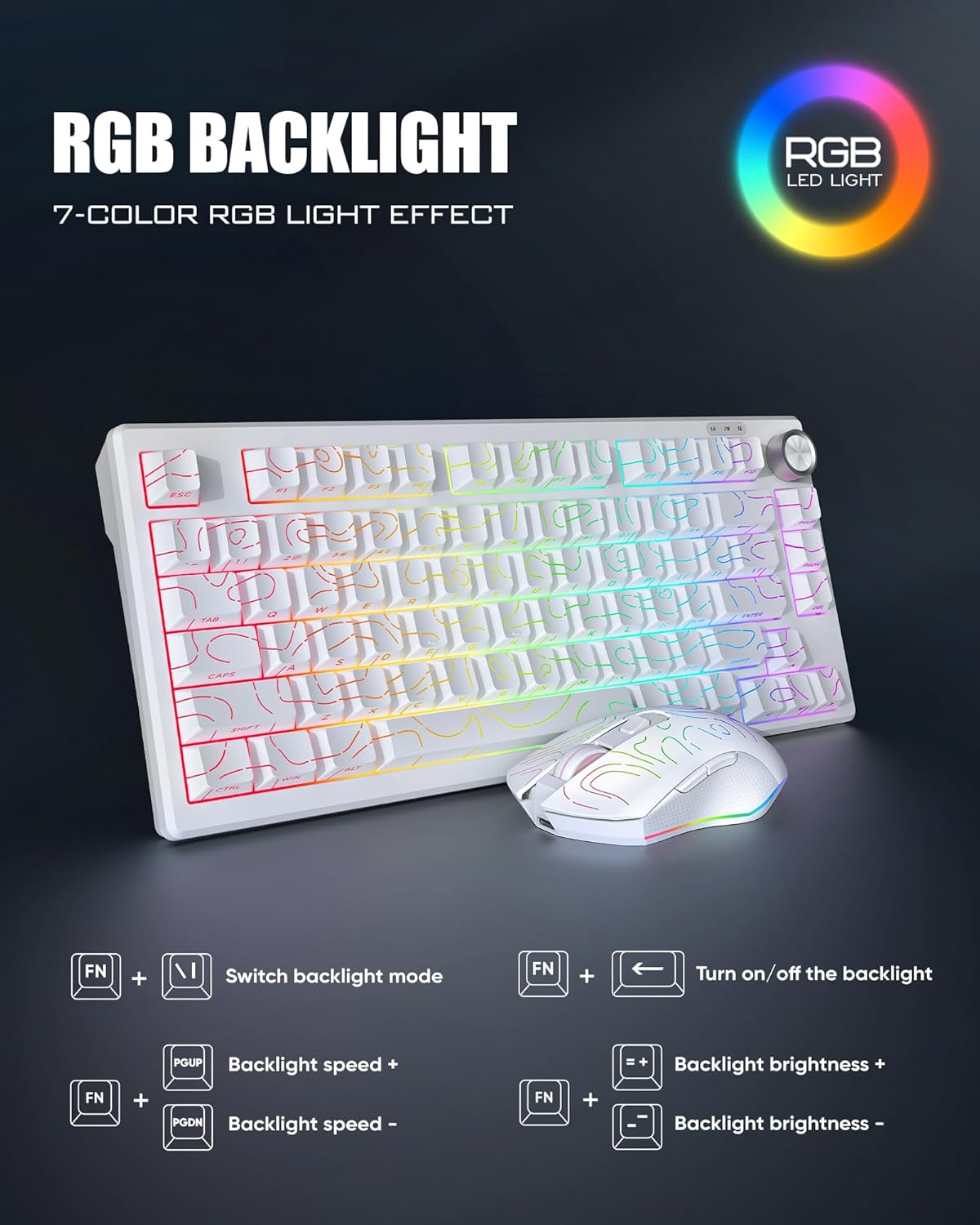
Image 3.2: Visual guide to keyboard shortcuts for adjusting RGB backlight modes, speed, and brightness.
Video 3.2: A guide on how to adjust the RGB lighting effects on the RedThunder K75 keyboard.
3.2 Mouse Functions
The M75 optical gaming mouse features 7 functional buttons and adjustable DPI settings.
- DPI Adjustment: The mouse offers 5-level adjustable DPI settings: 800, 1000 (default), 1600, 2400, and 4800. Each DPI level is indicated by a specific color-coded light (Red/Blue/Green/Purple/White). Press the DPI button to cycle through these settings.
- RGB Light Effects: The mouse has 13 RGB light effects. Press the bottom RGB button to switch between effects. Long press the DPI button for 3 seconds to turn the mouse light on or off.

Image 3.3: Diagram of the M75 optical gaming mouse, labeling its buttons (Left, Right, Scroll Wheel, Forward, Back, DPI) and indicating the USB receiver location.
4. Charging Instructions
The RedThunder K75 keyboard and mouse are equipped with rechargeable batteries. The keyboard has a 4000mAh battery, and the mouse has an 800mAh battery.
- Charging Time: Keyboard takes 5-6 hours, mouse takes 1-2 hours.
- Charging Method: Use the original Type-C cable connected to a computer USB port or a DC 5V charger.
- Simultaneous Use: The keyboard can be used in wired mode while charging.
- Low Battery Indicator: A red slow flash of the keyboard connection light or mouse delay/light off indicates a low battery.
- Power Saving: The keyboard enters auto-standby after 2 minutes and sleep mode after 15 minutes of inactivity. The mouse enters auto-standby after 1 minute and sleep mode after 15 minutes of inactivity.

Image 4.1: Diagram showing the Type-C charging interface for the keyboard and mouse, along with their respective battery capacities (4000mAh for keyboard, 800mAh for mouse).
Video 4.1: A reconnection guide for the RedThunder K75, which also demonstrates connecting the charging cable and switching to wired mode.
5. Maintenance
To ensure the longevity and optimal performance of your RedThunder K75 combo, follow these maintenance guidelines:
- Cleaning: Use a soft, dry cloth to clean the surfaces of the keyboard and mouse. For stubborn dirt, a slightly damp cloth with mild soap can be used, ensuring no liquid enters the device.
- Storage: Store the devices in a cool, dry place away from direct sunlight and extreme temperatures.
- Avoid Liquids: Do not expose the keyboard or mouse to water or other liquids.
- Handle with Care: Avoid dropping or subjecting the devices to strong impacts.
6. Troubleshooting
6.1 Connection Issues
- No Connection: Ensure the keyboard and mouse are sufficiently charged. Verify the correct connection mode (Bluetooth, 2.4G, or Wired) is selected using the FN shortcuts. For 2.4G, ensure the USB receiver is securely plugged in. For Bluetooth, try re-pairing by long-pressing the FN+number key.
- Intermittent Connection: Move the devices closer to the receiver/computer to minimize interference. Ensure no other wireless devices are causing interference.
6.2 RGB Lighting Not Working
- Keyboard RGB: Ensure the backlight is turned on (Fn + ←). Try cycling through modes or adjusting brightness. If issues persist, reset to factory settings with Fn + ESC.
- Mouse RGB: Press the bottom RGB button to cycle effects. Long press the DPI button for 3 seconds to toggle the light on/off.
6.3 PS5 Compatibility
Please note that while the product is compatible with various devices, some users have reported issues connecting to PS5 consoles. The RedThunder K75 is primarily designed for PC and laptop use. Compatibility with gaming consoles like PS5 is not guaranteed and may vary.
7. Specifications
| Feature | Detail |
|---|---|
| Brand | RedThunder |
| Model Number | K75 |
| Connectivity Technology | Bluetooth 5.0, 2.4G Wireless, USB-C Wired |
| Keyboard Layout | 75% Compact (80-key), QWERTY |
| Keyboard Type | Membrane, Side-Engraved Keycaps |
| Keyboard Backlighting | RGB |
| Mouse DPI | 800-1000(default)-1600-2400-4800 |
| Keyboard Battery Capacity | 4000mAh |
| Mouse Battery Capacity | 800mAh |
| Compatible Devices | Laptop, PC, Gaming Console (limited) |
| Special Features | Backlit, Ergonomic, Rechargeable, CNC Knob |
| Keyboard Dimensions | 33cm x 14cm x 4cm (13in x 5.5in x 1.57in) |
| Keyboard Weight | 710g (1.6lb) |
| Mouse Dimensions | 12.5cm x 6.8cm x 3.9cm (4.9in x 2.68in x 1.54in) |
| Mouse Weight | 75g (0.2lb) |
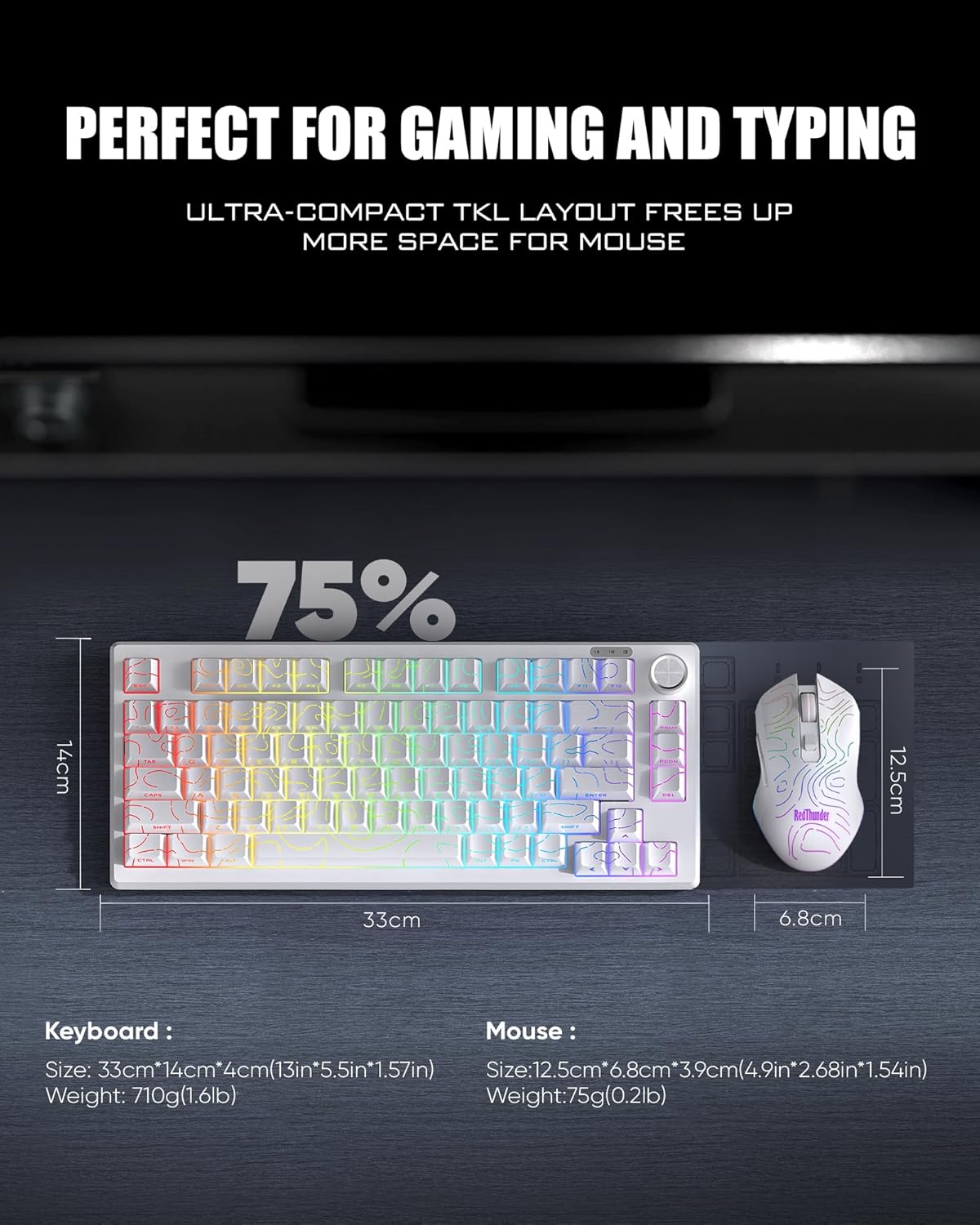
Image 7.1: Visual representation of the RedThunder K75 keyboard and mouse with their respective dimensions and weights.

Image 7.2: Illustration of the ergonomic design features of the K75 keyboard, including stepped key layout, adjustable rear feet, and palm-fitting shape.
8. Warranty and Support
The RedThunder K75 Wireless Keyboard and Mouse Combo comes with a 1-year warranty from the date of purchase. This warranty covers manufacturing defects and malfunctions under normal use. It does not cover damage caused by misuse, accidents, unauthorized modifications, or normal wear and tear.
For technical support, warranty claims, or any product-related inquiries, please contact RedThunderDirect, the seller, through the platform where the product was purchased. Please retain your proof of purchase for warranty validation.


