
1. Introduction
Welcome to the PUNEHOD A3 R1390 DTF Printer instruction manual. This document provides essential information for the safe and efficient operation, setup, and maintenance of your Direct-to-Film (DTF) printer. Please read this manual thoroughly before using the printer to ensure optimal performance and longevity.
2. Product Overview and Features
The PUNEHOD A3 R1390 DTF Printer is designed for high-quality direct-to-film printing on various materials. It features an R1390 print head with a resolution of 2880x1440 DPI and a CMYK + white ink 6-channel configuration for wide color coverage.

Image: PUNEHOD A3+ DTF Roll Printer Product Parameters, showing dimensions and technical specifications.
Key Features:
- High-Resolution Printing: R1390 print head with 2880x1440 DPI for detailed output.
- Advanced Ink System: CMYK + white ink 6-channel configuration with a 3-in-1 white ink circulation, mixing, and filtration system to prevent sedimentation and extend print head life.
- Versatile Feeding Modes: Supports both single-sheet and roll-fed printing, with a maximum printing width of 13 inches.
- Adjustable Air Suction: Ensures smooth printing and prevents paper jams during batch production.
- Preheating Function: Dries ink to prevent flow issues, with a baking temperature of 35-40 degrees Celsius.
- Simultaneous White and Color Printing: Improves printing efficiency.

Image: Diagram illustrating the white ink circulation, mixing, and waste ink recycling systems.

Image: Close-up views of the white ink stirring mechanism, waste ink collection bottle, internal white ink circulation, and the control panel.
3. Setup
3.1 Unpacking and Component Check
Carefully unpack all components and verify against the packing list. Ensure no items are damaged during transit.

Image: Detailed packing list showing included supplies (film, ink, syringe), parts (USB cable, power cable, platform), spare parts (ink SAC, ink tube, powder), and maintenance items (print head protection fluid, awab, dust-free cloth).
3.2 Initial Printer Setup
- Placement: Place the printer on a stable, level surface in a well-ventilated area.
- Power Connection: Connect the power cable to the printer and a suitable power outlet (AC110-220V).
- USB Connection: Connect the printer to your computer using the provided USB cable.
- Software Installation: Install the officially licensed Rip software on your computer. This software is crucial for file processing and color management.
- Ink Installation: Carefully install the DTF ink bottles into their respective channels. Ensure the white ink circulation system is properly engaged.
- Film Loading: Load the DTF film according to the printer's instructions, utilizing either the single-sheet or roll-fed mode.
4. Operating Instructions
Follow these steps for a typical DTF printing process:

Image: Step-by-step flowchart for using the DTF printer, from design to final heat press.
- Computer Design: Create or prepare your design using appropriate graphic software.
- Print on Film: Send the design to the printer via the Rip software. The printer will print the design onto the DTF film. The R1390 printer can print an A3 size in approximately 7-8 minutes.
- Powdering: Apply hot melt powder evenly over the wet ink on the printed film.
- Melting the Powder: Cure the powder using a curing oven or heat press to melt it onto the ink. The preheating function of the printer assists in this process.
- Pre-pressing: Pre-press the garment or material to remove moisture and wrinkles.
- Transfer: Place the powdered film onto the garment and use a heat press to transfer the design.
- Cold Peel: Allow the film to cool completely before carefully peeling it off the garment.
- Post-pressing: (Optional) Press the garment again for a few seconds to enhance durability and finish.
4.1 Compatible Materials
The PUNEHOD A3 R1390 DTF Printer is suitable for printing on a wide range of fabrics, including cotton, polyester, leather, and denim. This versatility allows for customization of various items such as T-shirts, hoodies, canvas bags, shoes, hats, and plush dolls.
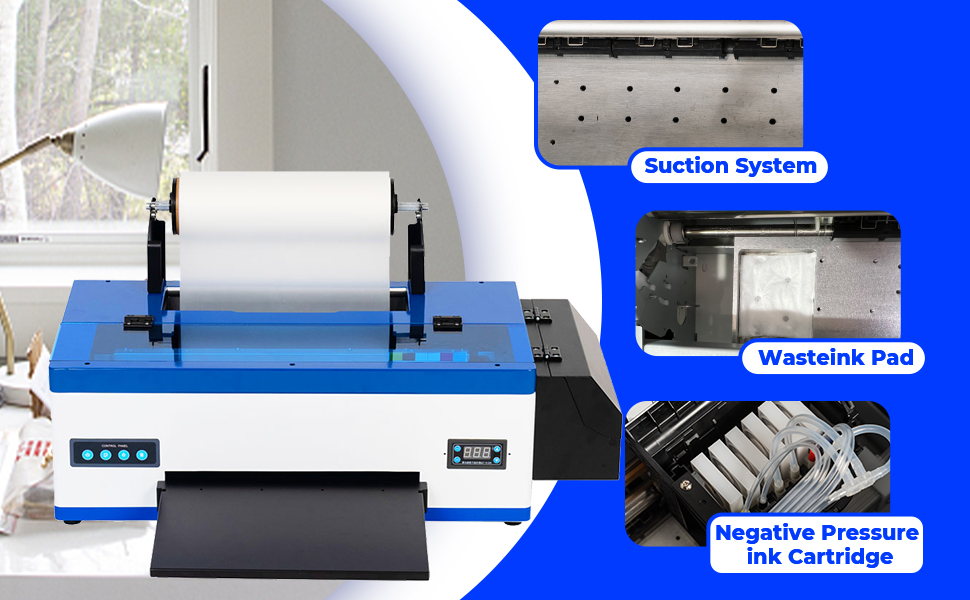
Image: Visual examples of various textiles and items that can be printed, including garments, face masks, trousers, baseball caps, pillows, canvas bags, and canvas shoes.
5. Maintenance
Regular maintenance is crucial for the longevity and optimal performance of your DTF printer.
5.1 White Ink System Maintenance
- The integrated white ink circulation, mixing, and filtration system significantly reduces white ink sedimentation. However, regular checks are recommended.
- Ensure the white ink stirring mechanism is functioning correctly.
- Monitor the waste ink collection bottle and empty it as needed to prevent overflow.

Image: Close-up views of the printer's suction system, waste ink pad, and negative pressure ink cartridge area.
5.2 General Cleaning
- Use the provided print head protection fluid and dust-free cloth for cleaning the print head and other sensitive components.
- Regularly clean the printer's exterior and interior to prevent dust and ink buildup.
- Refer to the Rip software manual for specific cleaning cycles and procedures.
6. Troubleshooting
This section provides general guidance for common issues. For complex problems, please contact technical support.
Common Issues and Solutions:
- Poor Print Quality: Check ink levels, clean print heads, ensure film is loaded correctly, and verify software settings.
- Paper Jams: Ensure film is loaded straight, check for obstructions in the paper path, and verify the adjustable air suction system is correctly set.
- White Ink Sedimentation: Ensure the white ink circulation system is active. Perform a manual shake of the white ink bottle if necessary, and run a print head cleaning cycle.
- Printer Not Responding: Check power and USB connections. Restart the printer and computer. Verify software drivers are correctly installed.
If issues persist, refer to the detailed troubleshooting guide within the Rip software documentation or contact PUNEHOD technical support.
7. Specifications
| Feature | Specification |
|---|---|
| Model Number | R1390-LS |
| Print Head | Epson R1390 |
| Printing Resolution | 2880*1440 DPI |
| Color Configuration | CMYK + WW (6-channel) |
| Printing Width | Up to 13 inches (A3+) |
| Printing Speed (A3+) | Approx. 7 minutes (1440 DPI) |
| White Ink System | Circulation, Mixing, Filtration |
| Heating Function | Yes (Preheating) |
| Applicable Systems | Windows systems |
| Machine Power | 100W |
| Voltage/Plug | AC110-220V |
| Product Dimensions | 31.5 x 13 x 8 inches (75 x 31.5 x 22.5 cm) |
| Item Weight | 90 pounds |
| Material | Stainless Steel |
| Color | Blue |
8. Warranty and Support
PUNEHOD provides industry-leading service for its products. Your printer includes officially licensed Rip software, ensuring secure multi-format file processing and color management.
For any technical assistance, PUNEHOD engineers are available 24/6 to deliver lifelong one-on-one technical support. This ensures that even novice users can operate the printer effortlessly. Please refer to the contact information provided with your purchase or visit the official PUNEHOD website for support details.


