
Introduction
This manual provides detailed instructions for the installation, operation, and maintenance of your Restaswork D65 4-Channel Dash Cam. This device is designed to record video from the front, rear, and interior of your vehicle, offering comprehensive coverage for your driving safety and security. Please read this manual thoroughly before using the product to ensure proper functionality and to avoid any damage.
Product Overview
The Restaswork D65 is a 4-channel dash cam system featuring a 3-inch IPS screen. It records simultaneously from four lenses: a 4K front camera and three adjustable 1080P lenses for the rear, left, and right sides of your vehicle. Key features include:
- 4K Front Camera: Captures high-resolution footage of the road ahead.
- Three 1080P Adjustable Lenses: Cover the rear, left, and right sides, eliminating blind spots.
- Loop Recording: Ensures continuous recording by overwriting the oldest files when the memory card is full.
- G-Sensor: Automatically detects sudden impacts or collisions and locks the corresponding footage to prevent overwriting.
- 24H Parking Mode: Provides continuous surveillance when the vehicle is parked (requires additional hardware kit).
- Built-in 5GHz Wi-Fi & GPS: Allows for instant viewing, management, and tracking of recordings via the Viidure App on iOS or Android devices.
- 8 IR Lights: Enhances night vision capabilities.
- WDR (Wide Dynamic Range): Improves video quality in varying light conditions.

Image: Overview of the Restaswork D65 Dash Cam highlighting its key features such as Wi-Fi, 360° protection, 64GB SD card support, FHD 1080p 4-channel recording, parking monitor, 8 IR lights, loop recording, G-sensor, night vision, and WDR.
What's in the Box
Please check the package contents upon unboxing:
- Restaswork D65 Dash Cam Unit
- Car Mount (Windshield Mount)
- Charging Cable
- Crowbar (for cable routing)
- User Manual
- 64GB Memory Card (pre-installed)
Setup and Installation
1. Mount the Dash Cam
- Clean the windshield area where you intend to mount the dash cam.
- Attach the suction cup mount to the windshield, ensuring a secure fit.
- Slide the dash cam onto the mount until it clicks into place.
- Adjust the angle of the front camera to ensure a clear view of the road.
2. Connect Power
- Connect the charging cable to the dash cam's power input.
- Plug the other end of the charging cable into your vehicle's 12V power outlet (cigarette lighter socket).
- Use the provided crowbar to neatly route the power cable along the windshield and dashboard edges to avoid obstructing your view.
3. Install Rear Camera (Optional)
- Identify a suitable location for the rear camera, typically on the rear windshield or near the license plate.
- Connect the rear camera cable to the main dash cam unit.
- Route the cable discreetly from the front unit to the rear of the vehicle.
- Secure the rear camera in place and adjust its angle for optimal rear view coverage.

Image: Diagram illustrating the connection of the main dash cam unit to the rear camera via cable and to the car charger, with the main unit mounted on the windshield.
Operating Instructions
Power On/Off
- The dash cam will automatically power on and begin recording when your vehicle's ignition is turned on.
- It will automatically power off when the ignition is turned off.
- To manually power on/off, press and hold the power button located on the device.
Loop Recording
The dash cam continuously records video in short segments (e.g., 1, 3, or 5 minutes). When the memory card is full, the oldest unlocked files are automatically overwritten by new recordings. This ensures that you always have the most recent footage without manually clearing the card.

Image: Illustration of the loop recording function, showing how the dash cam overwrites older files to ensure continuous recording.
G-Sensor (Emergency Recording)
The built-in G-sensor detects sudden acceleration, braking, or collisions. When an event is detected, the current video segment is automatically locked and saved to a protected folder on the memory card, preventing it from being overwritten by loop recording. This footage serves as critical evidence in case of an incident.

Image: Graphic depicting the G-sensor feature, showing a car collision and a lock icon, indicating that footage is automatically protected during an impact.
24H Parking Mode
With an optional hardwire kit (sold separately), the dash cam can monitor your vehicle even when parked. If an impact or motion is detected, the dash cam will automatically start recording to capture any incidents. This feature provides continuous protection for your vehicle.

Image: Illustration of the 24-hour parking mode, showing a car protected by a dome, indicating continuous surveillance when parked.
Wi-Fi and App Control (Viidure App)
The D65 dash cam features dual-band 5GHz Wi-Fi connectivity. Download the "Viidure" app from the App Store (iOS) or Google Play Store (Android) to connect your smartphone to the dash cam. This allows you to:
- View live footage from all cameras.
- Manage and download recorded videos and photos to your phone at high speed.
- Adjust dash cam settings.
- Share footage directly to social media or with insurance companies.

Image: A smartphone screen displaying the dash cam app interface, showing options to share, edit, view real-time preview, and access camera settings, with various social media icons.
GPS Route Tracking
The built-in GPS module records your vehicle's speed and location data. This information can be viewed alongside your video footage via the Viidure app, providing a visual trace of your vehicle's path and documenting the exact location of any incidents.
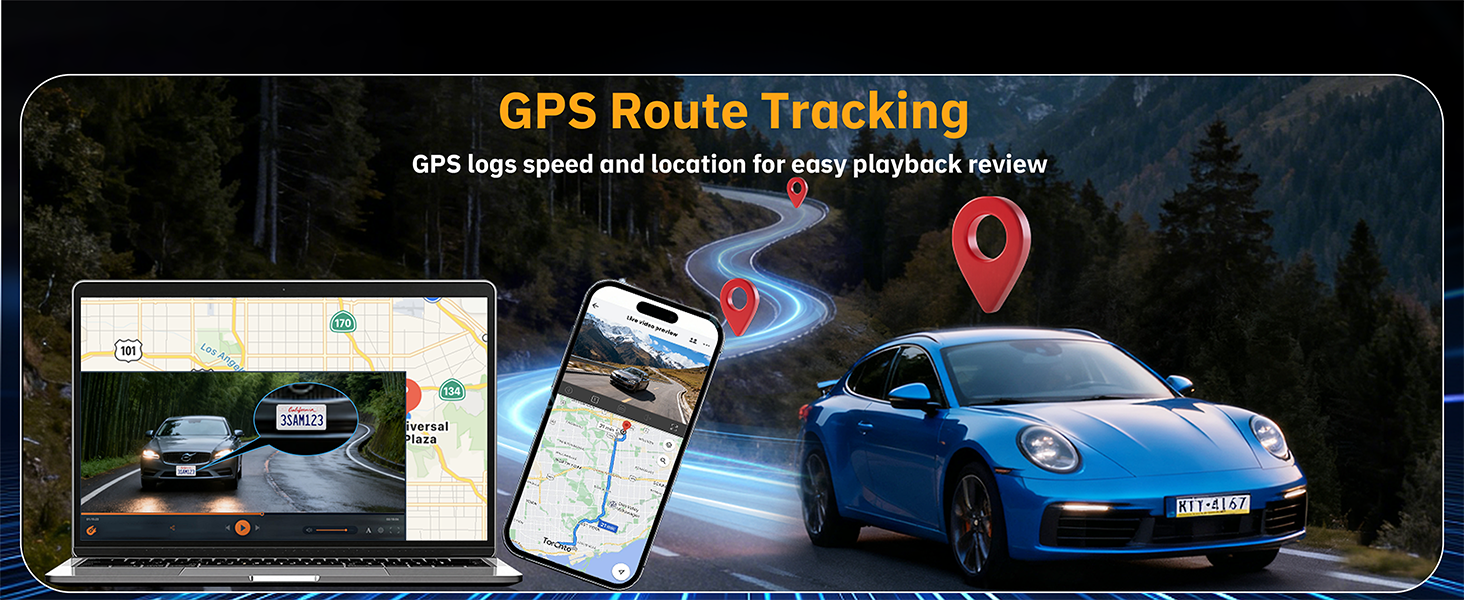
Image: An illustration showing GPS route tracking on a laptop and smartphone, with a car driving on a winding road, indicating location and speed logging.
Maintenance
- Clean Lenses: Regularly clean the camera lenses with a soft, lint-free cloth to ensure clear video quality.
- Memory Card: Format the memory card periodically (e.g., once a month) through the dash cam's settings to maintain optimal performance and prevent data corruption.
- Firmware Updates: Check the manufacturer's website or the Viidure app for any available firmware updates to ensure your dash cam has the latest features and bug fixes.
- Operating Temperature: Avoid exposing the dash cam to extreme temperatures for extended periods, as this can affect its lifespan and performance.
Troubleshooting
| Problem | Possible Cause | Solution |
|---|---|---|
| Dash cam does not power on. | No power supply; faulty cable; loose connection. | Check power connection to the vehicle's 12V outlet. Ensure the charging cable is securely connected to both the dash cam and the power source. Test with another power source if available. |
| Video footage is blurry or unclear. | Dirty lens; protective film still on lens; incorrect focus. | Clean the camera lenses with a soft cloth. Remove any protective film. Ensure the camera is securely mounted and not vibrating. |
| Dash cam stops recording. | Memory card full; memory card error; power interruption. | Format the memory card. Replace the memory card if errors persist. Ensure continuous power supply. |
| Wi-Fi connection issues. | Incorrect password; out of range; app issues. | Ensure correct Wi-Fi password. Move closer to the dash cam. Restart the app and the dash cam. Reinstall the app if necessary. |
| G-Sensor is too sensitive/not sensitive enough. | G-Sensor sensitivity setting. | Adjust the G-Sensor sensitivity in the dash cam settings via the device menu or the Viidure app. |
Specifications
| Model Name | D65 |
| Brand | Restaswork |
| Product Dimensions | 1.5"D x 2.2"W x 6.3"H (1.5 x 2.2 x 6.3 inches) |
| Item Weight | 14.9 ounces |
| Video Capture Resolution | Front: 4K (2160p), Other Channels: 1080p |
| Connectivity Technology | Wi-Fi (Dual-band 5GHz), GPS |
| Special Features | 360 Degree Coverage, App Control, Built-In WiFi, G-Sensor, Night Vision, Loop Recording, 24H Parking Mode (with hardwire kit) |
| Mounting Type | Windshield Mount |
| Color | Black |
Warranty and Support
For warranty information and technical support, please refer to the contact details provided on the product packaging or visit the official Restaswork website. Keep your purchase receipt as proof of purchase for warranty claims.
Online Support: For frequently asked questions, troubleshooting guides, and software downloads, please visit the Restaswork support page.
Contact Customer Service: If you encounter any issues not covered in this manual, please contact Restaswork customer service for assistance.