
1. Introduction
The Portronics MPort View Three is a versatile 10-in-1 USB-C multifunction docking station designed to expand the connectivity of your USB-C enabled laptop, tablet, or smartphone. It provides a comprehensive solution for connecting to external displays, wired networks, and various peripherals, enhancing productivity and convenience.

Image 1.1: Overview of the Portronics MPort View Three docking station with connected devices, illustrating its 10-in-1 functionality.
2. Product Features
- 10-in-1 Connectivity: Integrates multiple ports for comprehensive device expansion.
- 100W USB-C Power Delivery: Charges your host device while simultaneously supporting connected peripherals.
- 4K HDMI Output: Supports high-resolution video output up to 4K at 30Hz for external displays.
- VGA Output: Provides compatibility with older monitors and projectors, supporting up to 1080P resolution.
- RJ45 Ethernet Port: Ensures a stable and reliable wired internet connection at 100Mbps.
- Multiple USB Ports: Includes three USB 3.0 ports (5Gbps) for high-speed data transfer and two USB 2.0 ports (480Mbps) for general peripherals.
- SD & MicroSD Card Readers: Facilitates quick transfer of photos, videos, and documents (480Mbps).
- 3.5mm Audio Jack: For connecting headphones or speakers.
- Transparent Casing: Features a durable, transparent design that reveals internal circuitry.
- Plug-and-Play: No drivers or additional software required for most operating systems.
- Wide Compatibility: Works with USB-C devices supporting Alt Mode, including Windows, macOS, Android, and iOS.
- Compact Design: Lightweight and portable for easy transport.
3. Setup Instructions
- Connect to Host Device: Plug the integrated USB-C cable from the MPort View Three into the USB-C port of your laptop, tablet, or smartphone. Ensure your device's USB-C port supports DisplayPort Alternate Mode (Alt Mode) for video output functionality.
- Power Delivery (Optional): For charging your host device and ensuring stable power for all connected peripherals, connect a USB-C power adapter (not included) to the USB-C PD port on the docking station. The docking station supports up to 100W Power Delivery.
- Connect Peripherals:
- External Displays: Connect your HDMI or VGA monitor/projector to the corresponding ports on the docking station.
- Network: Connect an Ethernet cable from your router/modem to the RJ45 Ethernet port.
- USB Devices: Plug in USB devices such as keyboards, mice, external hard drives, or USB flash drives into the available USB 3.0 or USB 2.0 ports.
- Memory Cards: Insert SD or MicroSD cards into their respective slots.
- Audio Devices: Connect headphones or speakers to the 3.5mm audio jack.
- Verify Connection: Your host device should automatically detect the docking station and connected peripherals. No drivers are typically required for Windows or macOS.
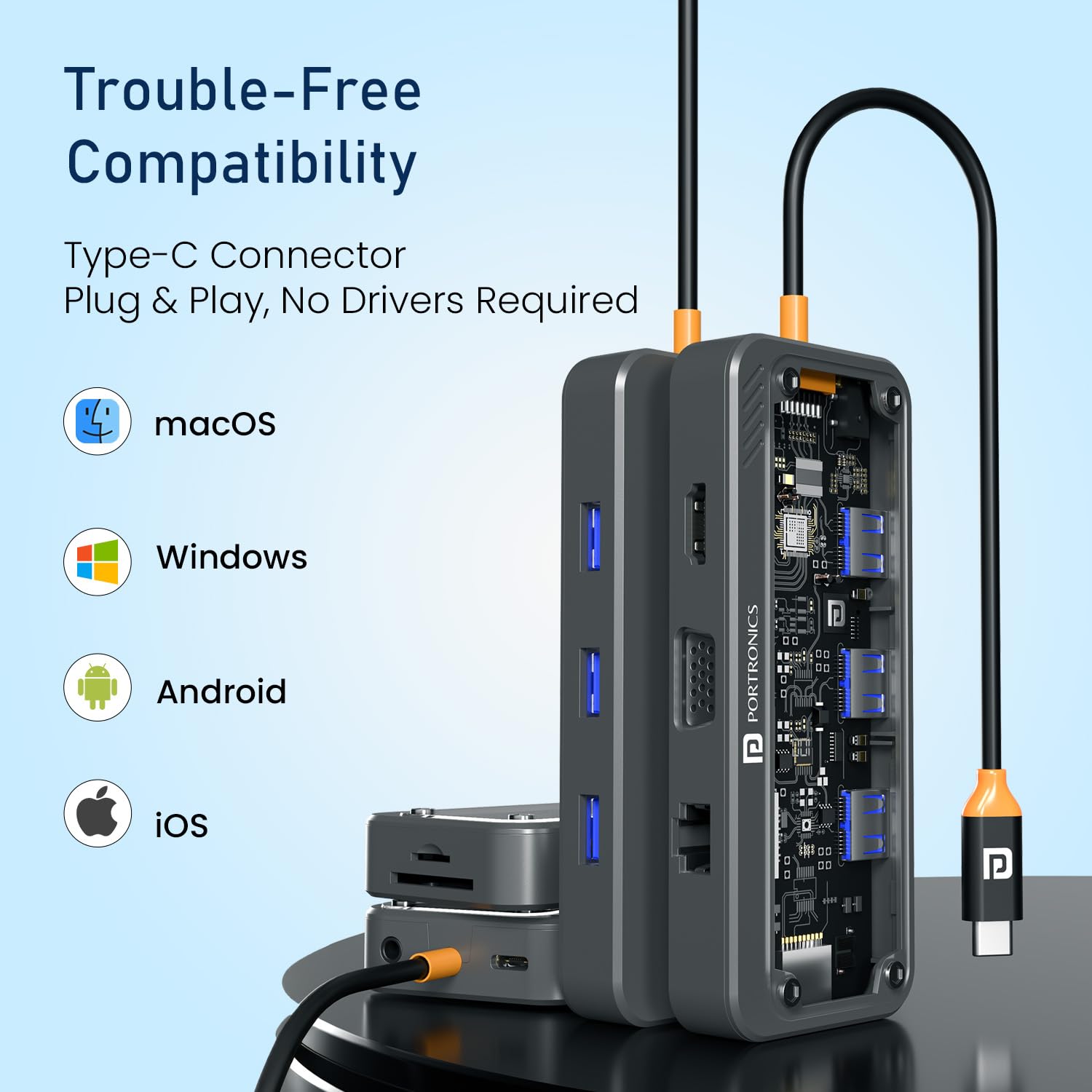
Image 3.1: The MPort View Three is compatible with various operating systems including macOS, Windows, Android, and iOS, offering plug-and-play functionality.
4. Operating Instructions
Once the MPort View Three is set up, operating its various functions is straightforward:
- Display Output:
- For HDMI or VGA displays, ensure the monitor is powered on and set to the correct input source. Your operating system's display settings can be used to configure display modes (e.g., extend, duplicate).
- The HDMI port supports resolutions up to 4K at 30Hz. The VGA port supports resolutions up to 1080P.

Image 4.1: A laptop connected to an external monitor via the docking station's HDMI port, showcasing 4K @ 30Hz output for clear visuals.

Image 4.2: A laptop connected to a VGA monitor and external speakers through the docking station, demonstrating 1080P VGA output and 3.5mm audio functionality.
- USB Devices: Connected USB devices will function immediately. USB 3.0 ports offer faster data transfer speeds (up to 5Gbps) compared to USB 2.0 ports (up to 480Mbps).
- Card Readers: Insert SD or MicroSD cards into the appropriate slots. They will appear as removable drives on your host device, allowing for file access and transfer.
- Ethernet Connection: Once an Ethernet cable is connected, your host device should automatically establish a wired network connection. This provides a stable internet connection, ideal for streaming or online meetings.
- Audio Output: When headphones or speakers are connected to the 3.5mm audio jack, your host device should automatically switch audio output to the connected device. You may need to select the audio output device in your operating system's sound settings.
- Power Delivery: If a power adapter is connected to the USB-C PD port, your host device will begin charging. This allows you to use all docking station functions without draining your device's battery.
5. Port Overview
The MPort View Three features a comprehensive array of ports to meet diverse connectivity needs. Refer to the video below for a visual guide to the ports.
Video 5.1: A detailed walkthrough of the Portronics MPort View Three's various ports and their functions.
- USB-C PD Port: Located on the side, this port supports Power Delivery up to 100W for charging your host device.
- 3.5mm Audio Jack: Also on the side, for connecting standard audio devices.
- SD Card Slot: For standard SD memory cards.
- MicroSD Card Slot: For smaller MicroSD memory cards.
- HDMI Port: Supports video output up to 4K@30Hz.
- VGA Port: Supports video output up to 1080P.
- RJ45 Ethernet Port: Provides a 100Mbps wired network connection.
- USB 3.0 Ports (x3): High-speed data transfer ports (up to 5Gbps).
- USB 2.0 Ports (x2): Standard data transfer ports (up to 480Mbps).
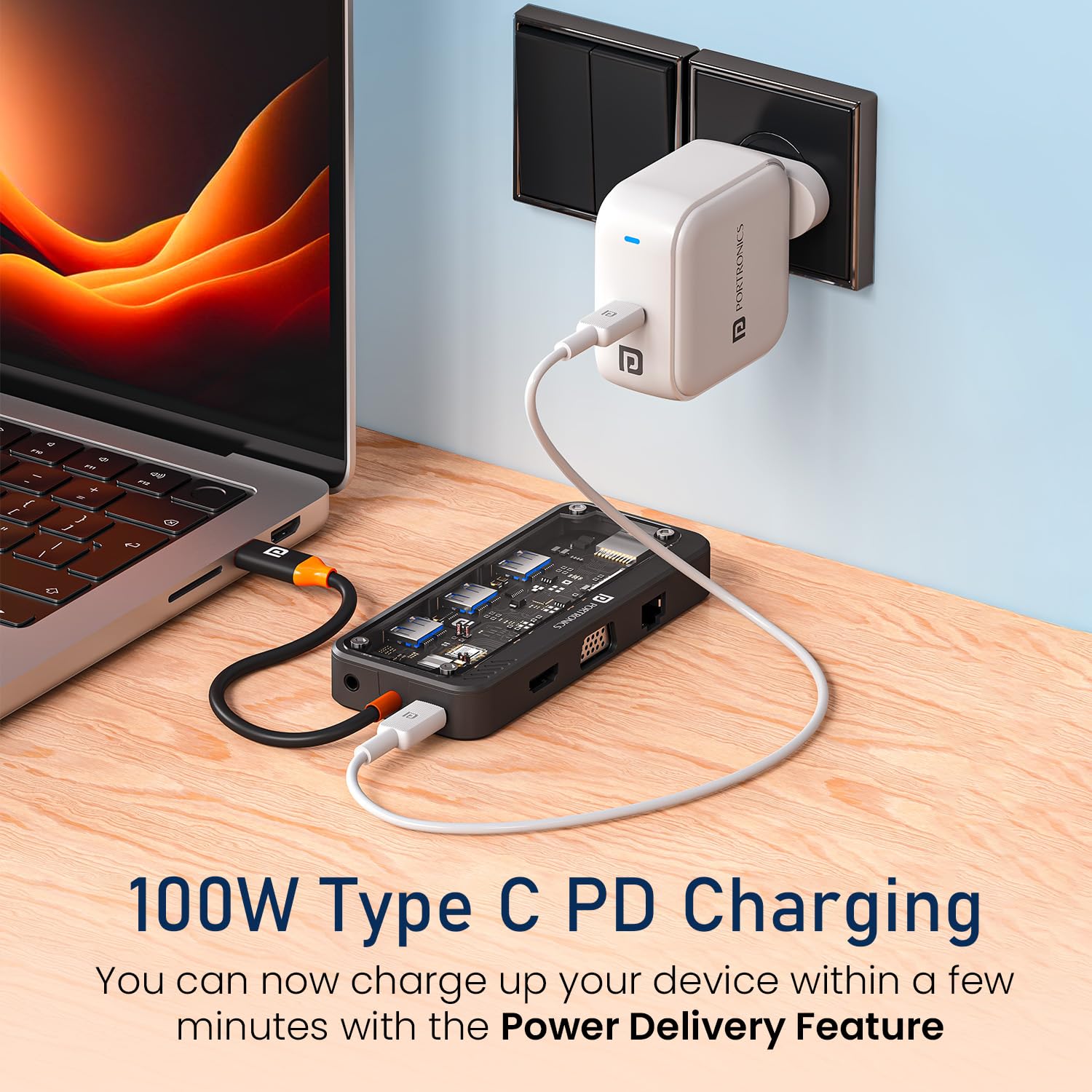
Image 5.2: The docking station connected to a power source, highlighting its 100W Type-C Power Delivery capability.
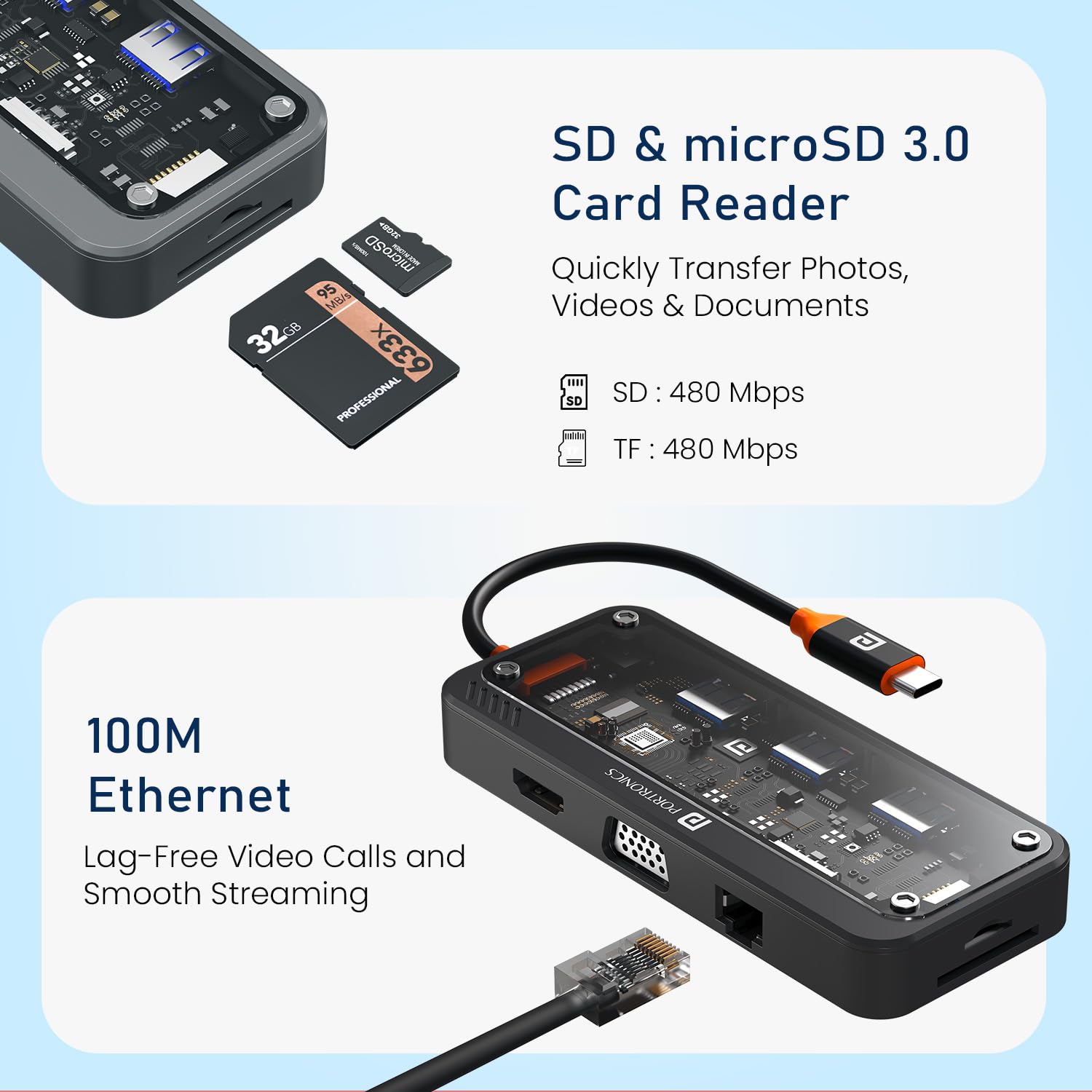
Image 5.3: Close-up of the SD and MicroSD card readers and the 100Mbps RJ45 Ethernet port on the docking station.

Image 5.4: The transparent casing design of the MPort View Three, alongside a visual comparison of USB 2.0 (480Mbps) and USB 3.0 (5Gbps) file transfer speeds.
6. Compatibility
The Portronics MPort View Three is designed for broad compatibility with devices featuring a USB-C port that supports DisplayPort Alternate Mode (Alt Mode). It is compatible with:
- Operating Systems: Windows (Windows 11 and later recommended), macOS (Mac OS 14 Sonoma and later recommended), Android, and iOS.
- Device Types: Laptops, Tablets, and Smartphones with compatible USB-C ports.
Note: Full functionality, especially video output, depends on the host device's USB-C port supporting DisplayPort Alt Mode.
7. Troubleshooting
If you encounter issues with your MPort View Three, consider the following troubleshooting steps:
- No Display Output:
- Ensure the USB-C connection to your host device is secure.
- Verify your host device's USB-C port supports DisplayPort Alt Mode.
- Check that the HDMI/VGA cable is securely connected to both the docking station and the monitor.
- Confirm the monitor is powered on and set to the correct input source.
- Try connecting the monitor directly to your host device (if possible) to rule out monitor issues.
- Peripherals Not Detected:
- Ensure all USB devices, SD/MicroSD cards, and Ethernet cables are firmly inserted into their respective ports.
- If using high-power USB devices (e.g., external hard drives), ensure a power adapter is connected to the docking station's USB-C PD port.
- Try connecting the peripheral directly to your host device to confirm it is functional.
- Slow Data Transfer:
- Ensure you are using the USB 3.0 ports for devices requiring higher speeds.
- Performance can be affected by the host device's capabilities and the quality of connected cables.
- Charging Issues:
- Verify that a compatible USB-C PD power adapter is connected to the docking station.
- Ensure the power adapter provides sufficient wattage (up to 100W supported).
- No Audio:
- Check that your headphones/speakers are properly connected to the 3.5mm audio jack.
- Verify the audio output device is selected correctly in your host device's sound settings.
8. Maintenance
- Cleaning: Use a soft, dry cloth to clean the exterior of the docking station. Avoid using liquid cleaners or solvents.
- Storage: Store the device in a cool, dry place away from direct sunlight and extreme temperatures.
- Handling: Avoid dropping the device or subjecting it to strong impacts. Do not attempt to disassemble the unit.
9. Specifications
| Brand | Portronics |
| Model Name | MPort View Three |
| Model Number | POR-3264 |
| Color | Black |
| Hardware Interface | Ethernet, HDMI, MicroSD, USB 2.0, USB 3.0, USB Type C, VGA |
| Special Features | 10-in-1 Transparent Docking Station, Transparent Case, Type-C PD, HDMI, Ethernet, VGA, USB 3.0, USB 2.0, SD & Micro SD, Audio, Type-C Plug |
| Compatible Devices | Laptops, Tablets, Smartphones |
| Total USB Ports | 5 (3x USB 3.0, 2x USB 2.0) |
| Number of Ports | 10 |
| Power Delivery | Up to 100W via USB-C PD port |
| HDMI Output | 4K @ 30Hz |
| VGA Output | 1080P |
| Ethernet Speed | 100Mbps (RJ45) |
| Card Reader Speed | 480Mbps (SD/MicroSD) |
| Operating System Support | Windows (11+), macOS (14+), Android, iOS |
| Enclosure Material | ABS Plastic |
| Item Dimensions (L x W x H) | 16.9L x 9.1W x 2.1H Centimeters |
| Item Weight | 105 Grams |
| Country of Origin | China |
10. Warranty and Support
Warranty Period: The Portronics MPort View Three comes with a 1-Year Warranty from the date of purchase.
This warranty covers manufacturing defects and material faults under normal use. It does not cover damage caused by misuse, accidents, unauthorized modifications, or natural disasters.
Customer Support: For any technical assistance, warranty claims, or product-related inquiries, please contact Portronics customer support:
- Email: help@portronics.com
- Phone: +91 9555-245-245
Please have your product model number (POR-3264) and proof of purchase ready when contacting support.