1. Introduction
This manual provides detailed instructions for the setup, operation, and maintenance of your RegiisJoy 50000 in 1 Pandoras Box Ultra Arcade Game Console. Please read this manual thoroughly before using the product to ensure proper function and longevity. This console offers a vast library of classic games and features designed for an enhanced gaming experience on various display devices.
2. Safety Information
- Ensure the power adapter used is 5V 2A or higher to prevent freezing or crashing.
- Do not expose the console to water or excessive moisture.
- Avoid placing the console in direct sunlight or near heat sources.
- Do not attempt to disassemble or repair the console yourself. Contact support for assistance.
- Keep the console away from small children to prevent accidental damage or injury.
- Always disconnect the power supply before cleaning or when not in use for extended periods.
3. Package Contents
Verify that all items listed below are included in your package:
- RegiisJoy Pandoras Box Ultra Arcade Game Console
- User Manual
- 2M USB-C Power Cable
- HDMI Cable
- VGA Cable
- HDMI to VGA Adapter
- Spare Buttons (x2)

Figure 3.1: Package Contents
4. Product Overview
The RegiisJoy Pandoras Box Ultra is an arcade game console featuring a dual-joystick setup and multiple buttons for two-player gaming. It is equipped with a powerful S905 processor and a 256G TF card, supporting a library of 50,500 games, including 3D titles. The console offers various connectivity options and user-friendly features.

Figure 4.1: Console Features Overview
4.1 Console Dimensions and Ports
The console measures approximately 25.1 inches in width, 8.6 inches in depth, and 2.7 inches in height. The rear panel includes various ports for connectivity and control.
Figure 4.2: Console Dimensions

Figure 4.3: Rear Panel Ports and Connectivity
4.2 Multi-color Backlighting
The console features multi-color backlighting for an enhanced visual experience during gameplay.

Figure 4.4: Multi-color Backlighting Options
5. Setup Instructions
5.1 Connecting to a Display Device
The console supports connection to 4K TVs, PC monitors, and projectors via HDMI or VGA.
- HDMI Connection: Use the provided HDMI cable to connect the console's HDMI port to the HDMI input on your TV, monitor, or projector.
- VGA Connection: Use the provided VGA cable and HDMI to VGA adapter to connect the console's HDMI port (via adapter) to the VGA input on your monitor or projector.
5.2 Power Connection
- Connect the provided 2M USB-C Power Cable to the USB-C port on the console.
- Connect the other end of the USB-C power cable to a power adapter (not included) with a voltage of 5V 2A or higher.
- Flip the ON/OFF switch on the rear panel to the 'ON' position to power on the console.
Important: Using an adapter with insufficient voltage may cause the console to freeze or crash.
6. Operating Instructions
6.1 Basic Navigation and Game Selection
- Use the joysticks to navigate through menus and game lists.
- Press the appropriate action buttons to select or confirm options.
- Simulator Classification: The console's interface classifies 50,500 games by simulator, allowing for easy browsing.

Figure 6.1: Game List and Search Interface
6.2 Game Management Features
- Favorite Games (X Button): Press the 'X' button to mark games as favorites. These games will be automatically starred and pinned to the top of your game list for quick access.
- Search Games (Y Button): Press the 'Y' button to search for games by name. An on-screen keyboard will appear for text input.
- Save/Load/Pause Games: During gameplay, press the 'Start' and 'Select' buttons simultaneously to access the Quick Menu. From this menu, you can:
- Resume: Continue the current game.
- Restart: Start the current game from the beginning.
- Save State: Save your current game progress.
- Load State: Load a previously saved game state.
- Pause Game: Temporarily halt gameplay.
- Exit: Close the current game.
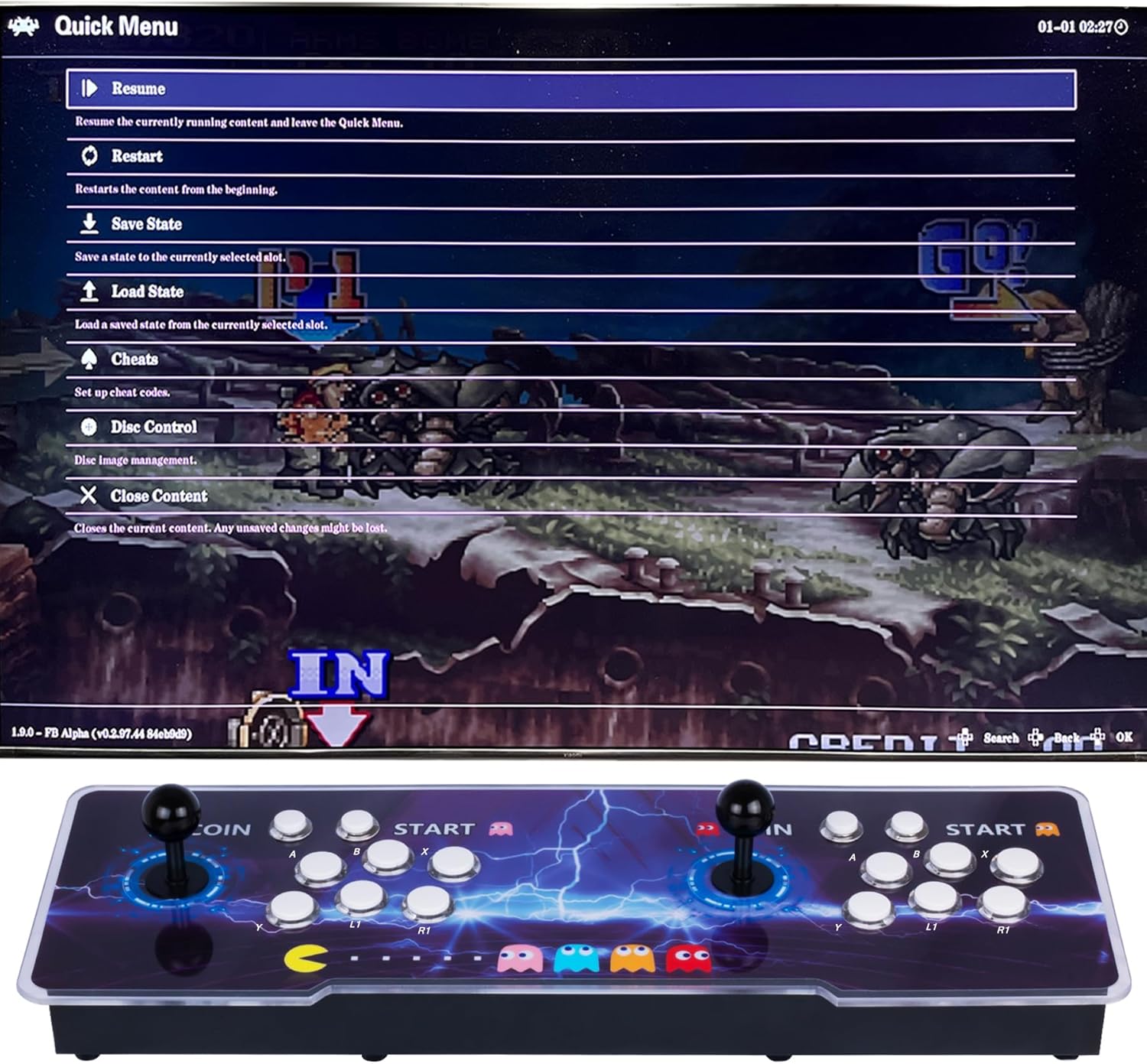
Figure 6.2: Quick Menu for Game Management
6.3 Controller Switching
A small button on the back of the machine allows you to switch between the console's built-in controllers and an additional USB wired or wireless controller with one click. This is useful for playing 4-player games with compatible external controllers.
6.4 Audio Output
- Built-in Speakers: The console has integrated speakers. Adjust the volume using the knob on the rear panel.
- Headphone Jack: For private listening, connect headphones to the 3.5mm headphone jack on the rear panel.
- External Audio: Audio can also be output through the HDMI connection to your display device.
7. Maintenance
- Cleaning: Use a soft, dry cloth to wipe the console's surface. Do not use liquid cleaners or abrasive materials.
- Protective Film: The console's surface has a transparent protective film. For a clearer pattern and improved appearance, carefully peel off this film before use.
- Storage: When not in use, store the console in a cool, dry place away from direct sunlight and extreme temperatures.
8. Troubleshooting
| Problem | Possible Cause | Solution |
|---|---|---|
| Console powers on but no games appear. | Internal memory card position shifted due to transportation. | Unplug the internal memory card (TF card) and reinsert it firmly. Then restart the console. |
| Console freezes or crashes during operation. | Insufficient voltage from the power adapter. | Ensure you are using a power adapter with a voltage of 5V 2A or higher. |
| No display on screen. | Incorrect cable connection or input selection on display device. | Verify HDMI/VGA cable connections. Ensure your TV/monitor is set to the correct input source (e.g., HDMI 1, VGA). |
| No sound. | Volume too low or incorrect audio output selected. | Adjust the volume knob on the console. Check volume settings on your display device. Ensure headphones are properly connected if used. |
9. Specifications
| Power | 100W |
| Voltage | 100-240V |
| Dimensions (L x W x H) | 63.5 x 22.86 x 10.16 cm (25.0 x 9.0 x 4.0 inches) |
| Weight | 3.72 kg |
| User Interface | VGA, HDMI, USB |
| Material | Acrylic panel, ultra-slim all-metal chassis, PVC components |
| Display Resolution | 1280x720 |
| Storage | 256G TF Card |
| Processor | S905 |
| Recommended Age | 12 years and up |
10. Customer Support
If you encounter any issues not covered in this manual or require further assistance, please contact RegiisJoy customer support. You can typically find contact information on the product packaging or the retailer's website where you purchased the console.
For specific questions regarding game lists or operational videos, you may also refer to the product page or contact the seller directly.