
1. Introduction
The YUNZII B75 PRO MAX is a 75% layout wireless mechanical keyboard featuring QMK/VIA programmability, a customizable TFT screen, and a multi-function knob. It supports tri-mode connectivity (wired, 2.4GHz wireless, and Bluetooth) and is designed for a premium typing experience with hot-swappable, pre-lubed switches and a gasket-mount structure.
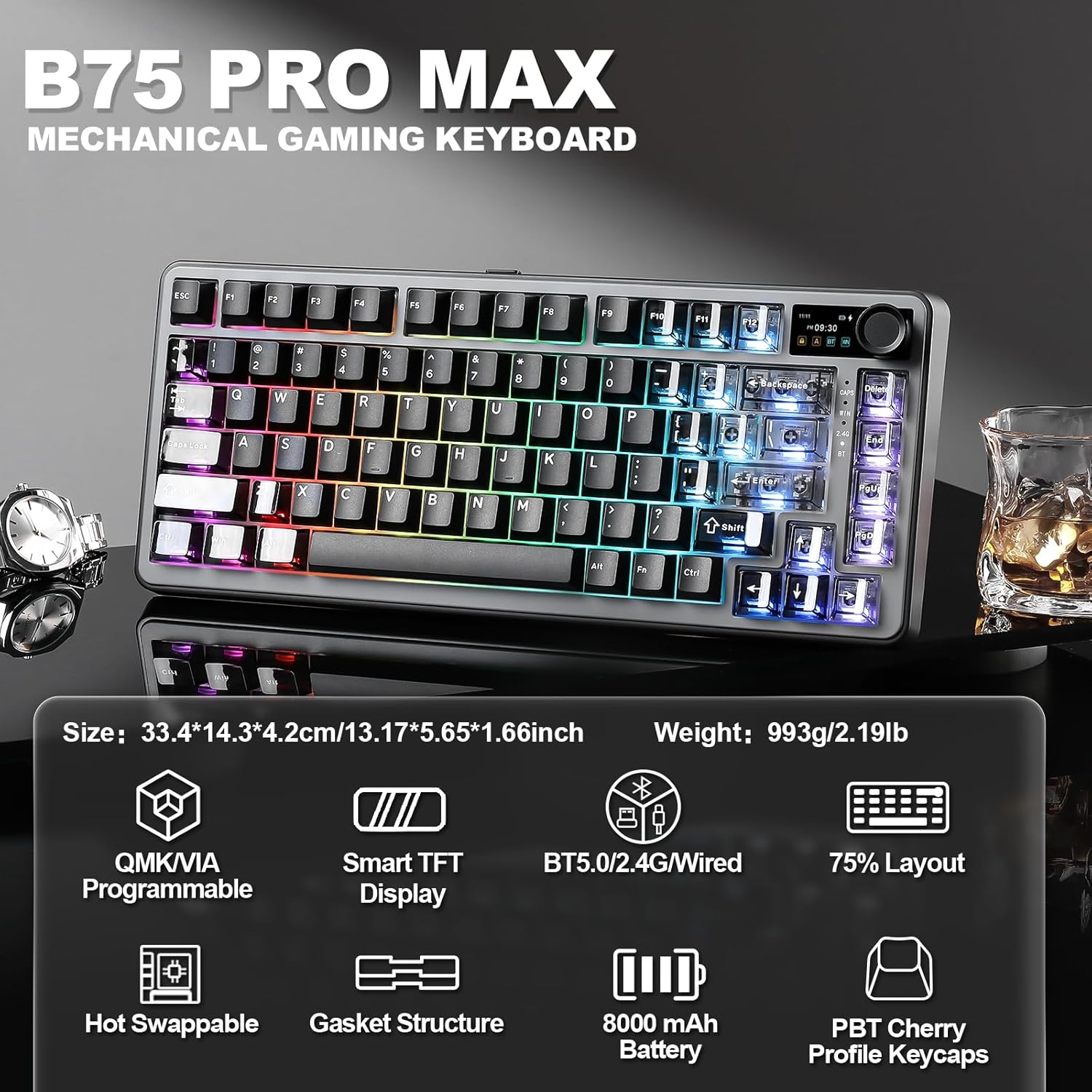
Image: YUNZII B75 PRO MAX Mechanical Gaming Keyboard with RGB lighting.
2. Package Contents
Please verify that all items are present in your package:
- B75 PRO MAX Keyboard x 1
- USB Cable for Type-C x 1
- Switch and Keycap Puller x 1
- User Manual x 1
- 2.4G Dongle x 1
- Dust Cover x 1
- Extra Keycaps and Switches (if applicable to your model)

Image: Contents included in the YUNZII B75 PRO MAX package.
3. Keyboard Layout and Features Overview
The B75 PRO MAX features a compact 75% layout, integrating essential keys while saving desk space. Key features include:
- 75% Layout: Efficient design with 81 keys, a multi-function knob, and a TFT screen.
- Customizable TFT Screen: Displays battery level, date, time, operating system, and supports custom GIFs or images.
- Multi-Function Knob: Default control for volume, customizable via QMK/VIA.
- Gasket Mount Structure: Enhances typing feel and sound by reducing internal vibrations.
- Hot-Swappable Sockets: Compatible with 3-pin and 5-pin mechanical switches for easy customization.
- Pre-Lubed Switches: Ensures smooth keystrokes and consistent tactile response.
- PBT Cherry Profile Keycaps: Durable and comfortable for extended use.
- 8000mAh Battery: Provides extended wireless usage.
- NKRO: N-Key Rollover for accurate simultaneous key presses.
- RGB Backlight: Over 19 vibrant backlight modes with south-facing LEDs.

Image: Overview of the YUNZII B75 PRO MAX 75% layout and dimensions.

Image: Detailed view of the keyboard's gasket structure components.

Image: Close-up of the customizable TFT smart screen and multi-media knob.
4. Setup
4.1 Connectivity (Tri-Mode)
The B75 PRO MAX supports three connection modes: Wired (Type-C), 2.4GHz Wireless, and Bluetooth.

Image: Tri-mode connection options for the YUNZII B75 PRO MAX keyboard.
4.1.1 Wired Connection
- Connect the provided USB Type-C cable to the keyboard's Type-C port.
- Connect the other end of the cable to your computer's USB port.
- The keyboard will automatically switch to wired mode.
4.1.2 2.4GHz Wireless Connection
- Locate the 2.4G wireless dongle (usually stored in a slot on the keyboard).
- Plug the dongle into an available USB port on your computer.
- Switch the mode button on the keyboard to the 2.4G wireless position.
- The keyboard should connect automatically. If not, long press Fn+4 to enter pairing mode.

Image: Step-by-step guide for setting up 2.4GHz wireless mode.
4.1.3 Bluetooth Connection
- Switch the mode button on the keyboard to the Bluetooth (BT) position.
- Short press Fn+1, Fn+2, or Fn+3 to select a Bluetooth channel.
- Long press the selected Fn+ (1/2/3) key combination to enter pairing mode. The BT indicator will flash rapidly.
- On your device (PC, laptop, smartphone, tablet), search for Bluetooth devices and select "YUNZII B75 PRO MAX" to connect.

Image: Step-by-step guide for setting up Bluetooth mode.
4.2 Initial Charge
The keyboard is equipped with an 8000mAh high-capacity battery. For optimal performance, it is recommended to fully charge the keyboard before its first use. Connect the USB Type-C cable to a power source.
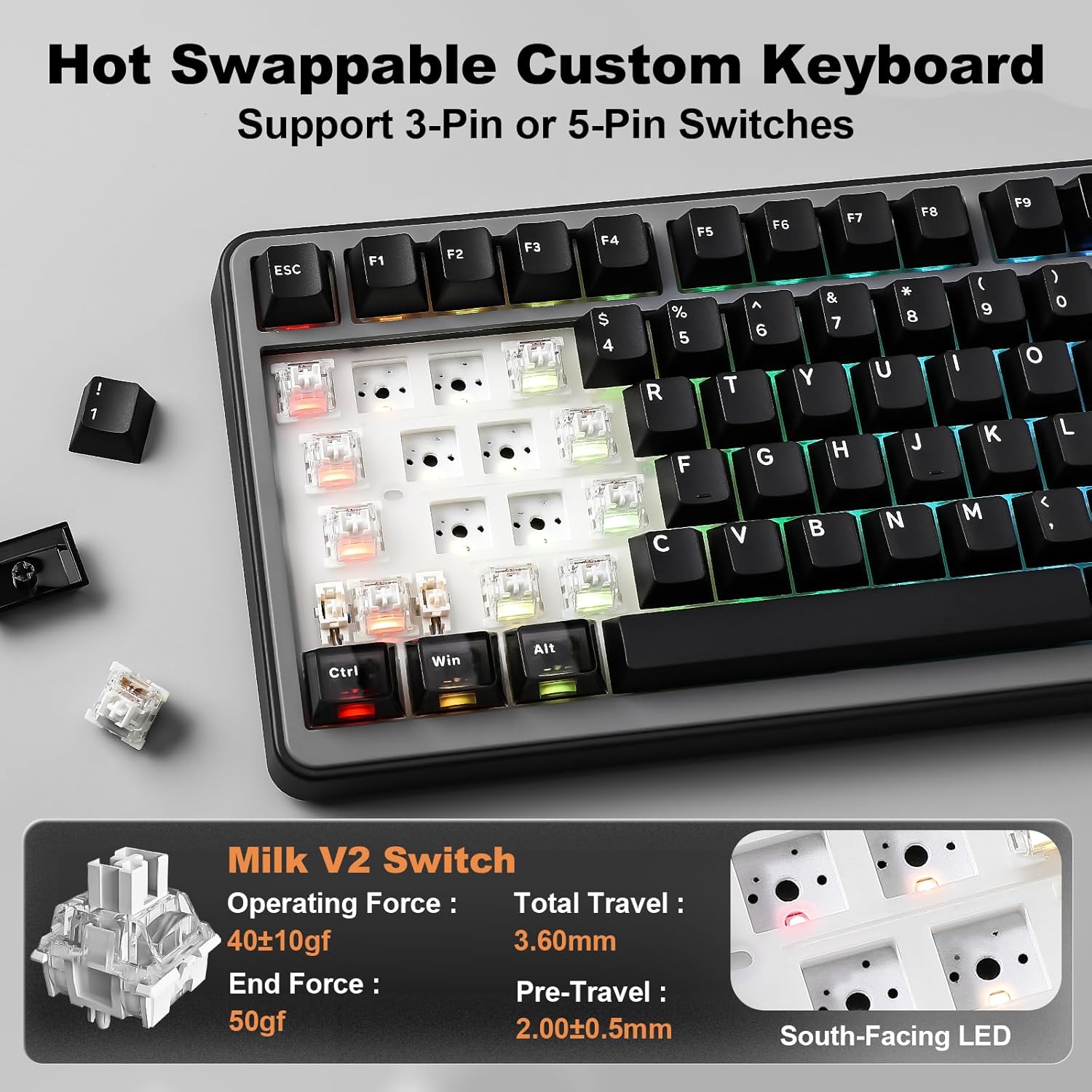
Image: Information on the keyboard's 8000mAh battery and usage duration.
4.3 System Compatibility
The YUNZII B75 PRO MAX is compatible with various operating systems, including Windows, macOS, Linux, and Android devices (laptops, PCs, smartphones, tablets).

Image: The keyboard supports a wide range of devices and operating systems.
Video: An overview of the YUNZII B75 PRO MAX Wireless Mechanical Keyboard in Black.
Video: An unboxing of the YUNZII B75 PRO MAX Wireless Mechanical Keyboard.
5. Operating Instructions
5.1 TFT Smart Screen Customization
The TFT screen can display various information and custom content. Use the YUNZII web application to customize it.
- Home Page: Press Fn+8 to view battery, time, date, and connection mode.
- Picture Page: Press Fn+9 to display uploaded pictures.
- GIF Page: Press Fn+0 to display uploaded GIFs.
- Time Format: Press Fn+END to switch between 12H/24H format.
Video: Guide on how to customize the TFT screen of the YUNZII B75 PRO MAX.
5.2 Multi-Media Knob
The knob's default function is volume control. Rotate left to decrease volume, right to increase. Press the knob to mute/unmute audio. The knob's functions can be customized via QMK/VIA software.
5.3 QMK/VIA Customization
The keyboard supports QMK/VIA open-source firmware for advanced customization:
- Key Remapping: Assign new functions to any key.
- Macros: Create complex sequences of key presses.
- Lighting Effects: Adjust RGB lighting patterns and colors.
- Multiple Layers: Configure different key layouts for various tasks or applications.
Access the YUNZII web application for QMK/VIA customization.
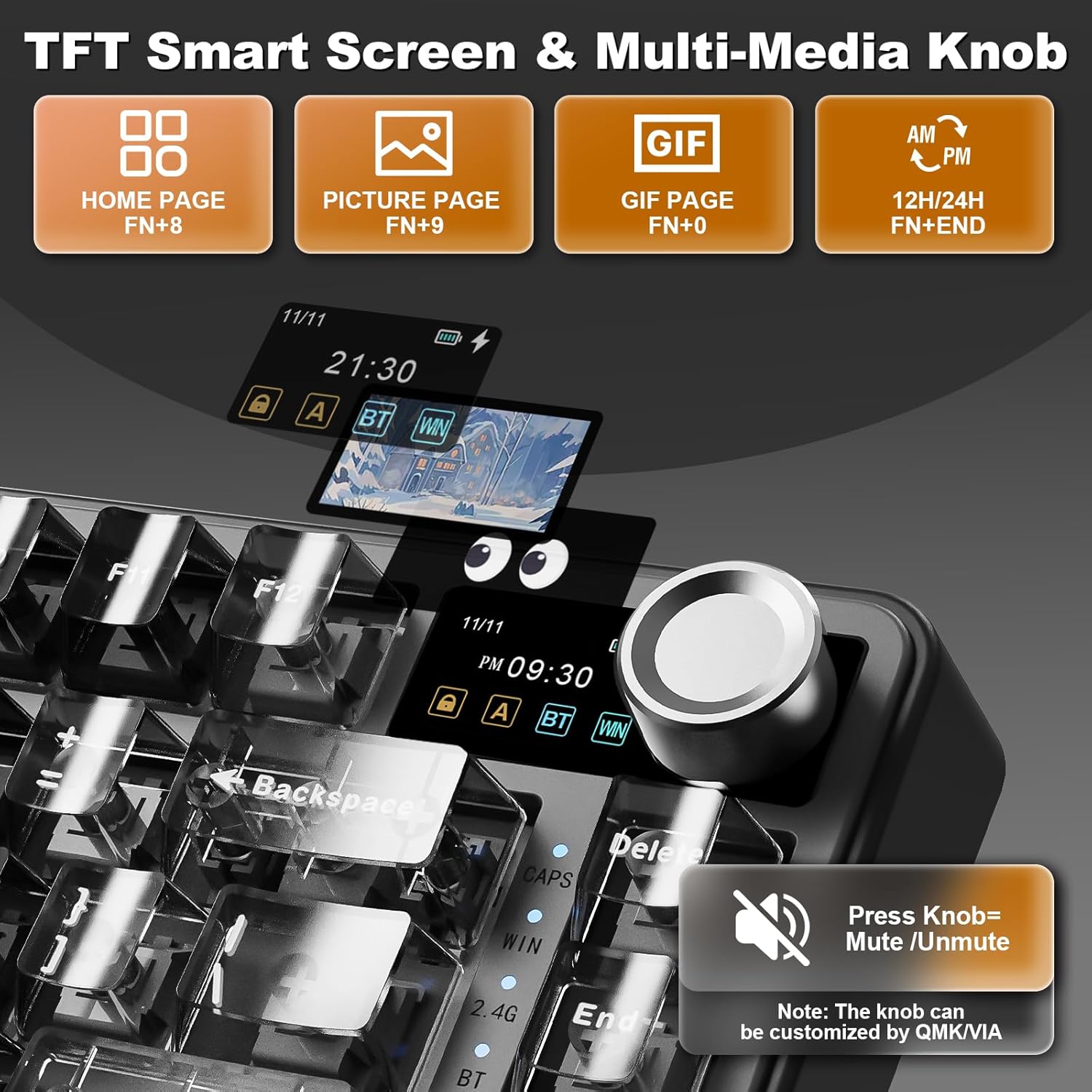
Image: Interface for QMK/VIA software customization, showing options for key mappings, macros, and lighting effects.
5.4 RGB Backlight Control
The keyboard features 16.8 million RGB backlight with 19 default lighting effects. Use the following Fn key combinations:
- Fn + Backspace: Backlight ON/OFF
- Fn + \|: Change Backlight Effect
- Fn + Enter: Change Backlight Color
- Fn + ↑: Increase Brightness
- Fn + ↓: Decrease Brightness
- Fn + →: Increase Blinking Speed
- Fn + ←: Decrease Blinking Speed

Image: Visual guide for controlling the 16.8 million RGB backlight effects.
5.5 Function Keys (Windows/macOS)
The keyboard includes dedicated function key combinations for both Windows and macOS environments:
Windows (Fn+A)
- Fn+F1: Screen Brightness ↓
- Fn+F2: Screen Brightness ↑
- Fn+F3: Open Task View (Win+Tab)
- Fn+F4: Calculator
- Fn+F5: Email
- Fn+F6: Browser
- Fn+F7: Previous Track
- Fn+F8: Play/Pause
- Fn+F9: Next Track
- Fn+F10: Mute
- Fn+F11: Volume ↓
- Fn+F12: Volume ↑
macOS (Fn+S)
- F1: Screen Brightness ↓
- F2: Screen Brightness ↑
- F3: Mission Control
- F4: Launchpad
- F5: No Function
- F6: No Function
- F7: Previous Track
- F8: Play/Pause
- F9: Next Track
- F10: Mute
- F11: Volume ↓
- F12: Volume ↑

Image: Function key combinations for Windows and macOS operating systems.
6. Customization and Maintenance
6.1 Hot-Swappable Switches
The B75 PRO MAX features hot-swappable sockets, allowing you to easily change switches without soldering. It supports both 3-pin and 5-pin switches. Use the provided switch puller to carefully remove and insert switches.
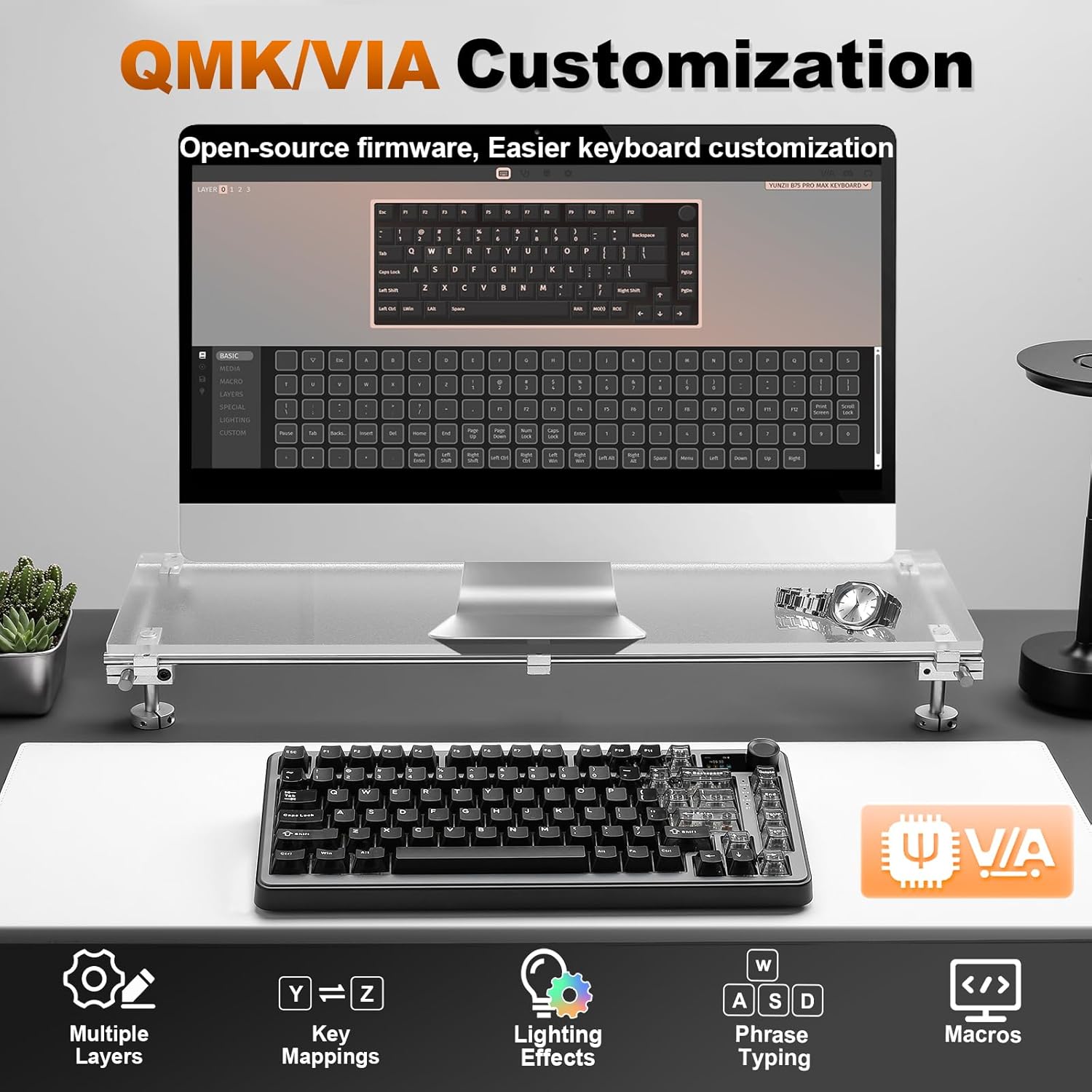
Image: Demonstrating the hot-swappable feature, supporting both 3-pin and 5-pin switches.

Image: Details on the available switch types: Candy Linear, Cocoa Cream V2 Linear, and Milk V2 Linear switches.
6.2 Keycap Replacement
The keyboard comes with durable PBT Cherry profile keycaps. You can replace them with custom keycaps using the provided keycap puller. Some models include extra themed keycaps for personalization.
Video: Showcasing coffee-themed extra keycaps for the B75 PRO MAX Black Keyboard.
6.3 Cleaning
To clean your keyboard, power it off and disconnect it from your device. Use a soft, lint-free cloth to wipe down the keycaps and chassis. For deeper cleaning, remove keycaps and use compressed air to clear debris from between switches.
7. Troubleshooting
- Keyboard not responding: Ensure the keyboard is charged and correctly connected (wired, 2.4G dongle, or Bluetooth paired). Try restarting your computer.
- 2.4GHz wireless connection issues: Ensure the dongle is securely plugged in and the keyboard is in 2.4G mode. Try re-pairing by long pressing Fn+4.
- Bluetooth connection issues: Ensure the keyboard is in Bluetooth mode and the correct channel (Fn+1/2/3) is selected. Try re-pairing by long pressing the Fn+channel key. Ensure your device's Bluetooth is enabled.
- Backlight not working: Press Fn+Backspace to toggle the backlight. Check brightness settings (Fn+↑/↓).
- TFT screen not updating: Ensure the keyboard is connected to the YUNZII web application for customization.
8. Specifications
| Feature | Detail |
|---|---|
| Product Dimensions | 12.99 x 5.51 x 1.57 inches |
| Item Weight | 1.98 pounds |
| Manufacturer | YUNZII |
| Connectivity Technology | Bluetooth, 2.4GHz, Type-C |
| Keyboard Description | Mechanical |
| Recommended Uses | Everyday Use, Gaming |
| Special Features | Backlit, Ergonomic, 3 Modes, Customizable Display, Hot-Swappable |
| Color | Black (variant shown) |
| Keyboard Backlighting | RGB |
| Material | Plastic |
| Battery | 8000mAh (1 AAA battery included) |
9. Warranty and Support
For warranty information and technical support, please refer to the documentation included with your product or visit the official YUNZII website. If you encounter any issues not covered in this manual, please contact YUNZII customer service for assistance.