1. Product Overview
The TYPONOS D820 is a compact and portable thermal printer designed for various printing needs, from home and school to travel and office use. It supports wireless Bluetooth connectivity and USB connection, offering flexibility and convenience. This inkless printer utilizes thermal paper, eliminating the need for ink cartridges.
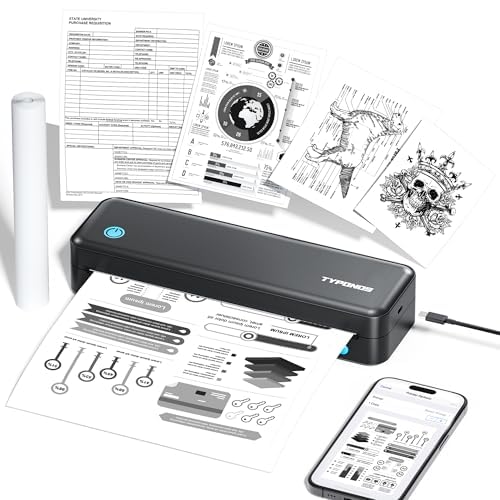
Figure 1: TYPONOS D820 Wireless Bluetooth Printer
2. Key Features
- Inkless Thermal Printing: Eliminates the need for ink cartridges, reducing maintenance and cost.
- Wireless Connectivity: Connects via Bluetooth for convenient printing from mobile devices.
- USB Connectivity: Supports USB connection for printing from computers (Windows/Mac).
- Portable Design: Compact and lightweight (2.16 pounds, 10.98 x 4.13 x 2.7 inches) for easy transport.
- Versatile Paper Support: Compatible with thermal paper rolls, supporting various print sizes up to Letter (8.5 x 11 inches).
- High Resolution: Offers a maximum black and white print resolution of 203 dots per inch.
- Integrated Battery: Includes a 9V battery for portable use.
3. Setup
3.1. Unboxing and Initial Inspection
Carefully remove the printer and all accessories from the packaging. Inspect the device for any signs of damage. Ensure all components listed in the packing list are present.
3.2. Loading Thermal Paper
The D820 printer uses thermal paper rolls. To load paper:
- Open the printer cover by gently pressing the release buttons on the sides.
- Insert the thermal paper roll into the designated slot, ensuring the printing side faces upwards.
- Pull a small length of paper out past the cutting edge.
- Close the printer cover until it clicks securely into place.
Video 1: Demonstrates loading thermal paper into the TYPONOS D820 Portable Printer.
3.3. Connecting to Your Device
The D820 offers both Bluetooth and USB connectivity.
3.3.1. Bluetooth Connection (Android/iOS)
- Ensure the printer is powered on (the power button will illuminate).
- On your mobile device, enable Bluetooth.
- Open the dedicated TYPONOS printing application (download from your device's app store).
- Within the app, search for available Bluetooth devices and select "TYPONOS D820".
- Follow any on-screen prompts to complete the pairing process.
3.3.2. USB Connection (Windows/Mac)
- Connect the printer to your computer using the provided USB cable.
- Power on the printer.
- Install the printer drivers from the included CD or download them from the official TYPONOS website.
- Once drivers are installed, the printer should be recognized by your operating system.
4. Operating Instructions
4.1. Printing a Test Page
After successful driver installation (for USB) or app connection (for Bluetooth), it is recommended to print a test page to confirm functionality.
- For USB connection: Access your computer's printer settings, locate the D820 printer, and select the option to print a test page.
- For Bluetooth connection: The mobile app typically includes a test print function in its settings.
Video 2: Shows the TYPONOS Portable Thermal Printer in operation, printing a document.
4.2. General Printing
To print documents or images:
- Ensure the printer is connected to your device and has thermal paper loaded.
- Open the document or image you wish to print on your computer or mobile device.
- Select the print option (usually File > Print or a print icon).
- Choose "TYPONOS D820" as your printer.
- Adjust print settings such as paper size (e.g., Letter), orientation, and quality as needed.
- Click "Print". The document will feed through the printer and emerge from the front slot.
- Tear off the printed document using the serrated edge on the printer.
5. Maintenance
- Cleaning: Regularly wipe the exterior of the printer with a soft, dry cloth. For the print head, use a lint-free cloth lightly dampened with isopropyl alcohol. Ensure the printer is off and disconnected from power before cleaning.
- Paper Replacement: Replace thermal paper rolls as needed. Always use high-quality thermal paper to ensure optimal print quality and printer longevity.
- Battery Care: Charge the printer's internal battery regularly. Avoid completely draining the battery frequently to prolong its lifespan.
- Storage: Store the printer in a cool, dry place away from direct sunlight and extreme temperatures.
6. Troubleshooting
| Problem | Possible Cause | Solution |
|---|---|---|
| Printer not powering on | Low battery or power cable issue. | Charge the printer. Ensure the power cable is securely connected. |
| Bluetooth connection unstable or failing | Interference, device too far, or app issue. | Ensure devices are within range. Restart Bluetooth on both devices. Re-pair the printer. Update the mobile app. |
| Paper jam | Improper paper loading or foreign object. | Power off the printer. Carefully open the cover and remove any jammed paper. Reload paper correctly. |
| Blurry or faint print | Low quality thermal paper, dirty print head, or print density settings. | Use recommended thermal paper. Clean the print head. Adjust print density settings in the app/driver. |
| Paper not feeding straight | Paper misaligned during loading. | Ensure the paper roll is centered and properly aligned within the paper guides when loading. |
7. Specifications (Model: D820)
| Feature | Detail |
|---|---|
| Brand | TYPONOS |
| Model Series | D820 |
| Printer Ink Type | Thermal (Inkless) |
| Print Media | Thermal Paper |
| Supported Media Sizes | Letter (8.5 x 11 inches) |
| Max Input Sheet Capacity | 4 sheets (roll-fed) |
| Max Copy Speed (Black & White) | 4 ppm |
| Maximum Black and White Print Resolution | 203 dots_per_inch |
| Hardware Interface | USB, Bluetooth |
| Total USB Ports | 1 |
| Product Dimensions | 10.98 x 4.13 x 2.7 inches |
| Item Weight | 2.16 pounds |
| Batteries | 1 9V battery required (included) |
| Color | Black |
| Smart Home Compatibility | Smart Home Compatible |
8. Warranty and Support
For warranty information, technical support, or to purchase accessories and replacement thermal paper, please visit the official TYPONOS store or contact customer service.