
EXknight M4-S1
EXknight Magnetic Keyboard for iPhone M4-S1 User Manual
Model: M4-S1
1. Product Overview
The EXknight Magnetic Keyboard Kit is designed to provide a tactile typing experience for your iPhone. It features a compact, wireless mini Bluetooth keyboard and a precision 3D printed magnetic backplate, allowing for a secure, snap-on connection to compatible iPhone models. The keyboard utilizes metal dome switch technology for clear, clicky feedback, enhancing the typing experience without the bulk of traditional mechanical switches.
2. What's in the Box
- EXknight Mini Bluetooth Keyboard
- 3D Printed Magnetic Backplate
- USB Charging Cable

Image: The EXknight Mini Bluetooth Keyboard and its accompanying magnetic backplate, shown separately.
3. Setup
3.1 Charging the Keyboard
Before first use, ensure the keyboard is fully charged. Connect the provided USB charging cable to the keyboard's charging port and to a standard USB power source. The charging indicator light will show the charging status.
3.2 Powering On/Off
Locate the power switch on the side of the keyboard. Slide the switch to the 'ON' position to power on the device. Slide it to 'OFF' to power it down when not in use to conserve battery.

Image: The back of the EXknight Mini Bluetooth Keyboard, highlighting the power switch and model information.
3.3 Bluetooth Pairing
- Ensure the keyboard is powered on.
- On your iPhone, navigate to Settings > Bluetooth.
- Turn on Bluetooth. Your iPhone will search for available devices.
- The EXknight keyboard should appear in the "Other Devices" list, typically as "M4" or similar. Tap on it to connect.
- Once connected, the keyboard will show as "Connected" under "My Devices".
Video: This video demonstrates the process of pairing the EXknight Magnetic Keyboard with an iPhone via Bluetooth.
3.4 Attaching to iPhone
The magnetic backplate is designed to securely attach to your iPhone. Align the magnetic backplate with the back of your iPhone, ensuring a firm connection. Then, align the EXknight Mini Bluetooth Keyboard with the magnetic backplate. The strong magnets will snap the keyboard into place, creating a stable typing setup.
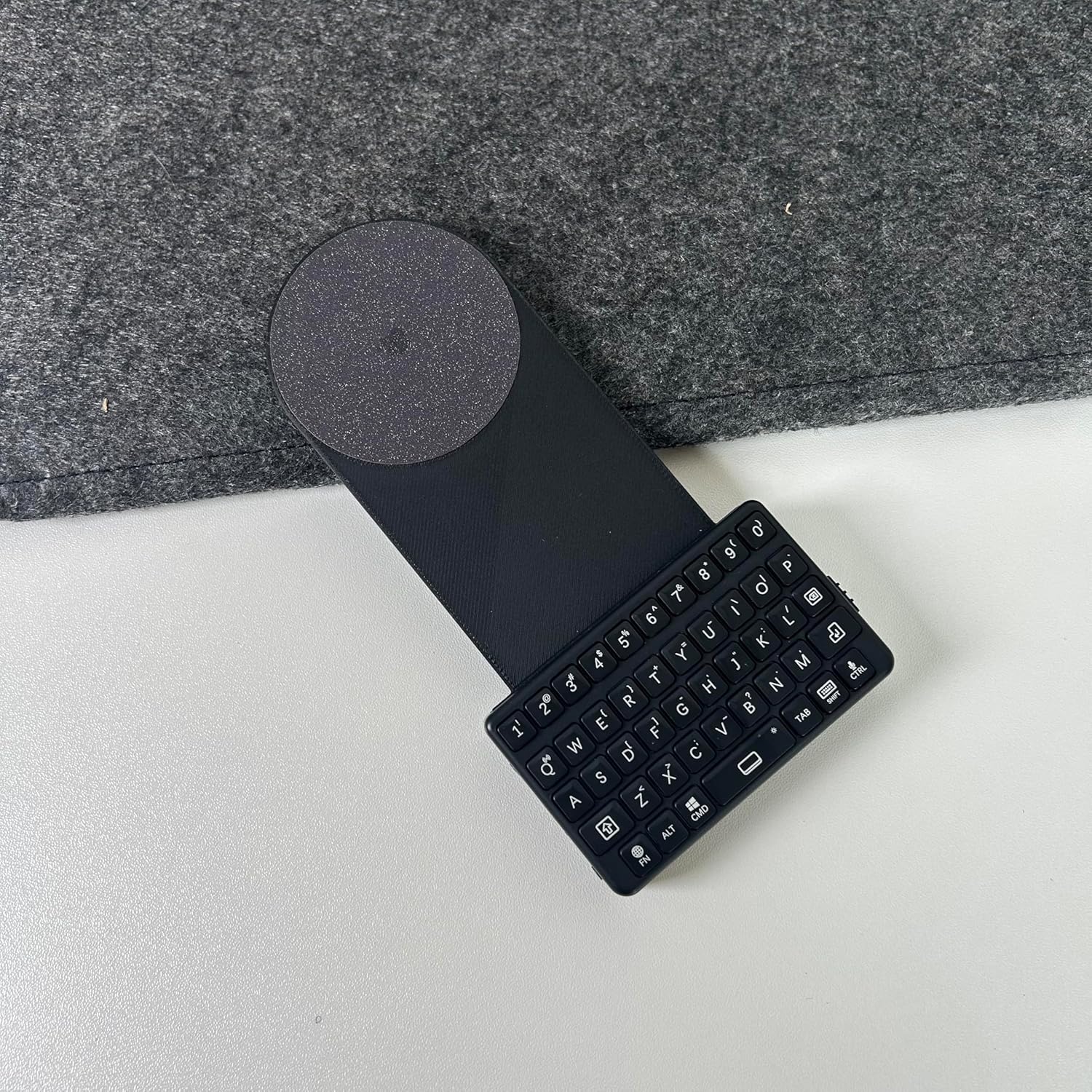
Image: The EXknight Mini Bluetooth Keyboard securely attached to its magnetic backplate.

Image: The EXknight Magnetic Keyboard system, with the keyboard and backplate attached to an iPhone, ready for use.
4. Operating Instructions
4.1 Basic Typing
Once paired and attached, the EXknight Magnetic Keyboard functions as a standard QWERTY keyboard for your iPhone. Simply open any application that requires text input (e.g., Messages, Notes, Safari) and begin typing. The input will appear on your iPhone screen.

Image: A user demonstrating typing on the EXknight Magnetic Keyboard while it is attached to an iPhone.
4.2 Special Functions
The keyboard includes several function keys for enhanced control:
- FN Key: Press and hold the FN key to access secondary functions printed on certain keys (e.g., numbers, symbols).
- ALT Key: Used for alternative character inputs, depending on your iPhone's language settings.
- CMD Key: Functions as the Command key on iOS, enabling shortcuts like Copy (CMD+C), Paste (CMD+V), etc.
- TAB Key: Moves the cursor to the next input field or indents text.
- SHIFT Key: For capitalization and accessing upper-case symbols.
5. Maintenance
- Cleaning: Use a soft, dry cloth to wipe the keyboard and backplate. Avoid abrasive cleaners or excessive moisture.
- Storage: Store the keyboard in a cool, dry place away from direct sunlight and extreme temperatures.
- Battery Care: For optimal battery life, avoid fully discharging the keyboard frequently. Charge it regularly.
6. Troubleshooting
- Keyboard not pairing:
- Ensure the keyboard is powered on and fully charged.
- Make sure Bluetooth is enabled on your iPhone.
- Try turning the keyboard off and on again.
- Forget the device in your iPhone's Bluetooth settings and attempt to pair again.
- Ensure the keyboard is within the Bluetooth range of your iPhone (typically 10 meters).
- Keys not responding:
- Check if the keyboard is connected via Bluetooth.
- Recharge the keyboard if the battery is low.
- Restart your iPhone and try again.
- Magnetic attachment is weak:
- Ensure both the magnetic backplate and the keyboard are clean and free of debris.
- Verify that the magnetic backplate is correctly aligned with your iPhone.
7. Specifications
| Model Number | M4-S1 |
| Brand | EXknight |
| Compatible Devices | iPhone (e.g., 12-16 Pro Max / 14-16 Plus series) |
| Connectivity Technology | Bluetooth |
| Keyboard Description | Clicky dome switch |
| Special Feature | Portable, Magnetic Attachment |
| Color | Black |
| Material | Acrylonitrile Butadiene Styrene |
| Product Dimensions | 6.3 x 1.77 x 0.47 inches (Keyboard) |
| Item Weight | 3.17 ounces (Keyboard) |
| Batteries | 1 Nonstandard Battery (included) |
8. Warranty and Support
For warranty information and customer support, please refer to the documentation included with your purchase or visit the official EXknight website. You may also contact EXknight customer service directly for assistance with product inquiries, troubleshooting, or warranty claims.
Manufacturer: Elektronic X Technology Limited