
1. Introduction
This manual provides detailed instructions for the TUIFAC RC09 10.26-inch Wireless CarPlay and Android Auto Smart Screen. This device integrates advanced features such as a 4K 3-channel dash cam, Bluetooth 5.2 connectivity, and versatile mounting options to enhance your driving experience with seamless navigation, music playback, and communication.
2. What's in the Box
Please verify that all items listed below are included in your package:
- 10.26 inches Touchscreen + 4K + 1080P+ 1080P Camera
- 32GB SD Card (1x)
- Car Charger With Extra USB Port (1x)
- 3M Sticker Mount (1x)
- Suction Cup Fixed Disk (1x)
- Crowbar (1x)
- Wire buckle (4x)
- Audio Cable (1x)
- Suction Bracket (1x)
- Vertical Bracket (1x)
- Rear Camera Fixed set (1x)

3. Setup and Installation
The TUIFAC RC09 offers versatile mounting options for optimal viewing and stability. Choose between the vertical bracket or the suction cup mount based on your preference and vehicle's dashboard configuration.
3.1 Mounting Options
- Vertical Bracket: Ideal for dashboard mounting, providing a stable base.
- Suction Cup Mount: Suitable for windshield mounting, offering flexibility in positioning.

3.2 Power Connection
Connect the provided car charger to your vehicle's cigarette lighter socket. The USB-C end of the cable plugs directly into the CarPlay screen. Ensure a secure connection for uninterrupted power.
3.3 Rear Camera Installation
If using the rear camera, connect it to the designated port on the main unit. Route the cable carefully to the rear of your vehicle, securing it with the provided wire buckles and crowbar for a neat installation.
4. Operating Instructions
4.1 Wireless CarPlay & Android Auto
The device supports both wireless CarPlay and Android Auto. Simply enable Bluetooth and Wi-Fi on your smartphone and connect to the device's network. Follow the on-screen prompts to establish a seamless connection for navigation, music, and calls.

4.2 3-Channel Dash Cam Operation
The integrated 3-channel dash cam records in 4K (front) and 1080P (cabin and rear). Access the camera view from the main menu. You can switch between front, cabin, and rear camera views. Recordings are stored on the included 32GB SD card.

4.3 Voice Control
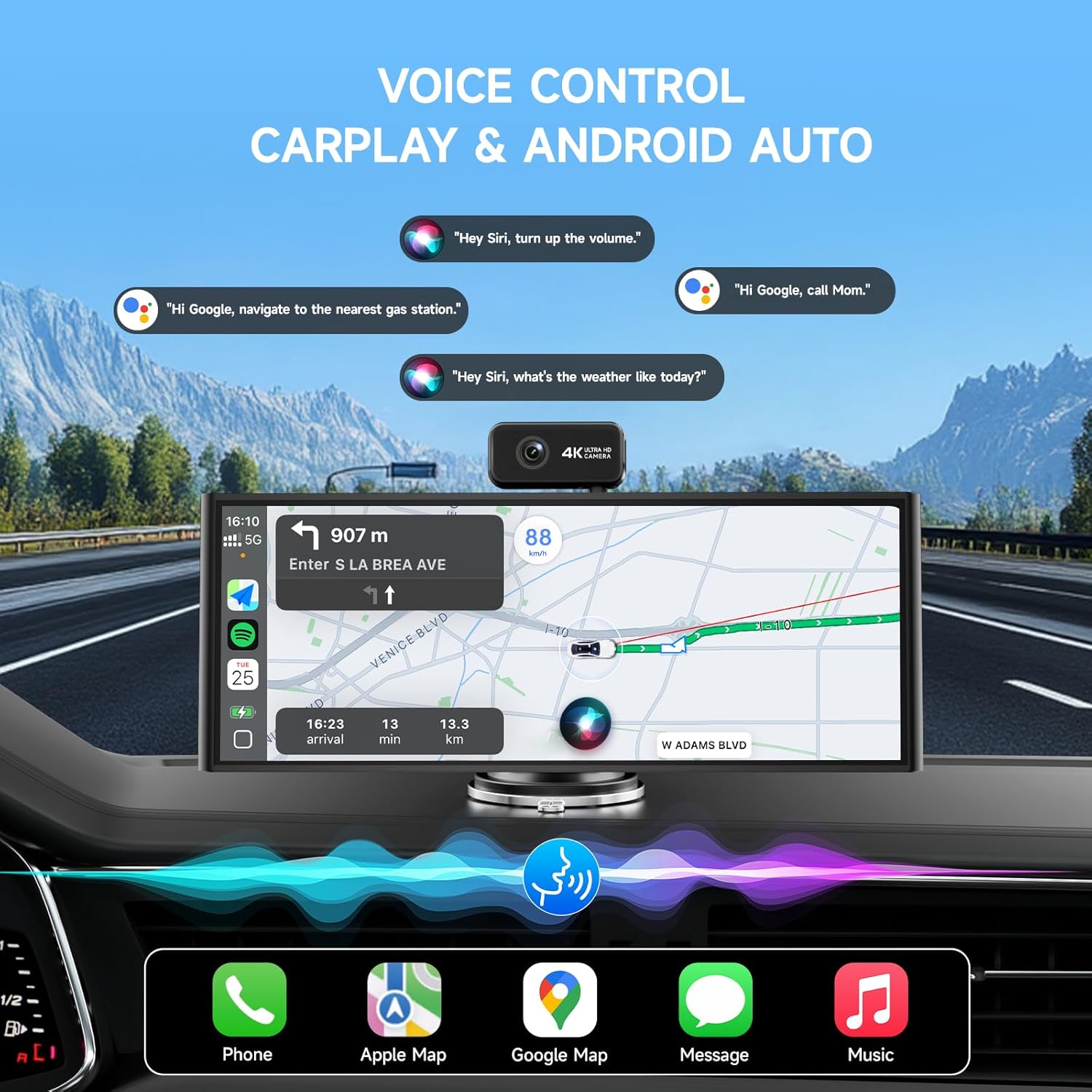
Utilize voice commands through "Hey Siri" or "Hi Google" to control various functions, including adjusting volume, checking weather, making calls, and navigating. This feature promotes hands-free operation for safer driving.

4.4 Audio Output Options
The device features built-in dual speakers. For enhanced audio, you can connect to your car's audio system via Bluetooth 5.2, FM transmission, or the AUX connection.
4.5 One-Button Reverse Camera
Activate the rear camera view instantly with the one-button reverse camera function. Integrated reversing assist lines simplify parking and enhance safety.
4.6 Super Night Vision & WDR
The dash cam features Super Night Vision with an F/1.8 aperture and 6-layer optical lens for clear images in low light. Wide Dynamic Range (WDR) balances bright and dark areas. The interior camera includes a black-and-white imaging mode for clear recordings in complete darkness.
4.7 Loop Recording & G-Sensor
The device supports loop recording, automatically overwriting the oldest files to ensure continuous recording. A built-in gravity sensor (G-Sensor) detects collisions and automatically locks the video footage to prevent it from being overwritten.
5. Maintenance
- Keep the screen clean using a soft, dry cloth. Avoid abrasive cleaners.
- Ensure the SD card is properly inserted and formatted periodically to maintain optimal recording performance.
- Avoid exposing the device to extreme temperatures or direct sunlight for prolonged periods.
6. Troubleshooting
- No Power: Check the car charger connection and ensure the vehicle's cigarette lighter socket is functional.
- Connection Issues: Verify Bluetooth and Wi-Fi are enabled on your smartphone and the device. Restart both devices if necessary.
- Poor Audio Quality: Ensure proper connection via Bluetooth, FM, or AUX. Adjust volume settings on both the device and your car's stereo.
- Dash Cam Recording Problems: Check if the SD card is correctly inserted and has sufficient free space. Format the SD card if errors persist.
7. Specifications
| Feature | Detail |
|---|---|
| Screen Size | 10.26 inches |
| Connectivity | Wireless CarPlay, Android Auto, AirPlay & Mirror, Bluetooth 5.2, Dual-band Wi-Fi (2.4GHz & 5GHz) |
| Dash Cam Channels | 3-Channel (Front, Cabin, Rear) |
| Front Camera Resolution | 4K Ultra HD (3840×2160 @30fps) |
| Cabin/Rear Camera Resolution | Full HD 1080P @30fps |
| Front Camera Angle | 170° |
| Cabin/Rear Camera Angle | 160° |
| Night Vision | Super Night Vision (F/1.8 aperture, 6-layer optical lens), WDR, Interior B&W mode |
| Storage | 32GB SD Card (included) |
| Audio Output | Built-in Dual Speakers, FM Radio Stereo, AUX |
| Special Features | Voice Control (Siri/Google), One-Button Reverse Camera, Loop Recording, G-Sensor |
| Mounting Options | Vertical Bracket, Suction Cup Mount |
8. Warranty and Support
Your TUIFAC RC09 purchase includes a 1-year warranty and a hassle-free 30-day return policy. For any concerns or assistance, our dedicated support team is available around the clock.
Contact information for support can typically be found on the product packaging or the manufacturer's official website.
9. Official Product Videos
9.1 CarPlay Screen for Car Tablet Android Auto Smart Screen
This video provides an overview of the TUIFAC CarPlay Screen, highlighting its features and functionality for both CarPlay and Android Auto. It demonstrates the seamless integration and user interface.
9.2 CarPlay Screen for Car Tablet Android Auto Smart Screen for Car, Portable
This video showcases the portability and ease of use of the TUIFAC CarPlay Screen. It demonstrates how the device can be easily installed and integrated into various car models, providing smart screen features on the go.


