
1. Introduction
Thank you for choosing the SPUNALP CM026 8K 70MP Waterproof Digital Camera. This camera is designed for capturing high-quality photos and videos in various environments, including underwater. Featuring 8K video resolution, 70MP image quality, dual screens, and Wi-Fi connectivity, it is suitable for adventurers and content creators. Please read this manual thoroughly before use to ensure proper operation and to maximize your camera's potential.

Image: The SPUNALP CM026 camera, showcasing its ability to capture high-resolution images and videos in diverse settings.
2. Safety Information
- Waterproof Integrity: Ensure all covers (battery compartment, USB port, SD card slot) are securely closed before submerging the camera. The camera is waterproof up to 33 feet (10 meters). Exceeding this depth or using it with open compartments will void the warranty and damage the device.
- Temperature: Avoid exposing the camera to extreme temperatures (below -10°C or above 40°C).
- Cleaning: After underwater use, rinse the camera with fresh water and dry thoroughly with a soft cloth. Do not use chemical cleaners.
- Battery: Use only the specified battery type. Do not disassemble, crush, or expose the battery to fire or high temperatures.
- Storage: Store the camera in a cool, dry place away from direct sunlight.
3. Package Contents
Verify that all items are present in your package:
- SPUNALP CM026 Digital Camera
- 64GB SD Card
- USB Charging Cable
- Lanyard
- User Manual

Image: The SPUNALP CM026 camera and its included accessories.
4. Camera Overview
Front View

Image: Front view of the camera, showing the lens, front screen, and flash.
- Lens: Main camera lens.
- Front Screen (1.44"): For selfies and monitoring.
- Flash/SOS Light: Provides illumination for photos and acts as an emergency signal.
Rear View
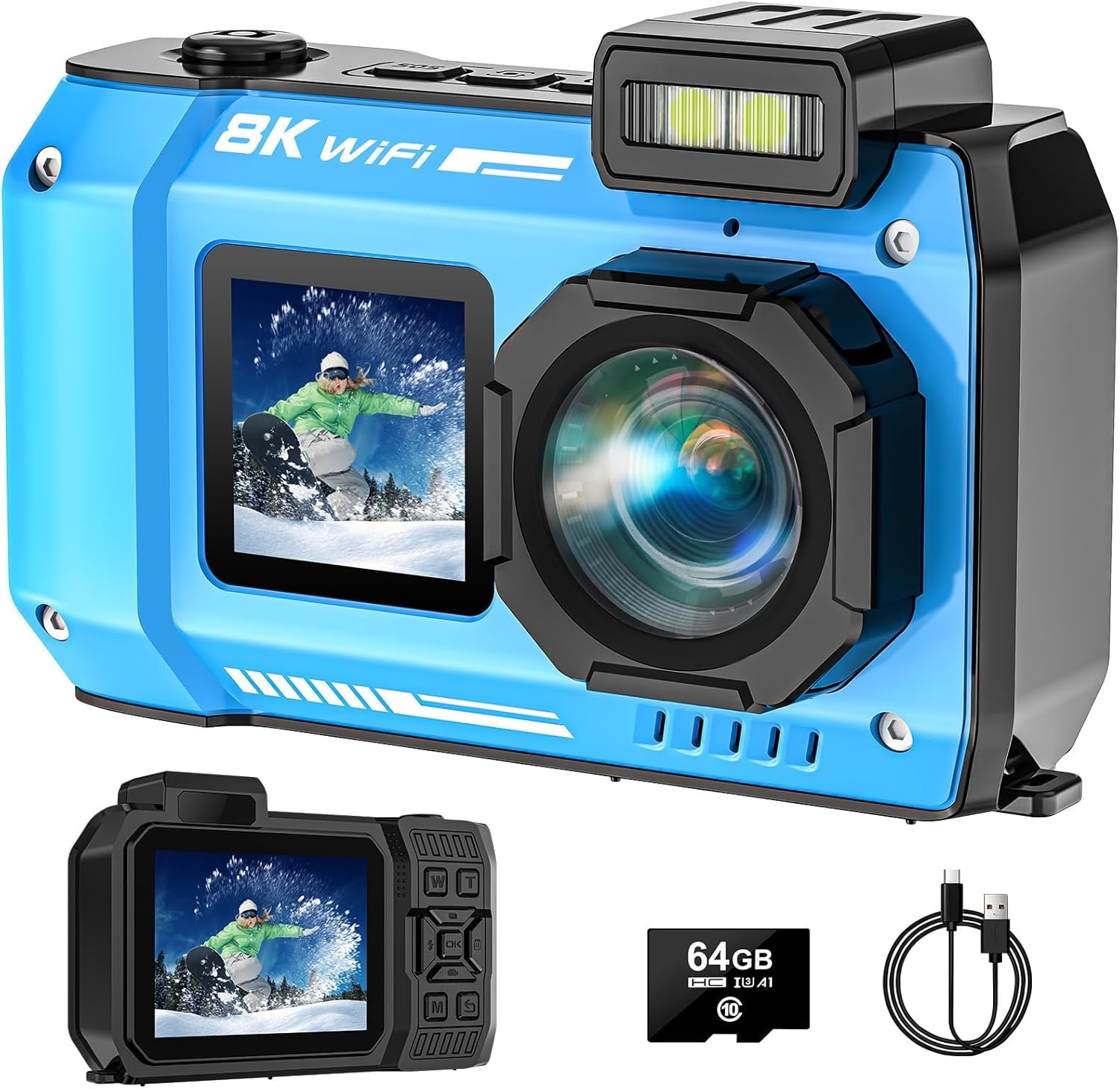
Image: Rear view of the camera, showing the main display and control buttons.
- Main Screen (2.88"): Primary display for viewing and settings.
- Power Button: Turns the camera on/off.
- Shutter/OK Button: Takes photos or confirms selections.
- Mode Button (M): Switches between photo, video, and playback modes.
- Zoom Buttons (W/T): Adjusts digital zoom.
- Navigation Buttons: For menu navigation.
5. Setup
5.1 Inserting the Battery
- Locate the battery compartment cover on the bottom of the camera.
- Slide the lock to open the cover.
- Insert the 2500mAh lithium battery, ensuring the correct orientation.
- Close the cover securely and slide the lock to seal it.
5.2 Inserting the SD Card
- Open the battery compartment cover.
- Locate the SD card slot.
- Insert the provided 64GB SD card with the metal contacts facing the correct direction until it clicks into place.
- Close the battery compartment cover securely.
5.3 Charging the Camera
- Open the USB port cover.
- Connect the camera to a power source using the provided USB cable.
- The charging indicator will illuminate. It will turn off when fully charged.
- Close the USB port cover securely after charging.

Image: The camera highlighting its 2500mAh battery capacity and SOS light function.
5.4 Initial Power On and Settings
- Press and hold the Power button to turn on the camera.
- Follow the on-screen prompts to set the language, date, and time.
6. Operating the Camera
6.1 Basic Photo Mode
- Turn on the camera. It will usually default to Photo Mode. If not, press the M (Mode) button until the photo icon appears on the screen.
- Frame your shot using the main screen or the front screen for selfies.
- Press the Shutter/OK button to take a picture. The camera features autofocus for clear images.

Image: The camera demonstrating its autofocus capability and self-timer settings.
6.2 Video Recording Mode
- Press the M (Mode) button to switch to Video Mode. The video icon will appear.
- Press the Shutter/OK button to start recording. A red recording indicator will flash.
- Press the Shutter/OK button again to stop recording.
6.3 Playback Mode
- Press the M (Mode) button to switch to Playback Mode.
- Use the navigation buttons to browse through your photos and videos.
- Press the Shutter/OK button to view a selected item.
6.4 Zoom Function
In Photo or Video Mode, use the W (Wide) and T (Telephoto) buttons to adjust the 18X digital zoom.

Image: Illustration of the 18X digital zoom capability, showing different zoom levels.
6.5 Self-Timer
Access the menu to set the self-timer for 2, 5, or 10 seconds. This is useful for group photos or selfies.

Image: Visual representation of the self-timer function with 2, 5, and 10-second options.
6.6 Flash Settings
The camera features a built-in flash. You can enable or disable it through the camera settings for different lighting conditions.

Image: Demonstrates the effect of the camera's flash in low-light conditions.
6.7 Dual-Screen Usage
The camera has a 2.88'' HD main screen and a 1.44'' HD front screen. Use the front screen for easy selfie framing. Switch between screens via the dedicated button or menu option.
6.8 Wi-Fi Connectivity
The camera supports Wi-Fi for easy transfer of photos and videos to your smartphone or tablet.
- Download the "iSmart DV2" app from Google Play Store or Apple App Store.
- Enable Wi-Fi on your camera through the settings menu.
- On your smartphone, connect to the camera's Wi-Fi network (SSID and password displayed on the camera screen).
- Open the "iSmart DV2" app to browse, download, and share your media.
Note: Wi-Fi signals do not transmit underwater. This feature is for above-water use only, with an effective range of approximately 5 meters.

Image: Illustrates the Wi-Fi connectivity feature, allowing transfer to a smartphone app.
6.9 Underwater Usage
The camera is designed to be waterproof up to 33 feet (10 meters).
- Before submerging, ensure all port covers and the battery compartment are securely sealed.
- The camera has an underwater white balance setting for accurate color reproduction. Adjust this in the settings menu.
- After each use in saltwater, rinse the camera thoroughly with fresh water and dry it completely before opening any compartments.

Image: The camera being used underwater, highlighting its 33-foot waterproof rating.
7. Maintenance
7.1 Cleaning the Camera
- Use a soft, lint-free cloth to clean the camera body and screens.
- For the lens, use a specialized lens cleaning cloth and solution.
- Do not use abrasive materials or chemical solvents.
7.2 Battery Care
- Charge the battery fully before first use.
- If storing the camera for an extended period, charge the battery to about 50% and remove it from the camera.
- Avoid fully discharging the battery frequently.
7.3 Storage
- Store the camera in a dry, cool place.
- Keep it away from dust and direct sunlight.
8. Troubleshooting
| Problem | Possible Cause | Solution |
|---|---|---|
| Camera does not power on. | Low battery or battery not inserted correctly. | Charge the battery. Ensure the battery is inserted with correct polarity. |
| Cannot take photos/videos. | SD card full, locked, or not inserted. | Delete files, unlock SD card, or insert SD card correctly. |
| Poor image quality. | Dirty lens, incorrect settings, or low light. | Clean the lens. Adjust settings (e.g., flash, white balance). Ensure adequate lighting. |
| Wi-Fi connection issues. | Incorrect password, out of range, or app issue. | Verify Wi-Fi password. Ensure camera and device are within 5m. Restart app/camera. |
| Camera leaks underwater. | Compartment covers not sealed properly. | Immediately remove from water. Ensure all seals are clean and covers are tightly closed before next use. If damage occurs, contact support. |
9. Specifications
| Feature | Detail |
|---|---|
| Model Name | CM026 |
| Image Resolution | 70 MP (Effective Still Resolution) |
| Video Resolution | 8K (7680x4320 pixels) |
| Water Resistance Level | Waterproof (up to 33FT/10M) |
| Display Type | LCD (2.88" Main, 1.44" Front) |
| Zoom | 18X Digital Zoom |
| Battery Capacity | 2500 mAh Lithium Ion |
| Storage | 64GB SD Card included (Compatible with SD) |
| Connectivity | Wi-Fi |
| Special Features | Autofocus, Dual-Screen, SOS Emergency Light, Anti-shake |
| Item Weight | 0.36 Kilograms |
10. Warranty and Support
10.1 Warranty Information
This SPUNALP CM026 camera comes with a 2-year warranty from the date of purchase. The warranty covers manufacturing defects and malfunctions under normal use. It does not cover damage caused by misuse, accidents, unauthorized repairs, or failure to follow the instructions in this manual, particularly regarding waterproof integrity.
10.2 Customer Support
If you encounter any issues with your camera or have questions not covered in this manual, please contact SPUNALP customer support. Our team is available to assist you and will respond within 12 hours.
Contact Information: Please refer to the contact details provided on the product packaging or the official SPUNALP website.