
1. Introduction
Thank you for choosing the Keenso Front Rear Dash Cam. This device is designed to provide reliable video recording of your journeys, offering enhanced safety and security for your vehicle. This manual will guide you through the installation, operation, and maintenance of your dash cam to ensure optimal performance.
2. Safety Information
- Do not operate the dash cam while driving. Adjust settings only when the vehicle is safely parked.
- Ensure the dash cam is securely mounted and does not obstruct your view of the road or interfere with vehicle controls.
- Avoid exposing the device to extreme temperatures, direct sunlight for prolonged periods, or excessive moisture.
- Use only the provided car charger and data cable to prevent damage to the device.
- Do not attempt to disassemble or repair the dash cam yourself. Contact customer support for assistance.
- Regularly back up important video files to prevent loss.
3. Package Contents
Verify that all items are present in your package:
- 1 x Keenso Car DVR Unit
- 1 x Car Charger
- 1 x User Manual (this document)
- 1 x Data Cable (USB)
- 2 x Mounts (for installation)
- 1 x Double Sided Tape
- 1 x Magic Base
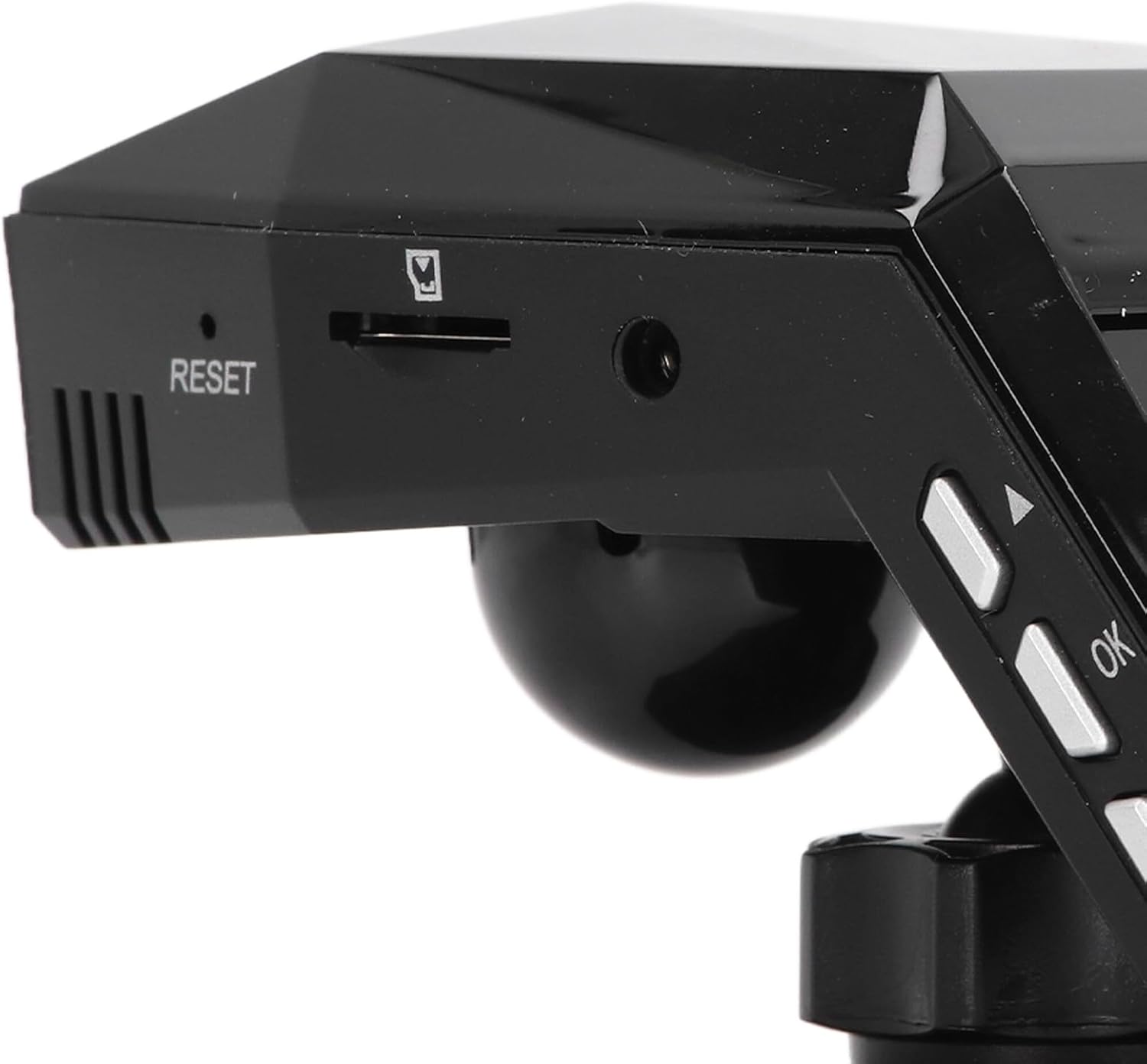
Figure 3.1: All components included in the Keenso Dash Cam package.
4. Product Features
The Keenso Front Rear Dash Cam offers a range of features for reliable vehicle monitoring:
- High-Quality Material: Constructed from durable ABS material for long-lasting performance.
- Built-in Lithium Battery: Features a 180mAh lithium-ion battery for continuous recording even when external power is interrupted.
- User-Friendly Display: Equipped with a 2.0-inch screen (960x240 resolution) for easy viewing and management of recordings.
- Enhanced Parking Safety: Motion detection feature automatically records movement around your parked vehicle.
- Loop Recording: Automatically overwrites older, non-protected files when the memory card is full, ensuring continuous recording without manual deletion.
- Infrared Night Vision: Professional configuration of 4 infrared night lights combined with WDR technology enhances night recording clarity.
- Supercapacitors: Designed to operate reliably in temperatures ranging from -10℃ to 70℃.
- High-Resolution Camera: 10MP image sensor with a 170-degree wide-angle lens, covering multiple lanes.

Figure 4.1: Front-side view of the dash cam, highlighting the display screen and control buttons.
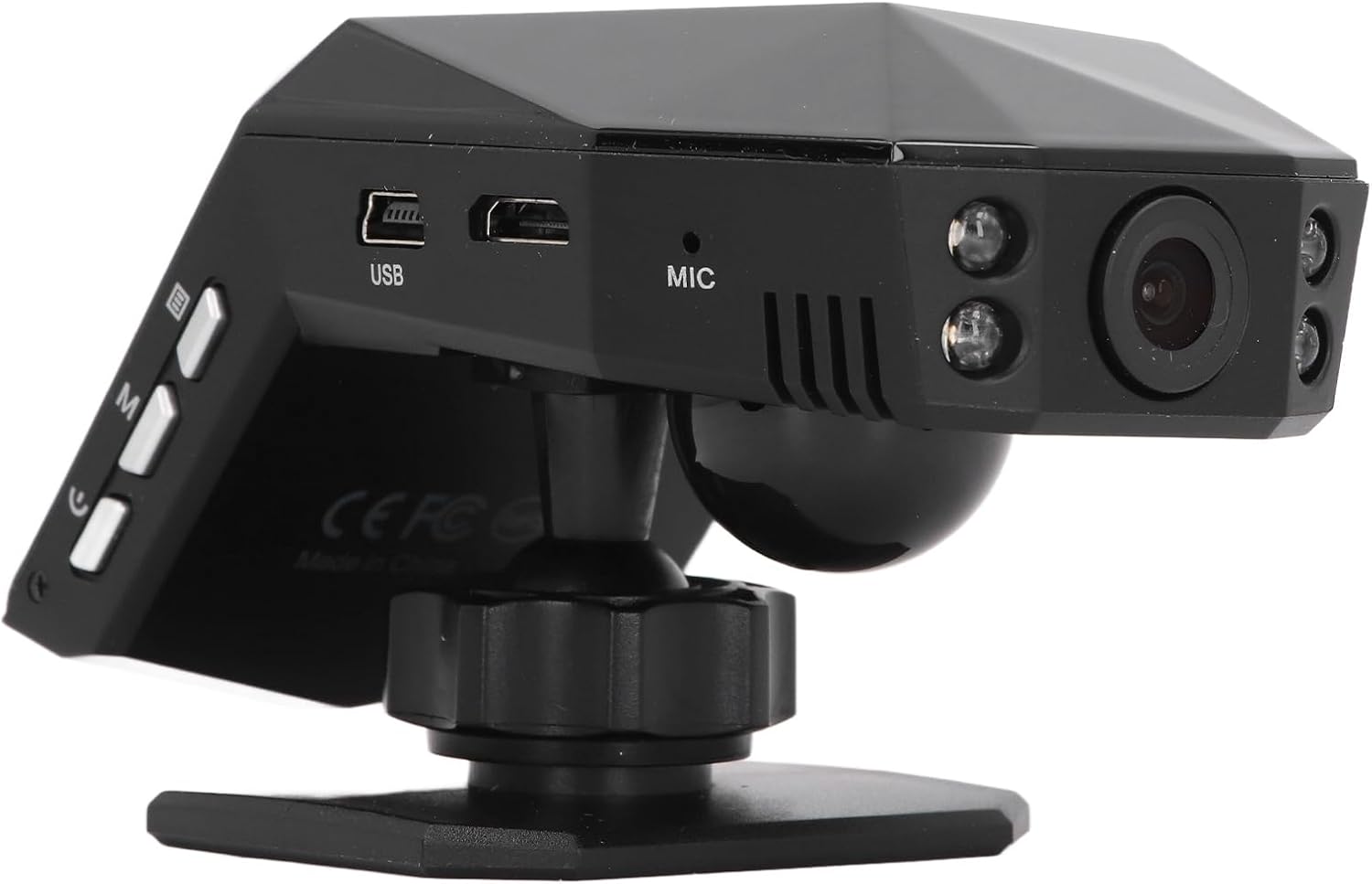
Figure 4.2: Rear view of the dash cam, showing the camera lens and four infrared night vision lights.
5. Setup
5.1 Inserting the Micro Memory Card
- Ensure the dash cam is powered off.
- Locate the Micro Memory Card slot on the side of the device.
- Gently insert a Micro Memory Card (up to 32GB, not included) into the slot until it clicks into place.
- To remove, gently push the card in until it clicks, then release to eject.

Figure 5.1: Side view showing the Micro Memory Card slot and Reset button.
5.2 Mounting the Dash Cam
- Choose a location on your windshield that does not obstruct your view, typically behind the rearview mirror.
- Clean the windshield surface thoroughly.
- Attach the magic base to the chosen location using the double-sided tape. Ensure it is firmly secured.
- Connect the dash cam to one of the provided mounts.
- Attach the mount with the dash cam to the magic base. Adjust the camera angle for optimal road coverage.
5.3 Connecting Power
- Insert the car charger into your vehicle's cigarette lighter socket.
- Connect the other end of the car charger cable to the USB port on the dash cam.
- Route the cable neatly along the windshield trim to avoid interference with driving.
- The dash cam will typically power on automatically when the vehicle starts and power off when the engine is turned off.
6. Operating Instructions
6.1 Basic Operation
- Power On/Off: The device powers on automatically when connected to vehicle power and off when power is cut. You can also manually power on/off using the power button.
- Recording: Once powered on, the dash cam will automatically begin continuous loop recording. A recording indicator will be visible on the screen.
- Menu Navigation: Use the 'M' button to access the menu and the up/down arrow buttons to navigate. The 'OK' button confirms selections.
6.2 Loop Recording
The dash cam features intelligent loop recording. When the Micro Memory Card reaches its capacity, the system will automatically delete the oldest unprotected video files to make space for new recordings. This ensures continuous recording without manual intervention.
6.3 24-Hour Parking Monitoring
To activate 24-hour parking monitoring, ensure the feature is enabled in the settings. When the car encounters a collision while parked, the dash cam will automatically start recording for approximately one minute. For continuous monitoring when the car is off, a voltage reducing cable (purchased separately) is required.
6.4 Motion Detection
If enabled in the settings, the motion detection feature will automatically activate and begin recording if a significant object enters the camera's monitoring range while the vehicle is parked. It is recommended to turn off motion detection when driving to avoid unnecessary recordings.
6.5 Viewing Recordings
You can view recorded videos directly on the 2.0-inch display screen. Navigate to the playback mode in the menu to browse and play files. Alternatively, remove the Micro Memory Card and insert it into a computer to view files.
7. Maintenance
- Cleaning: Use a soft, dry cloth to clean the dash cam's lens and screen. Do not use abrasive cleaners or solvents.
- Memory Card: Format the Micro Memory Card regularly (e.g., once a month) within the dash cam's settings to maintain optimal performance and prevent data corruption.
- Software Updates: Check the manufacturer's website periodically for any available firmware updates. Follow the instructions provided with the update carefully.
- Storage: When not in use for extended periods, store the dash cam in a cool, dry place away from direct sunlight.
8. Troubleshooting
| Problem | Possible Cause | Solution |
|---|---|---|
| Dash cam does not power on. | No power supply; faulty car charger; depleted internal battery. | Check car charger connection and vehicle's power outlet. Ensure the car charger is functional. Charge the internal battery. |
| Recording stops unexpectedly. | Memory card full; memory card error; power interruption. | Format the memory card. Replace the memory card if errors persist. Check power connection. |
| Video quality is poor. | Dirty lens; protective film on lens; incorrect resolution settings. | Clean the lens. Remove any protective film. Adjust video resolution settings to 1080P. |
| Dash cam freezes or crashes. | Software error; memory card issue. | Press the RESET button (refer to Figure 5.1). Format or replace the memory card. |
| Parking monitoring not working. | Feature not enabled; no voltage reducing cable for continuous power. | Enable parking monitoring in settings. Consider installing a voltage reducing cable for 24/7 monitoring. |
9. Specifications
| Feature | Specification |
|---|---|
| Product Material | ABS |
| Video Resolution | 1920x1080P/30fps |
| Image Resolution | 10MP |
| Battery Type | Lithium Ion Battery |
| Battery Capacity | 180mAh |
| Display Screen Size | 2.0 Inches |
| Display Screen Resolution | 960x240 |
| Supported Micro Memory Card | Up to 32GB (not included) |
| Operating Temperature | -10℃ to 70℃ |
| Product Dimensions (D x W x H) | 5.91" x 4.72" x 3.54" |
10. Warranty and Support
This Keenso product is covered by a manufacturer warranty for 90 days from the date of purchase. This warranty covers defects in materials and workmanship under normal use.
For technical support, warranty claims, or any questions regarding your Keenso Front Rear Dash Cam, please contact your retailer or visit the official Keenso website for customer service information.