
Introduction
This manual provides detailed instructions for the installation, operation, and maintenance of your GAMDIAS Aura GC11 ARGB Mid-Tower PC Case. Please read this manual thoroughly before beginning installation to ensure proper setup and safe use of the product. The GAMDIAS Aura GC11 ARGB is designed to accommodate Mini-ITX, Micro-ATX, and ATX motherboards, featuring a bar-patterned mesh front panel for optimal airflow and four pre-installed 120mm ARGB fans.
Safety Information
- Always disconnect the power supply from the wall outlet before installing or removing any components to prevent electrical shock.
- Handle all components with care to avoid damage.
- Wear an anti-static wrist strap or frequently touch a grounded metal object to discharge static electricity before handling internal components.
- Keep small parts and packaging materials away from children.
- Ensure proper ventilation around the PC case to prevent overheating.
Package Contents
Verify that all the following items are present in your package:
- GAMDIAS Aura GC11 ARGB Mid-Tower PC Case
- 4 x Pre-installed 120mm ARGB Fans
- Accessory Kit (screws, standoffs, cable ties)
- User Manual (this document)
Setup and Installation
1. Unpacking the Case
Carefully remove the PC case from its packaging. Inspect the case for any signs of damage during transit. Remove any protective films from the tempered glass panel.

Image: Angled view of the GAMDIAS Aura GC11 ARGB PC case, showcasing the tempered glass side panel and the distinctive bar-patterned mesh front panel.
2. Accessing the Interior
To access the interior of the case, locate and remove the thumbscrews securing the tempered glass side panel. Carefully lift and remove the panel. The opposite solid side panel can also be removed for cable management access.

Image: Interior view of the GAMDIAS Aura GC11 ARGB PC case, with the side panel removed, revealing the motherboard mounting area, fan cutouts, and cable management space.
3. Motherboard Installation
- Install the necessary motherboard standoffs into the motherboard tray according to your motherboard's form factor (Mini-ITX, Micro-ATX, or ATX).
- Install your motherboard's I/O shield into the rear opening of the case.
- Carefully place your motherboard onto the standoffs, aligning the screw holes.
- Secure the motherboard with the provided screws.
4. Power Supply Unit (PSU) Installation
- Mount your PSU into the dedicated compartment at the bottom rear of the case.
- Secure the PSU with screws from the rear of the case.
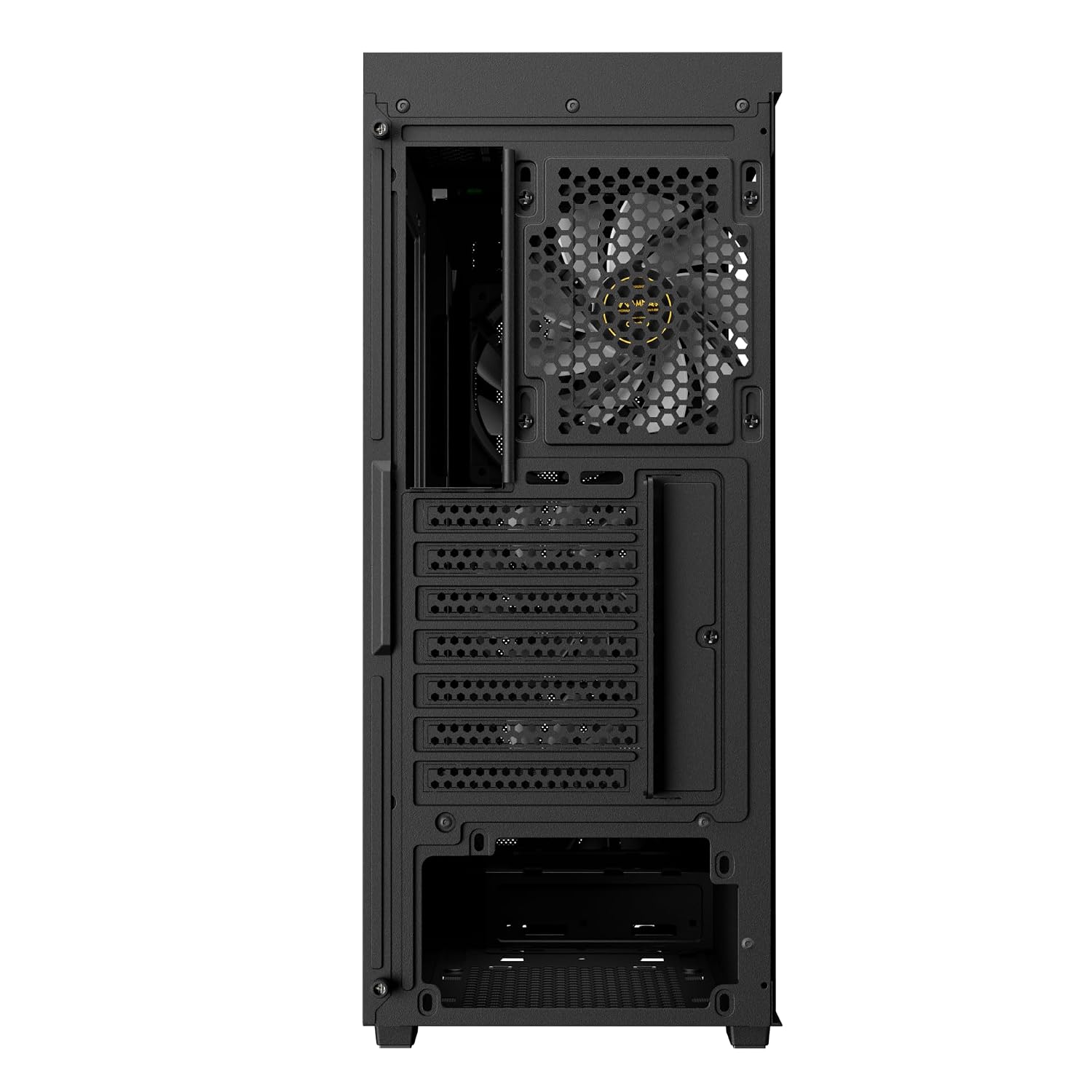
Image: Rear view of the GAMDIAS Aura GC11 ARGB PC case, highlighting the power supply unit mounting bracket at the bottom and the expansion slots for graphics cards and other components.
5. Storage Drive Installation
The case supports multiple storage drives. Refer to the accessory kit for specific mounting hardware.
- 2.5" SSDs: Mount SSDs to the designated trays or mounting points behind the motherboard tray.
- 3.5" HDDs: Install HDDs into the drive cage located beneath the PSU shroud.
6. Graphics Card (VGA) and Expansion Card Installation
- Remove the necessary expansion slot covers from the rear of the case.
- Insert your graphics card or other expansion cards into the appropriate PCIe slots on your motherboard.
- Secure the cards with screws.
7. Cable Management and Front Panel Connections
Route all power and data cables through the cutouts in the motherboard tray for a clean build. Connect the front panel I/O cables (USB, HD Audio, Power, Reset, LED) to their corresponding headers on your motherboard. The case features a Type-C port, two USB 2.0 ports, HD Audio, and Reset button on the top panel.

Image: Top-front view of the GAMDIAS Aura GC11 ARGB PC case, displaying the front I/O panel with Type-C, USB 2.0 ports, and audio jacks, along with the top magnetic dust filter.
8. Closing the Case
Once all components are installed and cables are managed, reattach the side panels, starting with the solid panel, then the tempered glass panel. Secure them with the thumbscrews.
Operating Instructions
1. First Power-On
After ensuring all connections are secure, connect your PC to a power outlet and press the power button on the top panel of the case. The pre-installed ARGB fans will illuminate, and your system should begin to boot.

Image: Front view of the GAMDIAS Aura GC11 ARGB PC case, with the four pre-installed ARGB fans visible and illuminated behind the bar-patterned mesh front panel.
2. ARGB Fan Control
The pre-installed ARGB fans are typically connected to a controller or directly to an ARGB header on your motherboard. Refer to your motherboard's manual or the fan controller's instructions for details on how to customize the lighting effects.
Maintenance
1. Dust Filter Cleaning
The GAMDIAS Aura GC11 ARGB case includes a magnetic dust filter on the top panel and a removable filter for the PSU intake. Regularly clean these filters to maintain optimal airflow and prevent dust buildup inside your system.
- Gently remove the magnetic dust filter from the top of the case.
- Slide out the PSU dust filter from the bottom rear of the case.
- Clean the filters using compressed air or by rinsing them with water. Ensure they are completely dry before reattaching.
2. General Cleaning
Use a soft, damp cloth to wipe down the exterior surfaces of the case. Avoid using harsh chemicals or abrasive materials that could damage the finish or tempered glass.
Troubleshooting
No Power After Assembly
- Ensure the PSU is switched on and properly connected to the wall outlet.
- Verify that the 24-pin ATX and 8-pin CPU power cables are securely connected to the motherboard.
- Check that the front panel power switch cable is correctly connected to the motherboard's front panel header.
Fans Not Spinning or ARGB Not Working
- Confirm that the fan power cables are connected to the motherboard or fan controller.
- Ensure ARGB cables are properly connected to the motherboard's ARGB header or the fan controller.
- Check your motherboard's BIOS/UEFI settings or ARGB software for fan and lighting control.
Overheating Issues
- Ensure all case fans are spinning correctly and oriented for optimal airflow (intake at front, exhaust at rear/top).
- Clean all dust filters and internal components to remove dust buildup.
- Verify that CPU cooler and GPU fans are functioning properly.
Specifications
| Feature | Detail |
|---|---|
| Brand | GAMDIAS |
| Model Name | Aura GC11 ARGB |
| Case Type | Mid Tower |
| Motherboard Compatibility | Mini-ITX, Micro-ATX, ATX |
| Pre-installed Fans | 4 x 120mm ARGB Fans |
| Cooling Method | Air |
| Enclosure Material | Metal, Tempered Glass |
| I/O Ports | 1 x Type-C, 2 x USB 2.0, 1 x HD Audio, 1 x Reset |
| CPU Cooler Height Limitation | 160mm |
| VGA Length Limitation | 300mm |
| PSU Length Limitation | 150mm |
| Internal Bays Quantity | 3 (for 2.5"/3.5" drives) |
| Special Features | Bar Patterned Mesh Front Panel, Magnetic Dust Filter |
| Item Weight | 4000 Grams |
| Item Dimensions (D x W x H) | 46D x 20W x 40H Centimeters |
| Country of Origin | China |
Warranty Information
This product comes with a 1 YEAR MANUFACTURER warranty. Please retain your proof of purchase for warranty claims. For detailed terms and conditions, refer to the official GAMDIAS website or contact customer support.
Support
If you encounter any issues or have questions regarding your GAMDIAS Aura GC11 ARGB PC Case that are not covered in this manual, please contact GAMDIAS customer support. You can find contact information on the official GAMDIAS website or through your retailer.
Manufacturer Contact Information: GAMDIAS TAIWAN, No. 113, Jian 2nd Rd., Zhonghe, Dist., New Taipei City 235, Taiwan
Importer Contact Information: Allway Distributions Pvt Ltd, No-49, H.B. Samajha Road, Baswangudi, Bengaluru- 560004, Contact -8904307700


