
1. Introduction
This user manual provides detailed instructions for the Generic Wireless CarPlay and Android Auto Adapter, model KA-1132. This device is designed to convert your vehicle's existing wired CarPlay or Android Auto system into a wireless connection, offering enhanced convenience and a clutter-free driving experience. Please read this manual thoroughly before using the product to ensure proper installation and operation.
2. Product Overview
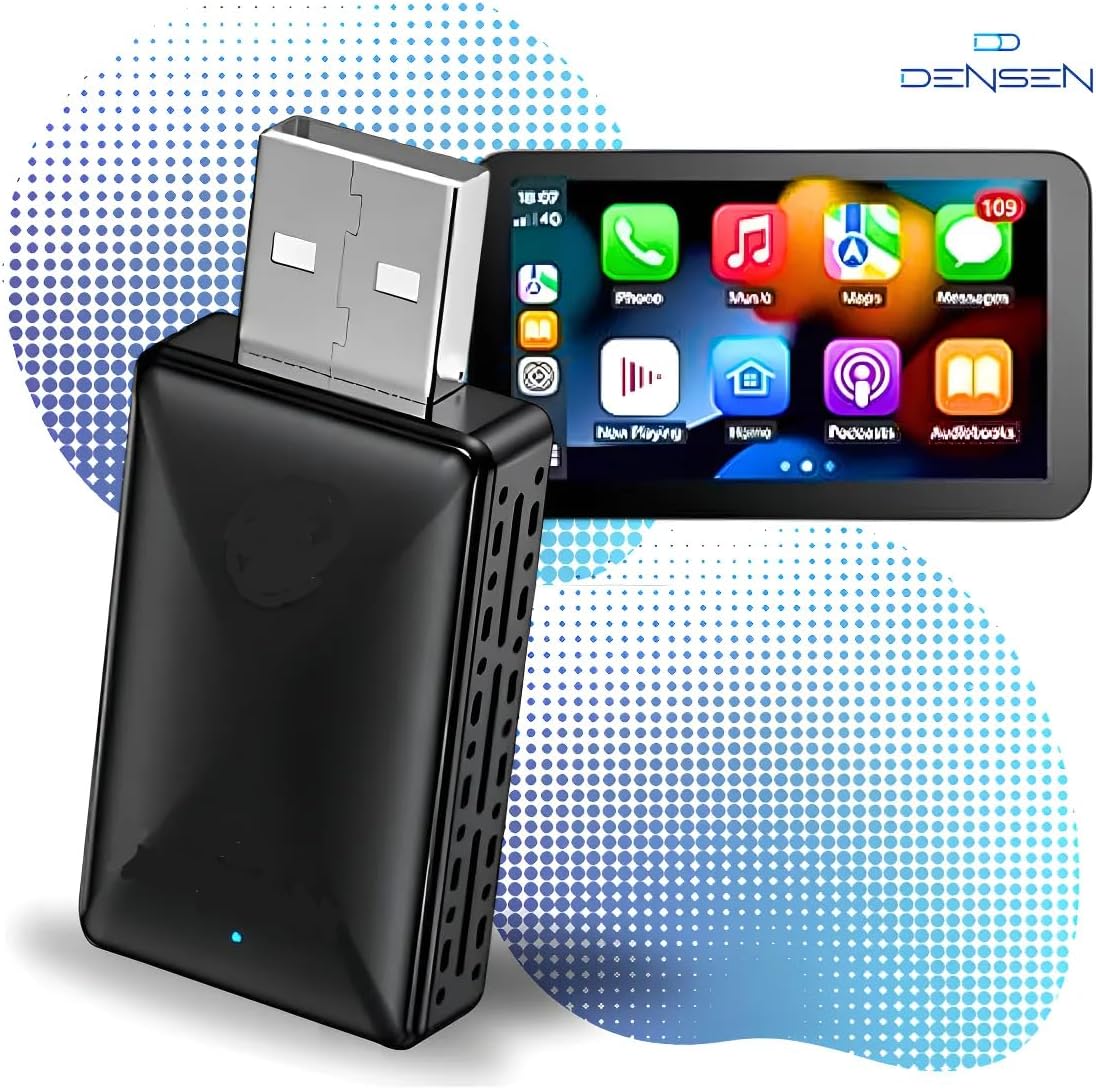
The KA-1132 adapter enables a seamless transition from wired to wireless CarPlay and Android Auto. It is a compact, plug-and-play device that connects to your car's USB port, allowing your smartphone to connect wirelessly to the vehicle's infotainment system.
Key Features:
- Wireless Conversion: Transforms wired CarPlay/Android Auto into wireless functionality.
- Automatic Connection: Connects automatically to your paired smartphone upon vehicle startup.
- Plug & Play: Simple installation without the need for additional apps or complex setup.
- High Speed & Low Latency: Utilizes 5.0-5.8 GHz transmission for stable audio and media streaming.
- Low Power Consumption: Efficient and stable operation.
- Original Functionality Retention: Supports original microphone, steering wheel controls, and central unit functions.
- Compact Design: Discreet and easy to conceal within the vehicle.
- Updatable Firmware: Ensures the device remains optimized with the latest versions.
Important Note:
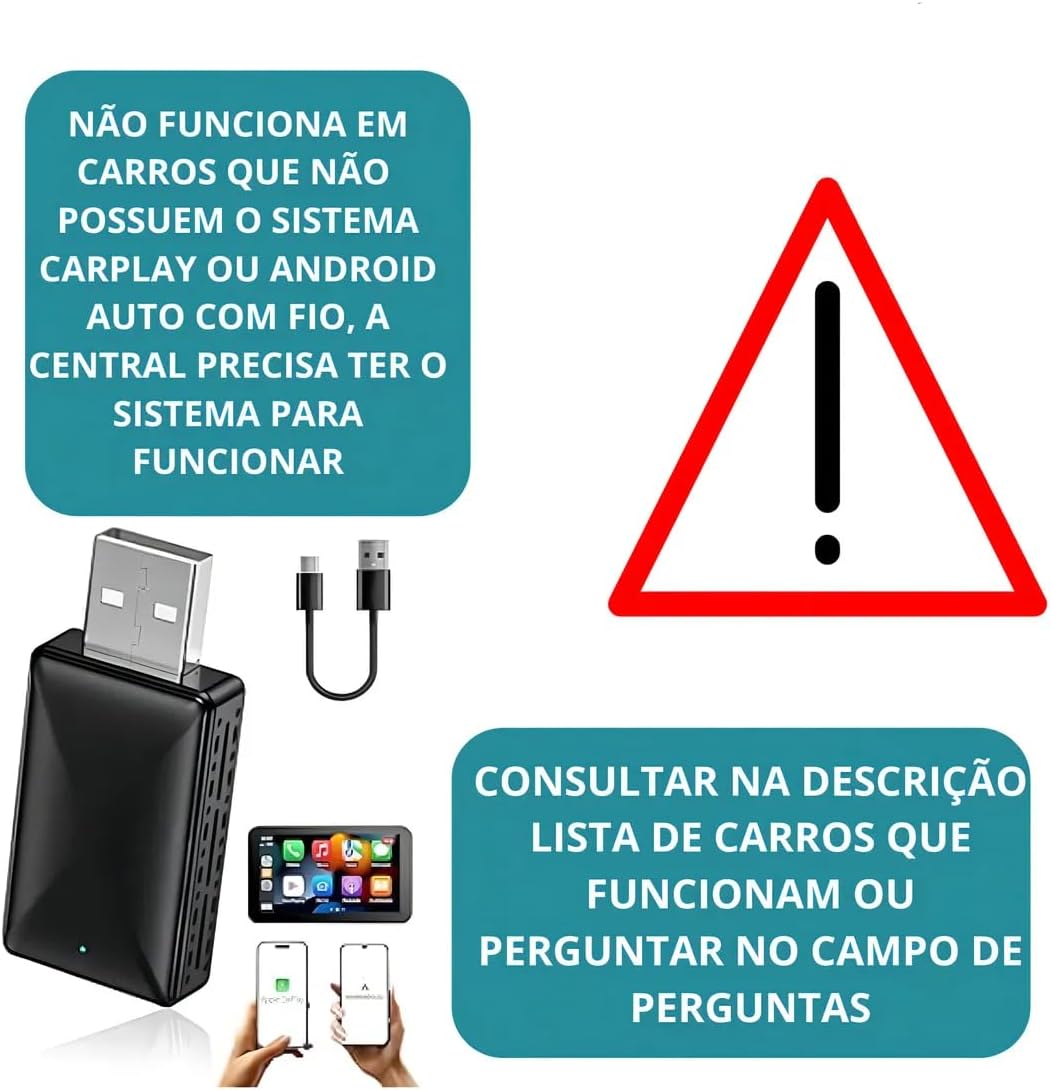
This adapter does not add CarPlay or Android Auto functionality to vehicles that do not already have it. It only converts an existing wired connection to wireless.
3. Package Contents
Please check the package for the following items:
- 1x Wireless CarPlay/Android Auto Adapter (KA-1132)
- 1x USB Converter Cable (USB-A to USB-C or USB-C to USB-C, depending on model variant)
- 1x User Manual
4. Specifications
| Feature | Detail |
|---|---|
| Model Number | KA-1132 |
| Brand | Generic |
| Compatible Devices | Apple (iOS), Android |
| Connector Type | USB Type-A, USB Type-C |
| Wireless Transmission | 5.0-5.8 GHz |
| Product Weight | 400 Grams |
| Manufacturer | KAPBOM |
| Country of Origin | Brazil |
5. Compatibility
To use the KA-1132 adapter, your vehicle and smartphone must meet the following requirements:
Vehicle Requirements:
- The vehicle's infotainment system must have factory-installed wired CarPlay or Android Auto.
- Compatible with factory head units from: Audi, Chery, Chevrolet (except MyLink3), GM, Citroën, Fiat, Ford, Hyundai, Jeep, Land Rover, Mercedes, Mitsubishi, Nissan, Peugeot, Porsche, Dodge, Renault, Toyota, Troller, Volkswagen, Volvo.
- Not compatible with: Tracker, Onix, and Montana 2023 (MyLink3), and some generic Android multimedia centers.
Smartphone Requirements:
- For Apple CarPlay: iPhone 6 or newer, running iOS 10 or higher.
- For Android Auto: Android phone running Android 11.0 or higher.

6. Setup and Installation
The KA-1132 adapter features a simple Plug & Play setup. Follow these steps for installation:
- Locate USB Port: Identify the USB port in your vehicle that supports wired CarPlay or Android Auto.
- Connect Adapter: Plug the KA-1132 adapter into the vehicle's USB port. Use the provided converter cable if necessary (e.g., if your car has a USB-C port).
- Wait for Indicator: The adapter will power on, and an indicator light (usually blue or green) will illuminate.
- Pair via Bluetooth: On your smartphone, enable Bluetooth and search for the adapter's Bluetooth name (refer to the device label or packaging if unsure). Select it to pair.
- Confirm Connection: Once paired, your car's infotainment screen should display the CarPlay or Android Auto interface wirelessly.


7. Operating Instructions
Automatic Connection:
After the initial pairing, the adapter will automatically connect to your smartphone each time you start your vehicle, provided your phone's Bluetooth is enabled and within range.
Firmware Updates:
The adapter's firmware can be updated to ensure optimal performance and compatibility. Instructions for firmware updates are typically provided via a QR code or a specific website mentioned in the packaging or on the manufacturer's support page. It is recommended to keep the firmware updated for the best user experience.
Using CarPlay/Android Auto:
Once connected, operate CarPlay or Android Auto as you normally would with a wired connection. All functions, including navigation, music, calls, and voice commands, will be available wirelessly through your car's infotainment system.
8. Troubleshooting
If you encounter issues with your KA-1132 adapter, please refer to the following common problems and solutions:
- No Connection:
- Ensure your vehicle has factory-installed wired CarPlay or Android Auto. The adapter does not add these functions.
- Verify the adapter is securely plugged into the correct USB port.
- Check if your phone's Bluetooth is enabled and paired with the adapter.
- Restart your phone and the car's infotainment system.
- Intermittent Connection:
- Ensure there are no other strong wireless interference sources nearby.
- Check for available firmware updates for the adapter.
- Try using a different USB port in your vehicle, if available.
- Audio/Video Lag:
- This adapter operates on 5.0-5.8 GHz for high speed and low latency. If you experience lag, ensure your phone's Wi-Fi is not being heavily utilized by other applications.
- Check for firmware updates.
- Adapter Not Recognized:
- Confirm your vehicle model is not listed under "Not compatible" in Section 5.
- Ensure the car's infotainment system is fully booted before plugging in the adapter.
9. Maintenance
To ensure the longevity and optimal performance of your KA-1132 adapter, follow these simple maintenance guidelines:
- Cleaning: Use a soft, dry cloth to clean the adapter. Do not use liquid cleaners or solvents.
- Storage: When not in use for extended periods, store the adapter in a cool, dry place away from direct sunlight and extreme temperatures.
- Handling: Avoid dropping the device or subjecting it to strong impacts.
- Moisture: Keep the adapter away from water and high humidity.
10. Warranty and Support
This product comes with a 30-day warranty from the date of purchase. This warranty covers manufacturing defects and malfunctions under normal use. It does not cover damage caused by misuse, accidents, unauthorized modifications, or improper installation.
For technical support or warranty claims, please contact your retailer or the manufacturer (KAPBOM) through their official support channels. Please have your purchase receipt and product model number (KA-1132) ready when contacting support.


