
Kopplen DCK-STN62SGR
Kopplen 13-in-1 Laptop Stand Docking Station User Manual
Model: DCK-STN62SGR
1. Introduction
Thank you for choosing the Kopplen 13-in-1 Laptop Stand Docking Station. This device is designed to expand the connectivity of your laptop, providing multiple ports for peripherals, external displays, and power delivery, all while serving as an ergonomic laptop stand. This manual will guide you through the setup, operation, and maintenance of your docking station.
2. Product Overview
The Kopplen 13-in-1 Docking Station integrates a variety of ports to enhance your workspace. It features a durable aluminum construction that also aids in heat dissipation.
2.1. Key Features
- Triple Display Support: Dual 4K HDMI (30Hz/60Hz) and one DisplayPort (4K@60Hz) for extended or mirrored displays. Note: MST Mode for triple display is supported on Windows devices only due to macOS limitations.
- Power Delivery: One USB-C port with 100W Power Delivery for charging compatible laptops.
- High-Speed Data Transfer: Two USB-A 3.0 ports (up to 5Gbps) and three USB-C data transfer ports (up to 5Gbps).
- Gigabit Ethernet: RJ45 port for stable wired internet connection up to 1,000Mbps.
- Audio Connectivity: 3.5mm combo audio jack for headphones or microphones.
- Card Reader: Integrated SDXC card reader.
- Ergonomic Design: Elevated stand design improves laptop airflow and workspace organization.
2.2. Port Layout
Refer to the image below for a visual representation of the docking station's ports.
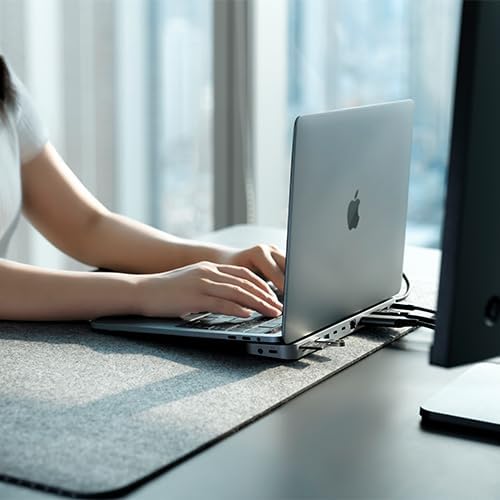
Image: Front view of the Kopplen 13-in-1 Docking Station, showcasing all available ports including USB-C, USB-A, HDMI, DisplayPort, Ethernet, and SD card slot.
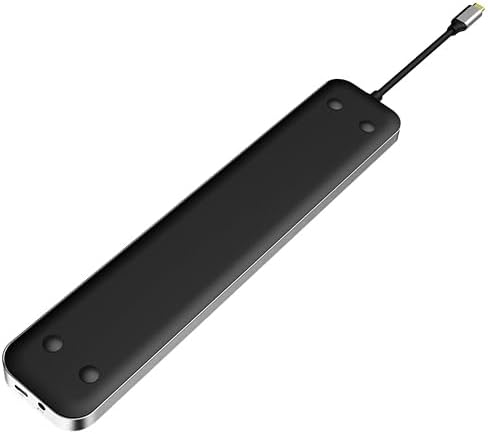
Image: Top-down view of the Kopplen 13-in-1 Docking Station, highlighting its sleek design and compact form factor.
3. Setup Instructions
- Position the Docking Station: Place the docking station on a stable, flat surface. Its elevated design allows your laptop to rest directly on top, improving airflow.
- Connect to Laptop: Connect the integrated USB-C cable from the docking station to an available USB-C port on your laptop. Ensure your laptop's USB-C port supports video output (DisplayPort Alternate Mode) and Power Delivery for full functionality.
- Connect Power Adapter (Optional, for PD): If you wish to charge your laptop via the docking station, connect your laptop's original USB-C power adapter to the 100W Power Delivery USB-C port on the docking station.
- Connect External Displays:
- For single or dual displays, connect your monitors using HDMI cables to the HDMI ports, or a DisplayPort cable to the DisplayPort.
- For triple display setup (Windows only), connect three monitors using the available HDMI and DisplayPort connections.
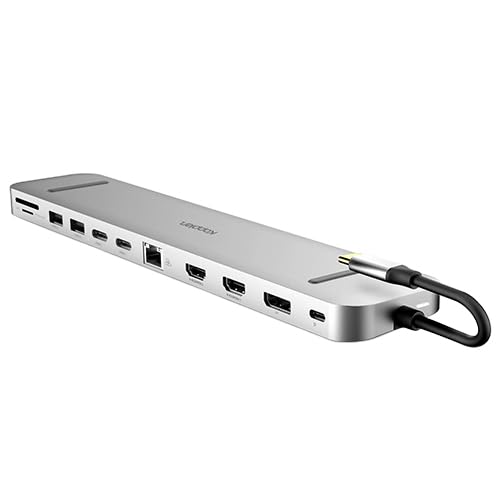
Image: A laptop connected to the docking station, illustrating how the laptop sits on the stand and the various cables for external displays and peripherals are connected.
- Connect Peripherals: Connect your USB devices (keyboard, mouse, external hard drives), Ethernet cable, and audio devices to the corresponding ports on the docking station.
4. Operating Instructions
4.1. Display Configuration
Once connected, your operating system should automatically detect the external displays. You may need to adjust display settings:
- Windows: Right-click on the desktop, select "Display settings." Here you can arrange your displays, choose between "Extend these displays," "Duplicate these displays," or "Show only on X."
- macOS: Go to "System Settings" (or "System Preferences"), then "Displays." You can arrange displays, set resolutions, and choose between "Mirror Displays" or "Use as separate display." Note: macOS does not support Multi-Stream Transport (MST) for extending to multiple unique external displays via a single USB-C connection. You can mirror or extend to one external display, and then mirror that display to others, or use multiple displays in mirrored mode.
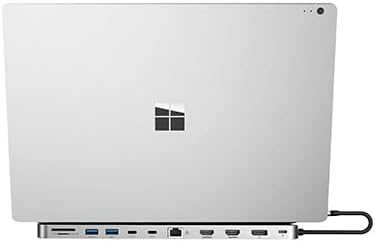
Image: A Windows laptop connected to the docking station, demonstrating compatibility with various operating systems.
4.2. Power Delivery
The dedicated USB-C Power Delivery port can supply up to 100W to your laptop. Ensure your laptop and its power adapter support USB-C Power Delivery for optimal charging. The docking station itself does not generate power; it passes through power from your laptop's charger.
4.3. Data Transfer
Connect your USB-A and USB-C storage devices, keyboards, mice, and other peripherals to the respective data ports. The USB 3.0 ports support speeds up to 5Gbps.
4.4. Network Connection
For a stable and fast internet connection, connect an Ethernet cable from your router or modem to the RJ45 port on the docking station. This provides speeds up to 1 Gigabit per second (1000Mbps).
5. Maintenance
- Cleaning: Use a soft, dry cloth to clean the surface of the docking station. Avoid liquid cleaners or abrasive materials.
- Storage: When not in use for extended periods, disconnect the docking station from your laptop and store it in a cool, dry place.
- Heat Dissipation: The aluminum casing is designed for passive heat dissipation. Ensure the vents (if any) are not blocked and the device has adequate airflow.
6. Troubleshooting
6.1. No Display Output
- Ensure the USB-C cable from the docking station is securely connected to your laptop.
- Verify that your laptop's USB-C port supports DisplayPort Alternate Mode (video output).
- Check that the HDMI/DisplayPort cables are securely connected to both the docking station and the monitors.
- Confirm that your monitors are powered on and set to the correct input source (HDMI/DisplayPort).
- Restart your laptop.
- For macOS users, remember that MST (Multi-Stream Transport) for multiple extended displays is not supported.
6.2. Laptop Not Charging
- Ensure your laptop's original USB-C power adapter is connected to the 100W PD USB-C port on the docking station.
- Verify that your laptop supports USB-C Power Delivery.
- Check the power adapter and cable for any damage.
6.3. USB Devices Not Recognized
- Ensure the USB device is properly connected to the docking station.
- Try connecting the device to a different USB port on the docking station or directly to your laptop to isolate the issue.
- Restart your laptop.
6.4. Ethernet Connection Issues
- Check that the Ethernet cable is securely connected to both the docking station and your router/modem.
- Verify that your router/modem is functioning correctly.
- Check your laptop's network settings.
7. Specifications
| Model Number | DCK-STN62SGR |
| Dimensions (L x W x H) | 10.98 x 2.13 x 0.67 inches (27.89 x 5.41 x 1.70 cm) |
| Item Weight | 10.4 ounces (0.29 kg) |
| Color | Gray |
| Input | USB-C (Host Connection) |
| Output Ports |
|
| Power Delivery | Up to 100W via USB-C PD port |
| Compatible Devices | Mac, Windows, and Chrome devices with Thunderbolt 4, Thunderbolt 3, or USB-C capabilities. |
| Note on macOS | MST Mode for triple display is only supported on Windows devices due to macOS limitations. |
8. Warranty and Support
Kopplen products are designed for reliability and performance. For warranty information, technical support, or customer service inquiries, please refer to the official Kopplen website or contact your retailer. Please have your model number (DCK-STN62SGR) available when contacting support.
For the most up-to-date support resources, visit: www.kopplen.com/support (Example link, replace with actual if available)