
1. Product Overview
The AchiPrin A3 UV DTF Printer is a versatile 2-in-1 printing solution designed for creating durable and vibrant stickers and transfers. It features dual XP600 print heads for efficient and high-quality output, along with an integrated film pressing system. This printer is suitable for a wide range of materials and applications.
Key Features:
- 2-in-1 UV DTF Printing: Automatically prints and presses film simultaneously, eliminating the need for separate laminators and improving workflow efficiency. Supports both common color printing and golden foil UV DTF printing.
- White Ink Stirring System: An integrated system prevents white ink sedimentation, which helps avoid nozzle clogging. The printer also includes an automatic warning system for low ink levels to prevent empty printing and potential damage.
- Versatile Material Compatibility: Capable of printing on various materials including plastic, glass, ceramics, paper, cardboard, metal, and leather. Ideal for items such as pens, notebooks, phone cases, mugs, bottles, and other irregular shapes.
- Complete Package: The printer comes with a full set of equipment, including AB film, UV DTF ink (6x500ML), printing software, and essential accessories.
- Professional After-Sales Technical Support: Includes a 2-year machine warranty (excluding damaged ink contact parts), one-to-one technical support, 24/7 service, comprehensive installation videos, detailed user manuals, and lifetime remote assistance.
2. Package Contents
Upon receiving your AchiPrin A3 UV DTF Printer, please verify that all the following components are included:
- A3 UV DTF Printer (1 unit)
- AB Film (1 roll)
- UV DTF Ink (6 bottles, 500ML each)
- Printing Software
- User Manual File
- Ink Bottles
- Paper
- Bracket (Optional)
- Software Dongle
- Dust-free Cloth and Cotton Swabs
- Syringes (3 PCS)
- Ink Cartridges + Ink Tube (2 sets)
- Squeegee Blade
- 1GB Ethernet Converter
- Spare Cutting Blade + Spare Board
- Power & Cable
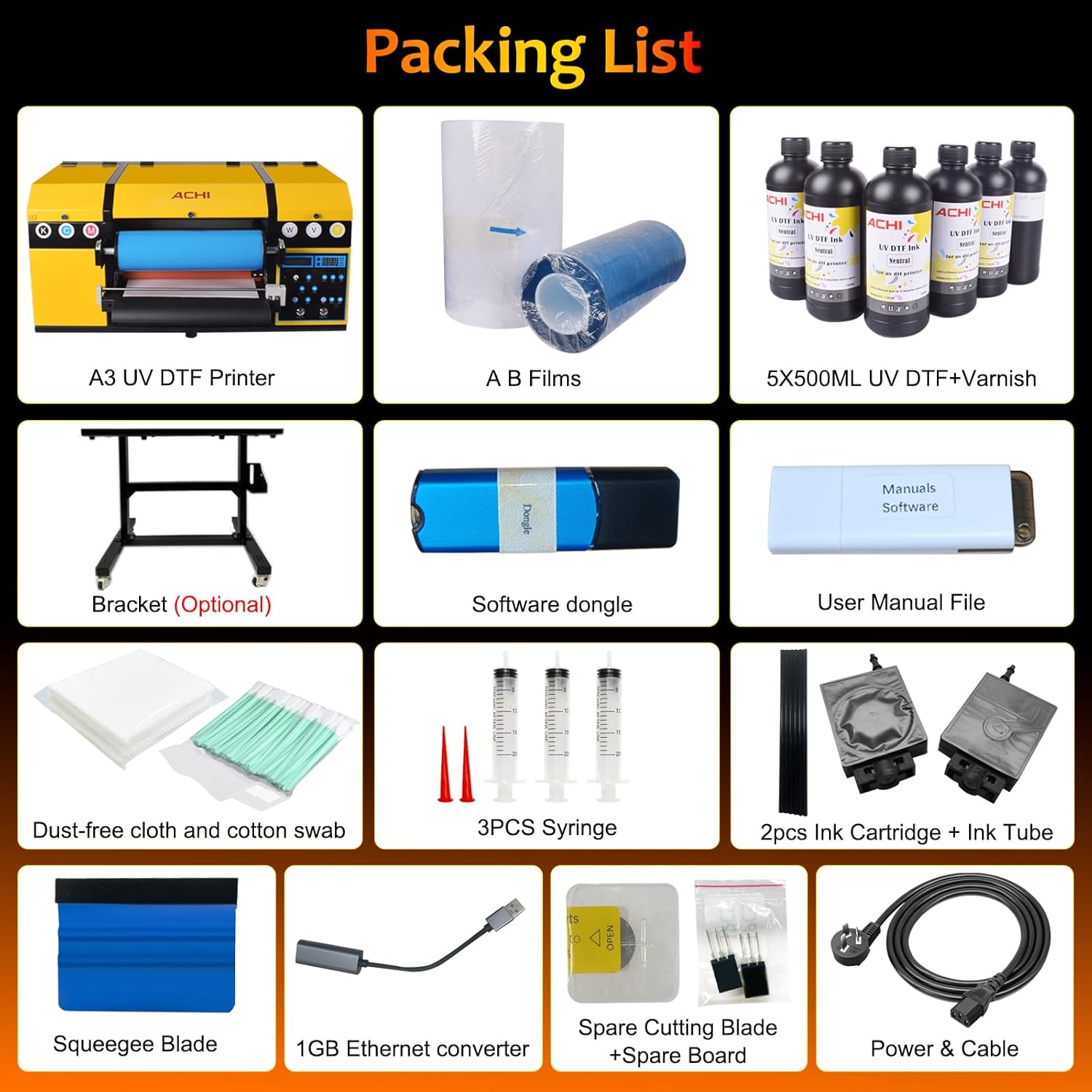
Figure 2.1: Visual representation of the AchiPrin A3 UV DTF Printer packing list, showing the main printer unit, ink bottles, AB films, and various accessories.
3. Setup Instructions
3.1 Unpacking and Placement
- Carefully remove all components from the packaging.
- Place the printer on a stable, level surface in a well-ventilated area, away from direct sunlight and heat sources.
- Ensure adequate space around the printer for operation and maintenance.
3.2 Software Installation
- Insert the provided printing software (RIP software) into your computer.
- Follow the on-screen instructions to complete the software installation.
- Connect the printer to your computer using the supplied USB cable.
3.3 Ink Loading
- Open the ink tank covers.
- Carefully pour the corresponding UV DTF inks into their designated tanks. Ensure not to mix colors.
- Close the ink tank covers securely.
- The white ink stirring system will automatically activate to prevent sedimentation.
3.4 AB Film Installation
- Refer to the printer's film loading mechanism.
- Carefully load the AB film roll according to the instructions in the detailed user manual.

Figure 3.1: Illustration of the UV DTF printing process, including the initial step of installing the AB film into the printer.
4. Operating Instructions
4.1 Basic Printing Process
- Import Image: Open the RIP software on your computer and import the PNG image you wish to print.
- Print: Send the print job to the printer. The printer will automatically print the design onto the A-film and then laminate it with the B-film.
- Trim: Once printing is complete, carefully trim the printed pattern to the desired shape using scissors or a cutting tool.
- Paste: Peel off the backing from the transfer and apply it directly to the desired surface. Press firmly to ensure adhesion.
Figure 4.1: Step-by-step visual guide to the UV DTF printing process, from importing an image to applying the final sticker.
4.2 Material Compatibility
The AchiPrin A3 UV DTF Printer supports printing on a wide array of materials, including but not limited to:
- Plastic
- Glass
- Ceramics
- Paper
- Cardboard
- Metal
- Leather
- Wood
- Phone Cases
- Mugs
- Bottles
- U-disks

Figure 4.2: A visual display of various items, such as phone cases, keychains, mugs, and wood pieces, customized using the UV DTF printing method.
4.3 Dual XP600 Print Heads
Equipped with two Epson XP600 print heads, this printer offers enhanced printing speed and precision. This configuration allows for vivid color reproduction and the ability to print multiple sticker patterns simultaneously, significantly improving productivity.

Figure 4.3: An illustration highlighting the dual XP600 print heads, emphasizing their role in achieving faster print speeds and higher precision for diverse sticker designs.
4.4 Printing Quality Comparison

Figure 4.4: A comparison image demonstrating the superior print quality of this product, featuring bright colors, no offset printing, strong adhesion, and high-quality ink, contrasting with common issues found in other products.
4.5 Cutting Film Function
The printer includes an upgraded cutting film function, allowing for precise trimming of printed designs. This feature streamlines the production of custom stickers and transfers.

Figure 4.5: An image illustrating the cutting film function, showing how printed designs are precisely cut and then applied to various items like slippers, face masks, and cylindrical objects.
5. Maintenance
5.1 White Ink Stirring System
The integrated white ink stirring system is crucial for maintaining print quality and preventing nozzle clogs. Ensure the system is always active during operation. The printer will automatically warn you if ink levels are low.

Figure 5.1: A detailed view of the white ink stirring system, illustrating how it prevents ink separation and ensures even distribution for consistent print quality.
5.2 Print Head Care
Regular maintenance of the print heads is essential for longevity and performance. The printer features an EPSON XP600 Printhead. Note: Manually cleaning the print head is very dangerous and may damage the mainboard. Always follow the automated cleaning procedures outlined in the software or consult the detailed user manual for safe practices.

Figure 5.2: Close-up of the EPSON XP600 Printhead, highlighting its intricate design and the importance of proper care to avoid damage.
5.3 Waste Ink Cartridges
The printer is equipped with large capacity waste ink cartridges. Monitor these regularly and empty them as needed to prevent overflow and maintain optimal printer function.

Figure 5.3: A visual breakdown of the white ink system, including the mixing system, circulation system, and large capacity waste ink cartridges, all contributing to efficient operation.
6. Troubleshooting
If you encounter any issues with your AchiPrin A3 UV DTF Printer, please refer to the detailed user manual provided with the product. Common issues and their solutions are typically covered there. For more complex problems or if the issue persists, please contact our professional after-sales technical support team.
Common Issues and Solutions:
- Print Quality Issues: Check ink levels, perform print head cleaning cycles, ensure film is loaded correctly.
- Nozzle Clogging: Utilize the white ink stirring system and perform print head cleaning.
- Printer Not Responding: Verify USB connection, power supply, and software status.
Our team of professional engineers is available to assist you within 24 hours. We offer one-to-one technical support and 7/24-hour service support.
7. Specifications
| Feature | Specification |
|---|---|
| Brand | AchiPrin |
| Model Name | XP600 UV DTF Printer |
| Item Model Number | uvdtf |
| Printing Technology | Inkjet |
| Printer Output | Color |
| Maximum Media Size | A3 |
| Supported Media Sizes | A3 |
| Product Dimensions | 16.3"D x 32"W x 12.8"H |
| Connectivity Technology | USB |
| Special Feature | Portable |
| Manufacturer | ACHI |
| UPC | 763527864493 |
8. Warranty and Support
8.1 Product Warranty
The AchiPrin A3 UV DTF Printer comes with a 2-year warranty for the machine. Please note that damaged ink contact parts are not covered under this warranty.
8.2 Technical Support
AchiPrin is committed to providing excellent customer service. We offer:
- One-to-one technical support.
- 24/7 service support from professional engineers.
- Comprehensive installation videos and detailed user manuals.
- Accessory warranties.
- Lifetime remote assistance.
If you encounter any problems during the process, you will be supported by professional engineers within 24 hours.
9. Product Videos
The following videos provide additional visual guidance and demonstrations of the AchiPrin A3 UV DTF Printer.
UV Inkjet Printer Demonstration
This video demonstrates the UV Inkjet Printer in action, showcasing its printing capabilities and the application of printed designs to various surfaces.
A3 DTF Printer F Black/White Operation
A video illustrating the operation of an A3 DTF printer, focusing on its functionality for black and white printing.
DXZ A3 UV DTF Sticker Printer: Easy to Operate
This video highlights the ease of operation for the DXZ A3 UV DTF Sticker Printer, demonstrating its user-friendly interface and process.
Best Choice for UV DTF Printer Beginners
A video aimed at beginners, showcasing why this UV DTF printer is an excellent choice for those new to the technology, emphasizing its features and benefits.