Introduction
This manual provides comprehensive instructions for the setup, operation, and maintenance of your Generic Wireless Indoor Outdoor Weather Station. This device offers a 7.5-inch VA display, atomic clock functionality, and monitors temperature and humidity with multiple remote sensors. Please read this manual thoroughly before using the product to ensure correct operation and to maximize its features.
Safety Information
- Do not expose the main unit or sensors to extreme temperatures, direct sunlight, or moisture.
- Avoid dropping the device or subjecting it to strong impacts.
- Use only the specified power adapter or batteries. Incorrect power sources may damage the device.
- Keep the device out of reach of children.
- Do not attempt to disassemble or repair the unit yourself. Contact customer support for assistance.
- Dispose of used batteries responsibly according to local regulations.
Package Contents
Verify that all items are present in your package:
- Weather Station Main Unit
- 3 Remote Sensors
- Power Adapter
- User Manual (this document)
Product Overview
The Generic Wireless Weather Station provides comprehensive environmental monitoring with a clear VA display and multiple remote sensors.

Image 1: The main weather station display unit shown with its three accompanying wireless remote sensors. The display shows various weather parameters, time, and date.
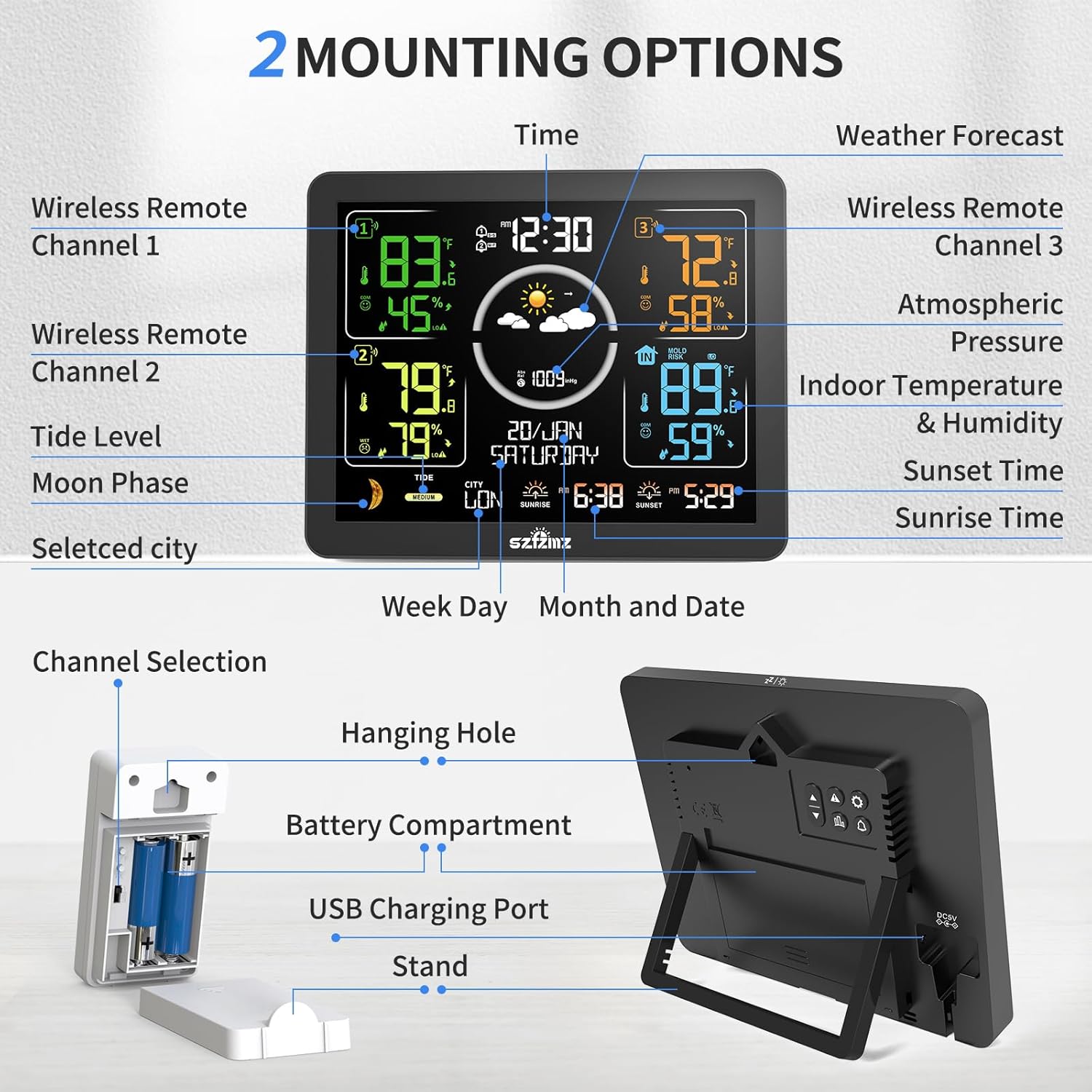
Image 2: A detailed diagram illustrating the various components and features of the weather station, including the main display, remote sensors, power options, and mounting choices. Key features like wireless remote channels, tide level, moon phase, selected city, week day, month and date, channel selection, hanging hole, battery compartment, USB charging port, and stand are labeled.
Setup Instructions
1. Powering the Main Unit
The main unit can be powered by either the included DC adapter or batteries (not included).
- DC Adapter: Connect the DC adapter to the power port on the back of the main unit and plug it into a standard wall outlet. The backlight will remain constantly bright with 4 adjustable levels.
- Batteries: Open the battery compartment on the back of the main unit and insert 2 x LR03 AAA batteries (not included), observing polarity. When using battery power, the screen will light up for 15 seconds upon touching the top and then automatically turn off to save power.
2. Installing Batteries in Remote Sensors
Each remote sensor requires batteries for operation.
- Open the battery compartment on the back of each remote sensor.
- Insert 2 x AA batteries (not included) into each sensor, ensuring correct polarity.
- Close the battery compartment securely.
3. Setting Sensor Channels
To monitor temperature and humidity from multiple locations, assign a unique channel to each sensor.
- On the back of each remote sensor, locate the channel selection switch (1, 2, or 3).
- Set each sensor to a different channel (e.g., Sensor 1 to Channel 1, Sensor 2 to Channel 2, Sensor 3 to Channel 3).
4. Sensor Placement
Place the remote sensors in desired locations within the transmission range (up to 200 feet/60 meters in open areas). For optimal performance, avoid placing sensors near large metal objects, electrical appliances, or in direct sunlight/rain.

Image 3: This image demonstrates the versatility of the three remote sensors, showing them placed in a baby's room (CH1), a living area (CH2), and a kitchen (CH3), highlighting their use for monitoring conditions in up to four different places.
5. Initial Synchronization
After powering on both the main unit and the sensors, the main unit will automatically search for and connect to the remote sensors. This process may take a few minutes. Ensure sensors are within range during initial setup.
Operating Instructions
1. Display Overview
The 7.5-inch VA color display presents various information clearly.

Image 4: A close-up view of the weather station's upgraded colorful VA display, emphasizing its deeper black levels and better overall contrast for improved readability of temperature, humidity, time, and weather forecast icons.
2. Atomic Clock Function
The weather station features an atomic clock that automatically or manually searches for WWVB signals to calibrate the time, ensuring accuracy.

Image 5: The weather station display showing the current time and date, with an icon indicating the radio control time function is active, ensuring accurate time synchronization.
3. Setting Time Zone
It is crucial to set the correct time zone for your location (AST, EST, CST, MST, PST, AKT, HST, HAT) for accurate time display and sunrise/sunset calculations. Refer to the manual's specific section for time zone adjustment.
4. Alarm Clock Function
The weather station includes two independent alarm settings with a snooze function.

Image 6: The weather station display showing two alarm clock icons, indicating the dual alarm functionality, which helps users manage their daily schedule.
5. Backlight Adjustment
When powered by the DC adapter, the backlight has 4 adjustable brightness levels (100%, 75%, 50%, 25%) and an off option. Press the designated button (refer to your specific unit's button layout) to cycle through brightness levels.

Image 7: This image illustrates the five adjustable brightness levels of the weather station's backlight, ranging from 100% to off, allowing users to customize visibility.
6. Max/Min Temperature & Humidity Records
The station records maximum and minimum temperature and humidity values for all monitored locations.
- Press the "▼" button once to display maximum values.
- Press the "▼" button twice to display minimum values.
- Press the "▼" button three times to return to current readings.

Image 8: A series of three weather station displays showing the current temperature and humidity, followed by the maximum recorded values, and then the minimum recorded values, demonstrating the MAX/MIN record feature.
7. Weather Forecast
The station calculates a weather forecast for the next 12 hours based on barometric pressure trends, displayed by 6 intuitive icons.

Image 9: A visual representation of the six weather forecast icons used by the station: Sunny, Slightly Cloudy, Cloudy, Rainy, Stormy, and Snowy, indicating the predicted weather for the next 12 hours.
8. Comfort Indicator
Three facial icons indicate the comfort level based on indoor temperature and humidity. This feature is displayed when temperature is between 68.0-82.4°F and humidity is 40-70%.

Image 10: The weather station display illustrating the three comfort level icons: Dry (Humidity <40%), Comfort (40% ≤ Humidity ≤ 70% and 68.0°F ≤ Temperature ≤ 82.4°F), and Wet (Humidity >70%).
9. Moon Phases & Tide Indicator
The display shows 12 different moon phases and 3 kinds of tide phases (High, Medium, Low) according to the set calendar.

Image 11: This image displays the weather station's moon phase indicator, showing 12 different phases from New Moon to Waning Half-Moon, alongside a tide indicator with High, Medium, and Low settings.
10. Sunrise & Sunset Time
After selecting a city or setting a custom city, the sunrise and sunset times are automatically calculated and displayed.

Image 12: The weather station display showing the sunrise and sunset times for a selected city, automatically calculated based on location, time zone, and current time.
11. Temperature & Humidity Alerts
The weather station allows for customizable extreme temperature and humidity alerts. It will notify you if readings hit predefined high or low levels.

Image 13: The weather station display showing alert icons for high temperature (HI), low temperature (LO), and frost/ice conditions (ICE), indicating customizable extreme temperature and humidity alerts.
Maintenance
- Cleaning: Wipe the main unit and sensors with a soft, damp cloth. Do not use abrasive cleaners or solvents.
- Battery Replacement: Replace batteries in the main unit and sensors when the low battery indicator appears on the display. Ensure to use fresh batteries of the correct type and polarity.
- Sensor Placement: Periodically check the outdoor sensors for debris or obstructions that might affect readings.
Troubleshooting
1. No Display on Main Unit
- Check if the DC adapter is securely plugged in or if batteries are correctly inserted and not depleted.
- If using batteries, tap the top of the unit to activate the display.
2. Remote Sensor Not Connecting/Displaying Data
- Ensure batteries are correctly installed and not depleted in the sensor.
- Verify that the sensor's channel switch matches the channel selected on the main unit for that sensor.
- Move the sensor closer to the main unit to rule out range issues or interference.
- Restart both the main unit and the sensor by removing and reinserting batteries.
3. Inaccurate Temperature/Humidity Readings
- Ensure sensors are not in direct sunlight, near heat sources, or in areas with poor air circulation.
- Allow the sensors and main unit to stabilize for at least 3 hours after initial setup or relocation.
- Our sensors meet industry standards of ±1°C (±1.8°F) / ±5% RH tolerance. If variations exceed these ranges after 3-hour co-location testing, please contact customer support for calibration guidance or replacement under warranty.
4. Atomic Clock Not Synchronizing
- Ensure the main unit is placed away from electronic devices that may cause interference.
- Verify that the correct time zone is set.
- The backlight automatically turns off during WWVB signal receiving mode.
Specifications
| Feature | Specification |
|---|---|
| Product Dimensions | 1"D x 7.9"W x 5.1"H (Main Unit) |
| Weight | 1.34 Pounds |
| Color | Black |
| Material | Acrylonitrile Butadiene Styrene (ABS) |
| Connectivity Technology | Wireless |
| Power Source | Battery Powered and AC Adapter |
| Special Features | Adjustable Brightness, Alarm, Clock, Customizable Alert, Wireless |
| Recommended Uses | Home |
| Specific Uses | Date, Humidity, Moon Phase, Pressure, Temperature |
| Sensor Accuracy | ±1°C (±1.8°F) / ±5% RH tolerance |
Warranty and Support
This product comes with a warranty. For specific warranty details, please refer to the documentation included with your purchase or contact the seller directly. If you encounter any issues or require assistance with your weather station, please reach out to customer support for guidance or replacement under warranty.