
1. Introduction
The CHEERKONTEK BLADER Keyboard Mouse Adapter allows you to connect a keyboard and mouse to your gaming console for an enhanced control experience. This adapter is designed for compatibility with multiple platforms, including Nintendo Switch, Xbox One, Xbox Series X/S, and PlayStation 4/3. It converts keyboard and mouse inputs into controller signals, providing flexible control for various game genres.
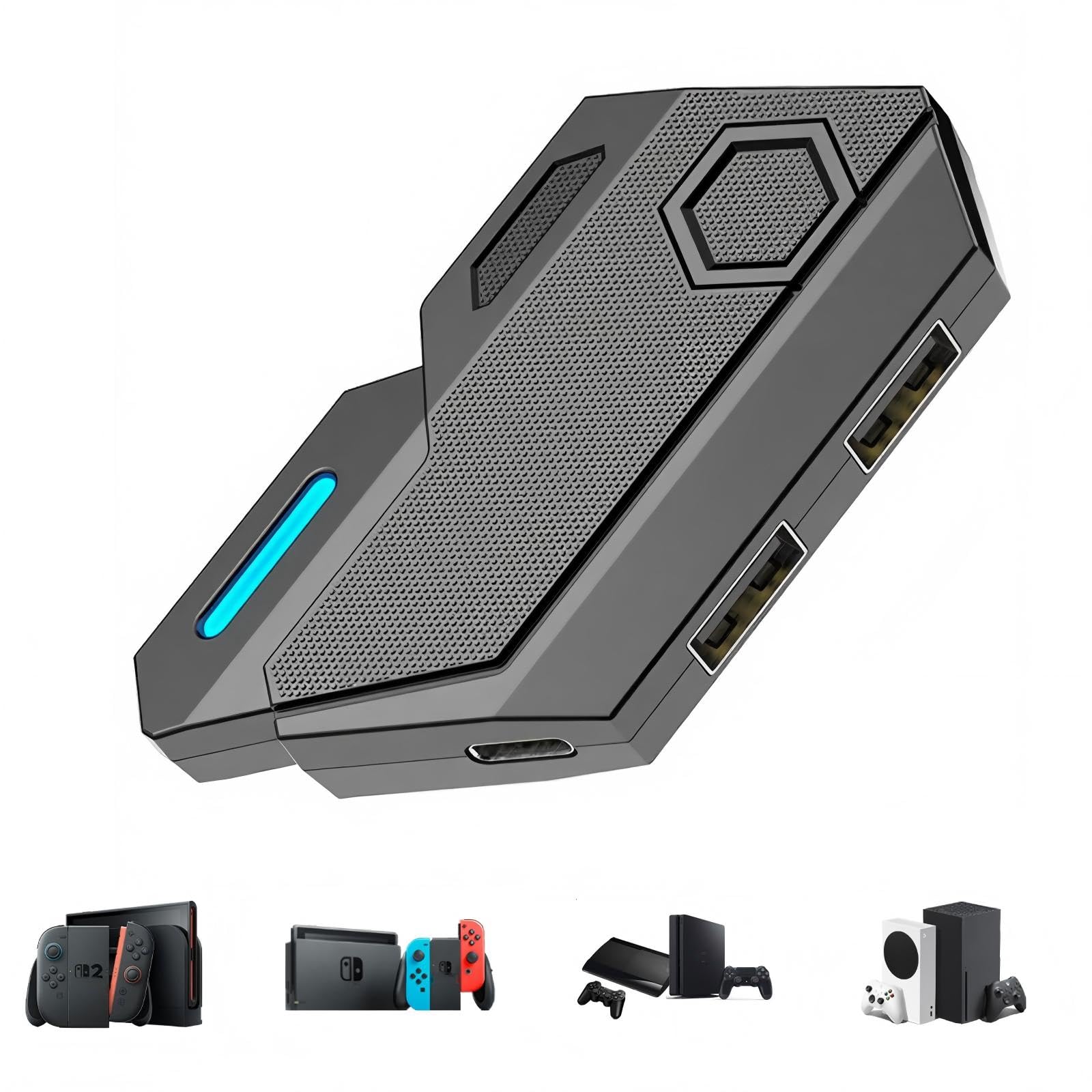
Image: The BLADER Keyboard Mouse Adapter, a compact device with multiple USB ports.
2. Packing List
Please verify that all items are present in the package:
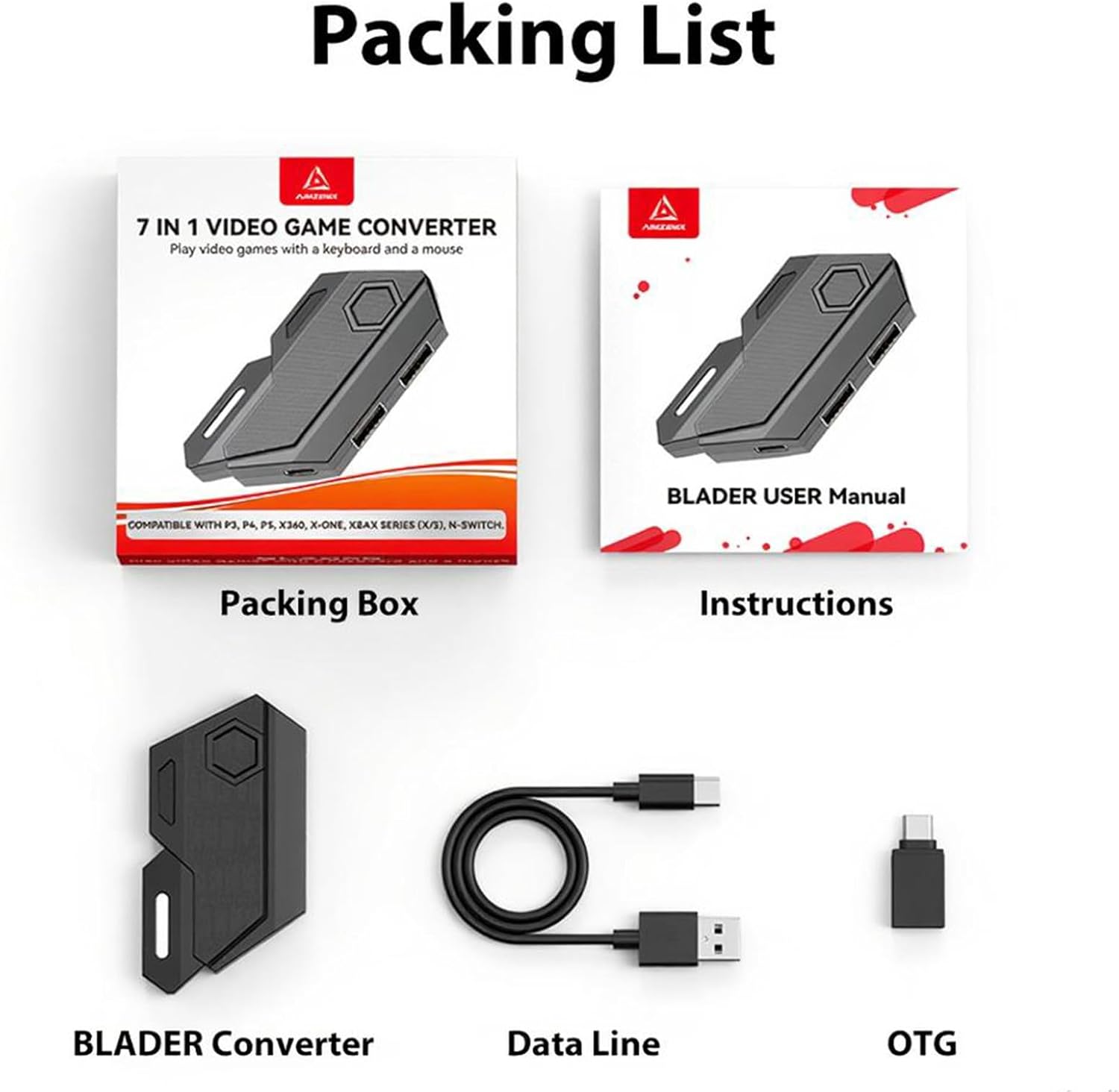
Image: Visual representation of the BLADER Keyboard Mouse Adapter's packing list, showing the adapter, cables, and documentation.
- BLADER Converter
- Data Line (USB cable)
- OTG Adapter
- Packing Box
- Instructions (User Manual)
3. Setup Instructions
The BLADER adapter features a plug-and-play setup. No complicated installation or additional software is required. Ensure you use the original controller for connection, as unauthorized controllers are not supported.
3.1 Connecting to Nintendo Switch
- Connect the BLADER adapter to your Nintendo Switch console (either in Handheld Mode via OTG or TV Mode via dock USB port).
- Connect your keyboard to one of the USB ports on the BLADER adapter.
- Connect your mouse to another USB port on the BLADER adapter.
- Ensure that the 'Pro Controller Wired Communication' setting is enabled in your Nintendo Switch system settings.
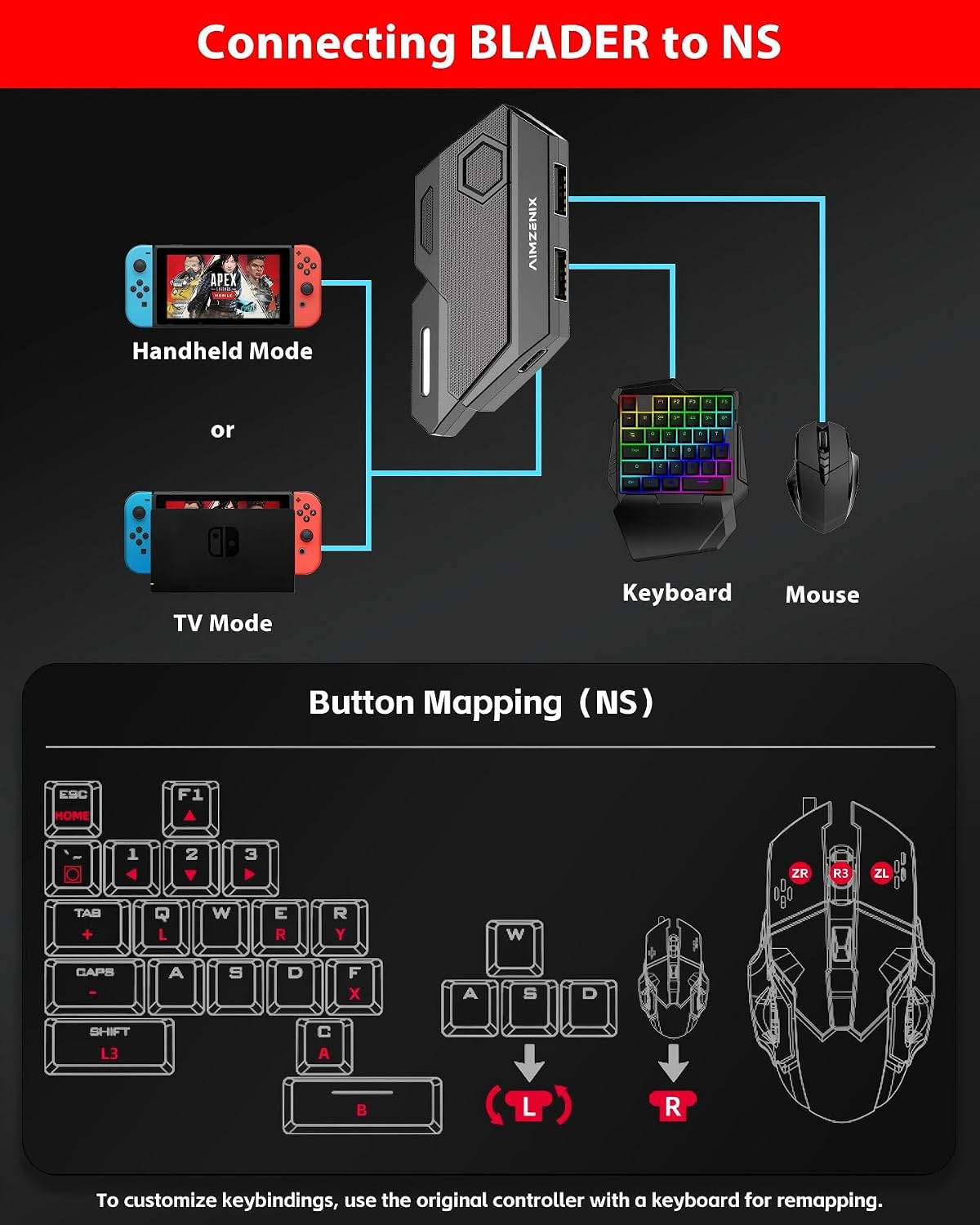
Image: Connection diagram for Nintendo Switch, illustrating the adapter, keyboard, mouse, and console setup.
3.2 Connecting to PlayStation 4/3
- Connect the BLADER adapter to a USB port on your PlayStation 4 or PlayStation 3 console.
- Connect your original PlayStation controller to the designated controller port on the BLADER adapter.
- Connect your keyboard to one of the USB ports on the BLADER adapter.
- Connect your mouse to another USB port on the BLADER adapter.
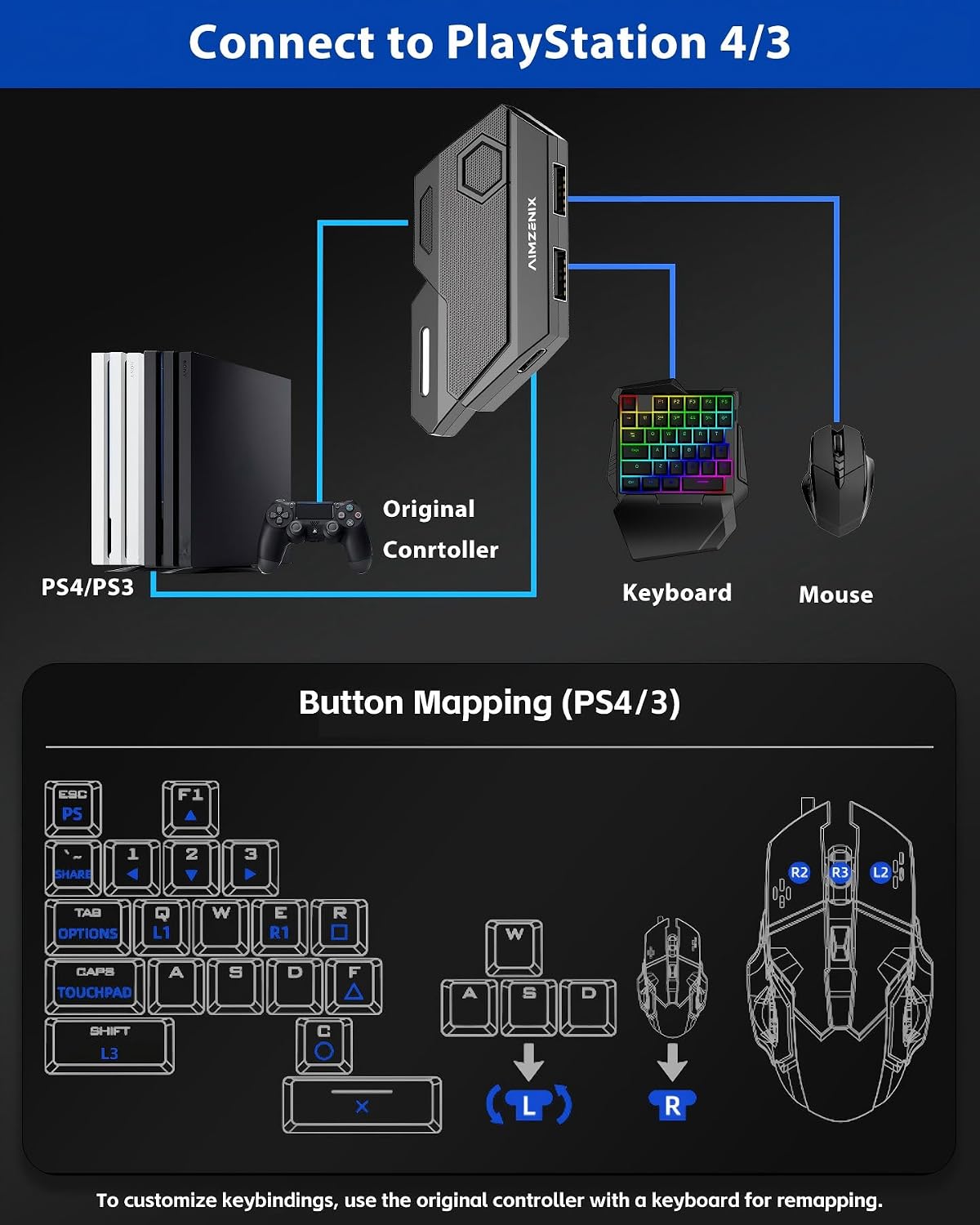
Image: Connection diagram for PlayStation 4/3, detailing the adapter, original controller, keyboard, and mouse setup.
3.3 Connecting to Xbox One / Xbox Series X/S
- Connect the BLADER adapter to a USB port on your Xbox One or Xbox Series X/S console.
- Connect your original Xbox controller to the designated controller port on the BLADER adapter.
- Connect your keyboard to one of the USB ports on the BLADER adapter.
- Connect your mouse to another USB port on the BLADER adapter.

Image: Connection diagram for Xbox consoles, showing the adapter, original controller, keyboard, and mouse setup.
4. Operating Instructions
4.1 Key Mapping and Sensitivity Adjustment
The BLADER adapter supports shortcut key customization and sensitivity adjustment to personalize your gaming experience. This allows for improved precision, speed, and control in various game types such as FPS, TPS, and RTS.
For detailed instructions on editing key mappings and adjusting sensitivity, please refer to the official product video tutorial or the specific key mapping diagrams provided in the manual for each console.

Image: The BLADER adapter showcasing custom mapping capabilities and a configuration switch for different game settings.
4.2 Official Product Usage Video
Video: Official BLADER Product Usage Instructions. This video demonstrates the setup process and key features of the adapter.
5. Important Notes Before Use
- The BLADER adapter does not support mice that require specific driver installation. Ensure your mouse is a standard plug-and-play device.
- When an original controller is connected to the console via the BLADER adapter, the 3.5mm headphone jack on that controller will become inactive.
- For optimal aiming performance, it is recommended to maximize the "view sensitivity" and other related sensitivity options within your game's settings. The mouse switching technology of BLADER operates best with these settings at their highest level.
- Only original, authorized controllers are supported for connection to the BLADER adapter. Third-party or unauthorized controllers may not function correctly.
6. Specifications
| Brand | CHEERKONTEK |
| Model | BLADER |
| Color | Black |
| Hardware Interface | USB |
| Compatible Devices | Nintendo Switch, Xbox One, Xbox Series X/S, PlayStation 4, PlayStation 3 |
| Total USB Ports | 3 |
| Product Dimensions (L x W x H) | 3.2" x 1.8" x 0.5" |
| Item Weight | 22.68 g |

Image: The BLADER adapter highlighting its universal compatibility with Xbox, PlayStation, and Nintendo Switch consoles.
7. Troubleshooting
- Adapter Not Responding: Ensure all cables are securely connected. Verify that the original console controller is properly connected to the adapter.
- Keyboard/Mouse Not Detected: Confirm that your keyboard and mouse are standard plug-and-play devices and do not require specific drivers. Try connecting them directly to a computer to ensure they are functional.
- Nintendo Switch Specific Issue: If using with Nintendo Switch, navigate to System Settings > Controllers and Sensors, and ensure 'Pro Controller Wired Communication' is set to 'On'.
- Aiming/Tracking Issues: Adjust the in-game "view sensitivity" and other related sensitivity settings to their maximum values for optimal performance with the adapter.
- Audio Not Working Through Controller: The 3.5mm headphone jack on the original controller becomes inactive when connected through the BLADER adapter. This is expected behavior.
- Unauthorized Controller Not Working: The BLADER adapter is designed to work only with original, authorized console controllers. Third-party or unofficial controllers are not supported.
8. Maintenance
- Keep the adapter in a dry environment and avoid exposure to moisture or extreme temperatures.
- Clean the adapter with a soft, dry cloth. Do not use liquid cleaners or abrasive materials.
- Avoid dropping or subjecting the adapter to strong impacts.
- Store the adapter and cables neatly to prevent tangling or damage.
9. Warranty and Support
The CHEERKONTEK BLADER Keyboard Mouse Adapter comes with a 1-Year Manufacturer Warranty from the date of purchase.
This warranty covers defects in materials and workmanship under normal use. It does not cover damage caused by misuse, accidents, unauthorized modifications, or external causes.
For technical support, warranty claims, or further assistance, please contact CHEERKONTEK customer service through the retailer where the product was purchased or visit the official CHEERKONTEK support website.