1. Introduction and Overview
This manual provides detailed instructions for the installation, operation, and maintenance of your CAMECHO 6.86 Inch Motorcycle Carplay Screen. This device is designed to enhance your riding experience with advanced connectivity and navigation features.
Key features include:
- 6.86-inch HD IPS Touchscreen: Provides clear visuals with 1280*480 resolution for maps and media.
- Wireless CarPlay & Android Auto: Seamless smartphone integration for navigation, music, and calls.
- IP68 Waterproof Design: Ensures durability and reliable performance in various weather conditions.
- Bluetooth Connectivity: For audio transmission, hands-free calls, and syncing contacts.
- Mirror Link Function: Supports wireless AirPlay and Android cast for screen mirroring.
- TF Card Reader: Supports up to 128GB for personal media files.
- Adjustable Mounting Bracket: Allows for optimal positioning and viewing angle.
2. Package Contents
Please verify that all items are present in the package:
- CAMECHO 6.86 Inch Motorcycle Carplay Screen
- 2.0m Power Cable
- Strip Rolling (Cable Ties)
- User Manual
- Universal Mounting Bracket Kit (Dashboard Mount, various components for direct package mounting)

Image: Product details and included components.

Image: Detailed view of the accessories.
3. Setup and Installation
The CAMECHO Motorcycle Carplay Screen is designed for straightforward installation using the included universal bracket.
3.1 Mounting the Device
- Attach the appropriate mounting components from the kit to your motorcycle handlebars. Ensure a secure fit.
- Connect the screen to the mounting bracket. The bracket offers a large adjustable angle for optimal viewing.
- Position the screen to ensure clear visibility without obstructing your view of the road or motorcycle controls.
3.2 Power Connection
- Connect the provided 2.0m power cable to the device.
- Route the power cable safely to your motorcycle's power source, ensuring it does not interfere with moving parts or get pinched.
- Secure excess cable with the included strip rolling (cable ties).
3.3 Quick Release Feature
The device features a quick-release mechanism for easy removal when parked, enhancing security.
- To release: Pull the circled portion of the bracket upwards.
- While holding it up, remove the bracket by pulling the circled portion downwards.
4. Operating Instructions
4.1 Powering On/Off
Press and hold the power button to turn the device on or off.
4.2 Wireless CarPlay & Android Auto
The device supports wireless Apple CarPlay and wireless Android Auto for seamless smartphone integration.
- Ensure Bluetooth is enabled on your smartphone.
- On the Carplay screen, navigate to the CarPlay or Android Auto icon.
- Follow the on-screen prompts to pair your smartphone via Bluetooth. Once paired, the system will automatically connect for future use.
- Use voice commands (Siri/Google Assistant) for navigation, music playback, and calls.

Image: Wireless Apple CarPlay and Android Auto in use.
4.3 Mirror Link Function (AirPlay & Android Cast)
Mirror your smartphone screen directly onto the device.
- On your smartphone, enable Wi-Fi and search for the device's Wi-Fi network.
- Connect to the device's Wi-Fi using the provided password (refer to the device settings or on-screen instructions).
- For iOS devices: Use AirPlay to cast your screen.
- For Android devices: Use Android Cast to mirror your screen.

Image: Mirror Link Function (Wireless AirPlay and Android Cast).
4.4 Bluetooth Functionality
Connect your Bluetooth headset or helmet for audio and hands-free communication.
- Bluetooth Hands-Free: Make and receive calls directly from the screen.
- Sync Address Book: Access your phone's contacts on the device.
- Bluetooth Music: Stream audio from your smartphone to your connected Bluetooth headset/helmet.

Image: Bluetooth Functionality for hands-free communication and music.
4.5 GPS Navigation
Utilize online navigation applications through CarPlay or Android Auto.
- Access your preferred navigation app (e.g., Google Maps, Waze) via your connected smartphone.
- The HD screen provides clear map details for easy route following.

Image: Online GPS Navigation in action.
4.6 Customization
The device offers 4 switchable screen backgrounds to personalize your interface.
5. Maintenance
The CAMECHO Motorcycle Carplay Screen is designed for durability and minimal maintenance.
- Cleaning: Wipe the screen with a soft, damp cloth. Avoid abrasive cleaners or solvents.
- Waterproof Rating: The IP68 rating ensures protection against dust and water immersion up to 1.5 meters for 30 minutes. This allows for confident riding in rain.
- Temperature Resistance: The device is built to withstand both high and low temperatures, ensuring reliable operation in various climates.

Image: IP68 Waterproof, High Temperature, and Low Temperature Resistance.
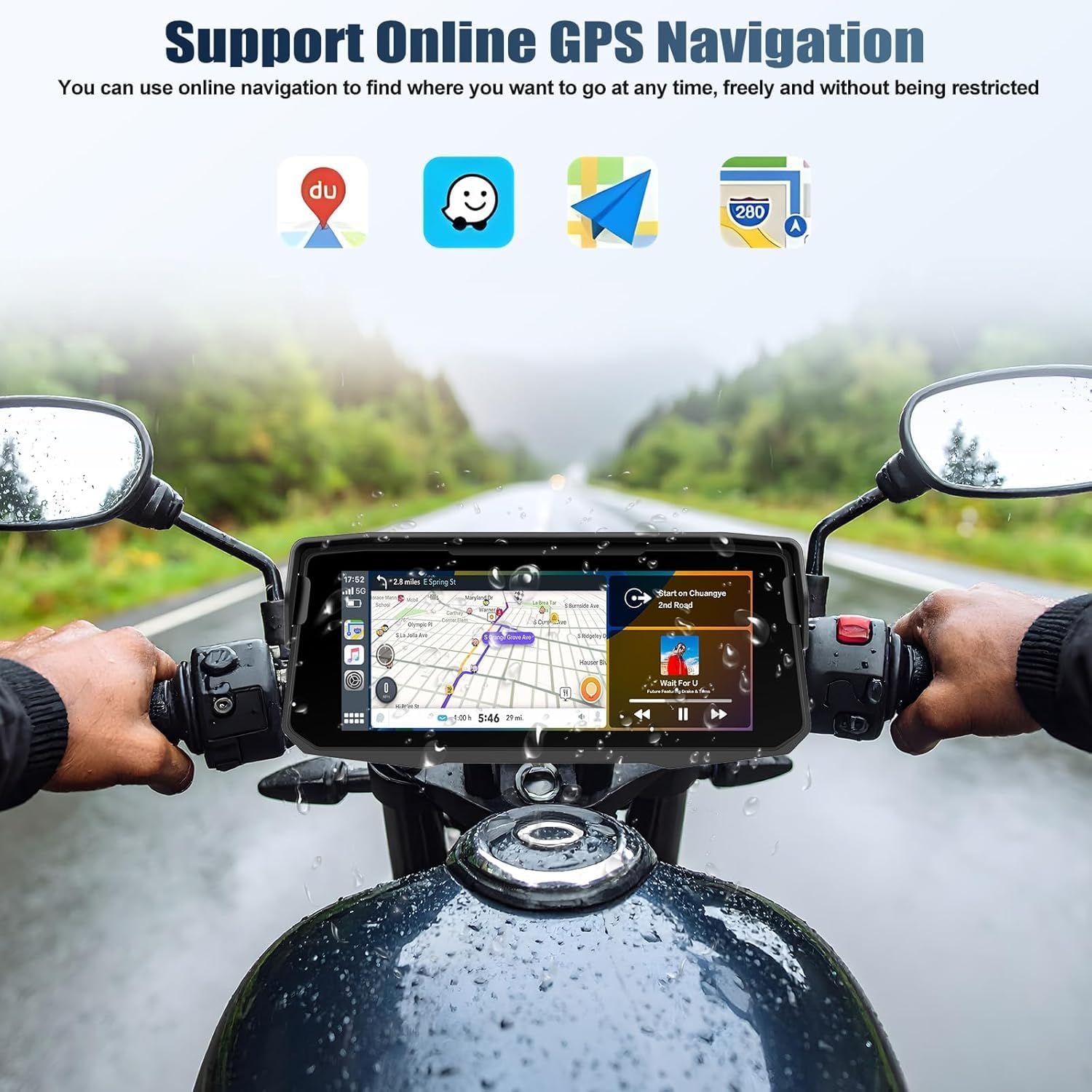
Image: Device operating in rainy conditions, highlighting IP68 waterproof and dustproof features.
6. Troubleshooting
If you encounter issues with your CAMECHO Motorcycle Carplay Screen, please refer to the following common solutions:
- Device not powering on: Ensure the power cable is securely connected to both the device and the motorcycle's power source. Check for any blown fuses in your motorcycle's electrical system.
- No CarPlay/Android Auto connection: Verify that Bluetooth and Wi-Fi are enabled on your smartphone. Ensure the device is paired correctly. Try restarting both the device and your smartphone.
- Poor audio quality: Check the Bluetooth connection to your headset/helmet. Ensure there is no interference from other electronic devices.
- Screen not responding: Try restarting the device. If the issue persists, contact customer support.
For further assistance, please contact CAMECHO customer support.
7. Specifications
| Feature | Specification |
|---|---|
| Brand | CAMECHO |
| Screen Size | 6.86 Inches |
| Display Type | LCD |
| Connectivity Technology | Bluetooth |
| Special Features | Bluetooth, Waterproof (IP68) |
| Vehicle Service Type | Motorcycle |
| Compatible Devices | Smartphone (Wireless CarPlay, Android Auto, AirPlay, Android Cast) |
| Product Dimensions (D x W x H) | 2" x 2" x 3" (Approximate, refer to product details image for exact screen dimensions) |
| Mounting Type | Bumper Mount / Dashboard Mount (Universal Bracket) |
| Included Components | Dashboard Mount (Universal Bracket Kit) |
| Video Capture Resolution | 1080p (if applicable for connected devices) |
8. Warranty Information
CAMECHO provides a 1-year warranty for this product, covering manufacturing defects from the date of purchase.
Additionally, protection plans are available for purchase:
- 2-Year Protection Plan: Extends coverage for 24 months.
- 3-Year Protection Plan: Extends coverage for 36 months.
Please retain your proof of purchase for warranty claims.
9. Customer Support
For any questions, technical assistance, or warranty claims, please contact CAMECHO customer service:
- Email: camechovip@126.com
- Online Store: Visit the CAMECHO Store on Amazon for more products and information.
CAMECHO is committed to providing high-quality automotive intelligent terminals and excellent customer support.

Image: Customer Service Contact Information.