
Introduction
This manual provides detailed instructions for the installation, operation, and maintenance of your Surakey Android 13 Car Radio Stereo. Please read this manual thoroughly before using the product to ensure proper functionality and safety. This unit is designed for compatibility with Scion TC models from 2011 to 2016.
Package Contents
Verify that all items listed below are included in your package. If any items are missing or damaged, please contact customer support.
- Vehicle Navigation Unit (Main Head Unit)
- Power Cable
- RCA Input/Output Cables
- 2 USB Cables
- Camera Input Cable
- GPS Antenna
- Instruction Manual
- Fixed Bracket

Specifications
- System: Android 13.0
- Chipset: 8227L
- Screen Size: 10.1 inches
- Memory: 4GB RAM + 64GB ROM
- Screen Resolution: 1024x600
- Radio Chip: MTK
- Power Output: 4x45W
- Work Temperature: -20℃ to 75℃
- Steering Wheel Control: Supported
- Power Amplifier Chip: TDA7388
- Radio Band: FM/RDS
- Video Output: Supported
- Reversing Input: AHD/CVBS
- External Microphone: Supported
- Split Screen: Supported
- Maps: Built-in offline maps (internet required for data download)
- WIFI: Supported
- USB: Double USB interface
- CPU: Quad Core
- Audio Format Support: APE/FLAC/WAV/MP3/WMA, etc.
- Video Format Support: MKV/RMVB/AVI/MP4/MDV, etc.
- Picture Format Support: PNG/JPEG/JPG/GIF/WBMP/BNP, etc.
- Factory Setting Keyword: 1234
- Languages: Chinese/English/French/Italian/Korean/Japanese/Arabic/Spanish/Portuguese/Russian/Turkish/Vietnamese/Hebrew/Polish/German
Installation Guide
Professional installation is recommended. Ensure the vehicle's power is disconnected before beginning installation. Refer to your vehicle's specific dashboard removal instructions.
1. Pre-Installation Check
Before installation, verify the compatibility of the unit with your Scion TC (2011-2016). Compare the dimensions and connector types with your vehicle's existing setup. If unsure, consult a professional or contact customer support with images of your car's center console and wiring harnesses.

2. Wiring Connections
- Power Cable: Connect the main power harness to the vehicle's wiring. Ensure correct positive, negative, and accessory connections.
- RCA Cables: Connect for external amplifiers, subwoofers, or additional video inputs/outputs.
- USB Cables: Connect the provided USB cables for media playback, charging, or Android Auto/CarPlay wired connections.
- Camera Input: Connect your backup camera to the dedicated camera input.
- GPS Antenna: Mount the GPS antenna in a location with a clear view of the sky, typically on the dashboard or under the windshield.
- External Microphone: Connect the external microphone for improved call quality.
3. Mounting the Unit
Use the provided fixed brackets to secure the head unit into the dashboard opening. Ensure it is firmly seated and does not obstruct any vehicle controls.
Initial Setup and Connectivity
1. Bluetooth Connection
To connect your mobile device via Bluetooth:
- On the head unit, navigate to the 'Apps' menu and select the 'BT' (Bluetooth) icon.
- Go to 'Bluetooth Settings' and ensure Bluetooth is enabled. Note the device name (e.g., CarBT) and PIN (default 0000).
- On your mobile device, enable Bluetooth and search for available devices.
- Select the head unit's device name (e.g., CarBT) from the list.
- Enter the PIN (0000) on your mobile device when prompted.
- Once connected, 'phone audio' and 'music audio' should be displayed under 'Paired devices' on the head unit. If not, restart the Bluetooth connection.
2. ZLINK (Wireless CarPlay / Android Auto) Connection
ZLINK enables wireless CarPlay for iOS devices and wireless Android Auto for Android devices.
- Ensure your mobile device's Bluetooth is connected to the head unit (as per step 1).
- On the head unit, open the 'Apps' menu and select the 'ZLINK' application.
- The ZLINK app will display a 'Waiting' screen.
- On your mobile device, confirm the connection request for CarPlay or Android Auto.
- Once connected, your mobile device's interface will be mirrored on the head unit.

3. WiFi Connection (for ZLINK troubleshooting or general internet access)
If ZLINK connection is unsuccessful via Bluetooth, a manual WiFi connection may be required. This also allows the head unit to access the internet for map updates, app downloads, and online content.
- On the head unit, go to 'Settings' > 'Android Settings' > 'Network & Internet'.
- Select 'Hotspot & tethering' and then 'Wi-Fi hotspot'.
- Turn on the Wi-Fi hotspot and note the network name (SSID) and password.
- On your mobile device, go to Wi-Fi settings and connect to the hotspot created by the head unit.
- Once connected, return to the ZLINK app on the head unit.
- If the connection is still not established, delete the history record of the WiFi connection on the head unit and retry ZLINK.
Operating Instructions
1. GPS Navigation
The unit supports both offline and online navigation. The built-in GPS module provides accurate positioning.
- Offline Maps: Use the pre-installed offline maps. Internet connection is required to download map data initially.
- Online Navigation: Connect to WiFi/WLAN to use online navigation applications (e.g., Google Maps, Waze) for real-time traffic updates and voice guidance.

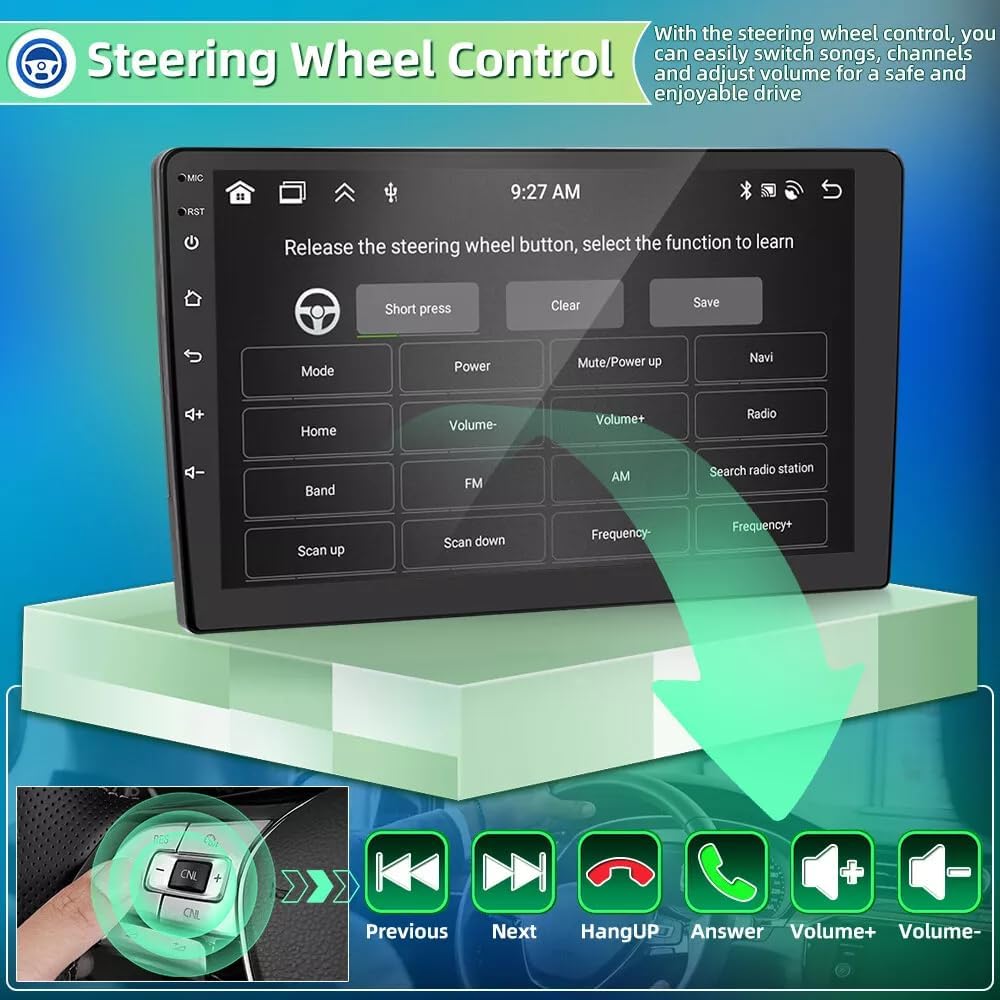
2. Steering Wheel Control (SWC)
The unit supports steering wheel controls, allowing you to manage audio and calls without taking your hands off the wheel. This feature enhances safety and convenience.
- Access the 'Steering Wheel Control' settings in the unit's menu.
- Follow the on-screen instructions to map your vehicle's steering wheel buttons to the desired functions (e.g., volume up/down, track skip, answer/end call).

3. Split Screen Functionality
The split-screen feature allows you to run two applications simultaneously on the 10.1-inch display, such as navigation and music playback.
- To activate split screen, open an application, then long-press the recent apps button or follow the specific gesture for your Android version.
- Select a second application to display alongside the first.
- You can adjust the size and position of each app window.

4. Audio and Multimedia
The unit supports various audio and video formats and includes a built-in Digital Signal Processor (DSP) for enhanced sound quality.
- DSP: Access the DSP settings to adjust equalization, balance, fader, and other audio parameters to optimize your listening experience.
- Media Playback: Play audio and video files from USB drives or streaming services via connected mobile devices.
- FM/RDS Radio: Tune into FM radio stations. RDS (Radio Data System) provides additional information like station name and song title where available.

5. Backup Camera Support
The unit supports AHD/CVBS reversing input for a backup camera, providing a clear view of the area behind your vehicle when reversing.
- Connect a compatible backup camera to the dedicated input.
- The display will automatically switch to the camera view when the vehicle is put into reverse gear.

Maintenance
- Cleaning: Use a soft, dry cloth to clean the screen and unit exterior. Avoid abrasive cleaners or solvents.
- Software Updates: Periodically check for software updates to ensure optimal performance and access to new features. Updates can typically be found through the system settings or the manufacturer's website.
- Data Backup: Regularly back up important data or settings if applicable.
Troubleshooting
- No Power: Check all power connections and the vehicle's fuse box. Ensure the ignition is on.
- No Sound: Verify speaker connections, volume levels, and audio source selection. Check DSP settings.
- Bluetooth/ZLINK Connection Issues: Ensure Bluetooth is enabled on both devices. Try restarting Bluetooth on both the head unit and your mobile device. If using ZLINK, ensure WiFi hotspot is correctly configured if Bluetooth connection fails.
- GPS Signal Loss: Ensure the GPS antenna has a clear view of the sky and is securely connected.
- Touchscreen Unresponsive: Try restarting the unit. If the issue persists, a factory reset might be necessary (note: this will erase all user data).
- Unit Freezes/Crashes: Perform a soft reset by pressing the reset button (if available) or by turning off the vehicle's ignition and restarting.
Warranty and Support
For warranty information, technical support, or service inquiries, please refer to the warranty card included with your product or contact Surakey customer service directly. Keep your purchase receipt as proof of purchase.