
1. Introduction
This manual provides essential information for setting up, operating, and maintaining your Jumper 17.6-inch EZbook P1 laptop. This device is designed for productivity and entertainment, featuring an Intel N95 processor, 16GB DDR5 RAM, and a combination of 1TB SSD and 128GB eMMC storage. It comes pre-installed with Windows 11 and includes a 12-month subscription to Office 365.

Figure 1.1: The Jumper 17.6-inch EZbook P1 laptop, showcasing its large display and sleek design.
2. Safety Information
- Do not expose the laptop to extreme temperatures, direct sunlight, or high humidity.
- Avoid placing heavy objects on the laptop.
- Keep liquids away from the device to prevent electrical shock or damage.
- Use only the provided charger or a compatible power adapter.
- Do not attempt to disassemble or repair the laptop yourself. Contact customer support for assistance.
3. Package Contents
Verify that all items are present in the box:
- Jumper EZbook P1 Laptop
- Power Adapter/Charger
- User Manual (this document)
Video 3.1: An unboxing review of the Jumper EZbook P1 laptop, showing the contents of the package.
4. Laptop Overview
4.1 External Components
The Jumper EZbook P1 features a 17.6-inch Full HD IPS display with a 1920x1200 resolution, offering a wide viewing experience. The laptop includes a full-size backlit keyboard and a large touchpad for comfortable navigation.

Figure 4.1: Comparison illustrating the larger 17.6-inch IPS Full HD display of the EZbook P1 compared to smaller laptop screens.

Figure 4.2: The backlit keyboard of the EZbook P1, featuring a dedicated numeric keypad for enhanced productivity.
4.2 Ports and Connectivity
The laptop is equipped with a variety of ports for versatile connectivity:
- 3 x USB 3.0 ports
- 1 x Type-C port (full-featured: charging, data transfer, video output)
- 1 x HDMI port
- 1 x 3.5mm Headphone Jack
- 1 x Micro TF Card Slot
- 1 x DC Fast-Charging Port

Figure 4.3: Side view of the Jumper EZbook P1, highlighting the various input/output ports available.

Figure 4.4: Illustration of the multi-functional USB-C port, supporting fast charging, video output, and high-speed data transfer.
5. Setup
5.1 Initial Power On and Charging
- Connect the power adapter to the DC fast-charging port on the laptop and then to a power outlet.
- Allow the laptop to charge for at least 30 minutes before the first use, or until the battery indicator shows sufficient charge.
- Press the power button to turn on the laptop.

Figure 5.1: The internal 7000mAh (38Wh) battery, providing extended usage time.
5.2 Windows 11 and Office 365 Setup
Follow the on-screen instructions to complete the initial Windows 11 setup. This includes selecting your region, connecting to Wi-Fi, and creating a user account. Your laptop includes a 12-month subscription to Office 365. Follow the prompts during Windows setup or refer to the included documentation for activation instructions.

Figure 5.2: The laptop comes with a 12-month subscription to Office 365, including Word, Excel, and PowerPoint.
6. Operating the Laptop
6.1 Keyboard and Touchpad
- Backlit Keyboard: Press Fn + Spacebar to toggle the keyboard backlight on or off.
- Touchpad: Supports multi-touch gestures for navigation. Refer to Windows settings for customization.
6.2 Display and External Monitors
The 17.6-inch FHD display provides clear visuals. You can connect an external monitor using the HDMI port or the full-featured Type-C port for extended display options.
Video 6.1: Demonstrates the visual experience of the 17.6-inch super-large screen.
6.3 Audio and Webcam
- Stereo Speakers: The laptop features dual stereo speakers for audio output.
- Webcam: A built-in webcam is included for video calls. It features a physical slide cover for privacy.

Figure 6.1: The physical slide cover for the webcam, allowing users to control their privacy.
7. Maintenance
7.1 Cleaning
- Use a soft, lint-free cloth to clean the screen. Avoid harsh chemicals.
- Wipe the keyboard and chassis with a slightly damp cloth. Ensure no moisture enters openings.
7.2 Battery Care
- To prolong battery life, avoid fully discharging the battery frequently.
- Store the laptop in a cool, dry place if not used for extended periods.
7.3 Storage Management
The laptop includes 1TB SSD and 128GB eMMC storage. Regularly back up important data and manage files to optimize performance. The storage is expandable, allowing for future upgrades.

Figure 7.1: Visual representation of the Intel N95 processor, 16GB DDR5 RAM, and the 1TB SSD + 128GB eMMC storage configuration.
8. Troubleshooting
| Issue | Possible Solution |
|---|---|
| Laptop does not power on | Ensure the power adapter is securely connected and the outlet is functional. Charge the battery for at least 30 minutes. |
| Display is blank | Check if the laptop is powered on. Connect an external monitor to verify if the issue is with the laptop's display. |
| Wi-Fi connection issues | Restart the laptop and your Wi-Fi router. Check Wi-Fi settings in Windows to ensure the adapter is enabled and connected to the correct network. |
| Audio not working | Check volume levels and ensure speakers are not muted. Verify audio drivers are up to date in Device Manager. |
9. Specifications
| Feature | Detail |
|---|---|
| Screen Size | 17.6 Inches |
| Screen Resolution | 1920 x 1200 pixels (FHD) |
| Processor | Intel N95 (4 cores) |
| RAM | 16GB DDR5 |
| Hard Drive | 1TB SSD + 128GB eMMC |
| Graphics Coprocessor | UHD Graphics 450MHz (Integrated) |
| Operating System | Windows 11 |
| Wireless Type | Wi-Fi 6 (2.4 GHz, 5 GHz), Bluetooth 5.2 |
| Battery | 7000mAh (38Wh) Lithium Polymer |
| Item Weight | 4.84 pounds |
| Product Dimensions | 15.51 x 11.1 x 0.8 inches |
| Special Features | Anti-Glare Coating, Backlit Keyboard, HD Audio, Lightweight, Office 365 1-Year |
10. Warranty and Support
10.1 Warranty Information
Jumper laptops come with a one-year warranty. This warranty covers manufacturing defects and hardware malfunctions under normal use conditions. Please retain your proof of purchase for warranty claims.
10.2 Customer Support
If you encounter any issues or require assistance, please contact Jumper customer support. You can reach us through the following methods:
- Amazon Buyer Account: Log in to your Amazon account, find your order, and click "Get Product Support."
- Email: service@jumper-customersupport.com
Our support team is available to assist you within 24 hours.
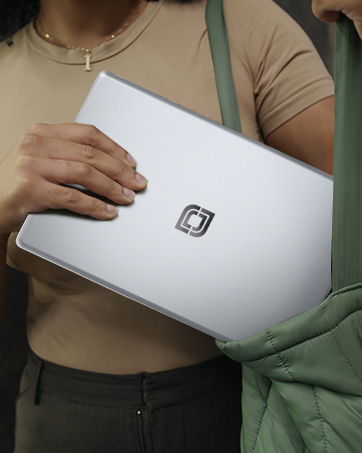
Figure 10.1: Jumper customer support contact details and warranty period overview.