
1. Introduction
This manual provides essential information for setting up, operating, maintaining, and troubleshooting your Samsung Galaxy Tab A11 WiFi tablet. Please read this manual carefully to ensure proper use and to maximize the device's performance and longevity.
Note: This model is intended for the Latin America market and does not include a USA warranty. It supports WiFi connectivity only, with no cellular call or data capabilities.
2. What's in the Box
- Samsung Galaxy Tab A11 Tablet
- USB Cable
- Power Adapter
3. Setup
3.1 Initial Power On and Configuration
- Press and hold the Power button (located on the side) until the Samsung logo appears.
- Follow the on-screen prompts to select your language, connect to a Wi-Fi network, and agree to the terms and conditions.
- Sign in with your Google account or create a new one.
- Set up your preferred screen lock method (Face recognition, Pattern, PIN, or Password).
- Choose your display mode (Light or Dark).
3.2 Inserting a MicroSD Card
The Galaxy Tab A11 supports expandable storage via a MicroSD card. Locate the MicroSD card slot on the side of the tablet. Use the provided SIM ejector tool (if applicable) to open the tray, insert the MicroSD card, and close the tray securely.
3.3 Charging the Device
Connect the USB cable to the tablet's USB-C port and the power adapter. Plug the power adapter into a wall outlet. The device supports 15W fast charging.
4. Operating Instructions
4.1 Navigation and Interface
- Home Screen: Access your apps and widgets. The home screen features an updated widget style.
- Notification Panel: Swipe down from the top of the screen to access notifications and quick settings. You can customize the quick settings layout.
- Edge Panel: Swipe from the side of the screen to access the Edge Panel, which provides shortcuts to frequently used apps and functions.
- Taskbar: Located at the bottom of the screen, the taskbar allows for quick switching between applications.
4.2 Display Settings
- Motion Smoothness: Navigate to Settings > Display > Motion smoothness. Choose between 'Adaptive' (up to 90Hz refresh rate for smoother animations) or 'Standard' (60Hz for longer battery life).
- Display Mode: Select between Light or Dark mode for the user interface.
4.3 Security Features
To protect your tablet, set up a screen lock:
- Face Recognition: Unlock your tablet using your face.
- Pattern: Draw a specific pattern on the screen.
- PIN: Enter a numeric code.
- Password: Enter an alphanumeric password.
4.4 Side Button Customization
By default, holding the power button brings up the power menu. You can customize the double-press action of the side button:
- Go to Settings > Advanced features > Side button.
- Choose to launch the Camera, Voice Recorder, Samsung Notes, Samsung Capture, Modes and Routines, or any other installed app.
5. Features
5.1 Design and Display
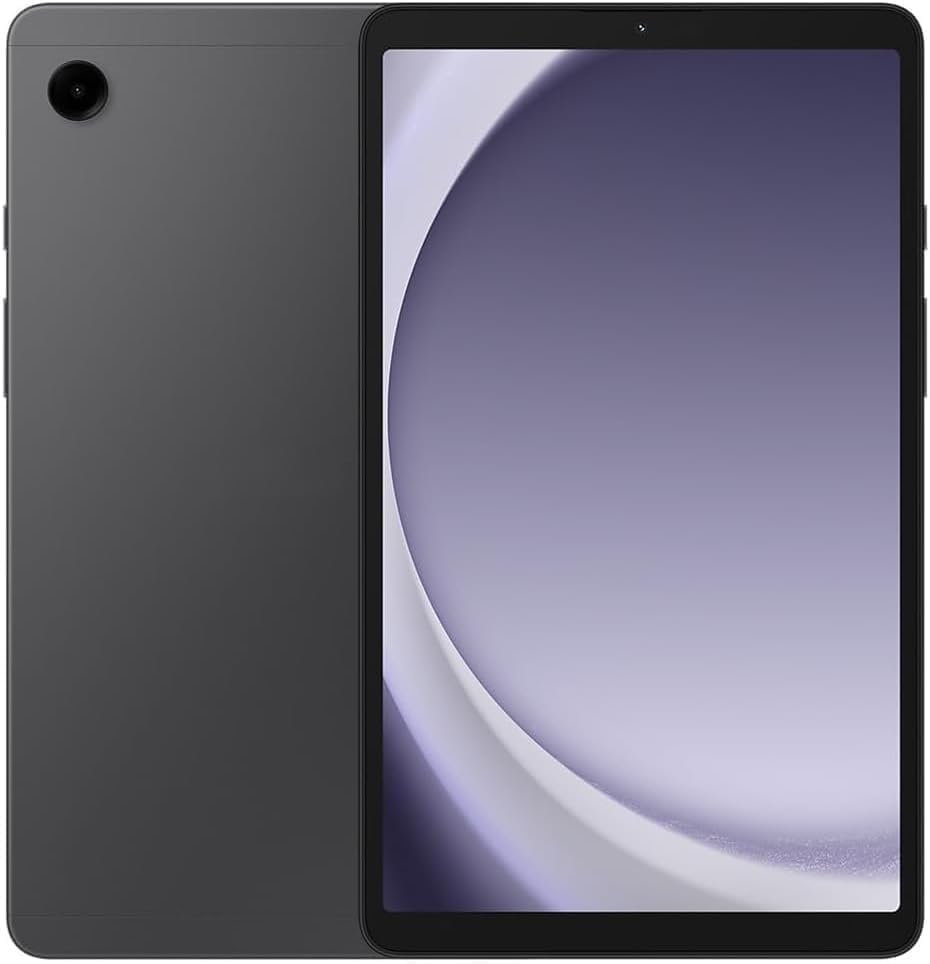
The Samsung Galaxy Tab A11 features a sleek, refined design with a streamlined silhouette. It comes with an 8.7-inch TFT LCD display with a resolution of 1340 x 800 (WXGA+). The display now supports a 90Hz refresh rate for smoother visuals.
5.2 Performance
Powered by an Octa-core processor (2x2.2 GHz Cortex-A76 & 6x2.0 GHz Cortex-A55) with Mali-G57 MC2 GPU, the tablet offers reliable performance for everyday tasks and light gaming. It is available with 4GB or 8GB of RAM and 64GB or 128GB of internal storage, expandable via MicroSD card.
5.3 Cameras
- Rear Camera: 8.0 MP with Auto Focus.
- Front Camera: 5.0 MP (upgraded from 2.0 MP in previous models).
- Video Recording: Both front and rear cameras support HD (1920 x 1080) @30fps video recording.
5.4 Audio
The Galaxy Tab A11 features Dolby-engineered Dual Speakers for a rich, multidimensional audio experience. It also includes a 3.5mm audio jack for wired headphones.
5.5 Connectivity
- Wi-Fi: 802.11a/b/g/n/ac 2.4GHz+5GHz, VHT80, Wi-Fi Direct.
- Bluetooth: Version 5.3 (A2DP, AVRCP, DI, HFP, HID, HOGP, HSP, MAP, OPP, PAN, PBAP profiles).
- USB: USB 2.0 (Type-C).
- Location Technology: GPS, Glonass, Beidou, Galileo, QZSS.
5.6 Software and Updates
The tablet runs on Android 15 with One UI 7.0. It is notable for receiving 7 years of software updates, ensuring long-term support and security.
6. Specifications
| Feature | Specification |
|---|---|
| Standing Screen Display Size | 8.7 Inches |
| Screen Resolution | 1340x800 Pixels |
| Max Screen Resolution | 1340 x 800 Pixels |
| Processor | 2.2 GHz Octa-core (MediaTek Helio G99 equivalent) |
| Card Description | Integrated |
| Wireless Type | 802.11a, 802.11ac, 802.11b, 802.11g, 802.11n |
| Operating System | Android 15, One UI 7.0 |
| Item Weight | 13 ounces |
| Product Dimensions | 8.31 x 0.31 x 4.91 inches |
| Color | Gray SM-X113NZAAL15 |
| Processor Brand | Samsung |
| Batteries | 1 Nonstandard Battery (included), 5100 mAh |
| Charging | 15W Fast Charging |
7. Maintenance
7.1 Cleaning Your Tablet
Use a soft, lint-free cloth to gently wipe the screen and body of the tablet. Avoid using harsh chemicals or abrasive materials that could damage the device.
7.2 Software Updates
Regularly check for and install software updates to ensure your tablet has the latest features, security patches, and performance improvements. Navigate to Settings > Software update to check for available updates.
7.3 Battery Care
To prolong battery life, avoid exposing the tablet to extreme temperatures. It is recommended to keep the battery charge between 20% and 80% for optimal long-term health. Avoid leaving the tablet plugged in for extended periods after it's fully charged.
8. Troubleshooting
8.1 Common Issues
- Device not turning on: Ensure the battery is charged. Connect the tablet to the power adapter and try again.
- Slow performance: Close unused apps, clear cache, or restart the device. Check for available software updates.
- Wi-Fi connectivity issues: Restart your router and the tablet. Forget the network and reconnect.
- Apps crashing: Ensure apps are updated to their latest versions. Clear the app's cache or reinstall it.
8.2 Factory Reset
If you encounter persistent issues, a factory reset may resolve them. Warning: This will erase all data on your tablet. Back up important data before proceeding. Navigate to Settings > General management > Reset > Factory data reset.
9. Warranty and Support
This Samsung Galaxy Tab A11 model is specifically for the Latin America market. There is no warranty coverage in the USA for this device. For support and warranty information within the designated market, please refer to the documentation provided with your purchase or contact Samsung customer service in your region.
For additional assistance, visit the official Samsung support website or contact their customer service channels.


