
YLEEBG P30
YLEEBG P30 Android 15 Tablet User Manual
Model: P30
Brand: YLEEBG
1. Introduction
This manual provides essential information for setting up, operating, and maintaining your YLEEBG P30 Android 15 Tablet. Please read this guide thoroughly to ensure proper use and to maximize your device's performance and longevity.
2. Package Contents
Verify that all items listed below are included in your package:
- YLEEBG 10-inch Tablet
- Bluetooth Keyboard
- Wireless Mouse
- Stylus
- Tablet Protective Case
- Charging Head (USB Charger)
- USB-C Charging Cable
- OTG Cable
- User Manual

Figure 2.1: YLEEBG P30 Tablet and its complete set of accessories.
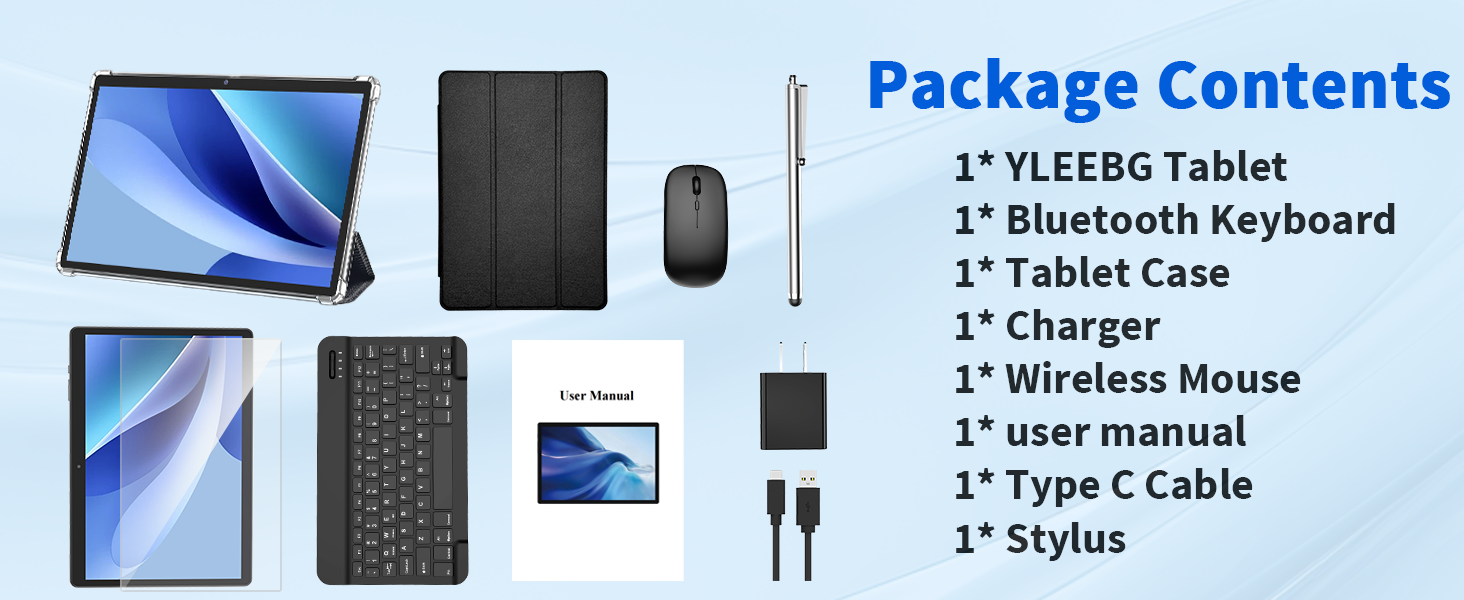
Figure 2.2: Visual representation of all items included in the YLEEBG P30 Tablet package.
3. Setup
3.1. Charging the Tablet
Before first use, fully charge your tablet. Connect the USB-C charging cable to the tablet's USB-C port and the charging head to a power outlet. The battery indicator on the screen will show charging status.
3.2. Powering On/Off
- To Power On: Press and hold the Power button until the YLEEBG logo appears.
- To Power Off: Press and hold the Power button until the power options appear on the screen. Select "Power Off".
- To Restart: Press and hold the Power button until the power options appear on the screen. Select "Restart".
3.3. Connecting Bluetooth Accessories (Keyboard & Mouse)
- Ensure the Bluetooth Keyboard and Wireless Mouse are charged and powered on.
- On your tablet, go to Settings > Connected devices > Bluetooth.
- Toggle Bluetooth On.
- Select "Pair new device" and choose your Bluetooth Keyboard and Wireless Mouse from the list of available devices. Follow any on-screen prompts to complete pairing.
Video 3.1: Demonstrates the setup and use of the YLEEBG P30 Tablet with its included keyboard and mouse accessories.
Video 3.2: Overview of the YLEEBG P30 Android 15 Tablet and its features, including the keyboard accessory.
3.4. Inserting a MicroSD Card
To expand storage, locate the MicroSD card slot on the side of the tablet. Gently insert a MicroSD card (up to 2TB, not included) until it clicks into place. The tablet will recognize the new storage automatically.
4. Operating the Tablet
4.1. Basic Navigation (Android 15)
Your YLEEBG P30 runs on Android 15, offering an intuitive user experience. Swipe up from the bottom for the app drawer, swipe down from the top for quick settings and notifications. Use gestures or the navigation bar for Home, Back, and Recent Apps.

Figure 4.1: Android 15 operating system interface on the YLEEBG P30 Tablet, highlighting privacy control and multitasking capabilities.
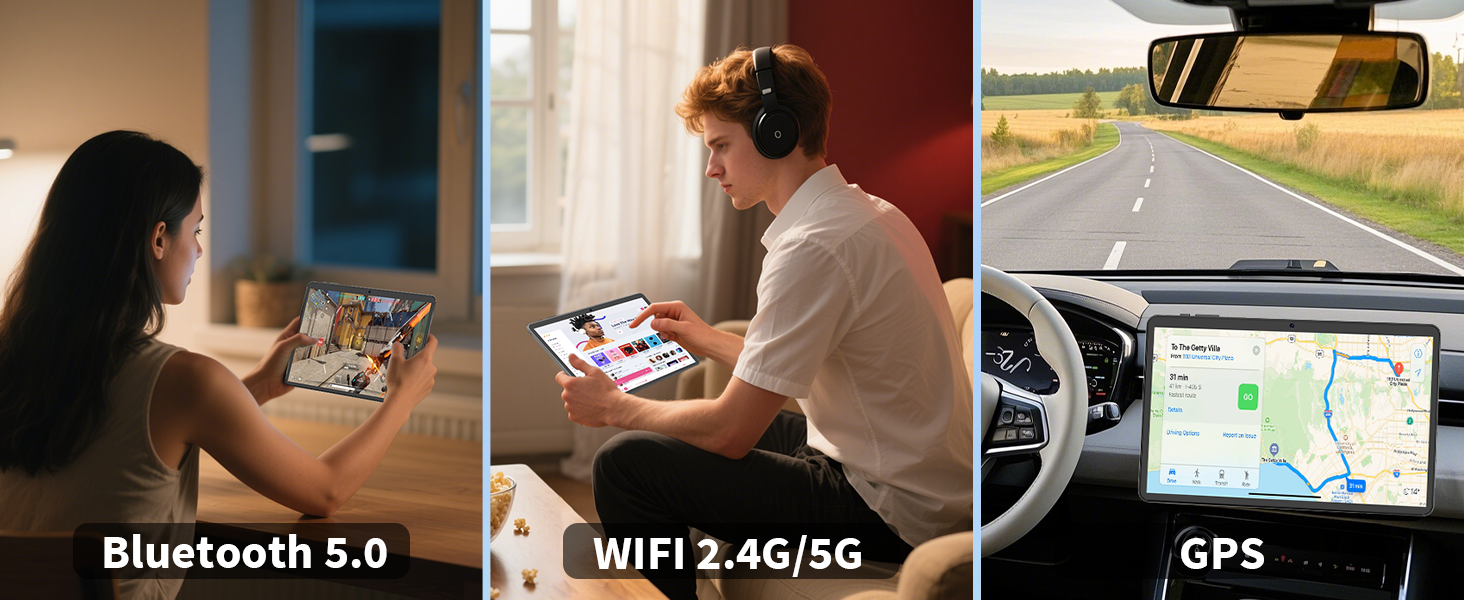
Figure 4.2: Key features of the Android 15 OS on the tablet, emphasizing privacy and optimized performance.
4.2. Wi-Fi Connection (2.4G/5G)
To connect to Wi-Fi, go to Settings > Network & internet > Wi-Fi. Select your desired network and enter the password if prompted. The tablet supports both 2.4GHz and 5GHz bands for stable and fast connections.
4.3. Camera Usage
The tablet features a 5MP front camera and a 13MP rear camera. Open the Camera app to capture photos and videos. Tap the screen to focus and press the shutter button to take a picture.

Figure 4.3: Detail of the tablet's 13MP rear camera and 5MP front camera for capturing clear images.
4.4. Storage Management
With 26GB RAM and 256GB ROM, the tablet offers ample space. Manage your storage by going to Settings > Storage. You can view used space and free up storage if needed. Expand storage further with a MicroSD card up to 2TB.

Figure 4.4: Tablet interface showing available applications and emphasizing the large memory and expandable storage.

Figure 4.5: Tablet screen illustrating the substantial storage capacity and options for memory expansion.
4.5. Widevine L1 Support
The YLEEBG P30 supports Widevine L1, allowing you to stream high-definition content from popular platforms like Netflix. Ensure your internet connection is stable for the best viewing experience.
4.6. Gemini AI Integration
Leverage the integrated Gemini AI for enhanced smart features and optimized performance. This AI assists with various tasks, improving efficiency and user interaction.
4.7. Split Screen Mode
To use split-screen mode, open an app, then swipe up from the bottom of the screen to reveal the recent apps. Tap the app icon at the top of one of the app cards and select "Split screen". Choose a second app to use simultaneously.

Figure 4.6: Tablet screen demonstrating the split-screen feature, allowing two applications to run side-by-side.
5. Maintenance
5.1. Battery Care
The 8000mAh battery provides extended usage. To prolong battery life:
- Avoid extreme temperatures.
- Do not let the battery drain completely regularly.
- Unplug the charger once the tablet is fully charged.
- Adjust screen brightness and close unused apps to conserve power.

Figure 5.1: Visual guide to the tablet's long-lasting 8000mAh battery, indicating usage times for various activities.
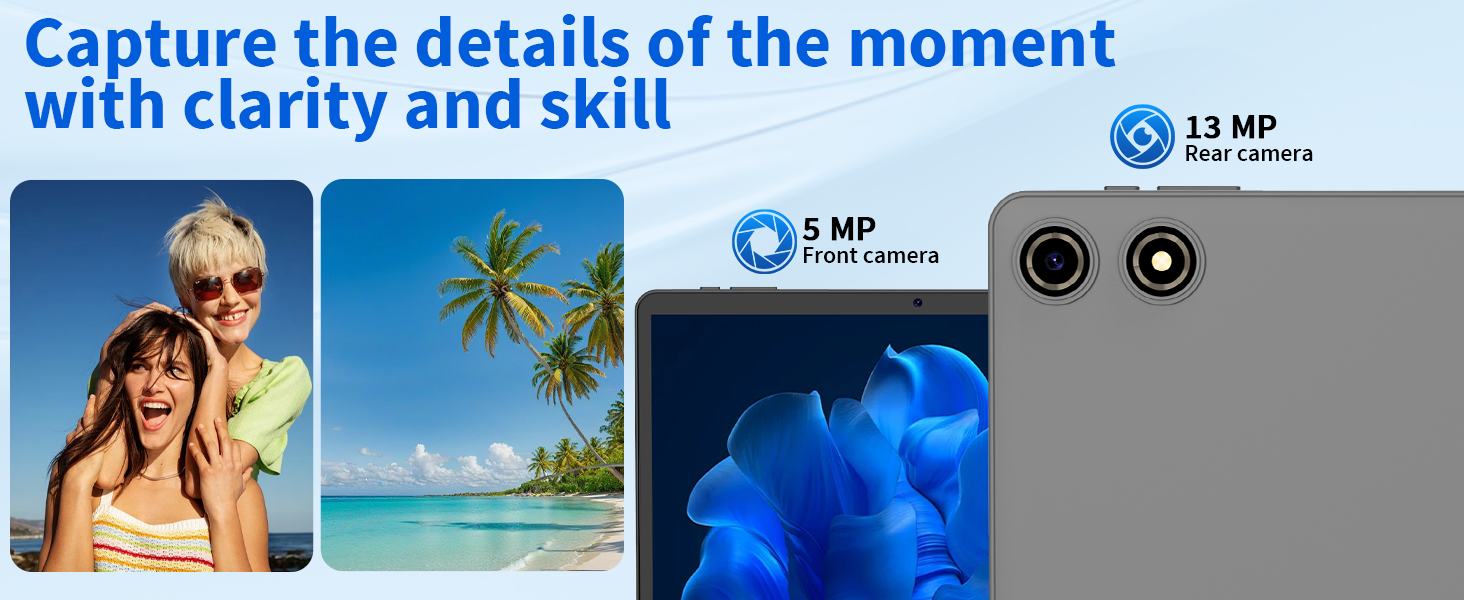
Figure 5.2: Illustration of the tablet's 8000mAh battery and its Type-C charging capability.
5.2. Cleaning
Use a soft, lint-free cloth to clean the screen and body of the tablet. Avoid abrasive cleaners or solvents that could damage the device.
5.3. Software Updates
Periodically check for software updates to ensure your tablet has the latest features and security patches. Go to Settings > System > System update.
6. Troubleshooting
- Tablet not turning on: Ensure the tablet is charged. Connect it to the charger and wait a few minutes before attempting to power on again.
- Slow performance: Close unused applications, clear cache, or restart the tablet. Consider uninstalling unnecessary apps to free up storage.
- Wi-Fi connection issues: Restart your router and the tablet. Ensure you are within range of the Wi-Fi signal and have entered the correct password.
- Bluetooth accessories not connecting: Ensure the accessories are charged, powered on, and in pairing mode. Restart Bluetooth on the tablet and try pairing again.
- Screen unresponsive: Perform a forced restart by holding the Power button for approximately 10-15 seconds.
7. Specifications
| Feature | Specification |
|---|---|
| Model | P30 |
| Operating System | Android 15 |
| Display Size | 10 Inches |
| Screen Resolution | 1280 x 800 Pixels |
| RAM | 26GB (4+22GB) |
| Internal Storage (ROM) | 256GB |
| Expandable Storage | Up to 2TB via MicroSD card |
| Battery Capacity | 8000mAh |
| Front Camera | 5MP |
| Rear Camera | 13MP |
| Wireless Connectivity | 2.4G/5G WiFi (802.11ac, 802.11b, 802.11g, 802.11n), Bluetooth 5.0 |
| Processor Brand | MediaTek (A333 8-core processor) |
| Special Features | Widevine L1, Gemini AI, Face Unlock, Smart Split Screen, GPS |
| Item Weight | 2.86 pounds |
| Product Dimensions | 10.7 x 7.5 x 2.5 inches |
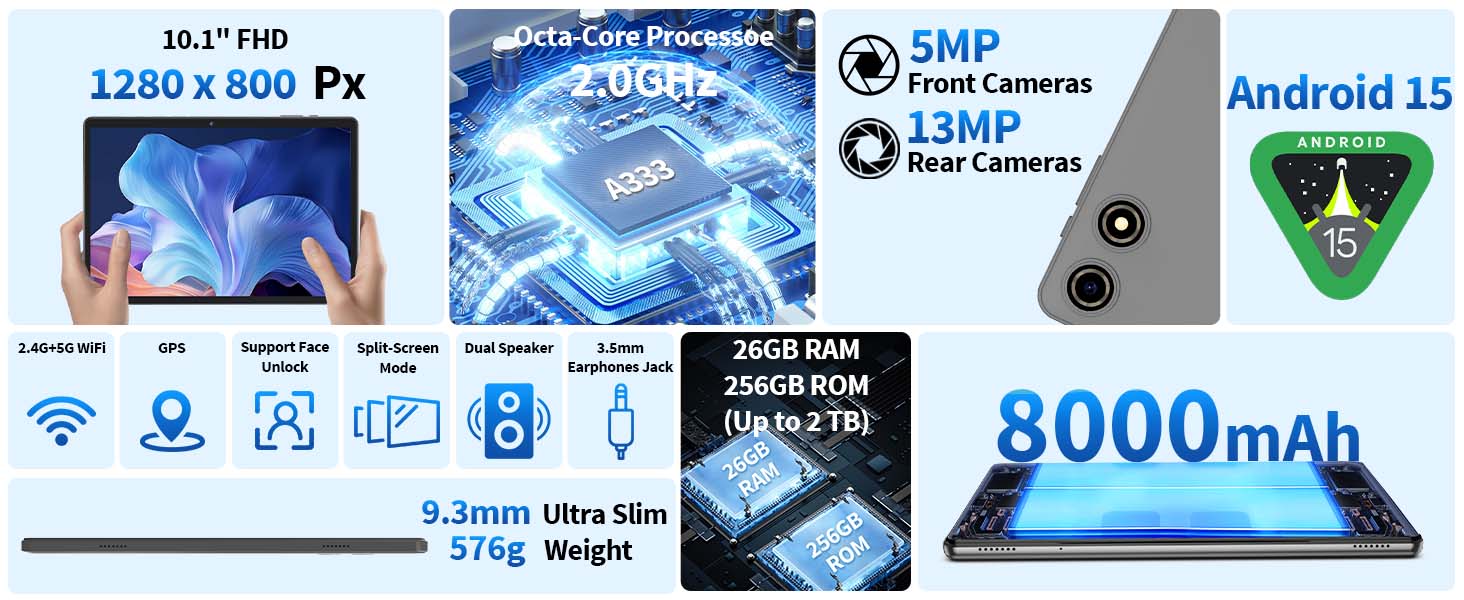
Figure 7.1: Overview of the YLEEBG P30 Tablet's technical specifications.
8. Warranty and Support
For warranty information and technical support, please refer to the contact details provided on the product packaging or the official YLEEBG website. Keep your purchase receipt as proof of purchase for warranty claims.
Ask a question about this manual
Ask about setup, troubleshooting, compatibility, parts, safety, or missing instructions. Manuals+ will review the question and use this page’s manual context to help answer it.